
How to Convert Google Slides to PowerPoint (and Back Again)
Google Slides and PowerPoint open each other's files, but fonts, videos, and SmartArt do not always survive the trip. Here are the three ways to move a deck between them and how to check the result.
How to convert Google Slides to PowerPoint: the short answer
To convert Google Slides to PowerPoint, open your presentation in Google Slides, click File > Download, and choose the Microsoft PowerPoint (.pptx) format. A copy of the deck downloads to your computer, and the original stays in Google Drive.
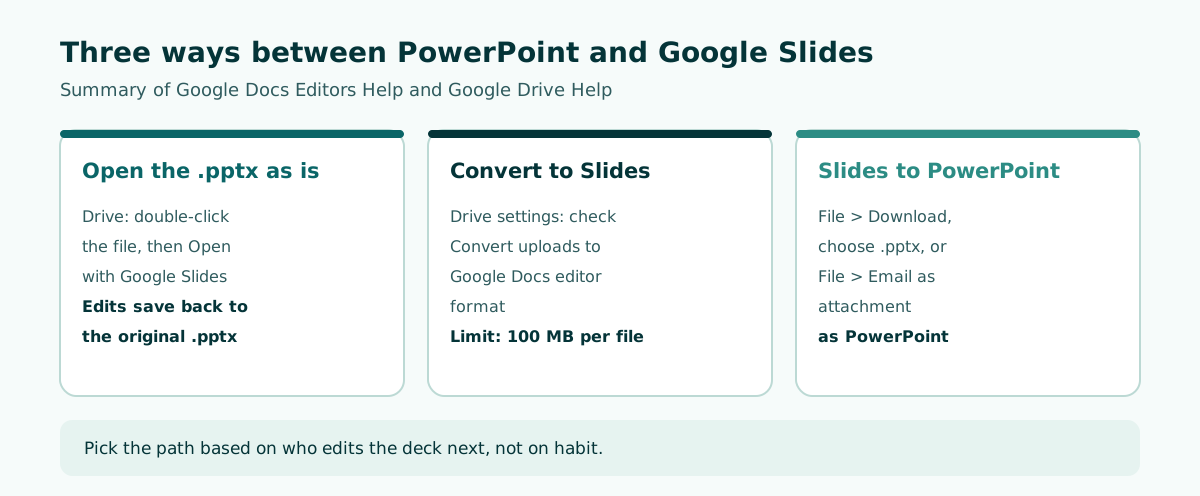
Going the other way, from PowerPoint to Google Slides, is just as quick. Upload the .pptx file to Google Drive, double-click it, and click Open with Google Slides. If you want a native Google Slides file instead, turn on upload conversion in your Drive settings first.
Those steps take under a minute. What catches people out is what happens afterwards: a font gets swapped, an embedded video turns into a still image, or a SmartArt diagram stops behaving like SmartArt. This guide walks through the three ways to move a deck between the two apps, what changes on each route according to Google and Microsoft documentation, and how to check the result before you present. If you need a refresher on the file format itself, see what a PPT file is.
Scroll the table sideways to see every column.
| You have | You need | Quickest route |
|---|---|---|
| A .pptx from a colleague | Edit it in Google Slides and keep it as .pptx | Drive, double-click, Open with Google Slides |
| A .pptx file | A native Google Slides file for team editing | Turn on upload conversion in Drive settings, then upload |
| A Google Slides deck | A PowerPoint file to send or present | File, Download, choose .pptx |
| A Google Slides deck | Send it straight to a PowerPoint user | File, Email as attachment, choose PowerPoint |
Google Slides vs PowerPoint: how they differ day to day
Both apps build slides, but they work in different ways. Google's own guide for people switching from PowerPoint explains that a Google Slides presentation saves automatically in Drive as you work, so there is no Save button to remember. You open older versions through File > Version history, and people you share with can edit, comment, and pick up assigned tasks in the same file at the same time.
PowerPoint is file-first. You save a .pptx to your computer, OneDrive, or SharePoint and pass that file around. That model suits talks given from a laptop that may not have reliable Wi-Fi, such as a conference room projector or a lecture hall PC. Google Slides can work offline too, but it needs setting up in advance: install the Google Docs Offline extension, turn on offline access in Drive settings, and mark the file as Available offline.
Scroll the table sideways to see every column.
| Aspect | Google Slides | PowerPoint |
|---|---|---|
| Where the file lives | Google Drive, opened in a browser | A .pptx on your computer, OneDrive, or SharePoint |
| Saving | Automatic while online | Manual save or AutoRecover |
| Co-editing | Share from Drive, edit and comment at once | Through SharePoint or OneDrive |
| History | File, Version history | Version history in SharePoint or OneDrive |
| Offline | Needs an extension and offline settings | Works straight from a local file |
So the real question is rarely "which app is better" but who edits next and which computer runs the talk. A class project built by four students fits Google Slides well, and our group presentation guide covers how to split the work. A client pitch that must be handed over as a file is safer prepared as .pptx from the start.
How to open PowerPoint in Google Slides
This route does not change the file format. The file stays a .pptx, but you can edit it in your browser. According to Google Docs Editors Help:
- Upload the .pptx to Google Drive, or find it if it is already there.
- Double-click the file. A preview opens.
- At the top, click Open with Google Slides.
- Edit as usual. Google states that any changes you make are saved to the original Microsoft Office file.
Because edits land in the original .pptx, this is the easiest way to handle small revisions with a colleague who sticks with PowerPoint. Nobody has to email a new version back; you both work on the same file in Drive.
Password-protected files behave a little differently. Google explains that they open to a password screen with two choices: Preview opens a read-only view, while Edit removes the password from the file for all users and leaves access controlled by Drive sharing. This works for .pptx only, not the older .ppt format. If the file refuses to open at all, the causes and fixes are in what to do when PowerPoint won't open.
Convert a PowerPoint into a native Google Slides file
If your team will live in Google Slides from now on, converting the .pptx into a native Slides file keeps things tidy. In Google Drive, open Settings and check Convert uploads to Google Docs editor format. From then on, Office files you upload are turned into Google files automatically.
There is a size limit. Google Drive Help lists up to 100 MB for presentations converted to Google Slides. Decks packed with full-resolution photos or video often exceed that, so shrink them first using our guide to reducing PowerPoint file size, then upload again.
The list of formats Google can convert is longer than you might expect. For presentations it includes .ppt (newer than Office 95), .pptx, .pptm, .pps, .ppsx, .ppsm, .pot, .potx, .potm, and .odp. You can create an .odp from PowerPoint as well: Microsoft notes that PowerPoint files can be saved in the OpenDocument Presentation format so they open in apps such as Google Docs and OpenOffice.
After converting, you have two files, the original .pptx and the new Slides version. Rename one of them clearly, for example by adding "Slides version", so nobody edits the wrong copy. If the deck is table-heavy, recheck column widths and text sizes; our table guide shows how to tidy them up again.
Convert Google Slides to PowerPoint step by step
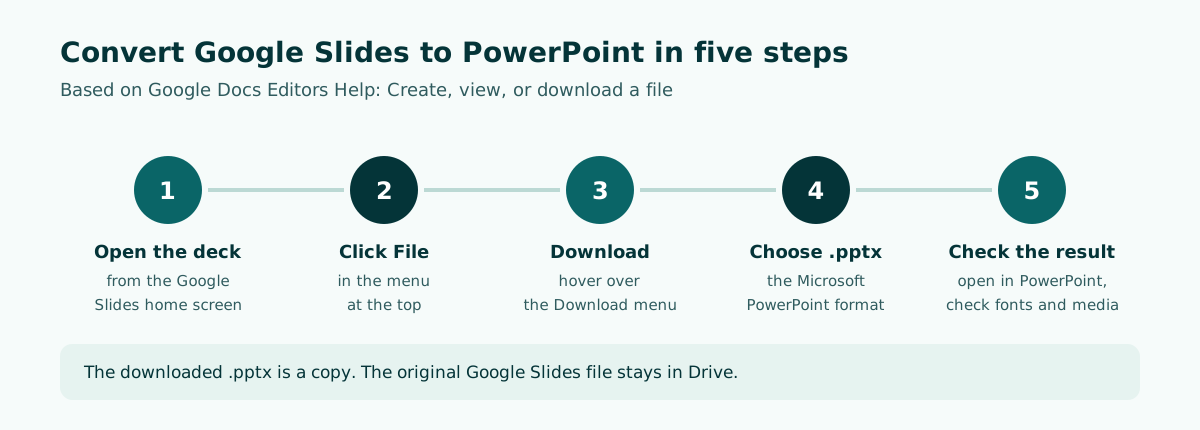
Going from Slides to PowerPoint follows Google Docs Editors Help on downloading a copy of a file:
- On your computer, open the Google Slides home screen and open your presentation.
- At the top, click File.
- Hover over Download.
- Choose Microsoft PowerPoint (.pptx). The file downloads to your computer.
- Open the downloaded file in PowerPoint and click through every slide in Slide Show.
The .pptx you get is a copy. The original Google Slides deck stays in Drive, unchanged. If you keep editing in Slides afterwards, download again so the file you send to the event organizer is not a version behind.
When the recipient uses PowerPoint and you just want it in their inbox, Google's switching guide offers a shortcut: from the presentation, click File > Email as attachment, choose PowerPoint or PDF under Attach as, add the address, subject, and message, and click Send. If the deck will also be handed out on paper, follow how to print PowerPoint slides once it opens in PowerPoint.
What changes when a deck switches formats
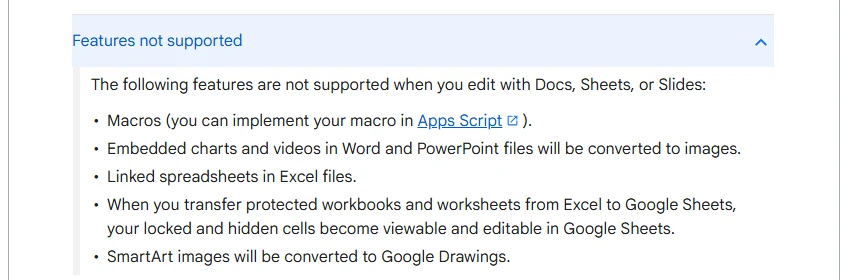
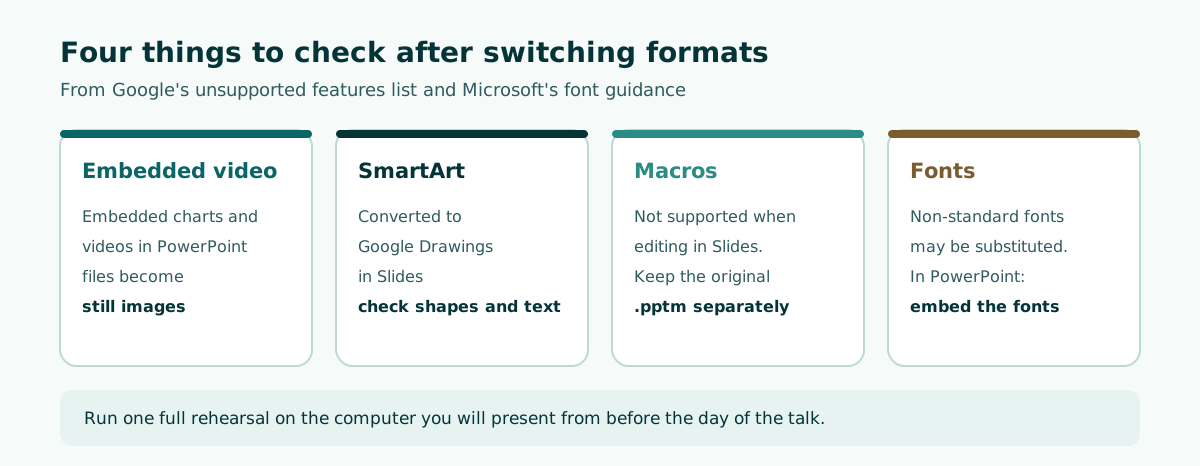
Google publishes a list of features that are not supported when you edit Office files in Docs, Sheets, or Slides. Three of them matter most for presentations:
- Macros are not supported. Google suggests rebuilding them in Apps Script. Keep any macro-enabled .pptm as a separate original.
- Embedded charts and videos in PowerPoint files are converted to images. A video that used to play becomes a still frame.
- SmartArt is converted to Google Drawings. You can still edit the shapes, but they are no longer a SmartArt graphic.
How much this matters depends on the deck. Slides made of titles, short bullets, and photos usually move across cleanly. A training deck that relies on embedded clips needs more care: link the video from YouTube or Drive instead, or insert it again once the file has been converted. The steps for doing that are in how to embed a video in PowerPoint.
Check SmartArt diagrams one by one as well. If a diagram carries the logic of your talk, consider rebuilding it in the destination app. Our SmartArt guide explains which layout suits which kind of content.
Fonts, animations, and layout: check before you present
Fonts cause the most trouble, because the computer that opens your file may not have the typeface you used. Microsoft explains that embedding fonts is still useful when you use non-standard fonts or expect someone else to edit or view the presentation offline, and that embedded fonts help avoid font substitution.
If your final file is a .pptx that will run on someone else's laptop, embed the fonts in PowerPoint:
- Click the File tab, then Options.
- In the left column, select the Save tab.
- At the bottom, under Preserve fidelity when sharing this presentation, select Embed fonts in the file.
- Decide whether to tick Embed only the characters used in the presentation. Microsoft notes this reduces file size but limits editing with the same font.
The safest habit is still to choose common fonts from the start. Our guide to making a PowerPoint presentation covers type choices and hierarchy. If you work from a template, confirm the layouts still line up after the move; the Slide Master guide shows how to fix placeholders that drift.
Animations and transitions deserve a test run too. Not every effect has an identical match in both apps, so play the whole show and watch the order in which objects appear. Our PowerPoint animation guide covers the basics.
Edit a PowerPoint without converting it: Office Compatibility Mode
Besides opening a .pptx directly in Slides, Google offers Office Compatibility Mode (OCM). With OCM you can open and edit Office files in Drive, the Docs, Sheets, and Slides home screens, and Gmail. According to Google Docs Editors Help, OCM only works in the Chrome browser on a computer, with the Office Editing for Docs, Sheets & Slides extension installed.
Checking whether it is active is simple. Open an Office file, click the File menu, and look for Office Compatibility Mode. If you see it, you can edit the file or save it to Google format. For presentations, OCM opens .ppt (newer than Office 95) and .pptx files.
When is OCM worth it? Say a client sends a .pptx sales deck, asks you to update three numbers, and expects the same file back. OCM keeps the file as an Office file, so the client never receives a different format. For longer collaboration, a native Slides file is still more comfortable.
Scroll the table sideways to see every column.
| Method | Format after editing | Best for |
|---|---|---|
| Open with Google Slides | Still .pptx, edits saved to the original | Shared revisions in Drive |
| Office Compatibility Mode | Still an Office file, needs Chrome and the extension | Quick edits without changing format |
| Convert on upload | A new Google Slides file, up to 100 MB | Long-term work in Google Slides |
Worked example: a class deck built in Slides, presented from PowerPoint
Picture a grade 5 science teacher building an ocean ecosystems lesson with two colleagues in Google Slides. On Thursday she has to present it from a classroom PC that only has PowerPoint and an unreliable connection. A safe schedule looks like this:
Monday    : draft a 7-slide outline, assign slides to colleagues
Tuesday   : fill in the deck together in Google Slides, use comments
Wednesday : File > Download > .pptx, open it on the classroom PC
            check fonts, videos, and diagrams one by one
            replace embedded video with a link or re-insert it
Thursday  : present from the local .pptx, keep a copy on a USB drive
Wednesday is the step that matters. Testing on the same computer you will present from beats testing on your own laptop, because installed fonts and app versions can differ. If a slide breaks, you still have a day to fix it.
The same pattern works for a team meeting update drafted in Slides and shown from a boardroom PC, or a thesis defense presentation rehearsed with your advisor in Slides and delivered from the department laptop. Settle the order of the content first, then move the format. Our presentation structure guide helps with the order, and speaker notes in PowerPoint help you prepare what to say on each slide.
Start with the outline, then pick the app
Format switches go most smoothly when the content is settled before the design starts. Slides with clear titles, short points, and a time budget have fewer problems in transit, because they do not depend on fragile effects or complex layouts.
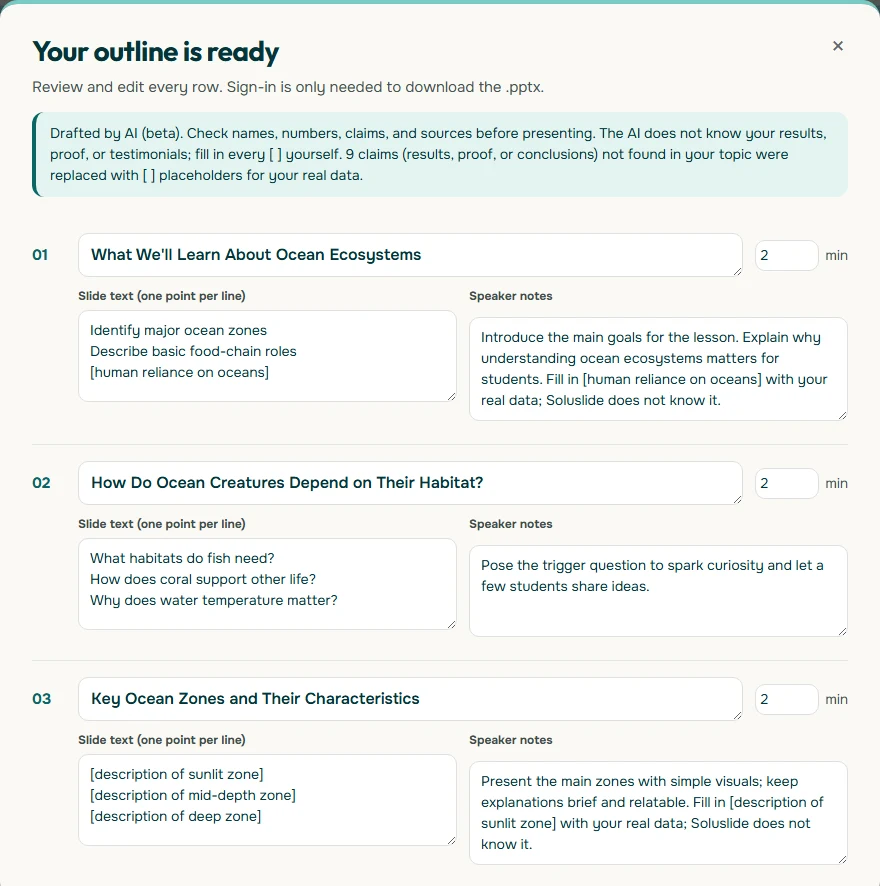
In Soluslide, you enter a topic, event type, and duration and get a timed slide outline with titles, slide text, speaker notes, and minutes per slide, all editable before you sign in. With a beta account, the outline exports as an editable .pptx built from standard text boxes and shapes; our editable PPTX guide explains what that means. You can open that .pptx in PowerPoint, or upload it to Google Drive and open it with Google Slides like any other .pptx. Run the checks above before you present either way.
If you teach, the teaching presentation template shows outline patterns that work in class, and the features page lists what the beta can and cannot do.
Frequently asked questions
How do I convert Google Slides to PowerPoint?
Open the presentation in Google Slides, click File, hover over Download, and choose Microsoft PowerPoint (.pptx). A copy downloads to your computer and the original stays in Google Drive.
How do I convert PowerPoint to Google Slides?
Upload the .pptx to Google Drive, double-click it, and click Open with Google Slides to edit it as is. For a native Google Slides file, turn on Convert uploads to Google Docs editor format in Drive settings before uploading.
Will my formatting change when I convert?
It can. Google says macros are not supported, embedded charts and videos in PowerPoint files become images, and SmartArt is converted to Google Drawings. Missing fonts can also be substituted, so always play the converted deck through once.
Is there a size limit for converting PowerPoint to Google Slides?
Yes. Google Drive Help lists up to 100 MB for presentations converted to Google Slides. Compress images and video first if your file is larger.
Why does my video not play after opening a PowerPoint in Google Slides?
Google explains that videos embedded in PowerPoint files are converted to images when the file is edited in Slides. Insert the video again from YouTube or Drive, or link to it instead.
Can I edit a PowerPoint in Google Slides without converting it?
Yes. Opening a .pptx with Google Slides keeps it as a .pptx and saves edits to the original file. Office Compatibility Mode, which needs Chrome and the Office Editing extension, also edits Office files without converting them.
How do I keep fonts from changing on another computer?
Use common fonts where you can. If the final file is a .pptx with special fonts, go to File, Options, Save in PowerPoint and select Embed fonts in the file.
Can I email a Google Slides deck as a PowerPoint file?
Yes. From the presentation, click File, Email as attachment, choose PowerPoint under Attach as, add the address and message, and click Send.
Sources
Factual claims in this article refer to the sources below. Sample outlines and prompts are illustrations to adapt.
- Google Docs Editors Help: Work with Office files
- Google Docs Editors Help: Switch from Microsoft PowerPoint to Google Slides
- Google Docs Editors Help: Create, view, or download a file
- Google Drive Help: Upload files & folders to Google Drive
- Google Drive Help: Files you can store in Google Drive
- Microsoft Support: Benefits of embedding custom fonts
- Microsoft Support: File formats that are supported in PowerPoint
Related reading
Try shaping your own outline. You can review and edit it before signing in.
Build a free outline