
Speaker Notes in PowerPoint: How to Add, View, and Write Them
Speaker notes hold what you plan to say, so your slides do not have to. This guide shows the exact steps to add them in PowerPoint and Google Slides, how to see them in Presenter View, and how to write notes that prompt you instead of becoming a script.

What are speaker notes in PowerPoint?
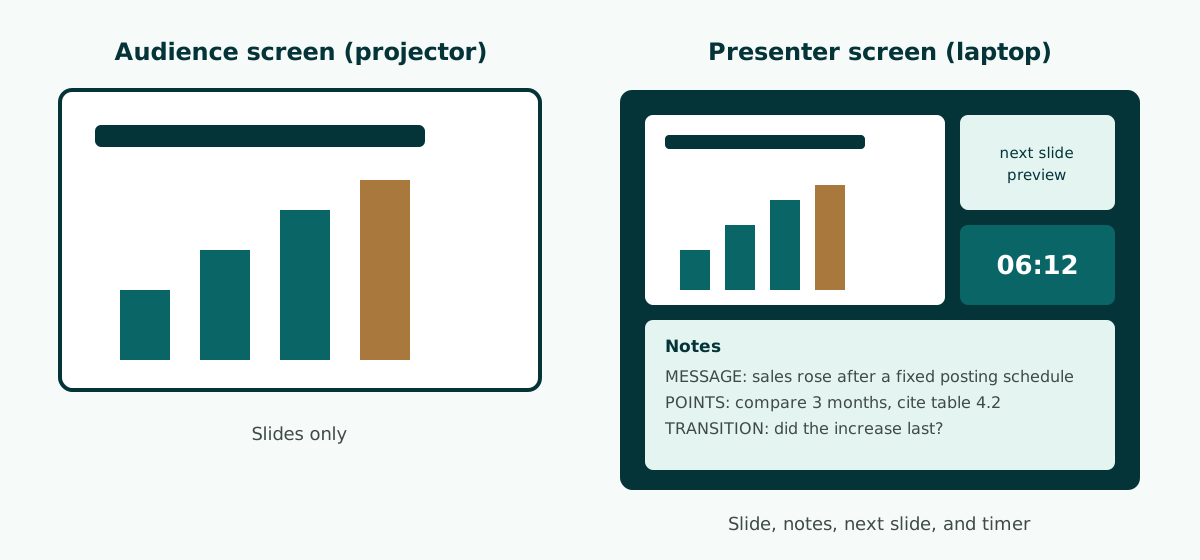
Speaker notes are a text box attached to each slide that you can see while presenting but your audience cannot. To add them in PowerPoint, click in the Notes pane below the slide (it says Click to add notes) and type; to see them during the talk, present in Presenter View on a second screen.
Microsoft Support describes it this way: during your presentation, the speaker notes are visible on your monitor but are not visible to the audience, so the Notes pane is the place to store the talking points you want to mention. That one feature solves a common problem. Many presenters put everything they plan to say on the slide and then read it from the screen. The slide fills up with small text and the audience reads instead of listening.
Microsoft's own presentation tips make the same point: you want your audience to listen to you, rather than read the screen, and the text on a slide should be a cue for the presenter rather than the full message. Speaker notes give the detail a home. Supporting numbers, examples, and transition sentences move to the notes, while the slide keeps the main message and a visual.
Notes also matter after the talk. If you share the file with attendees, a reviewer, or a manager, your explanations travel with it, so a lean slide still makes sense when someone reads it later without you. If you are new to the format itself, start with what a PPT file is.
How to add speaker notes in PowerPoint on Windows
In PowerPoint for Windows (Microsoft 365, 2024, 2021, 2019, and 2016), the Notes pane is a box that appears below each slide. These are the steps from Microsoft Support:
- Go to the slide you want to add notes to.
- Find the Notes pane below the slide. When it is empty, it shows the prompt Click to add notes.
- Click in the pane and type your speaker notes.
- If you do not see the Notes pane, or it is completely minimized, click Notes on the task bar across the bottom of the PowerPoint window.
- To make the pane larger, point at its top line until the pointer becomes a double-headed arrow, then drag upward.
If your notes run longer than the pane, a vertical scroll bar appears on its side. That is a useful warning sign: a note that needs scrolling is usually too long to glance at while you speak.
A few habits help from the start:
- Write the notes while you build the slides, not at the end. Each time you cut text from a slide, paste it into that slide's notes.
- Notes belong to their slide. Delete a slide and its notes go with it, so check before you remove anything.
- If your slides came from an AI tool or another app, confirm the notes landed in the Notes pane and not as a text box on the slide. The guide to editable PPTX files from AI shows how to check.
You can also type or edit notes during the show. Microsoft Support notes that you can add notes either while you are presenting, directly from Presenter View, or while editing the presentation.
Add notes in PowerPoint for Mac and PowerPoint for the web
The steps differ slightly by platform, and one limitation catches people out. Microsoft Support gives these steps for PowerPoint for Mac:
- On the View menu, click Normal.
- Select the thumbnail of the slide you want to add notes to.
- The notes pane appears beneath the slide. Click where it says Click to add notes and type.
- To hide the notes pane, click the Notes button on the task bar. Click it again to show the pane.
For PowerPoint for the web, open the presentation, then on the View tab of the ribbon, in the Show group, select Notes. The pane appears across the bottom of the window, ready for typing, and you can drag its top border to resize it. The catch: PowerPoint for the web lets you create notes but cannot show them to you while presenting. Microsoft says you must currently use a desktop version of PowerPoint to see speaker notes during a slide show.
Scroll the table sideways to see every column.
| App | Add or show notes while editing | See notes while presenting |
|---|---|---|
| PowerPoint for Windows | Notes pane below the slide; Notes on the bottom task bar | Presenter View (used by default in a slide show) |
| PowerPoint for Mac | View > Normal, then the notes pane | Slide Show > Presenter View |
| PowerPoint for the web | View tab > Show group > Notes | Not available; use a desktop version |
| Google Slides (computer) | Speaker notes panel below the slide; shortcut Ctrl + Alt + Shift + S (Mac: Cmd + Option + Shift + S) | Slideshow down arrow > Presenter view > Speaker notes |
If you edit in the browser but present from a laptop, install or open the desktop app before the event and test the file there. Check the slide size while you are at it, since a deck built at 4:3 looks boxed in on a widescreen projector.
How to use Presenter View in PowerPoint
Presenter View lets you see your presentation with speaker notes on one computer, such as your laptop, while only the slides appear on the screen the audience sees. You do not have to build it. Microsoft Support explains that PowerPoint assembles it by gathering the notes you typed for each slide and pairing them with navigation controls.
To start presenting on Windows:
- Connect the projector or second monitor. In newer versions, PowerPoint sets up Presenter View automatically.
- On the Slide Show tab, in the Start Slide Show group, select From Beginning.
- If Presenter View appears on the wrong screen, select Display Settings on the task bar at the top of Presenter View, then Swap Presenter View and Slide Show.
- To rehearse on a single monitor, in Slide Show view open the menu on the control bar at the bottom left and select Show Presenter View.
On a Mac, select Slide Show > Presenter View. If both screens show the same image, Microsoft's steps are to open System Preferences from the Apple menu, open Displays, click the Arrangement tab, and clear the Mirror Displays check box.
Scroll the table sideways to see every column.
| Control | What it does | When it helps |
|---|---|---|
| Previous and Next | Moves to the previous or next slide | Normal navigation without looking at the keyboard |
| See all slides | Shows thumbnails of every slide | Jumping to a specific slide during Q&A |
| Zoom into slide | Enlarges the part of the slide you point to | Showing a detail in a chart or table |
| Pen and laser pointer tools | Point to or write on the slide (Esc turns them off) | Marking the number you are discussing |
| Black or unblack slide show | Hides or unhides the current slide | Moving the audience's attention to a discussion |
The notes sit in a pane on the right. Two buttons at the lower left of that pane change the text size, and you can drag the vertical line between panes to give the notes more room. If you prefer not to use Presenter View, clear Use Presenter View on the Slide Show tab. Microsoft also notes that PowerPoint on your smartphone can act as a remote that runs the show and displays your notes.
Speaker notes in Google Slides
In Google Slides on a computer, speaker notes live in a panel below each slide while you edit. Click in it and type. If the panel is closed, Google's keyboard shortcut list gives Ctrl + Alt + Shift + S on Windows (or Cmd + Option + Shift + S on a Mac) to open the speaker notes panel.
To see your notes while presenting, Google Docs Editors Help lists these steps:
- Open the presentation in Google Slides.
- In the top right corner, next to Slideshow, click the Down arrow.
- Click Presenter view.
- Click Speaker notes.
During a slideshow, pressing S opens speaker notes. Google recommends presenting with Google Chrome for best results. If you have a second monitor, the Slideshow menu also has Presentation display options, which needs Chrome and at least one extra monitor attached. With only one monitor, Google notes that you cannot use Presenter view and Full screen at the same time, so practice the setup you will actually use on the day.
Google Slides can also download a presentation in PPTX format. If you move a deck between Google Slides and PowerPoint, open the converted file in the app you will present from and check that the notes, fonts, and layout survived before the day. That round trip is one reason an editable PPTX matters when a team works across apps.
What to write in your presenter notes (and what to leave out)
Good presenter notes are not a full script. A word-for-word script tempts you to read, and a read presentation sounds flat. Notes should hold memory triggers: keywords, the order of points, the numbers that must be exact, and the sentence that carries you to the next slide.
Scroll the table sideways to see every column.
| Write in the notes | Avoid in the notes |
|---|---|
| Three to five points in the order you will say them | Long paragraphs you will read word for word |
| Numbers, names, and dates that must be exact, with their source | Figures you have not checked against a source |
| A short example or story that makes the point concrete | The same text that is already on the slide |
| A transition sentence to the next slide | Private comments you would not want others to read if the file is shared |
| The planned minutes for that slide | Every possible question crammed onto one slide |
Look at the last row on the right. If you plan to share the file after the talk, your notes go with it. Leave out internal remarks, opinions about attendees, and anything confidential.
For high-stakes formats such as a thesis defense or a client review, notes are also the place for one-line answers to questions that are almost certain to come up on a given slide. Keep each to a sentence or two; you should know the detail already. The thesis defense presentation guide, the viva presentation template, and the meeting presentation guide cover the questions that usually follow.
A note format you can read while speaking
Standing in front of a room, you get a second or two to glance at your notes. The format decides whether that glance is enough. Use the same pattern on every slide so your eyes know where to look.
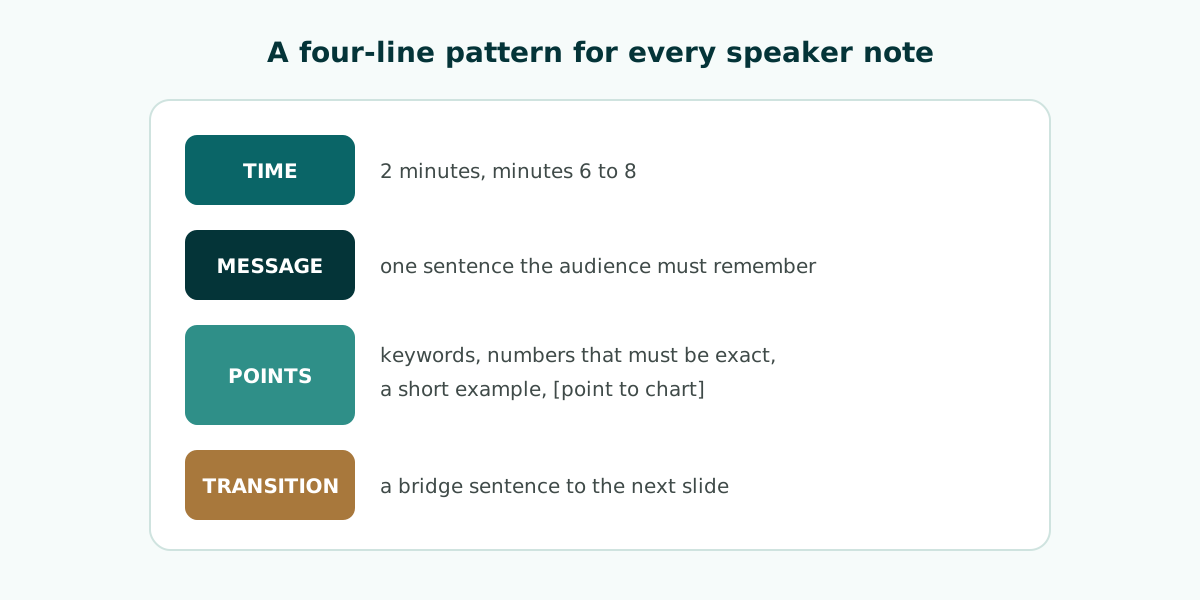
A simple pattern has four lines: time, message, points, and transition. Here is one for a results slide:
[2 minutes, minutes 6 to 8]
MESSAGE: sales rose after we fixed the posting schedule.
POINTS: 1) compare 3 months before and after, 2) cite the figure from table 4.2, 3) acknowledge the holiday season effect.
TRANSITION: "So does the increase last? That is the next slide."
The time line tells you whether you are running late. The message line stops you from getting lost in detail. The points line gives you an order, and the transition makes the slide change feel continuous instead of abrupt.
Adapt the pattern where it makes sense. On the opening slide, swap the points line for the first sentence you have memorized, because the opening shapes the first impression; the guide on how to start a presentation has options. On the closing slide, replace the transition with your call to action or discussion question, as covered in how to end a presentation.
Write points as keywords, not full sentences. Bold the numbers or names that must be exact. Add simple action cues where they help, such as "[click]" before an animation or "[point to chart]" when you need to show part of the slide.
Worked example: from a crowded slide to a lean slide plus notes
The fastest way to see what speaker notes do is to fix one slide. Imagine a project update slide titled "Program Results" with seven long bullets about attendance, locations, problems, budget, and next steps.
The lean version moves the message into the title and the detail into the notes. The title becomes a statement: "Attendance beat the target, but two sites are delayed". The slide body becomes one chart comparing target and actual, plus one line about the delayed sites. The budget breakdown, the site names, and the follow-up plan move to the notes.
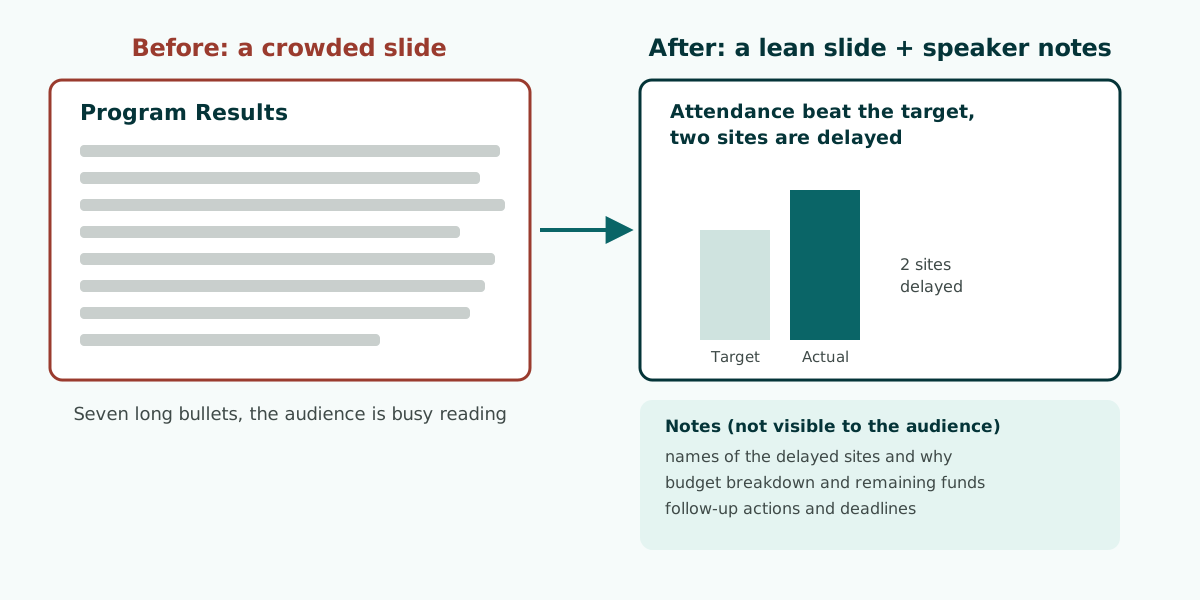
The audience gets the message in seconds, and you still have every detail at hand. If someone asks about the budget, the answer is in your notes instead of buried in a sixth bullet nobody had time to read. Writing slide titles as statements is covered in more depth in the guide to building a presentation from a document, and the order of slides around it in presentation structure.
Then check that the lean slide reads well in a real room. Pale chart colors and text over photos tend to disappear on a projector. Microsoft recommends high contrast between background and text and checking colors on the projection screen before the talk; the readable presentation contrast guide shows how to test it.
Use notes to manage time, rehearse, and plan a backup
Running over time is an easy mistake to make, and it costs the most in defenses, conferences, and tightly scheduled meetings. Notes become a timing tool when every note carries its minutes. Set the total length, split it by section, and write the cumulative minutes on the first line, for example "minutes 6 to 8".
If the clock says minute 9 and your note says 6, you know to speed up or skip a point. Mark optional points with brackets so you do not have to decide under pressure what to cut.
Rehearse at least once with Presenter View on, standing up, with a clock. Trim any note you could not read at a glance. Microsoft's tips suggest practicing so you can speak from bullet points, and Microsoft also suggests rehearsing with Coach in PowerPoint. If you say exactly the same sentences every run, your notes have turned into a memorized script; more delivery advice is in how to give a good presentation.
Plan for the room not cooperating. Not every projector setup gives you two screens, so Presenter View may not appear. Options that work:
- Print your notes. In Google Slides, click File, then Print settings and preview, choose 1 slide with notes in the toolbar, and click Print. For PowerPoint, Microsoft's Print slides with or without speaker notes article covers the options.
- Use your phone. PowerPoint on a smartphone can run the show and display your speaker notes.
- Lean on statement titles. If all else fails, a slide title that states the message is a reminder in itself.
Microsoft also advises showing up early to verify that the equipment works and not assuming the presentation will work fine on another computer.
Speaker notes from an AI outline
Many AI presentation tools now write speaker notes for you. That saves time, but treat AI notes like any other draft: check them, cut them down, and rewrite them in your own words. AI notes tend to be long and generic, so convert them to the four-line pattern before you rehearse. The guide to writing a presentation prompt for AI shows how to ask for minutes per slide up front, and the AI presentation maker guide covers the full route from topic to draft.
Soluslide is a beta tool that turns a topic or a document into a timed slide outline with titles, notes, and minutes per slide. You can review and edit the outline before logging in; exporting an editable .pptx requires a beta account, and the notes go into PowerPoint's notes pane rather than onto the slides. Once the file is open, tighten the notes, check every number against its source, and rehearse in Presenter View. You can build a free outline or see the full list of features.
Frequently asked questions
How do I add speaker notes in PowerPoint?
Select a slide, click in the Notes pane below it where it says Click to add notes, and type. If the pane is hidden, click Notes on the task bar at the bottom of the PowerPoint window.
Can the audience see my speaker notes?
Not when you present in Presenter View with two screens: the notes appear on your monitor and only the slides appear on the projector. Anyone you share the file with can read them, though.
How do I see my notes while presenting in PowerPoint?
Use Presenter View. With a second screen connected, newer versions of PowerPoint set it up automatically when you start the slide show from the Slide Show tab.
How do I use Presenter View with only one monitor?
Start the slide show, open the menu on the control bar at the bottom left, and select Show Presenter View. This is handy for rehearsing.
Can I see speaker notes in PowerPoint for the web while presenting?
No. PowerPoint for the web lets you write notes, but Microsoft says you currently need a desktop version of PowerPoint to see them during a slide show.
How do I view speaker notes in Google Slides?
Click the Down arrow next to Slideshow in the top right, choose Presenter view, then click Speaker notes. During a slideshow you can also press S.
How do I print slides with speaker notes?
In Google Slides, go to File, Print settings and preview, choose 1 slide with notes, then Print. In PowerPoint, follow Microsoft's guide to printing slides with or without speaker notes.
How long should speaker notes be?
Short enough to read in a glance, for example four lines: time, message, points, and transition. Avoid a word-for-word script.
Are AI-generated speaker notes ready to use?
Treat them as a draft. Check the facts against your sources, shorten them, and rewrite them in the way you actually speak before you rehearse.
Sources
Factual claims in this article refer to the sources below. Sample outlines and prompts are illustrations to adapt.
- Microsoft Support: Add speaker notes to your slides
- Microsoft Support: Start the presentation and see your notes in Presenter view
- Microsoft Support: Tips for creating and delivering an effective presentation
- Google Docs Editors Help: Present slides in Google Slides
- Google Docs Editors Help: Keyboard shortcuts for Google Slides
- Google Docs Editors Help: Print a file
Related reading
Try shaping your own outline. You can review and edit it before signing in.
Build a free outline