
PowerPoint Slide Size: Dimensions, Pixels, and How to Change It
The wrong slide size gives you black bars on the projector, cropped edges in print, or a scramble to fix layouts at the last minute. This guide lists the official PowerPoint and Google Slides sizes, explains when to use 16:9, 4:3, or A4, and shows how to change size without wrecking your slides.

What is the standard PowerPoint slide size?
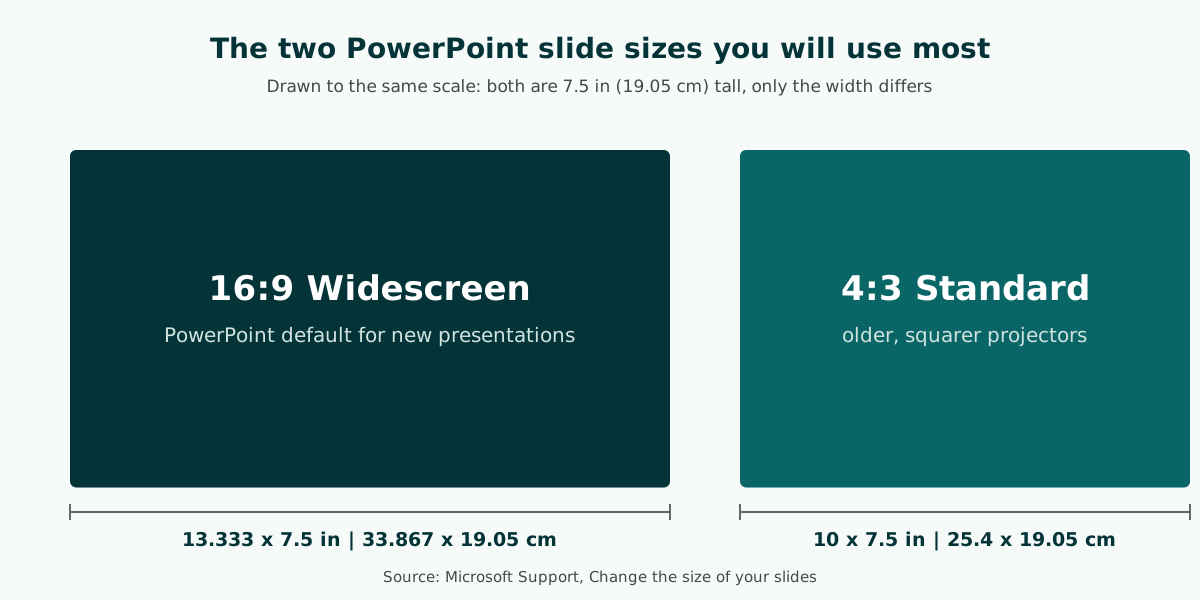
The standard PowerPoint slide size is Widescreen 16:9, which measures 13.333 x 7.5 inches or 33.867 x 19.05 cm. Microsoft Support states that the 16:9 widescreen setting is the default value for new presentations. The other common choice is Standard 4:3, at 10 x 7.5 inches (25.4 x 19.05 cm).
A 16:9 ratio means the slide is 16 units wide for every 9 units tall. That matches most laptop screens, TVs, and modern projectors, so the slide fills the screen without black bars at the sides. A 4:3 slide is closer to square and still turns up on older projectors.
If you are unsure, use this quick rule:
- Modern screen, TV, or projector: 16:9 Widescreen.
- Older projector in a classroom or hall: ask the organizer; it may be 4:3.
- Slides printed as handouts: consider a paper size such as A4 or Letter from PowerPoint's list.
- Slides shared as images on social media: a custom size that fits the platform.
PowerPoint slide dimensions in inches and cm
Besides Widescreen and Standard, PowerPoint offers ready-made sizes under Custom Slide Size. The table copies the dimensions Microsoft Support lists. The centimeter values matter when you work with paper sizes or an organizer asks for exact measurements.
Scroll the table sideways to see every column.
| Name in PowerPoint | Width | Height | Ratio |
|---|---|---|---|
| Widescreen | 13.333 in / 33.867 cm | 7.5 in / 19.05 cm | 16:9 |
| On-screen Show (16:9) | 10 in / 25.4 cm | 5.625 in / 14.288 cm | 16:9 |
| On-screen Show (16:10) | 10 in / 25.4 cm | 6.25 in / 15.875 cm | 16:10 |
| On-screen Show (4:3) | 10 in / 25.4 cm | 7.5 in / 19.05 cm | 4:3 |
| Letter Paper (8.5 x 11 in) | 10 in / 25.4 cm | 7.5 in / 19.05 cm | 4:3 |
| A4 Paper (210 x 297 mm) | 10.833 in / 27.517 cm | 7.5 in / 19.05 cm | about 1.44:1 |
| A3 Paper (297 x 420 mm) | 14 in / 35.56 cm | 10.5 in / 26.67 cm | 4:3 |
| Banner | 8 in / 20.32 cm | 1 in / 2.54 cm | 8:1 |
Two details confuse people. First, there are two 16:9 options: Widescreen (13.333 x 7.5 in) and On-screen Show (16:9) (10 x 5.625 in). Microsoft explains they share the same aspect ratio, so they look the same in Normal view; only the physical size differs. Second, PowerPoint's "A4" slide is not 21 x 29.7 cm but 27.517 x 19.05 cm, so always check print preview before printing.
If you are making a PowerPoint presentation from scratch, set the size first, before you pick a theme or write any content.
PowerPoint slide size in pixels
PowerPoint does not have a fixed pixel size. It stores slide size in inches or centimeters, and pixels only matter when slides appear on a screen or are exported as images. So the thing to get right is the ratio, not a particular pixel count.
Useful equivalents, worked out from the ratios:
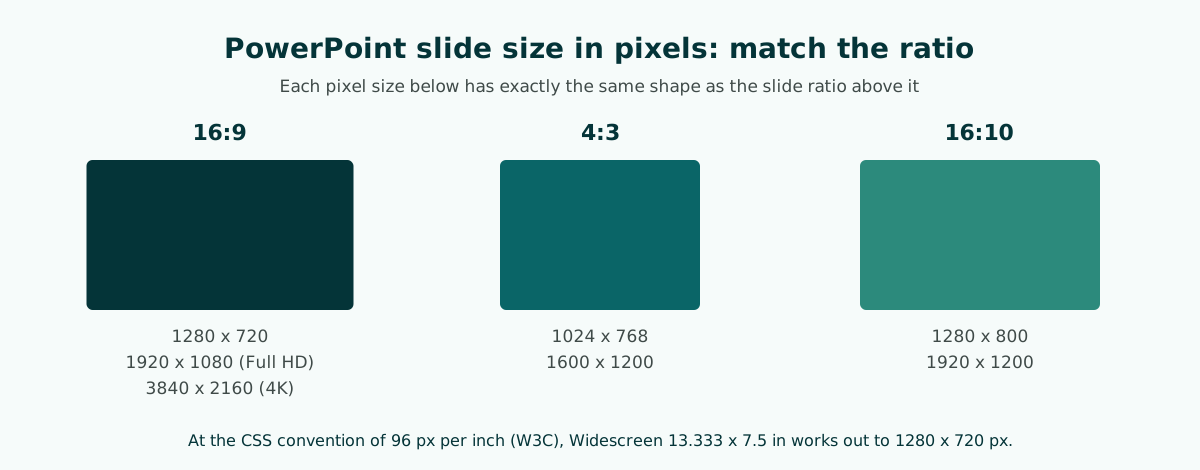
- 16:9 has the same shape as 1280 x 720, 1920 x 1080 (Full HD), and 3840 x 2160 (4K). At the 96 pixels per inch convention that W3C uses for CSS, a 13.333 x 7.5 in Widescreen slide works out to 1280 x 720 pixels.
- 4:3 has the same shape as 1024 x 768 and 1600 x 1200.
- 16:10 has the same shape as 1280 x 800 and 1920 x 1200, common on some laptops.
Why it matters: a 1920 x 1080 background fills a 16:9 slide edge to edge, but on a 4:3 slide it is cropped at the sides or has to shrink. Prepare product photos and screenshots in the same ratio as your slides. Microsoft also notes that PowerPoint's Custom Slide Size box accepts inches, centimeters, or pixels, and converts the value to the unit your operating system uses.
4:3 vs 16:9: which should you use?
For almost every presentation today, 16:9 is the right default. 4:3 only wins when the screen itself is 4:3. The comparison below sums up the trade-off using Microsoft's dimensions.
Scroll the table sideways to see every column.
| Point | 16:9 Widescreen | 4:3 Standard |
|---|---|---|
| Size | 13.333 x 7.5 in (33.867 x 19.05 cm) | 10 x 7.5 in (25.4 x 19.05 cm) |
| Shape | Wide rectangle | Closer to square |
| PowerPoint default | Yes, for new presentations | No, choose it under Slide Size |
| Fits best on | Laptops, TVs, modern projectors, video calls | Older 4:3 projectors |
| On the other screen type | Bars above and below on a 4:3 screen | Bars left and right on a 16:9 screen |
The wider canvas of 16:9 gives you more room for side-by-side layouts, such as a chart next to its takeaway. The narrower 4:3 canvas suits a single column of content.
The real decision is about the room, not taste. If you will present on a screen you have never seen, send a one-line question to the organizer a few days ahead, and keep 16:9 unless they confirm a 4:3 projector.
How to change slide size in PowerPoint
These steps follow Microsoft Support for PowerPoint on Windows. Menu names differ slightly on Mac and the web, but the options are the same.
- Open the Design tab on the ribbon.
- Find Slide Size in the Customize group, near the far end of the toolbar.
- Choose Standard (4:3) or Widescreen (16:9). For anything else, choose Custom Slide Size.
- In the Slide Size box, open Slides sized for to pick a preset such as A4 or A3, or type your own width and height. Microsoft lists a minimum of 1 inch and a maximum of 56 inches.
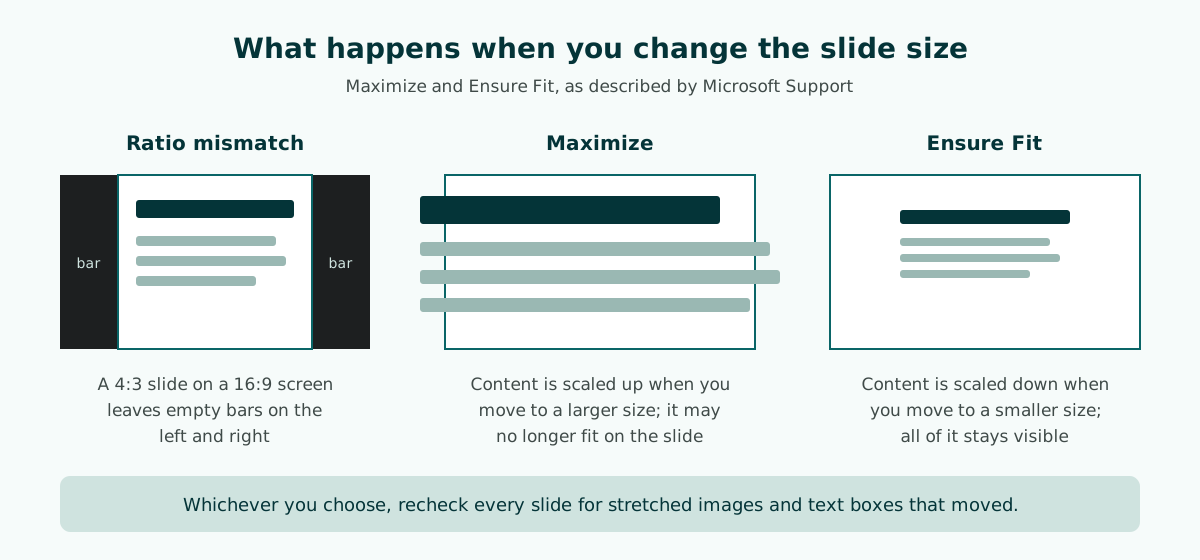
- If PowerPoint cannot scale your content automatically, it offers two options: Maximize or Ensure Fit.
According to Microsoft, Maximize increases the size of your content when you scale to a larger slide size, which could leave content not fitting on the slide. Ensure Fit decreases the size of your content when you scale to a smaller slide size, so it may look smaller but you can see all of it.
The change applies only to the presentation you have open. If you regularly need 4:3, Microsoft suggests saving a custom theme with that size so new decks start correctly.
Worked example: a 4:3 lecture deck for a 16:9 conference screen
1. Save a copy first: lecture-16x9.pptx (keep the 4:3 original)
2. Design > Slide Size > Widescreen (16:9)
3. If PowerPoint offers Maximize or Ensure Fit, pick Ensure Fit so nothing is cut off
4. Widen title boxes and move charts beside their text to use the new room
5. Re-crop any full-bleed photo to 16:9 instead of stretching it
6. Run Slide Show from slide 1 and fix anything that moved
Google Slides size and how to change it
Google Slides calls this Page setup. According to Google Docs Editors Help, the steps on a computer are:
- Open a presentation in Google Slides.
- Click File, then Page setup.
- Click the down arrow and pick Standard (4:3), Widescreen (16:9), Widescreen (16:10), or Custom.
- For Custom, enter a size and choose a unit: inches, centimeters, points, or pixels.
- Click OK.
You can also set the unit used for rulers and objects under Tools, then Preferences, by checking "Use measurement unit preferences". That helps if you are used to working in centimeters rather than inches.
If a deck will move between apps, for example drafted in Google Slides and presented from an organizer's laptop in PowerPoint, agree the ratio at the start. 16:9 is the safest pick because both apps offer it. Other things to check when switching apps, such as fonts and text boxes that stay editable, are covered in our article on editable PPTX files.
Choosing a slide size for your event
The best size depends on where the slides will be shown, not on preference. The table suggests sensible choices for common situations, with the reason so you can adapt it to your own room.
Scroll the table sideways to see every column.
| Event | Suggested size | Why |
|---|---|---|
| Thesis defense or viva | 16:9, unless the room has a 4:3 projector | Ask your department or check the room during a rehearsal |
| Team or client meeting on a TV or new projector | 16:9 Widescreen | Fills the screen with no black bars |
| Classroom with an older projector | 4:3 Standard | A 16:9 slide would appear smaller with bars above and below |
| Slides printed as handouts | A4 or Letter from PowerPoint's list | Sized for paper; check print preview |
| Online pitch through screen sharing | 16:9 Widescreen | Matches most monitors and video call windows |
For a defense, slide order and slide count are covered in our thesis defense presentation guide and on the thesis defense presentation page; UK-style examinations are covered on the viva presentation page. For meetings that need a decision, see meeting presentations. Teachers can start from the teaching presentation template.
One habit saves a lot of trouble: arrive early and put one slide on the real screen. Within seconds you can see black bars, clipped edges, or colors that wash out from the back row.
Common slide size mistakes
Slide size problems tend to appear in the presentation room, when there is no time left to fix them. These are the usual culprits and how to prevent them.
- Changing size after every slide is done. Images can stretch and text boxes shift. Set the size first; if you must change it, check every slide.
- Mixing images of different ratios. A 4:3 photo dragged to fill a 16:9 background looks stretched. Crop images to the right ratio instead of pulling them.
- Putting text too close to the edge. Microsoft Support warns that some projectors crop slides at the edges, and that a projector resolution that differs from your computer's can crop slides too. Leave a margin all round.
- Assuming PowerPoint's A4 equals A4 paper. The A4 slide is 27.517 x 19.05 cm, not 21 x 29.7 cm.
- Shrinking text so content fits. If content does not fit, the problem is the amount of content, not the slide size. Split it into two slides.
That last point is really about readability. Small type and weak contrast are hard to read from the back of the room on any size of screen. Our guides to readable presentation contrast and slide design principles show how to keep slides legible.
When to use portrait slides
Nearly every presentation uses landscape orientation, but portrait slides make sense in a few cases: a digital academic poster, material that will only be read on a phone, or a one-page document laid out in PowerPoint because it is easier to arrange.
In PowerPoint, orientation is set in the same Custom Slide Size box, and Microsoft notes that you can change the orientation of all the slides in a presentation. A standard deck has a single slide size, so if you need a mix of landscape and portrait pages, consider splitting them into two files or linking to a separate document.
For a live audience, stay with landscape. Projectors and monitors are landscape, so a portrait slide shows up small in the middle with large empty areas at the sides. If your material comes from a portrait document such as a report or thesis, condense it into landscape slides instead; our guide to building a presentation from a document explains how.
Slide size checklist before presentation day
Size problems are almost always preventable with a short check a few days before you present. Use this order, especially if the deck will run on someone else's computer.
- Ask about the screen. Send the organizer a quick question: projector or TV, and is it 16:9 or 4:3?
- Check the file size setting. Open Design, then Slide Size, and confirm it matches the screen.
- Run Slide Show. Play the deck from the first slide to the last on your own laptop, looking for stretched images or text outside its frame.
- Test on the real screen. At the rehearsal, or when you arrive early, show two or three slides on the room's display.
- Keep a backup. Store a copy on a USB drive and in cloud storage. If you need a 4:3 version, save it as a separate file so the main deck stays intact.
With these steps done, the only thing left on the day is your delivery. Preparation beyond slide size, from rehearsal to questions, is covered in how to give a good presentation.
Slide size in .pptx files from Soluslide
If you draft your outline in Soluslide, the downloaded .pptx uses Widescreen 16:9 (13.333 x 7.5 inches), the same as PowerPoint's default for new presentations. Slides are built from standard text boxes and shapes, so you can still change the size in PowerPoint through Slide Size if your room has a 4:3 projector.
The flow is: enter a topic and duration, review the outline and speaker notes, run the Readability Check to catch crowded slides, then log in to download. You can edit the outline before logging in.
To start from a topic, open the Soluslide outline builder. The full list of what it does is on the features page, and beta pricing status is on the pricing page.
Frequently asked questions
What is the standard PowerPoint slide size?
The default for new PowerPoint presentations is Widescreen 16:9, which is 13.333 x 7.5 inches or 33.867 x 19.05 cm. The classic Standard 4:3 option is 10 x 7.5 inches or 25.4 x 19.05 cm.
What size is a PowerPoint slide in pixels?
PowerPoint stores slide size in inches or centimeters, not pixels. For images and screens, use the same ratio, such as 1920 x 1080 for 16:9 or 1024 x 768 for 4:3; at 96 pixels per inch, Widescreen equals 1280 x 720 pixels.
What are the PowerPoint slide dimensions in cm?
Widescreen 16:9 is 33.867 x 19.05 cm and Standard 4:3 is 25.4 x 19.05 cm. PowerPoint's A4 Paper slide is 27.517 x 19.05 cm.
Is 16:9 or 4:3 better for presentations?
Use 16:9 for modern screens, projectors, and online meetings. Use 4:3 only when the room has an older 4:3 projector; ask the organizer or check during a rehearsal.
How do I change slide size in PowerPoint?
Go to the Design tab, select Slide Size, and choose Standard (4:3), Widescreen (16:9), or Custom Slide Size. If prompted, Maximize scales content up and Ensure Fit scales it down so everything stays visible.
How do I change the slide size in Google Slides?
Click File, then Page setup, choose Standard (4:3), Widescreen (16:9), Widescreen (16:10), or Custom, and click OK. Custom sizes accept inches, centimeters, points, or pixels.
Is A4 in PowerPoint the same as A4 paper?
No. PowerPoint's A4 Paper slide is 27.517 x 19.05 cm in landscape, not the 21 x 29.7 cm of the paper itself. Check print preview before printing.
Why are there black bars around my slides on the projector?
Black bars appear when the slide ratio differs from the screen ratio, such as a 4:3 slide on a 16:9 screen. Match the slide size to the screen you will use, then recheck every slide.
Sources
Factual claims in this article refer to the sources below. Sample outlines and prompts are illustrations to adapt.
Related reading
Try shaping your own outline. You can review and edit it before signing in.
Build a free outline