
How to Give a Good Presentation: Prepare, Deliver, and Handle Questions
A good presentation rarely comes from natural talent alone. This guide covers the steps anyone can practice: choosing one message, budgeting the time, rehearsing in measurable rounds, speaking without reading your slides, and handling questions calmly.
How to give a good presentation in 7 steps
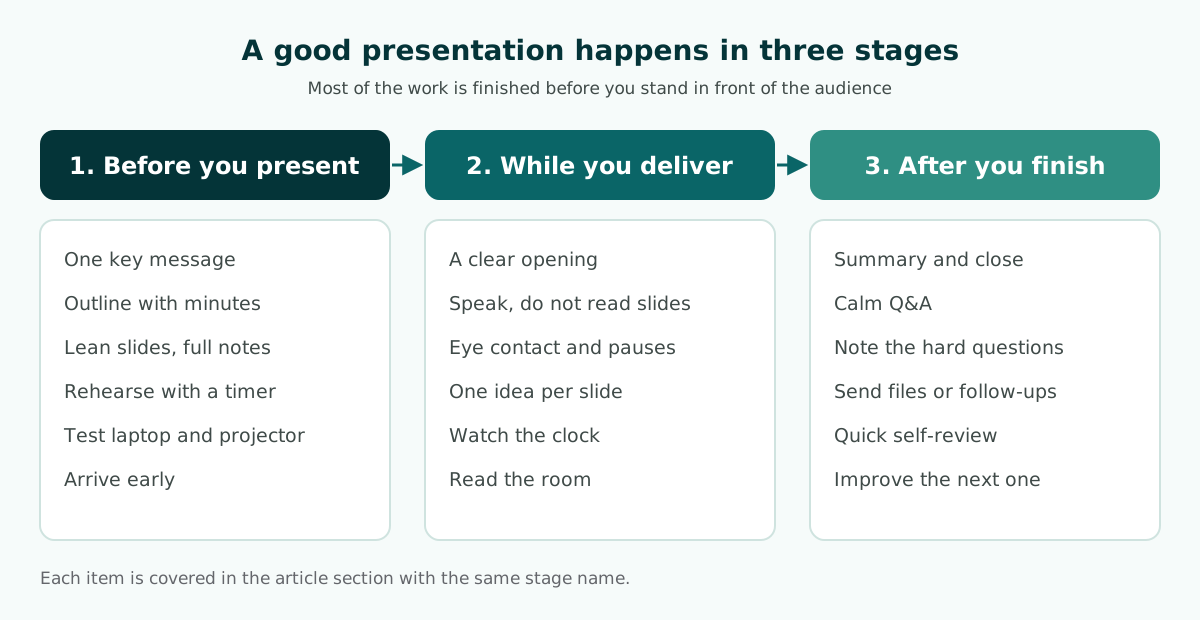
To give a good presentation, decide on one key message, fit it into the time you have, rehearse until you can deliver it without reading your slides, and close with a summary and a calm question session. Delivery skills help, but a clear presentation almost always starts with organized preparation. If you have been wondering how to present a presentation without freezing or rushing, this is the order to follow. The sequence below works for a thesis defense, a team or client meeting, a classroom lesson, or a small-business pitch.
- Choose one key message you want the audience to remember.
- Know your audience and the purpose of the event, for example an examining committee or a manager who must approve a budget.
- Build an outline with a time budget for the opening, body, and close.
- Keep slides lean and move the detail into speaker notes.
- Rehearse in three rounds: flow, timing, then in front of listeners.
- Deliver in your own words, with eye contact and pauses.
- Close and handle questions with a summary and short answers.
Steps one to five happen before the day itself. Many people focus only on step six, how to stand and speak, yet nerves most often come from a speaker who is not yet sure of the content and its order. Once you own the material, delivery becomes much easier to practice. That is why most of the presentation tips in this guide are about preparation.
Steps 1 and 2: one key message for the right audience
Before you open any slide software, write one sentence that answers this question: if the audience remembers only one thing, what should it be? That sentence is your key message. For example, "Adding one barista during the morning rush would cut customer wait times" is a message, while "Customer survey results" is only a topic. A clear message makes it easy to decide which slides belong and which can go.
The UNC Writing Center gives similar advice for speeches: tell your listeners your thesis right away and explain how you will support it. A message stated early gives the audience a reason to keep listening.
Next, look at who will be in the room. A good presentation for an examining committee is different from a good presentation for a department head or a potential customer.
- A thesis committee judges your research logic, your method, and how well you can defend the results. See the structure in the thesis defense presentation guide and the viva presentation page.
- A manager or meeting chair wants to know what decision you need and what it will cost. The meeting presentation guide shows a decision-first layout.
- Buyers or investors need the problem, the solution, and convincing proof, as covered in the pitch deck guide.
- Students or trainees need small steps and examples, like those in the teaching presentation template.
Also ask the organizer a few practical questions: how many minutes you have, whether there is a question session, and what equipment is available. These details often shape the presentation more than the slide design does.
Step 3: build an outline and a time budget
An outline is an ordered list of slides, each with a title, a few points, and a number of minutes. The basic shape has three parts: an opening, a body, and a close. The body should carry two to four supporting points, not everything you know about the topic. If you need help choosing a pattern for the body, the guide to presentation structure compares five common options.
Microsoft Support advises speakers to stay on time: if you plan a certain amount of time, do not go over, and if there is no time limit, take less time rather than more so people stay engaged. That is why the minutes go into the outline from the start instead of being counted after the slides are finished.
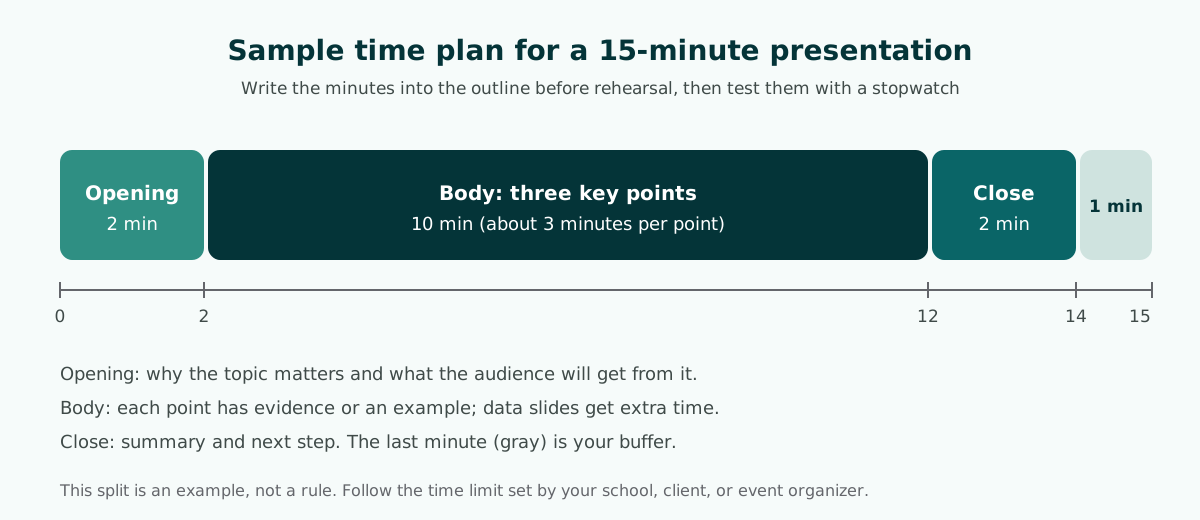
The split above is only an example. In a tightly timed defense, the buffer can go to a quick question. In a data-heavy talk, give the data slides more time and cut other slides. The guide on how to make a PowerPoint presentation shows how to estimate the number of slides from the length of your slot.
The opening and the close deserve sentence-by-sentence preparation, because they are what the audience remembers best. You can borrow lines from the guides on how to start a presentation and how to end a presentation.
Step 4: lean slides, complete speaker notes
Slides support the audience. They are not your script. Microsoft Support recommends bullets or short sentences, ideally one line each without wrapping, because you want the audience to listen to you rather than read the screen. Microsoft also says plainly: do not read the presentation. The text on a slide should be a cue for the presenter, not the full message for the audience.
So where does the longer explanation go? Into the speaker notes. There you can write transitions, supporting numbers, and the examples you plan to tell. During the talk, PowerPoint's Presenter View shows you the current slide, the next slide, and your speaker notes on your own screen, while the audience sees only the slides. The guide to speaker notes in PowerPoint explains how to write notes that help you without turning into a script you read aloud.
Practical rules for slide content
- One idea per slide. If a slide holds two ideas, split it into two slides.
- Write the title as a message sentence, not a chapter name.
- Use simple fonts that can be read from a distance. Microsoft suggests avoiding sizes smaller than 18 pt.
- Use high contrast between text and background. The guide to readable presentation contrast shows how to measure it.
- Label charts just enough to be understood without a long explanation.
For layout, color, and type choices beyond these basics, the slide design principles article goes deeper.
Step 5: how to practice a presentation in three rounds
Good practice is not running the whole talk from start to finish many times in the same way. Effective rehearsal has a different focus in each round, so you always know what you are improving.
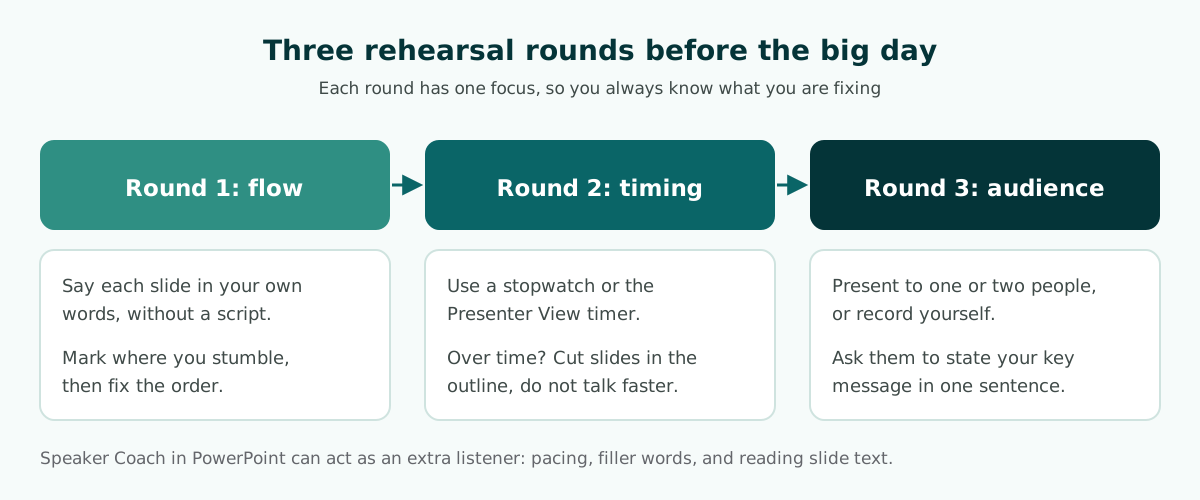
- Flow round. Say the content of each slide in your own words. Mark the places where you stumble, because the fix is usually a better order, not more memorizing.
- Timing round. Run the talk with a stopwatch. Presenter View has a slide timer you can pause or reset, plus the current time to help you pace yourself. If you run over, cut slides from the outline. Do not solve it by speaking faster.
- Audience round. Present to one or two people, or record yourself. Afterward, ask them to state your key message in one sentence. If they miss it, your message is not yet clear enough.
Using Speaker Coach in PowerPoint
If you use PowerPoint, Speaker Coach can act as an extra listener when you practice alone. According to Microsoft Support, it evaluates your pacing, pitch, use of filler words, informal speech, euphemisms, and culturally sensitive terms, and it detects when you are being overly wordy or simply reading the text on a slide. After each rehearsal you get a report with statistics and suggestions for improvement.
In PowerPoint for the web, open the Slide Show tab and select Rehearse with Coach. Microsoft notes that you need to sign in with a Microsoft account or a Microsoft 365 work or school account, and that you need a microphone and an internet connection. It recommends rehearsing in a quiet place.
Step 6: presentation tips for delivery
On the day, your focus shifts from content to delivery. These presentation tips are what most often separate a presenter who is easy to follow from one who loses the room.
- Open with a reason, not a long introduction. Give your name briefly, then say why the topic matters to this audience and what they will get from it.
- Talk, do not read. Glance at the slide to recall the point, then face the audience while you explain it.
- Use pauses. Stopping for a second or two after an important sentence gives people time to absorb it. A pause is also better than filler words such as "um" or "so".
- Spread your eye contact. Look at several points around the room, not just at one person or at the screen.
- Keep your hands and pointer still. Microsoft suggests removing your hand from the mouse when you are not using the pointer, so it does not drift across the slide and distract people.
- Read the room. Microsoft also advises watching your audience's behavior. If people keep staring at a slide, it may hold too much data or be confusing.
Nerves are normal. The most effective way to reduce them is to own the first two minutes. Practice your opening lines until they are smooth, so you have solid ground even when your heart is racing. Once the opening is done, the rest usually follows the outline you have rehearsed.
How to be a good presenter: voice, pace, and language
Set your volume so the back row can hear you without effort, and test the microphone distance before you start if there is one. Speaking too fast is usually a sign that you are chasing the clock, so return to the outline and skip a minor detail instead of speeding up. Match your language to the setting: formal and concise for a defense or a board meeting, more relaxed for a class or a community event. Explain each acronym and technical term once before you rely on it. When you share an important number, say it slowly and repeat it once in a different sentence. The UNC Writing Center makes the same point for longer talks: keep reminding the audience of the main points you have made.
Step 7: a calm close and question session
A good close summarizes the key message and states the next step, such as the decision you need or the follow-up you will deliver. The UNC Writing Center recommends restating your main points in the conclusion without simply repeating them. Do not end with a bare "Thank you" slide and no summary, because the last slide often stays on screen for the entire question session.
Microsoft suggests asking the audience to hold questions until the end, so you get through your material uninterrupted, and notes that early questions are often answered by later slides. In a defense or a formal meeting, follow the conventions of the room. If an examiner or a chair interrupts, answer briefly and return to your outline.
A simple pattern for answering questions
- Listen to the whole question. Do not interrupt, and jot down the key words.
- Repeat or paraphrase it briefly, so you are sure you understood and everyone else heard it.
- Answer directly in one or two sentences, then give one reason or piece of evidence.
- If you do not know, say so honestly and offer to check and send the answer later.
- Return to your key message before you close the session.
For a thesis or dissertation defense, prepare backup slides with extra data you may be asked about. They stay hidden unless someone asks, yet they make your answers far more convincing. The thesis defense presentation article covers how to prepare extra slides for the questions you expect.
Presentation day checklist and common mistakes
Plenty of well-prepared presentations are derailed by technical problems. Microsoft Support recommends arriving early to make sure all equipment is connected and running, not assuming your presentation will work fine on another computer, checking that the projector's resolution matches the computer you built the deck on, turning off screen savers, and checking colors on the projection screen, because they may project differently than they appear on your monitor.
Scroll the table sideways to see every column.
| Mistake | What happens | Prevention |
|---|---|---|
| Reading slides word for word | The audience reads ahead and stops listening | Short points on slides, detail in speaker notes |
| Running over time | Questions get cut, and the audience grows restless | Minutes in the outline and a stopwatch rehearsal |
| Overloaded slides | People do not know where to look | One idea per slide, text no smaller than 18 pt |
| No equipment check | Time lost hunting for cables or files | Arrive early and carry a backup copy of the file |
| Washed-out colors on the projector | Text and charts become hard to read | High contrast and a test on the actual screen |
| Long answers to questions | The key message gets buried | Answer briefly, give one reason, return to the message |
Quick checklist
- Your .pptx file is on the laptop and in a backup location.
- Presenter View has been tested on the screen you will use.
- The clicker or slide advance works.
- Water is within reach, and a clock or timer is visible.
- Your opening and closing lines are memorized.
Worked example: planning a 15-minute class session
Here is how the seven steps come together for a teacher who has 15 minutes to present a cafeteria food waste audit to a class. The key message: "Most of our cafeteria waste comes from a few sources we can change ourselves." The audience is students, so the session needs a question to get them thinking and a short activity, not just findings. Square brackets mark data the teacher must fill in from the actual audit.
OPENING (4 min)
1. Learning objectives for reducing food waste ...... 2 min
2. Trigger question: how much food is thrown away? .. 2 min

BODY (8 min)
3. Findings overview: [key waste sources] .......... 3 min
4. Main causes: [audit observations] ............... 2 min
5. Practical reduction strategies .................. 3 min

CLOSE (3 min)
6. Class activity: plan one change ................. 2 min
7. Summary and next steps .......................... 1 min
                                         Total: 15 min
Notice three things. The opening is longer than usual because a class needs a hook, and the trigger question does that job. The body follows one problem-and-solution line: findings, causes, then strategies. The close does not add new material; it turns the message into one action each student will take. In rehearsal, the teacher runs a stopwatch against these minutes and cuts a strategy if slide five runs long.
Students preparing their own class presentations can use the same approach, and the guide on the AI presentation maker for students explains how to draft faster without skipping the thinking.
Speed up preparation with a timed outline
The most time-consuming part of preparation is usually ordering the slides and dividing the minutes. If you want a faster starting point, Soluslide is a beta tool that drafts a slide outline from your topic, event type, and duration. Each slide comes with a title, slide text, speaker notes, and editable minutes.
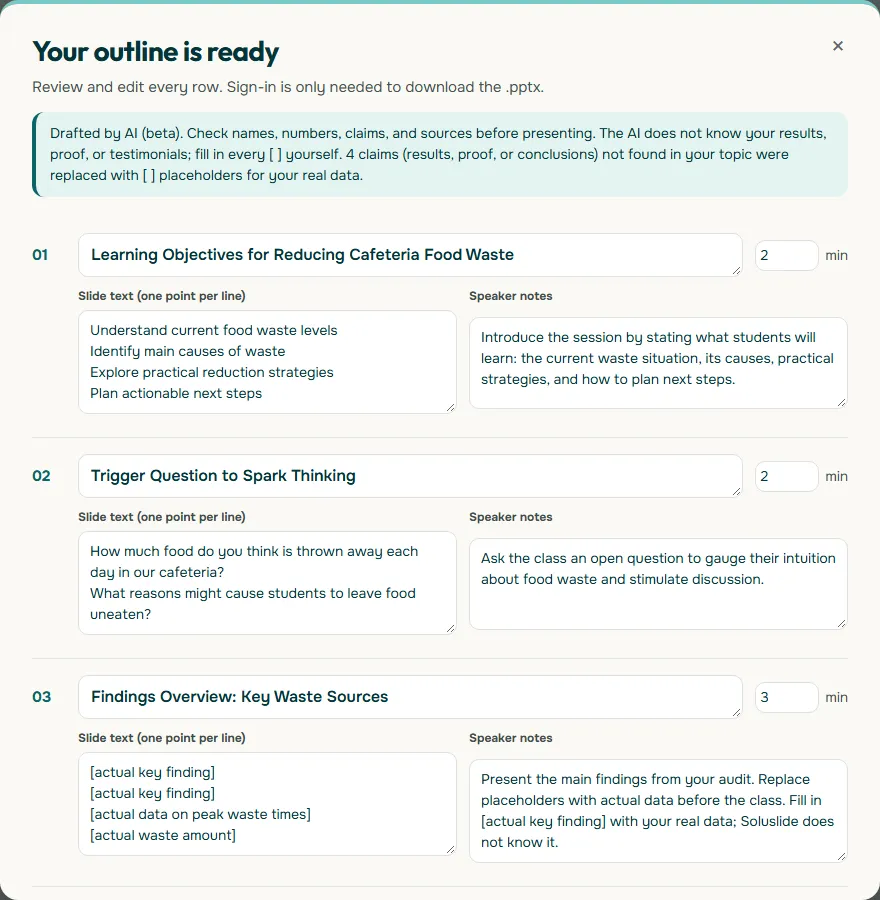
An outline like this is still a draft. Anything the AI cannot know, such as your actual findings, is marked with square brackets for you to fill in. Once edited, the total minutes become your target for the stopwatch round, and the speaker notes become material for the flow round.
Titles, slide text, notes, and minutes can all be edited before you log in; a beta account is only needed to download the editable .pptx file. You can try drafting an outline, see the full list of features, or check the sample beta prices on the pricing page.
Frequently asked questions
How do you give a good presentation?
Decide on one key message, build an outline with minutes for each part, keep your slides short, rehearse with a stopwatch, and deliver in your own words without reading the slides. Close with a summary and answer questions briefly.
What are the most important presentation tips?
Open with why the topic matters, face the audience instead of the screen, pause after key sentences, spread your eye contact, and stay within your time. All of these are easier once you have rehearsed the content.
How can I be a good presenter if I get nervous?
Memorize your opening lines so the first two minutes feel secure, rehearse at least three times, and arrive early to check the equipment. Nerves usually settle once the opening goes smoothly.
How many times should I rehearse a presentation?
Aim for at least three rounds with different goals: flow, timing, and a run in front of listeners. If time is short, prioritize the stopwatch round so you do not run over.
Is it OK to read from your slides when presenting?
It is best not to. Microsoft Support advises against reading the presentation and says slide text should be a cue for the presenter. Keep the detail you want to say in your speaker notes.
What is Speaker Coach in PowerPoint?
Speaker Coach is a PowerPoint rehearsal feature that evaluates your pacing, pitch, filler words, informal speech, and whether you are simply reading slide text. After each rehearsal it gives you a report with statistics and suggestions.
When should you take questions during a presentation?
Microsoft suggests asking the audience to hold questions until the end so you can finish your material uninterrupted. In a defense or formal meeting, follow the conventions of the room and answer briefly if someone interrupts.
What should I do if I do not know the answer to a question?
Say honestly that you do not have that information yet, then offer to check and send the answer after the session. An honest answer earns more trust than an invented one.
How long should a presentation be?
As long as the time you are given, and no longer. Microsoft Support recommends not going over your planned time and, when there is no limit, taking less time rather than more.
Sources
Factual claims in this article refer to the sources below. Sample outlines and prompts are illustrations to adapt.
Related reading
Try shaping your own outline. You can review and edit it before signing in.
Build a free outline