
Slide Design: 12 Principles for Better Presentations
An attractive slide makes the message easier to understand, rather than giving the audience more decoration to process. Use these 12 principles to refine the content, typography, color, layout, and visuals, then test the finished deck.

How to make an attractive presentation that stays readable
To make an attractive PowerPoint presentation, give each slide one clear message, state it in the title, and choose only the text and visuals that support it. Then use readable type, strong contrast, generous spacing, and a consistent theme. Good slide design helps people follow your explanation; it does not require an elaborate template or a different visual trick on every page.
The 12 principles below apply to research defenses, workplace briefings, small-business pitches, and teaching. Work from the content outward. If a slide feels crowded, edit or split it before making the type smaller. If the page already looks clean but the point remains unclear, improve the title and argument rather than trying another color scheme.
Keep three jobs separate: planning the outline, designing the slides, and reviewing the finished file in presentation mode. For help with the first job, compare AI presentation tools and their limits or use a presentation prompt built around a proper brief. An automatically drafted outline still needs checking against your source material before you turn it into a visual presentation.
Define the message and write a useful title
1. Give each slide one job
Decide what the audience should understand when this slide has done its work. A training-program slide might explain the obstacles to delivery. It should not also introduce the entire program, summarize every activity, and ask for a new budget. Write the intended takeaway in your planning notes, then keep only the content that helps establish it.
One idea does not mean one word or one object. A chart, a title, and a short explanation can share a slide when they support the same conclusion. Two charts answering unrelated questions probably need separate slides. Method details and participant lists can remain available in an appendix without competing with the main message.
2. Write a message title, not a chapter label
A title such as "Results" tells the audience which category they are looking at. "Internet access remains a barrier to training" tells them what to notice. Choose verbs that match the evidence: "associated with" must not become "caused by" simply because the stronger wording sounds more decisive. A proposal title can state the need or recommendation you will explain.
Read the titles without looking at the slides. Do they still form a coherent argument? Repair that sequence before polishing the layout. When your material comes from a report or research paper, follow the process for turning a document into a presentation so the summary preserves important limitations. A useful title condenses the evidence rather than inventing a stronger claim.
Edit the text, choose readable type, and establish hierarchy
3. Shorten the text without changing its meaning
Microsoft recommends bullets or short sentences, ideally fitting on one line. Treat this as editing guidance, not permission to remove words until the meaning becomes vague. Change "During the implementation of the training activities, difficulties relating to internet connectivity were encountered" to "Internet connections were unreliable". Keep the location, explanation, and follow-up detail in the speaker notes.
Start with the points that support the title and read them aloud. If a point contains two arguments, separate them or move one elsewhere. There is no universal bullet count that makes a slide well designed. Sentence length, type size, and the audience's information needs all matter.
4. Use simple fonts at a size you can test
Microsoft's presentation guidance gives Arial and Calibri as examples of simple fonts. It recommends avoiding sizes below 18 pt and going larger when people are far from the screen. The 18 pt figure is a starting guideline, not a legal requirement or proof that every audience can read the text.
Avoid decorative faces for explanations and very thin weights for essential labels. If everything fits only after you reduce the size, revise the content first. For teaching, the teaching presentation guide offers ways to separate instructions and examples rather than squeezing a whole lesson onto one slide.
5. Distinguish the title, evidence, and supporting detail
Create a reading sequence through size, weight, and position. The title answers "What is the point?", the body provides evidence, and the source shows where it came from. Making every element large and bold removes that distinction. Use the following table as a starting framework, then check it on the intended screen.
Scroll the table sideways to see every column.
| Element | Starting point | Practical test |
|---|---|---|
| Title | More prominent than the body | The message is clear before the details are read |
| Main text | 18 pt or larger as Microsoft's guideline | Readable from the audience's furthest position |
| Chart labels | Simple type with enough room | Categories and units do not need to be guessed |
| Source | Concise, but still readable | The evidence is traceable without overwhelming the slide |
Choose strong contrast and a restrained palette
6. Measure contrast rather than judging by taste
Dark text on a light background, or the reverse, is a straightforward starting point. Check chart labels and smaller annotations as carefully as the headline. Microsoft recommends high contrast and checking colors on the projector, since they can appear different from the way they look on your monitor.
WCAG 2.1's minimum contrast criterion sets ratios of 4.5:1 for normal text and 3:1 for large text in web content. Its large-text definition includes 18 pt or 14 pt bold. You can adapt these figures as a slide-design benchmark, but meeting them does not certify a whole presentation as WCAG compliant or guarantee the projected result.
The readable presentation contrast guide explains how to measure colors and check the room. For text over a photograph, use a quiet background area or a solid panel so the background behind each word is predictable.
7. Give colors stable roles
Choose the text, background, and accent colors before designing the first slide. Use the accent to mark what you are discussing, rather than decorating every corner. A limited palette is a practical way to avoid making a fresh color decision on every page, not a formula with a mandatory number of colors.
If an accent marks the recommended option, keep that meaning on later slides. Add direct labels or distinct shapes when identifying data categories, so the comparison does not depend on color recognition alone. Do not change a category's color just because the next photograph has a different palette.
Use open space and deliberate alignment
8. Leave space around essential content
Open space separates groups of information and gives the main element room to stand out. Begin with consistent left and right margins, then leave a clear gap between the title and its evidence. Every unused corner does not need a logo, icon, or extra sentence. Remove elements that do not help the audience understand the point.
There is also a technical reason to keep content away from the edges: Microsoft's guidance warns that some projectors crop slide edges. Do not put a source, unit, or essential label directly against the boundary. Test the actual setup where possible, because a single margin measurement cannot guarantee safety across every projection setting.
9. Align elements using a repeatable layout
Choose the layout to express the relationship in the content. Two columns work for alternatives being compared. One large visual works for the main evidence. A process needs a clear sequence, not a scattering of boxes. Give titles, text, and images shared starting lines so their placement looks intentional.
Alignment does not mean centering everything. Short explanatory text often benefits from a consistent left edge; a key number can sit in the middle when it is the focus. In a formal meeting briefing, keep the title and requested decision in predictable positions so participants do not have to search when the slide changes. Compare adjacent slides to find objects that have shifted for no reason, then correct the shared layout rather than adjusting each page by eye.
Make visuals useful and understandable
10. Select a visual that answers a question
Microsoft recommends graphics that help tell the story without overwhelming a slide. Start with the audience's question: do they need to compare results, understand a process, or see a product? Choose the visual that answers it. A photograph can establish context, but it cannot substitute for results when the title claims a change in performance.
Do not paste a complete report table and shrink it until it fits. Select the comparison that supports the title and keep the full detail in the appendix. For a small-business pitch deck, a relevant product photograph may be more useful than a decorative icon. In a thesis defense presentation, preserve the methodological context and limitations needed to interpret the chart correctly.
11. Include labels, alt text, and a sensible reading order
A visual is unfinished if people must guess the units, period, or categories. Use enough label text to make the chart comprehensible, as Microsoft advises. Do not remove the source to make the page look cleaner. Keep the on-slide reference concise and put the full bibliographic details in supporting material.
Microsoft's PowerPoint accessibility guidance also covers alternative text and reading order. Describe what the visual means in the slide's context, rather than writing only "sales chart". Check that a screen reader encounters the title, evidence, and explanation in a useful sequence: object insertion order can differ from visual order. Built-in layouts help, but slides you customize still need review.
Build consistency through themes and slide masters
12. Set the design system before multiplying slides
Select a theme and the layouts you actually need, such as an opening, an explanation, a comparison, and a closing. Consistent does not mean identical. It means that type, colors, title positions, and accent roles stay recognizable even when the content changes. Switching themes halfway through a deck simply to make each slide feel new usually works against that goal.
Microsoft's slide master documentation explains that master changes apply to slides based on that master. In PowerPoint, select View, then Slide Master. Set shared fonts, any necessary logo, and layouts before creating lots of slides. When you change a master later, you may need to reapply the layouts to existing slides.
For Google Slides, Google defines a theme as a preset group of colors, fonts, backgrounds, and layouts. On a computer, select Slide, then Change theme. Menu labels depend on your interface language. The theme provides the visual system; a layout arranges the text and images on an individual slide.
Automatic suggestions can be a starting point too. Microsoft describes Designer suggestions for Microsoft 365 subscribers through Design and Design Suggestions. Review the result using these principles rather than accepting the layout uncritically. Keep an editable file so later content changes remain manageable; the editable PPTX guide explains why that matters.
Worked example: turn a report paragraph into a clear slide
This is an editing exercise, not a verified research finding or program report. Imagine briefing a program manager on the obstacles to digital training. The first draft combines a long activity name, participant details, obstacles, and proposed next steps in a single block of text.
Give the slide one job: explain which obstacles need attention. Replace the category title with a message, retain the three obstacles, and move the context into the notes. Do not invent participant totals, success rates, or causes that the source material does not establish.
BEFORE
Title: Digital Training Program Results This Quarter Based on Participant, Mentor, and Agency Reports
Body: paragraphs covering activities, obstacles, and every proposed follow-up.

AFTER
Title: Three training barriers need action
Point 1: Unreliable internet connections
Point 2: Limited access to devices
Point 3: Sessions clash with business hours
Speaker notes: explain each obstacle using the source report; move proposed actions to the next slide.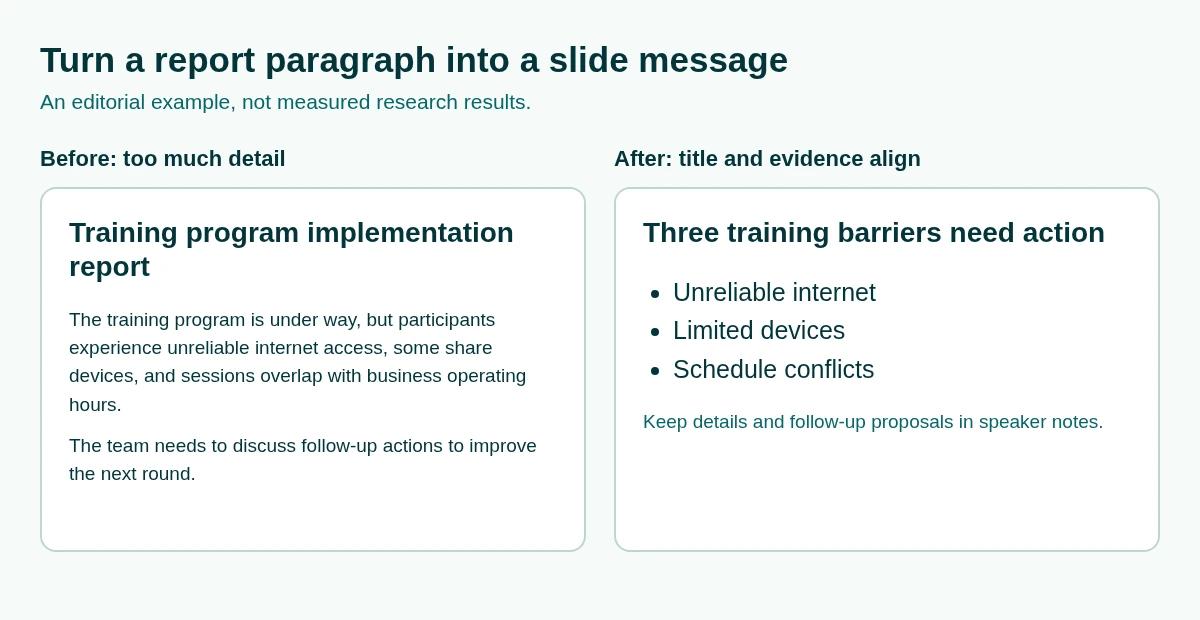
After editing, decide whether a short list or a relationship diagram best serves the content. Do not add an icon to every point automatically. If the obstacles have no demonstrated causal relationship, do not draw them as a chain of causes. Specific revision instructions in the AI presentation prompt guide can help keep a redesign focused on the actual problem.
Prepare a clear brief before the outline stage
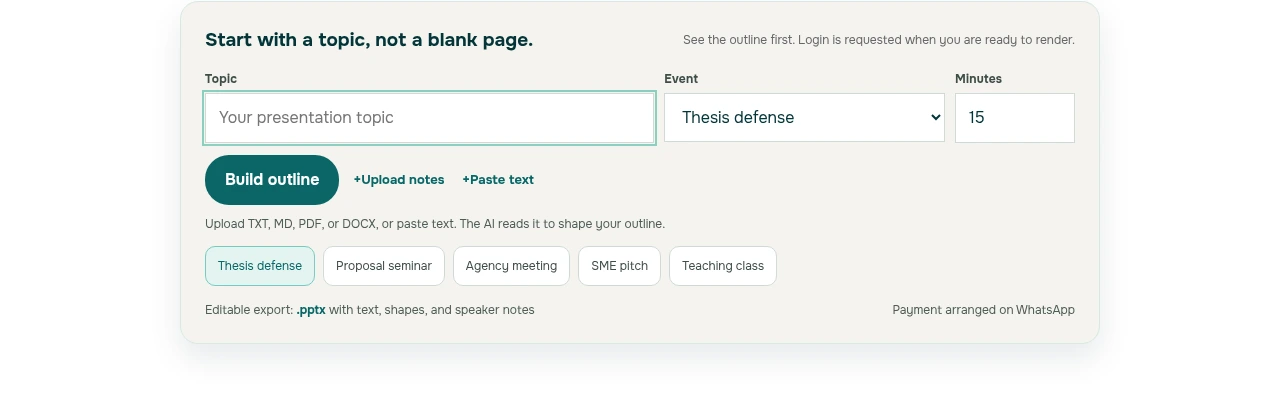
Design decisions are easier when the presentation starts with a focused brief. The real public entry form below was captured from soluslide.com on 13 October 2026. It shows an empty topic field, an event selector, a minutes field, and options to upload notes or paste text. The screenshot documents the starting interface only. It does not demonstrate a completed outline, a successful login, or an exported file.
Write the audience, the question you will answer, and the available time in your brief before using any outline tool. If your subject is training barriers, specify whether the audience needs to understand those barriers or approve a response. Those are different presentation tasks. A topic alone does not settle which evidence matters or what the last slide should request.
When you later review an outline, separate the audience-facing slide message from the explanation you will speak. Density warnings can point to titles or bullets that need editing, but they cannot establish source accuracy, color contrast, or projection quality. Keep the original evidence available, check the argument yourself, and inspect the final file rather than treating an automated check as a complete review. The next section provides a practical order for that review.
Review the finished deck and choose your next step
Review from content to appearance. Read the titles to check the argument, compare numbers with the source, and inspect the deck in full-screen presentation mode. Use the intended screen or projector where possible. Look closely at labels, slide edges, and references that are difficult to read, not just the main visual.
- Research defense: prioritize evidence and limitations, with supporting detail ready for questions. The thesis defense outline and viva presentation starting point help with structure.
- Workplace briefing: make the requested decision easy to find and keep its supporting evidence together.
- Teaching: separate instructions, demonstrations, and practice rather than presenting them as one dense page.
If you are choosing a drafting tool, the editable-file alternative guide explains what to inspect before relying on an export. Soluslide is a beta tool that creates timed outlines from a topic or document. You can edit titles, content, notes, and minutes before signing in; editable .pptx export requires a beta-account sign-in. Try the outline builder or read the public features and limitations, then apply your own design review.
For a question about your specific deck, ask about slide design on WhatsApp. Include the event type, duration, and a concrete example of what needs improving.
Frequently asked questions
How can I make an attractive PowerPoint without an expensive template?
Start with one message per slide, a useful title, concise content, and consistent layouts. A simple theme is enough when the type, contrast, and visuals support the argument; an expensive template cannot fix an unclear message.
What are the 12 slide design principles in this guide?
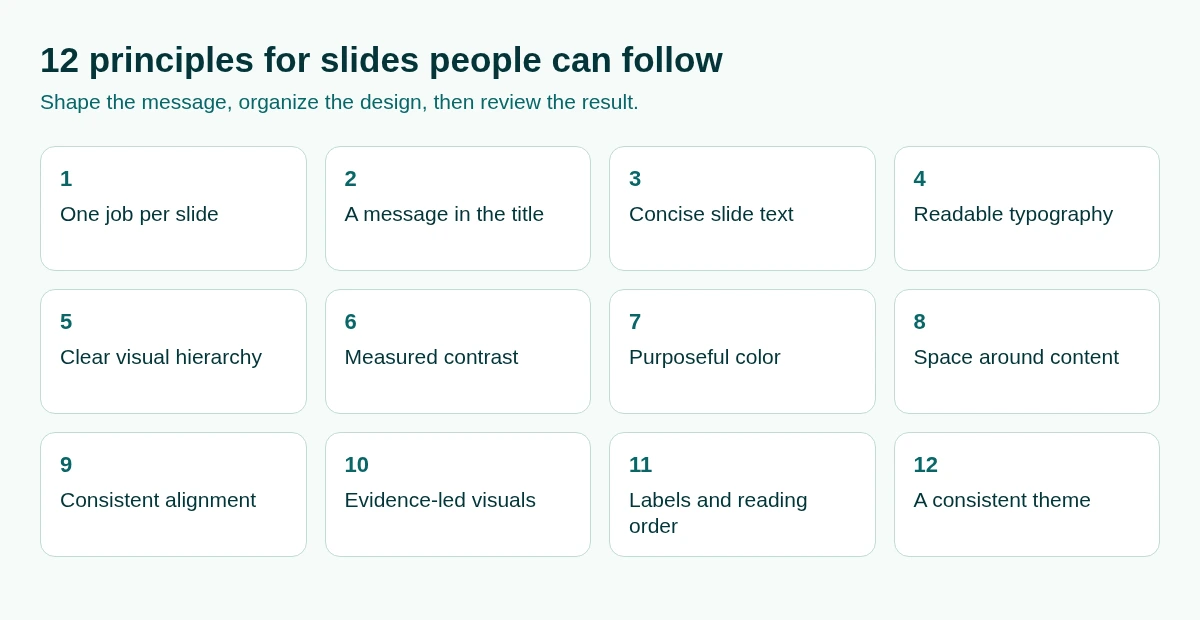
They cover one job per slide, message titles, concise text, simple fonts, visual hierarchy, measured contrast, stable color roles, open space, alignment, relevant visuals, labels and accessibility, and themes with slide masters. Apply them from content outward, then test the finished file.
Does every slide need a minimum font size of 18 pt?
Microsoft recommends avoiding sizes below 18 pt as readability guidance, with larger text when the audience is further away. It is not a legal rule or a size that guarantees readability everywhere; edit essential text and test it in the actual setting.
How many bullets should I put on one slide?
There is no universal count. Keep only the points supporting the message, write them briefly, and put longer explanations in notes; Microsoft recommends short bullets or sentences that ideally fit on one line.
Does a 4.5:1 contrast ratio make a presentation WCAG certified?
No. WCAG specifies 4.5:1 for normal text and 3:1 for large text in a web-content context; adapting those figures to slides is a benchmark, not certification of the whole presentation. Check the projector and room conditions as well.
Where do I find Slide Master or change a theme?
In PowerPoint, choose View and then Slide Master to edit shared elements. In Google Slides on a computer, choose Slide and then Change theme; menu names may differ with your interface language.
Are pictures always better than text on slides?
No. Use a chart, photograph, or diagram when it explains relevant evidence or a relationship; short text may work better for instructions. Give visuals appropriate labels, sources, and alternative text.
Can an outline check replace reviewing the final slides?
No. Density warnings help identify long titles or points, but they do not establish data accuracy, color contrast, or projection quality. Review the final file in presentation mode, check accessibility, and rehearse within the available time.
Sources
Factual claims in this article refer to the sources below. Sample outlines and prompts are illustrations to adapt.
- Microsoft Support: Tips for creating and delivering an effective presentation
- Microsoft Support: Make your PowerPoint presentations accessible to people with disabilities
- W3C WAI: Understanding Success Criterion 1.4.3 Contrast (Minimum)
- Microsoft Support: What is a slide master in PowerPoint?
- Microsoft Support: Create professional slide layouts with Designer in PowerPoint
- Google Docs Editors Help: Use a Template or change the theme, background, or layout in Google Slides
Related reading
Try shaping your own outline. You can review and edit it before signing in.
Build a free outline