
Editable PPTX after AI generation: what to check before you present
AI can draft a deck in seconds, but the file you download decides how much work is left. Here is how to tell a genuinely editable PPTX from a pretty picture of slides.
What an editable PPTX actually means
An editable PPTX is a PowerPoint file where every word on a slide is real text inside a text box or placeholder, every shape can be selected and moved on its own, and the design comes from a theme and slide master rather than from a screenshot. If you can click a title, retype it, change its font size, and the slide still looks right, the file is editable. If clicking the title selects the whole slide as one picture, it is not.
This matters more after AI generation than at any other time. An AI tool gives you a first draft. The draft will almost always need changes: a figure that is out of date, a title that is too long, a slide your supervisor or manager wants cut, a logo that must be swapped for the official one. When the export is editable, those changes take minutes. When the export is a set of flattened images, every change means rebuilding the slide by hand, and the time you saved with AI disappears.
In short, check four things before you trust any AI deck:
- Text is selectable and editable, not baked into an image.
- Layout comes from slide layouts and a slide master, so global changes happen in one place.
- Fonts are available on the computer that will present, or are embedded where the font license allows it.
- Speaker notes, if the tool wrote any, are in the Notes pane where Presenter view can show them.
The rest of this guide explains each point and ends with a checklist you can run on any exported file in about ten minutes.
Text boxes versus flattened images
Some generators render each slide as a picture and drop that picture onto a blank PowerPoint slide. The file opens in PowerPoint and has the .pptx extension, so it looks fine at first glance. The problem only shows up when you try to fix a typo.
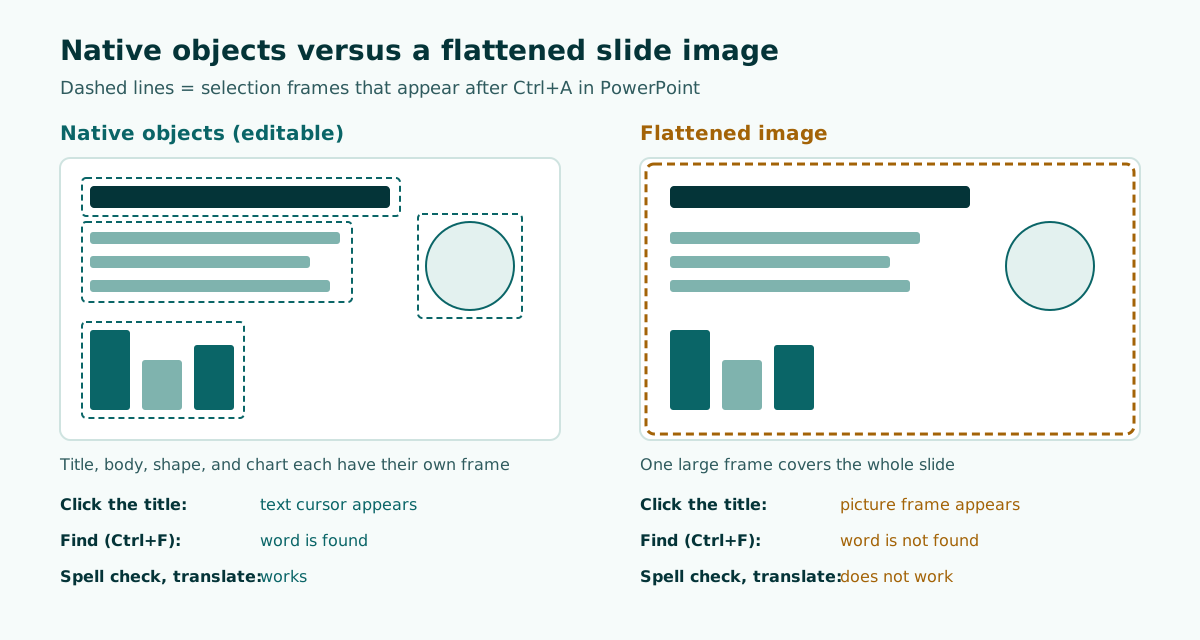
A slide built from native objects behaves very differently. The title is a text box. Bullet points are paragraphs in a body text box. Icons and dividers are shapes. A chart may be a real chart object with editable data. Each of these can be changed without touching the others.
How to tell in ten seconds
- Click once on a word in the slide title. If a blinking cursor appears inside a text box, the text is real. If a frame appears around the entire slide area, you are looking at an image.
- Press Ctrl+A (Cmd+A on a Mac) with nothing selected on the slide. PowerPoint selects every object. Many small selection frames mean separate objects; one big frame means one picture.
- Use Find (Ctrl+F) to search for a word you can see on the slide. If Find cannot locate it, the word is not stored as text.
Scroll the table sideways to see every column.
| Element in the file | Can you edit the words? | Can you restyle it globally? | What to do if it is wrong |
|---|---|---|---|
| Text in a layout placeholder | Yes | Yes, through the slide master and layouts | Edit directly or change the layout |
| Text in a free text box | Yes | Partly, each box keeps its own formatting | Edit directly; use Format Painter for consistency |
| Shapes and lines | Text inside shapes, yes | Colors follow the theme if theme colors were used | Select and recolor or delete |
| Grouped objects | Yes, after ungrouping or clicking into the group | Partly | Ungroup only if you need to move parts separately |
| Flattened slide image | No | No | Rebuild the slide or regenerate with a different export |
A flattened image also blocks spell check, search, and translation, because there is no text for those tools to read. If your deck needs to be reviewed by someone else, those losses add up quickly.
Placeholders, layouts, and the slide master
Real text is the minimum. A truly comfortable file also uses PowerPoint's layout system, because that is what lets you change the whole deck in one move.
Microsoft describes slide layouts as containing the formatting, positioning, and placeholder boxes for the content on a slide. Placeholders are the dotted-line containers on a layout that hold titles, body text, tables, charts, SmartArt, pictures, and media. Layouts also carry the theme: colors, fonts, effects, and background. To apply a layout to a slide, select the slide and choose Home > Layout.
Above the layouts sits the slide master. According to Microsoft, when you edit the slide master, all slides based on that master pick up the change, which is why it is the right place for a logo or a brand font. You open it from View > Slide Master. Every theme includes a slide master and a related set of layouts, so a deck that mixes several themes will have several masters.
What this means for an AI deck
- If you cannot delete a logo or footer in Normal view, it is probably defined on the slide master or a layout. Microsoft notes that you have to switch to Slide Master view to edit it.
- If you change a layout after slides already exist, Microsoft says you need to reapply the changed layout to those existing slides. Do this before you judge whether the change "worked".
- Slide Master view is not available in PowerPoint for the web, so do master-level fixes in the desktop app.
Not every generator uses placeholders. Many build slides with free text boxes positioned on a blank layout. That is still editable: you can retype and restyle everything. The trade-off is that global changes, such as switching the heading font across 20 slides, take more clicks because each box carries its own formatting. Knowing which kind of file you have tells you how to plan your edits.
Fonts: the most common reason a deck looks broken
A deck can be fully editable and still look wrong on the presentation laptop, because the font used on your machine is not installed there. Text then falls back to a substitute font, lines wrap differently, and titles that fit before now spill over.
Microsoft's guidance on embedding fonts explains the options. On Windows, go to File > Options > Save and, under the fidelity section for the presentation, select Embed fonts in the file. You then choose between two settings:
- Embed only the characters used in the presentation. Microsoft says this reduces file size but limits editing with the same font.
- Embed all characters, which Microsoft labels as best for editing by other people.
For a deck that someone else will keep editing after AI generation, the second option is the safer choice. Microsoft also notes three practical limits:
- Office cloud fonts download automatically for Office subscribers with internet access, so you rarely need to embed them. Embedding helps most with non-standard fonts or when the file will be edited or viewed offline.
- Not all TrueType fonts can be embedded. Font creators can set the font as non-embeddable, preview/print, editable, or installable.
- Some fonts are large, so embedding can make the file noticeably bigger.
Other apps handle missing fonts their own way. Apple's Keynote guide says that when you open a presentation using fonts that are not installed, a missing font notification appears, and you can choose replacements under Format > Font > Replace Fonts. Treat that notification as a signal to review every slide, not just to click through.
The simplest defense is choosing widely available fonts in the first place. If your organization has a brand font, make sure it is installed on the machine you will present from, or test the embedded version there before the day.
Speaker notes: where the AI's script should live
Many AI tools write talking points for each slide. Those points are only useful if they land in the right place in the file.
In PowerPoint, the Notes pane is the box below each slide, which shows "Click to add notes" when it is empty. Microsoft explains that during a slide show your notes are visible on your monitor but not to the audience, and that Presenter view gathers the notes for each slide and pairs them with navigation controls. By default, PowerPoint uses Presenter view when you run a slide show. Microsoft also documents how to print slides with their notes, which is handy as a paper backup.
When you inspect an AI export, look for these problems:
- Notes pasted onto the slide. A paragraph of script sitting in a small text box at the bottom of the slide will be seen by the audience. Move it into the Notes pane.
- Notes that read like slide text. Good notes are spoken language: a transition, an example, a number to emphasise. If they just repeat the bullets, rewrite them in your own words.
- Missing notes on key slides. The methods slide in a thesis defense or the budget slide in a funding pitch usually needs the most support. Add notes there first.
If you are preparing for a viva or thesis defense presentation, write notes as cues rather than full sentences so you are not tempted to read them aloud.
Test the file in Google Slides and Keynote
A PPTX that behaves well in PowerPoint can still change when someone opens it in another app. If a co-author, reviewer, or event organizer uses Google Slides or Keynote, test there before you share.
Google Slides
Google's help page on working with Office files says you can edit a PowerPoint file directly in Google Slides by double-clicking it in Google Drive, or use Office Compatibility Mode, which requires the Office Editing for Docs, Sheets & Slides extension in Chrome on a computer. Google lists features that are not supported when you edit in Slides. The ones that matter for presentations:
- Embedded charts and videos in PowerPoint files are converted to images.
- SmartArt is converted to Google Drawings.
- Macros are not supported.
Google also confirms that a presentation can be saved back as .pptx. So a round trip is possible, but a chart that became an image in Slides will stay an image when you download it again. Keep an untouched copy of the original PPTX as your master file.
Keynote
Apple's Keynote guide says you can open and edit PowerPoint presentations (.pptx or .ppt) in Keynote and save them as Keynote or PowerPoint files. To open a PowerPoint file in Keynote on a Mac, drag it onto the Keynote icon, because double-clicking opens PowerPoint if it is installed. Watch for the missing font notification described above.
What to compare after import
- Title lengths: did any heading wrap onto a second line or overflow its box?
- Charts: are they still editable, or now pictures?
- Diagrams built with SmartArt: are the shapes intact and in the right order?
- Speaker notes: are they still attached to the right slides?
- Colors and contrast: does text still read clearly on its background? Our guide on readable presentation contrast covers what to look for.
A 10-minute checklist for any exported PPTX
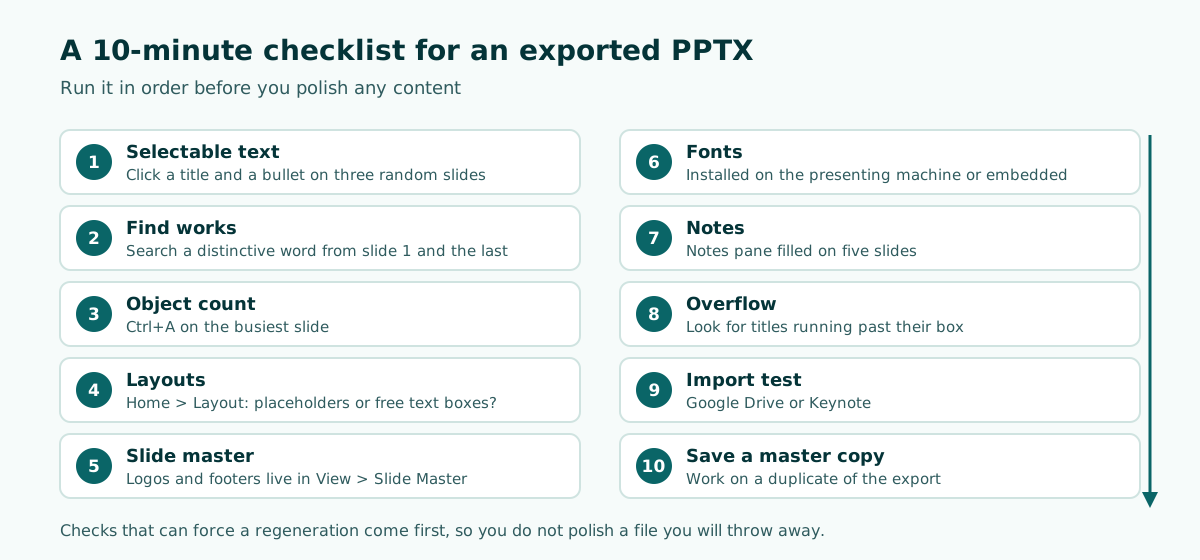
Run this on every AI-generated deck before you start polishing content. It is ordered so the checks that force a regeneration come first, and you do not waste time editing a file you will throw away.
- Selectable text. Click a title and a bullet on three random slides. All should show a text cursor.
- Find works. Search for a distinctive word from slide 1 and from the last slide.
- Object count. Press Ctrl+A on a busy slide. You should see separate frames for title, body, and each shape.
- Layouts. Open Home > Layout on a content slide. Note whether it uses a named layout with placeholders or a blank layout with free text boxes.
- Slide master. Open View > Slide Master. Check that logos and footers live there, not copied onto every slide.
- Fonts. Click into a title and a body text box and note the font names shown on the Home tab. Confirm each one is installed on the presenting machine or embedded in the file.
- Notes. Switch to Normal view and scroll the Notes pane on five slides. Confirm notes are there and the slide itself has no leftover script.
- Overflow. Look for text running past its box or past the slide edge, especially in titles.
- Import test. Upload a copy to Google Drive or open it in Keynote if anyone on your team uses those apps.
- Save a master copy. Keep the original export untouched and work on a duplicate.
Worked example: fixing one slide
Here is a typical slide from an AI draft for a 10-minute internal meeting, and what the checklist turns up.
Title: "Comprehensive Overview of Q3 Operational Performance Metrics and Key Strategic Takeaways for Stakeholders"
Body: six bullets, 11 point text, with a paragraph of script in a text box at the bottom.
The checks show that the text is editable (good), but the title overflows onto three lines, the font is a custom display face that the meeting room laptop does not have, and the script is visible to the audience. The fix takes about four minutes:
- Rewrite the title as a claim: "Q3 delivery improved, but support backlog doubled".
- Cut the body to three bullets that support that claim.
- Move the script into the Notes pane.
- Switch the heading font to one installed on both machines, or embed all characters if the license allows.
The same edits on a flattened image would mean recreating the slide from scratch. That difference is the whole argument for insisting on an editable file.
Asking AI tools for an editable result
You can raise the odds of a clean export before you generate anything. A clear brief reduces the number of slides you need to fix, and a structured outline makes it easier to spot problems early. For more on writing these briefs, see our guide to prompts for AI presentations.
Create a 10-minute presentation outline for a quarterly team meeting.
Audience: department heads, not technical.
Slides: 8 maximum, about 1 to 1.5 minutes each.
For each slide give: a title written as one clear claim (max 10 words),
3 bullets max, and speaker notes as short spoken cues.
Keep all text as text. Do not put talking points on the slide itself.
Use one heading font and one body font that are widely available.
When you compare tools, put the export format near the top of your criteria. Our overview of the AI presentation maker category and the comparison of Gamma alternatives with editable PPTX both look at this question. If your deck starts from an existing report or thesis chapter, the guide on building a presentation from a document explains how to keep the structure of the source.
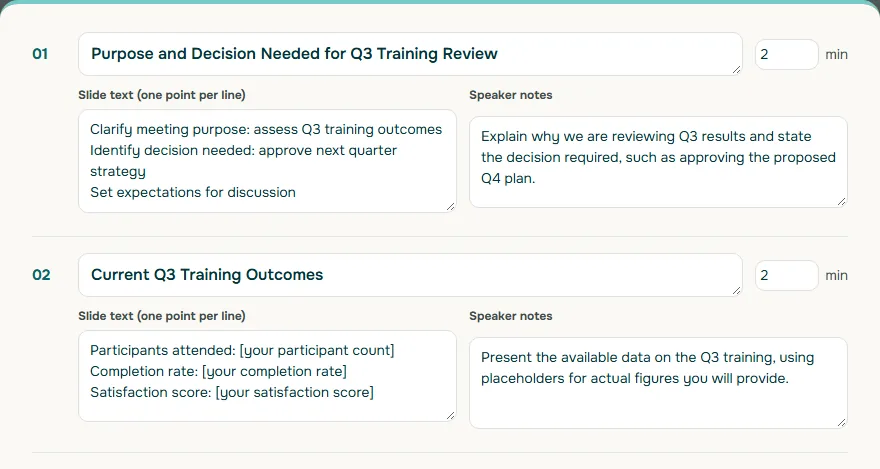
Soluslide, currently in beta, takes this approach: you enter a topic, event type, and duration, or upload a document, and get a timed outline with titles, notes, and minutes per slide that you can edit before signing in. With a beta account, you can export a .pptx built from standard text boxes and shapes, so every title and bullet can be retyped in PowerPoint. You can try the outline step on the builder or read what is included on the features page.
Sample beta plans are listed on the pricing page, and the coordination meeting guide shows how an editable deck fits a decision-first meeting.
Frequently asked questions
How do I know if a PPTX file is editable?
Click on a word in a slide title. If a text cursor appears, the text is real and editable. If the whole slide gets one frame, the slide is a flattened image and its text cannot be edited.
Why do my fonts change when I open the deck on another computer?
The font is probably not installed on that computer, so a substitute is used. Install the font there or embed it in PowerPoint under File > Options > Save, choosing Embed all characters if others will edit the file.
Can every font be embedded in PowerPoint?
No. Microsoft notes that not all TrueType fonts can be embedded, because font creators can set a font as non-embeddable, preview/print, editable, or installable.
Will a PPTX look the same in Google Slides?
Not always. Google says embedded charts and videos in PowerPoint files are converted to images and SmartArt is converted to Google Drawings, so check those slides after import.
Where should AI-generated speaker notes go?
In the Notes pane below each slide. Microsoft explains that notes there show on your screen in Presenter view but not to the audience.
Why can I not delete a logo on my slide?
It is probably placed on the slide master or a layout. Open View > Slide Master in the desktop app to edit or remove it.
What is the difference between a text-box slide and a flattened image slide?
On a text-box slide, the title, bullets, and shapes are separate objects you can edit one by one. A flattened slide is a single picture, so its words cannot be edited, searched, spell checked, or translated.
Sources
Factual claims in this article refer to the sources below. Sample outlines and prompts are illustrations to adapt.
- Microsoft Support: What is a slide master in PowerPoint?
- Microsoft Support: What is a slide layout?
- Microsoft Support: Benefits of embedding custom fonts
- Microsoft Support: Add speaker notes to your slides
- Google Docs Editors Help: Work with Office files
- Apple Support: Open or close a Keynote presentation on Mac
Related reading
Try shaping your own outline. You can review and edit it before signing in.
Build a free outline