
Create a Presentation From a Document Without Losing the Argument
A document is read; a presentation is heard once. Here is how to convert one into the other while keeping the claims, the evidence, and the decision intact.

How to create a presentation from a document (short answer)
To build a presentation from a document without losing its argument, do not start by copying headings into slides. Start by finding the one sentence the audience must remember, then work backwards. A report, paper, or Word file is written to be read at the reader's pace. A presentation is heard once, at your pace. Converting one into the other is an editing job, not a formatting job.
The workflow that holds up for reports, research papers, theses, and policy documents looks like this:
- Write the takeaway first. One sentence: what should the audience believe or decide after your talk?
- Sort the document. Tag every paragraph as a claim, evidence, context, or a decision request. Most of the context stays in the document.
- Condense to the time you have. Pick the three to five claims that carry the takeaway and drop the rest into an appendix or handout.
- Turn each claim into a slide title written as a full sentence, with one piece of evidence under it.
- Rebuild tables and figures so each one shows a single comparison the audience can read in seconds.
- If you use an AI tool, check its output against the source page by page before you present, and decide what you are allowed to upload in the first place.
The rest of this guide explains each step, with a worked example of a 30-page report turned into a 12-minute deck.
Why you cannot paste a document into slides
A written document can afford a slow build-up: background, literature, method, findings, and only then the conclusion. Readers can skim ahead, reread a paragraph, or check a footnote. Listeners cannot. The University of North Carolina Writing Center's guide to speeches tells speakers to state the thesis right away and explain how they will support it, instead of saving the point for the end, because an audience kept guessing tends to become bored or confused.
The same guide recommends habits that rarely appear in written reports: repeating crucial points and key terms, previewing and summarizing the structure out loud, and using shorter sentences with the subject and verb close together. That is the core difference. A document earns trust through completeness; a talk earns it through clarity and repetition.
So the first question is not "how do I fit chapter 3 on slides?" but "which parts of chapter 3 does my audience need in order to accept my conclusion?" Everything else is still valuable, just not on screen.
What usually goes wrong
- One slide per heading. The document's table of contents becomes the deck, so the talk follows the writing order instead of the argument.
- Paragraphs shrunk into bullets. The sentences lose their connecting words ("because", "despite", "therefore"), which are exactly where the reasoning lived.
- Every number survives. The audience sees 40 figures and remembers none of them.
- The decision appears on the last slide, after the time has run out.
Separate claims, evidence, context, and the decision
Before opening any slide software, read the document once with four highlighter colors (or four tags in the margin). Every paragraph does one of four jobs. Sorting them is the single most useful step, because it shows you what the argument actually is.
Scroll the table sideways to see every column.
| Type | What it looks like in the document | Where it goes in the deck |
|---|---|---|
| Claim | A sentence that could be argued with: "Delivery delays are driven by the warehouse, not by couriers." | Slide titles, written as full sentences |
| Evidence | Data, results, quotes, cases, citations that support a claim | The body of the slide: one strong piece per claim, the rest in backup slides |
| Context | Background, definitions, method details, literature review, history | Mostly spoken or moved to the appendix; keep only what the audience needs to understand the claims |
| Decision or ask | Recommendations, budget requests, next steps, the question for the committee | Early (stated up front) and again at the end |
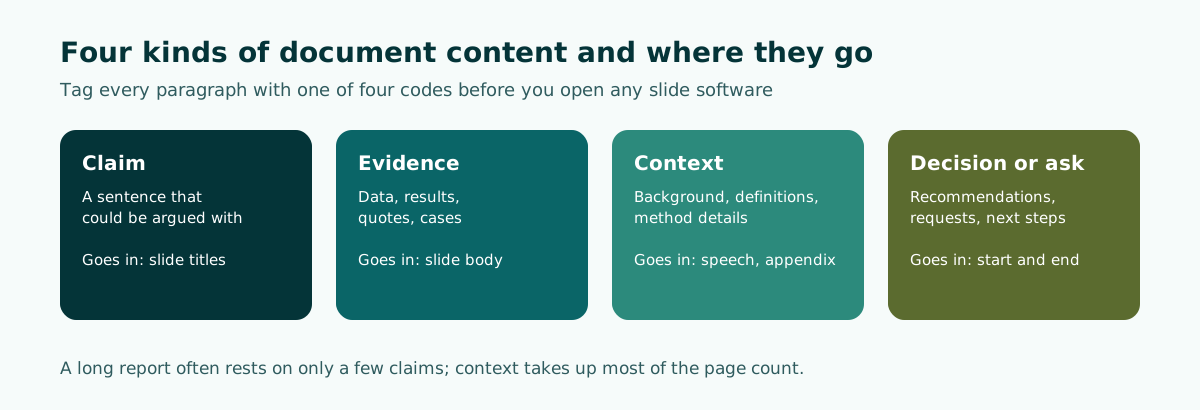
Two patterns show up almost every time. First, the claims are fewer than you expect; a 30-page report often rests on four or five. Second, context takes up most of the page count. That is normal for a document and a warning sign for a deck. If your slide draft is mostly context, the audience will hear a lot of background and very little argument.
Write the sorted claims as a plain list, in the order that makes the argument easiest to follow. This list is your outline. It is usually not the order of the document's chapters.
Condense to what the audience must remember
Condensing is where most of the argument is either protected or lost. A useful test: if a listener could repeat only one sentence to a colleague after your talk, which sentence should it be? Every slide should either make that sentence more believable or answer an objection to it.
Work from your time limit, not from the document's length. As a rough planning range, many presenters budget one to two minutes per content slide, then adjust after a timed rehearsal. A 10-minute slot therefore holds a handful of claims, not a chapter-by-chapter tour. For a formal setting with strict timing, such as a thesis defense presentation or a briefing for a government meeting, plan the minutes per slide before writing any slide content.
What to cut, and what never to cut
- Cut: literature reviews (keep one sentence on the gap you address), full method descriptions (keep what affects how far the results can be trusted), secondary findings that do not change the conclusion, and repeated examples.
- Never cut: the limitations that change how the claim should be read, the size of the effect (not only its direction), and the conditions under which the recommendation applies. Removing these makes a deck shorter and the argument less honest.
Anything you cut still has a home. Put it in backup slides after the closing slide or in a handout, so you can answer questions without crowding the main talk.
To order the claims you keep, the patterns in presentation structure help, and details you cut from the slides can move into speaker notes so you can still say them aloud.
Write slide titles as claims, not topics
The fastest way to keep a document's argument intact is to make every slide title a complete sentence that states the point. The assertion-evidence approach, developed for engineering and science talks and published by Michael Alley at Penn State, criticizes the default of a phrase headline with a bulleted list: the phrase headline does not communicate the takeaway message, and the bullet list adds clutter. Instead, each slide is built on a succinct message (the assertion) supported by visual evidence.
Sentence titles help in a second way. Microsoft's accessibility guidance for PowerPoint asks for a unique, descriptive title on every slide, because people using screen readers rely on slide titles to know which slide is which. A list of claim titles is also a readable summary of your whole talk, which is a quick test of whether the argument survives on its own.
Worked example: rewriting topic titles
Scroll the table sideways to see every column.
| Topic title (copied from the document) | Claim title (what the slide proves) |
|---|---|
| Background | Late deliveries doubled after we moved to a single warehouse |
| Results | Most delays start before the parcel reaches the courier |
| Survey findings | Customers forgive a late parcel if they are told in advance |
| Recommendations | A second pick-up slot fixes the bottleneck at the lowest cost |
Notice that the claim titles can be checked against the source. If the report does not support "doubled" or "most", the title must change. That makes claim titles a built-in accuracy check, which matters even more when an AI tool drafted them.
Handle tables, figures, and appendices
Documents carry dense tables because readers can study them. On a slide, a 12-row table is read by nobody. Rebuild every table and chart around one comparison:
Once you have selected the key evidence, apply the 12 slide design principles to its typography, spacing, and placement instead of shrinking the entire table.
- Ask what the table proves. Usually it is one comparison (before vs after, region A vs region B) or one outlier. Show that comparison and keep the full table in the appendix.
- Highlight, do not shrink. If you must keep a table, reduce it to the rows that matter and visually emphasize the cell that supports the slide title.
- Keep table structure simple. Microsoft's accessibility guidance recommends a simple structure for data only, with column headers, and avoiding split, merged, or nested cells, since screen readers track their position by counting cells.
- Redraw charts for distance. Larger labels, fewer series, and a title that states the finding. For legibility at the back of a room, see our guide to readable slide contrast and font size.
- Cite the original. Put the table or figure number and page from the source document in small text, so anyone can trace the number back.
Figures you did not make (from papers, agencies, or other reports) need their source on the slide. When you simplify someone else's chart, say "adapted from" rather than presenting it as the original.
Tools that convert a document to a presentation, and their limits
Several tools promise to convert a document to a presentation automatically. They are useful for a first draft, as long as you know what they actually do.
- Word's Export to PowerPoint. In Word for the web, this feature creates a presentation from the summarized sections of a document, and the document's headings become the slide headings. Microsoft notes that it supports text content only, is available only in English, and that the option is being deprecated. Treat it as a quick starting point, not a long-term workflow.
- Copilot in PowerPoint. Microsoft's guidance says that organizing your Word document with Styles helps Copilot understand its structure and how to break it into slides, that Copilot works best with Word documents smaller than 24 MB, and that the output is AI-generated content that should be human-reviewed and edited. Microsoft also notes that Copilot might not be included with every Microsoft 365 subscription.
- General AI chat tools and presentation generators. They can summarize and outline, but they decide on their own what is important unless you tell them. A good prompt for an AI presentation states the audience, time limit, and takeaway. If you plan to keep editing the deck, check whether the tool exports an editable PPTX with real text boxes instead of flattened images.
Whatever the tool, the structural lesson is the same: clean headings and a clear argument in the source produce a better draft. A document whose headings are claims will convert into slides whose titles are claims.
A prompt that protects the argument
I am attaching a 30-page internal report. Create a slide outline for a
12-minute talk to the operations directors, who must approve or reject
a budget request at the end.

Rules:
1. First slide states the recommendation and the budget asked for.
2. Every slide title is a full sentence stating one claim.
3. Under each title, give one piece of evidence and the page number
   in the report where it appears.
4. Keep any limitation that changes how a claim should be read.
5. Do not add numbers, sources, or examples that are not in the report.
6. Put everything else in a list called "Backup material".
7. Give suggested minutes per slide, totalling 12.
Rule 3 is the important one. Asking for page numbers makes the next step, checking the output, much faster.
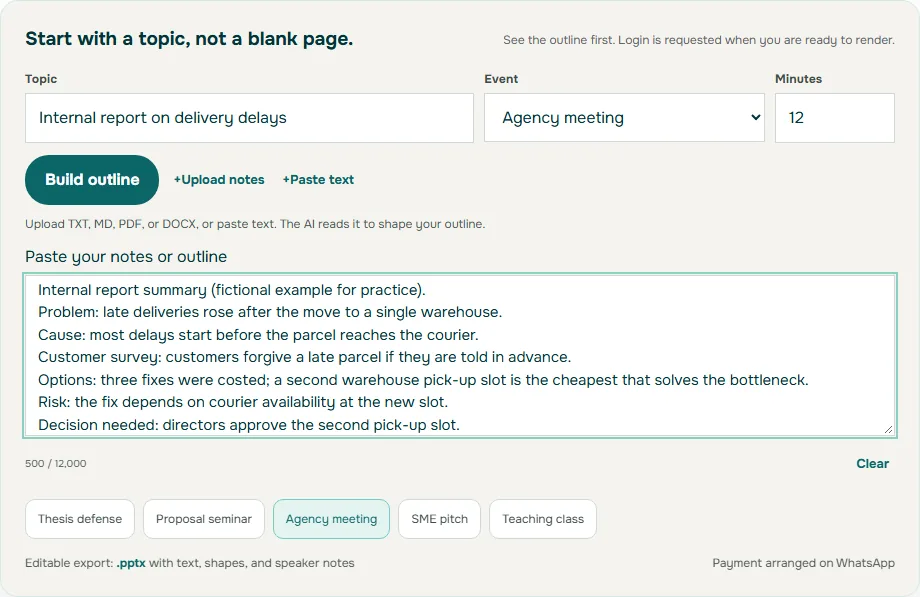
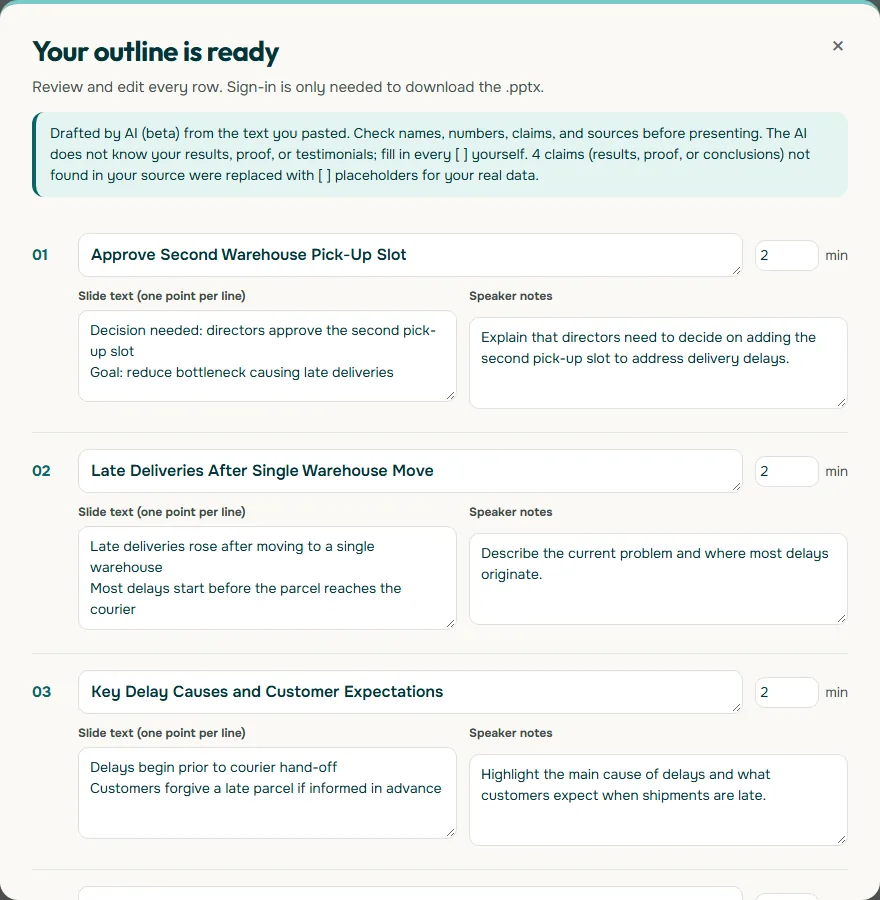
Here is the paste-text route in Soluslide, using a fictional summary of the same delivery report as the worked example at the end of this article.
Privacy: decide what you are allowed to upload
Uploading a document to an AI service is sharing it with that service. Before you upload a report, thesis draft, contract, or internal memo, check three things.
- Who owns the document and what the rules say. Many organizations and universities have policies on which AI tools may process internal or unpublished material. Microsoft's own Copilot guidance notes that you must have access to and permission to use the file you reference.
- How the service uses your content. Read the privacy page of the specific tool, not a general article about AI. Google's Gemini Apps Privacy Hub, for example, says that human reviewers review some of the data collected, asks users not to enter confidential information they would not want a reviewer to see or Google to use to improve its services, and states that chats reviewed by human reviewers are retained for up to three years even after you delete your activity. Other services have different terms, which is exactly why you check.
- Whether you need the sensitive parts at all. Often you do not. Remove names, account numbers, salaries, health details, and client identifiers before uploading. Replace them with placeholders ("Client A", "Region 2") and restore them in the final file on your own computer.
A safe default for confidential material: upload only an anonymized summary or the sections you need, never the whole original.
Check the AI summary against the source
AI summaries of long documents tend to fail quietly. The slide looks fluent, so the error is easy to miss. Before you present, compare every slide against the source using this checklist:
- Numbers: each figure matches the document exactly, including units, years, and whether it is a percentage or percentage points.
- Direction and strength: "reduced" did not become "eliminated", "associated with" did not become "causes", and "in our sample" did not become "in general".
- Caveats: the limitations that change the reading of a claim are still present.
- Attribution: quotes, citations, and figures are credited to the right source, and nothing was added that the document does not contain.
- Emphasis: the deck's main claim is the document's main claim, not a side finding the tool found interesting.
The page numbers you requested in the prompt turn this into a quick side-by-side check. If a slide cannot be traced to a page, rewrite it or delete it. For a thesis or a decision meeting, ask one colleague who knows the document to read only the slide titles: if they disagree with any title, the summary has drifted.
Worked example: a 30-page report to a 12-minute deck
Here is how the steps combine for a typical internal report on delivery delays, presented to directors who must approve a budget.
- Opening (1 min): "We recommend a second warehouse pick-up slot, at a cost the directors are asked to approve today."
- Problem (1.5 min): "Late deliveries doubled after the move to a single warehouse" (chart from page 6).
- Cause (2 min): "Most delays start before the parcel reaches the courier" (one comparison from table 4).
- Customer impact (1.5 min): "Customers forgive a late parcel if they are told in advance" (one survey result, page 14).
- Options (2 min): "Three fixes were costed; the second pick-up slot is the cheapest that solves the bottleneck" (simplified cost table).
- Risk (1.5 min): "The fix depends on courier availability at the new slot" (limitation from page 22).
- Decision (1.5 min): restate the request, the cost, and the date the decision is needed.
- Questions (1 min) and backup slides: method, full tables, and the two options that were rejected.
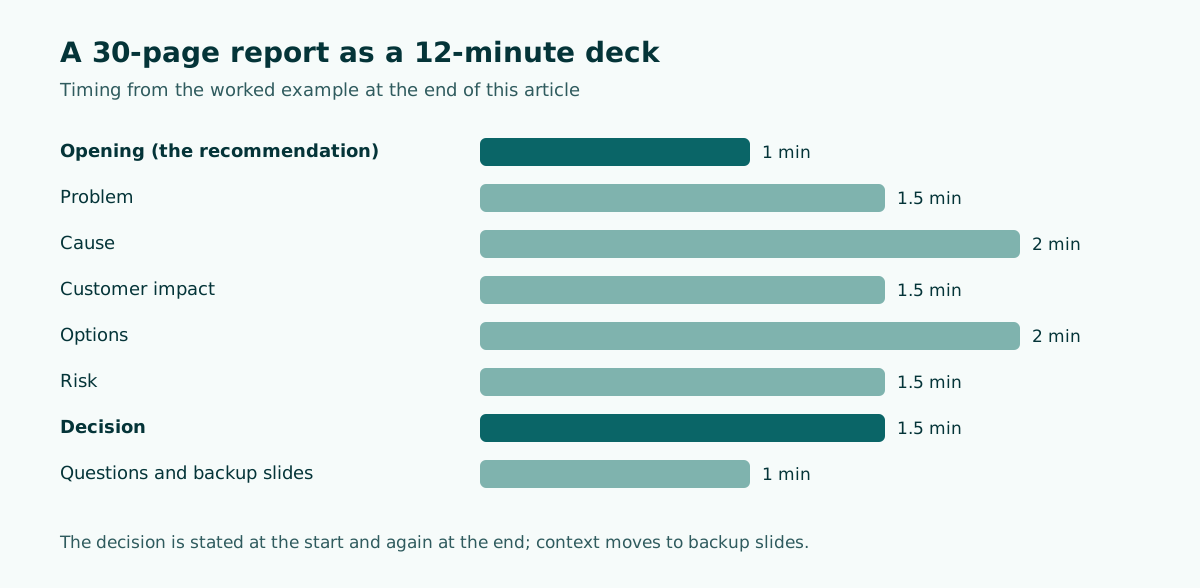
Seven content slides carry a 30-page document. Nothing in the argument was lost; most of the context simply moved to the backup slides and to what you say out loud.
If you want a timed outline like this as a starting point, Soluslide (currently in beta) can take an uploaded PDF, Word file, or notes and return a slide outline with titles, speaker notes, and minutes per slide that you can edit before signing in; exporting an editable .pptx requires a beta account. You can try it from the outline builder or read what it does on the features page. Either way, the checks above still apply to whatever draft you start from, whether it came from an AI presentation maker or from your own notes.
Frequently asked questions
Can I convert a Word document to PowerPoint automatically?
Yes, as a first draft. Word for the web has an Export to PowerPoint option that turns headings into slide headings, but Microsoft says it supports text only, works only in English, and is being deprecated. Copilot in PowerPoint can also draft slides from a Word file, if Copilot is included in your subscription.
How many slides should a presentation from a document have?
Base it on your time limit and the number of claims, not on the document's length. A common rough range is one to two minutes per content slide, then adjust after a timed rehearsal.
Should slide titles be topics or full sentences?
Full sentences that state the point work better for argument-driven talks. The assertion-evidence approach recommends a succinct message as the headline, supported by visual evidence instead of bullet lists.
Is it safe to upload a confidential document to an AI tool?
Check the specific tool's privacy terms and your organization's policy first. Google's Gemini privacy page, for example, asks users not to enter confidential information they would not want a human reviewer to see. When in doubt, upload an anonymized summary instead of the original.
How do I check if an AI summary of my document is accurate?
Ask the tool to cite the page for every claim, then compare each slide with the source: numbers, the strength of each claim, caveats, and attribution. Delete any slide you cannot trace back to a page.
What do I do with large tables from my report?
Show only the comparison that supports the slide title, keep the full table in an appendix or handout, and cite the table number and page from the original document.
Where should the background and context from my document go?
Most context should be spoken or moved to the appendix and backup slides. Keep on screen only the context the audience needs to understand your claims.
Sources
Factual claims in this article refer to the sources below. Sample outlines and prompts are illustrations to adapt.
- Microsoft Support: Export Word documents to PowerPoint presentations
- Microsoft Support: Create a new presentation with Copilot in PowerPoint
- Google Gemini Apps Help: Gemini Apps Privacy Hub
- Assertion-Evidence Approach (Penn State, Michael Alley): Rethinking Scientific and Technical Presentations
- The Writing Center, University of North Carolina at Chapel Hill: Speeches
- Microsoft Support: Make your PowerPoint presentations accessible to people with disabilities
Related reading
Try shaping your own outline. You can review and edit it before signing in.
Build a free outline