
Gamma alternative for an editable PowerPoint workflow
The best Gamma alternative depends on the file you need at the end. Here is how to test AI presentation tools by their exported PowerPoint, fairly and with one identical brief.

The short answer: judge a Gamma alternative by the file it exports
If you are looking for a Gamma alternative because your deck has to end up in PowerPoint, the most useful thing you can do is stop comparing editors and start comparing exported files. A tool can feel fast and polished in the browser and still hand you a .pptx that is awkward to edit. Another tool can look plain on screen and give you a file your colleagues can change in two minutes. The file is what you submit to a supervisor, send to a client, or open on the meeting room laptop, so the file is what you should test.
In practice, six criteria decide whether an AI presentation tool fits an editable PowerPoint workflow:
- Editability: text arrives as real, selectable text boxes and tables, not as pictures of text.
- Fonts: the typefaces survive on a computer that does not have them installed.
- Layout fidelity: the slides in PowerPoint look close to what you approved in the tool.
- Language support: the AI writes well in the language your audience reads, not only in English.
- Data handling: you know whether your uploaded material can be used to train AI models, and how to opt out.
- Price clarity: you can tell, before paying, which plan removes branding, how many slides you can generate, and whether billing is per person.
The rest of this guide explains how to check each one, what Gamma itself documents about its PowerPoint export at the time of writing (October 2026), and how to run a fair side by side test with one identical brief. If you are new to the topic, our overview of what makes an AI-generated PPTX truly editable is a good companion read.
What Gamma documents about its PowerPoint export (checked 30 October 2026)
Before looking for an alternative, it is worth being precise about what Gamma already offers, because plenty of comparison pages repeat outdated claims. According to Gamma's own help center at the time of writing (October 2026), you can export a gamma to PDF, PNG, or PowerPoint (PPTX), and you can get it into Google Slides by uploading the PPTX file. Gamma states that exports match how the content appears in Present Mode rather than Edit Mode.
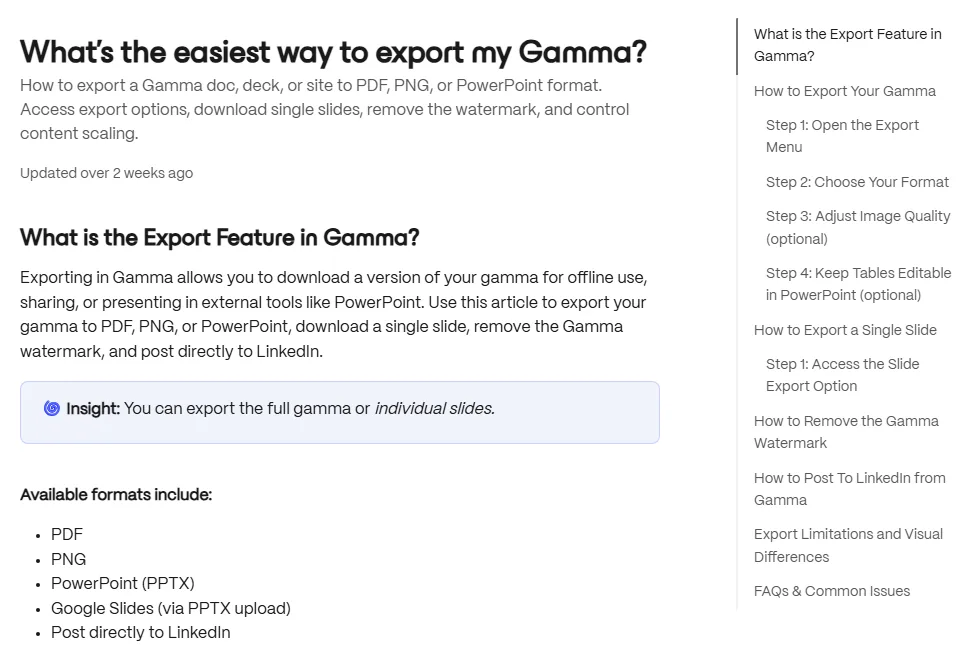
Several details matter for an editing workflow, and Gamma documents them openly:
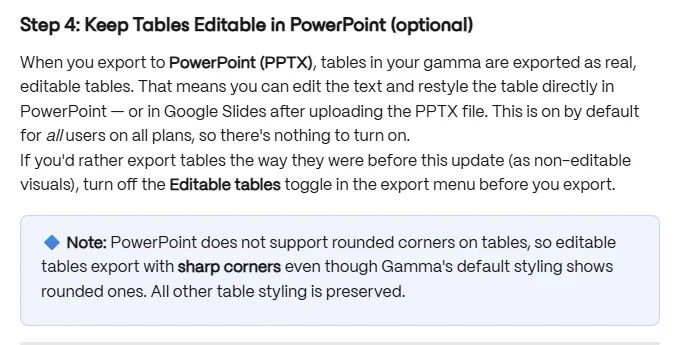
- Tables: Gamma says tables export to PowerPoint as real, editable tables by default on all plans, with a toggle to turn this off. PowerPoint does not support rounded table corners, so those corners export sharp.
- Fonts: Gamma says it embeds the theme's heading and body fonts into the .pptx, including custom fonts you uploaded. It also notes edge cases: italics use a slanted version of the regular font, a font can occasionally fail to embed, and Google Slides ignores fonts embedded in an uploaded PowerPoint file.
- Slide masters: Gamma states that PowerPoint and Google Slides exports do not include a slide master layout. The Slide Master view will appear blank, while the content and styling are applied on each slide.
- Visual effects: gradient headings and some advanced effects, such as frosted backgrounds, may use fallback styles in PowerPoint.
- Speaker notes: included in PowerPoint and Google Slides exports.
- Branding: a Gamma badge appears on PDF and PPTX exports when the workspace is on the Free plan at the time of export. Paid plans (Plus, Pro, or Ultra) remove it from future exports.
None of this makes Gamma a bad choice. Many people are well served by a web-first tool that also exports. The point is that "exports to PowerPoint" is not a yes or no question. The questions that matter are which parts stay editable, how fonts behave on another machine, and whether the file has the structure your organisation expects. Those are the same questions you should ask of every alternative, including the one you end up choosing.
Six criteria and how to check each one
Use the table below as a checklist. Each row has a test you can do in a few minutes with the exported file, without relying on any vendor's marketing page.
Scroll the table sideways to see every column.
| Criterion | What a good result looks like | Quick test in the exported file |
|---|---|---|
| Editability | Titles, bullets, and tables are native text boxes and tables | Click a title and type. Open the Selection Pane and count how many objects are images. |
| Fonts | Text looks the same on a second computer | Open the file on a machine without the tool's fonts. Watch for substitutions and reflowed lines. |
| Layout fidelity | Spacing, alignment, and charts match the preview | Compare three slides side by side with the in-app version. |
| Structure | A layout or master you can reuse, or at least a consistent structure | Open Slide Master view and see what is there. |
| Language support | Natural phrasing in your audience's language | Generate the same brief in a second language and have a native speaker read it. |
| Data handling | Clear training and retention rules, with an opt-out | Find the data or privacy setting before uploading anything sensitive. |
| Price clarity | Plan limits stated in plain words | Write down what the free tier allows, what removes branding, and whether billing is per user. |
Structure appears as a separate row because it is easy to overlook. Microsoft describes the slide master as the place where you change fonts and images such as logos once, and every slide based on that master picks up the change. If your team relies on a corporate template, a file without a usable master means more manual work later. If you only need to edit text before a single presentation, it may not matter at all.
Editability: what to click before you trust a file
"Editable" is used loosely. A slide can technically open in PowerPoint and still be hard to change if the headline is part of a background image or every bullet sits in its own floating box. Five minutes of clicking tells you more than any feature list:
- Click the title on three different slides. You should get a blinking cursor, not a picture border. Try making the title longer by a few words and see whether it wraps cleanly or overflows.
- Open the Selection Pane. It lists every object on the slide. A short list of named text boxes and shapes is easy to work with. A long list of unnamed images is a warning sign.
- Edit a table and a chart. Change one number and one label. Check whether the table is a real PowerPoint table and whether the chart is a chart object or a flat image.
- Move a bullet point. Reorder two bullets and add a third. Good files keep the indentation and spacing consistent.
- Duplicate a slide and change its content. This shows whether the design is reusable or only works for the exact text the AI wrote.
Record the result as simple counts: how many of the five checks passed. Counts are harder to argue with than impressions, and they make comparisons between tools fair. Our guide to choosing an AI presentation maker covers the wider workflow around this test.
Fonts and layout fidelity on someone else's computer
The most common unpleasant surprise with exported decks is not missing content. It is text that looks different on the presenter's laptop: a font replaced by a default, lines that wrap differently, and boxes that suddenly overflow. Microsoft explains the reason clearly. When you share a document with someone who does not have the same fonts installed, embedding the fonts keeps the fonts, layout, and styling from changing. Microsoft also notes that font embedding is still useful for non-standard fonts or when you expect someone else to edit or view the presentation offline.
That gives you a concrete test. Export the deck, copy it to a second computer (or a colleague's machine) that does not have the tool's fonts installed, and open it in PowerPoint. Then check:
- Are headings and body text in the intended typeface, or a fallback such as a system default?
- Did any title move from one line to two, pushing content down?
- Do special characters, such as accented letters or currency symbols, display correctly?
- If you plan to share through Google Slides, upload the PPTX there too. Gamma's own documentation notes that Google Slides ignores fonts embedded in an uploaded PowerPoint file, which applies to any tool's export, not only Gamma's.
Layout fidelity also depends on contrast and spacing, not only fonts. A slide that looked fine on a bright monitor can be hard to read on a projector. Our article on readable presentation contrast explains what to check before the room lights go down.
Language support, data handling, and price clarity
Language support
Many AI presentation tools accept prompts in several languages. Gamma, for example, says in its help center that its AI generator and editor support multiple languages, and that you can paste text or enter a prompt in your chosen language. Support is not the same as quality, though. If your audience reads Spanish, Indonesian, or German, generate your test brief in that language and ask a native speaker to mark awkward phrasing, literal translations, and wrong terminology. Check the interface language separately if colleagues who will edit the file prefer working in their own language.
Data handling
If you upload a thesis draft, internal report, or client brief, you should know what happens to it. Gamma is transparent on this point: its help center states that for individual workspaces (Free, Plus, Pro, and Ultra) data is allowed by default to be used to train AI models, with an opt-out in the Data Controls settings, while Business and Enterprise workspaces are excluded from training automatically. Whatever tool you test, find the equivalent setting or policy before you upload anything confidential, and remove names or figures you are not allowed to share.
Price clarity
Price clarity is about knowing what you get, not about which tool is cheapest. Gamma's help center lists Free, Plus, Pro, Ultra, and Business plans at the time of writing. It states that the Free plan can generate up to 10 slides in a single prompt, paid plans up to 100, and that subscriptions are billed per user. For any tool you consider, write down four facts before paying: the slide or credit limit, which plan removes branding from exports, whether billing is per person, and how to cancel. If a pricing page cannot answer those four questions, ask support before you commit.
How to run a fair test with the same brief
Comparisons go wrong when each tool gets a different prompt, a different slide count, or a different amount of manual tidying. A fair test keeps everything constant except the tool. Here is a process that takes about an hour for three tools:
- Write one brief and freeze it. Save it in a text file and paste exactly the same text into every tool.
- Fix the slide count and duration. Ask for the same number of slides, for example ten slides for a fifteen minute talk.
- Use the same source material. If you test document upload, use the same PDF or Word file in each tool. See our guide to turning a document into a presentation for tips on preparing the file.
- Do not edit inside the tools. Export straight after generation, so you compare what the AI produced, not your own effort.
- Open every file on the same computer in the same version of PowerPoint, then repeat on a second computer for the font test.
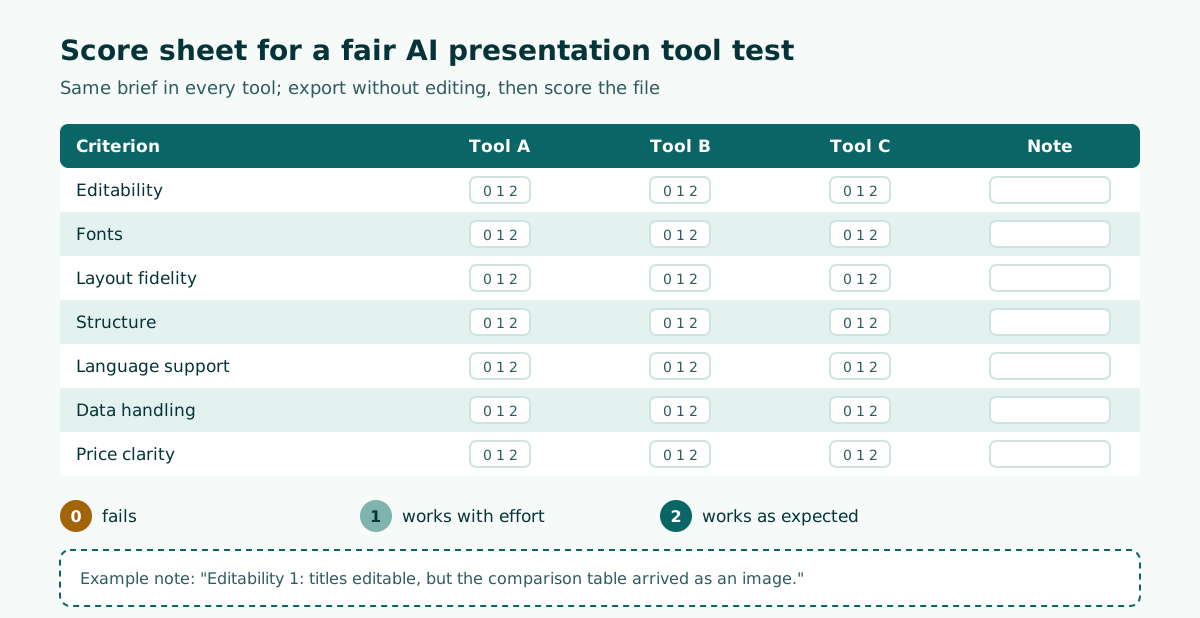
- Score with the checklist from the table above, then time one realistic edit: change the title of slide 3, add a bullet to slide 5, and update one number in a table.
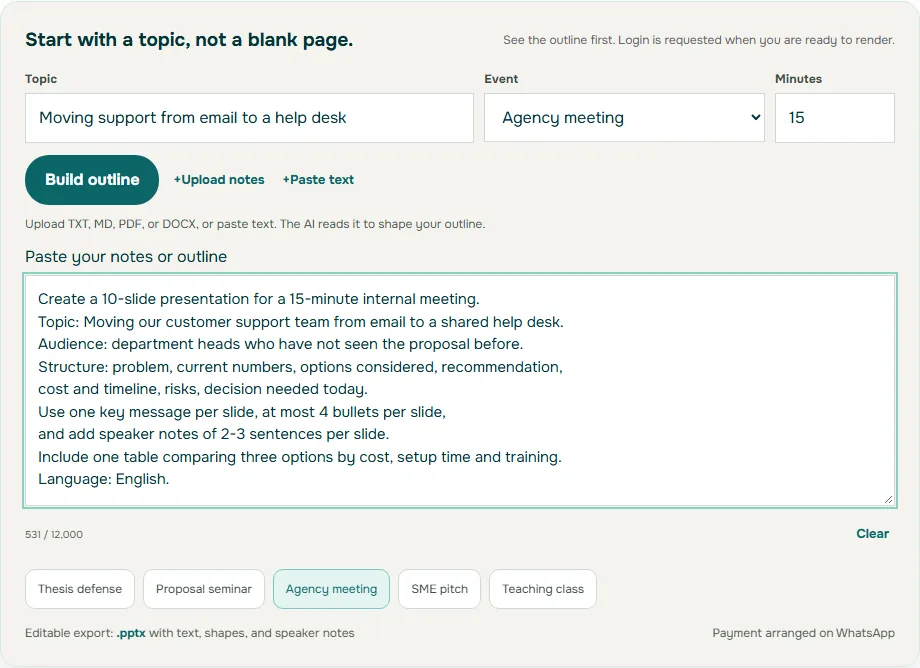
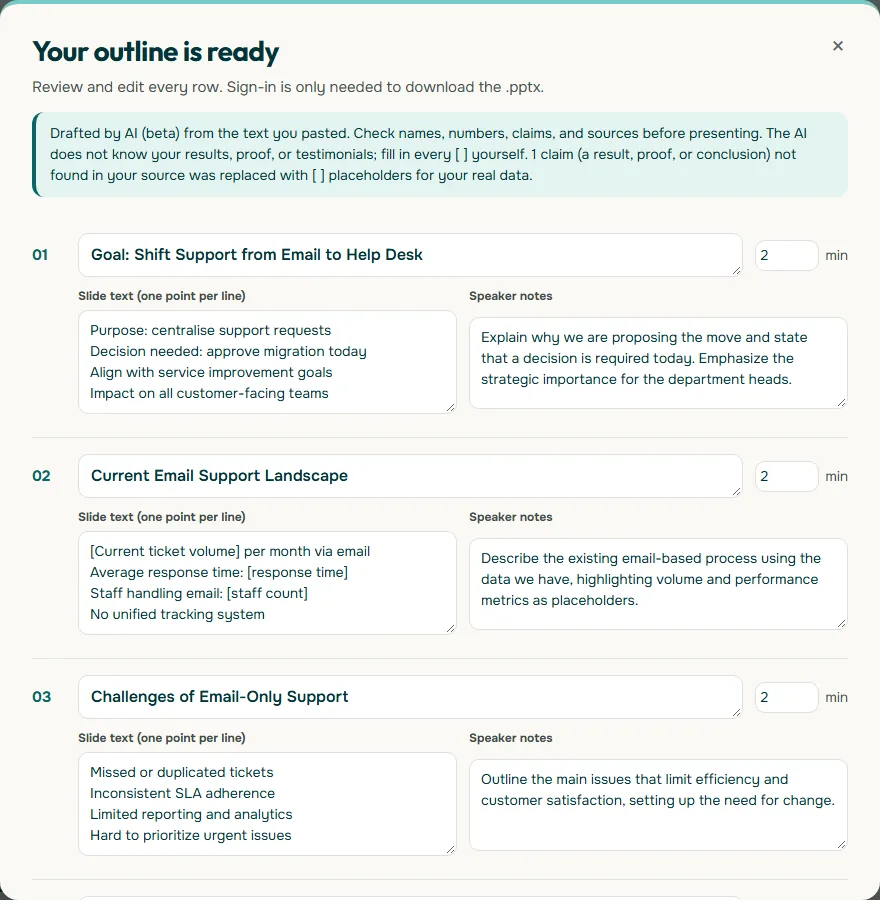
Here is a sample brief you can reuse. It is deliberately specific, because vague prompts produce vague decks in every tool (our prompt guide for AI presentations explains why):
Create a 10-slide presentation for a 15-minute internal meeting.
Topic: Moving our customer support team from email to a shared help desk.
Audience: department heads who have not seen the proposal before.
Structure: problem, current numbers, options considered, recommendation,
cost and timeline, risks, decision needed today.
Use one key message per slide, at most 4 bullets per slide,
and add speaker notes of 2-3 sentences per slide.
Include one table comparing three options by cost, setup time and training.
Language: English.
A simple score sheet keeps the results honest. Give each criterion 0, 1, or 2 points (0 = fails, 1 = works with effort, 2 = works as expected) and add a note explaining every score below 2. For example: "Editability 1: titles editable, but the comparison table arrived as an image." After three tools you will have a short, evidence-based record you can share with your team instead of a debate about taste.
Worked example: reading the results
Imagine you ran the brief above in three tools and scored them. The pattern you see is more useful than the total. A tool that scores 2 on layout fidelity but 0 on editability is fine for a deck you will present once without changes, and a poor fit for a deck your manager will rewrite. A tool that scores 1 on fonts may be perfectly acceptable if your organisation uses standard system fonts anyway.
A realistic way to read the score sheet:
- Editability or structure below 2: expect manual rework every time the deck changes. This matters most for recurring meetings and team templates.
- Fonts below 2: either install the fonts on the presenting computer, switch to standard fonts, or pick a different tool for decks that travel.
- Language below 2: budget time for a native-speaker edit, or write the outline yourself and use AI only for layout.
- Data handling unclear: do not upload confidential documents until you have an answer in writing.
- Price unclear: stay on the free tier until you have confirmed the limits that matter to you.
Also note what the test does not measure. It does not tell you whether the content is correct, whether the argument is persuasive, or whether the slide timing fits your slot. Those depend on your outline. For an academic example of timing and structure, see our guide to thesis defense presentations.
Choosing the right fit for your workflow
There is no single best Gamma alternative, only a best fit for a specific workflow. If you mostly share presentations as links and present from the browser, a web-first tool, Gamma included, may suit you well, and its PowerPoint export is a convenient extra. If your final destination is almost always a .pptx that colleagues will edit, weigh editability, fonts, and structure more heavily than visual effects. If you work in a language other than English, put language quality near the top of your list.
One option to include in your test is Soluslide, a beta tool built around this file-first workflow. You enter a topic, an event type (such as a thesis defense, meeting, SME pitch, or lesson) and a duration, or upload a PDF, Word file, or notes, and it returns a timed slide outline with titles, speaker notes, and minutes per slide that you can edit before logging in. Exporting an editable .pptx built with standard text boxes and shapes requires signing in with a beta account. You can see what it does on the features page; the plans on the pricing page are beta prices (3 free decks per account, then paid decks arranged on WhatsApp) and may change.
Whichever tools you compare, run them through the same brief and the same checklist. If you want to try the process right away, you can paste the sample brief above into the Soluslide builder as one of your test entries and score its file with the same rules as the others.
If the deck you are testing is for a coordination meeting, compare the result with the decision-first structure in our meeting presentation guide.
Frequently asked questions
Can Gamma export to PowerPoint?
Yes. According to Gamma's help center at the time of writing (October 2026), you can export a gamma to PDF, PNG, or PowerPoint (PPTX), and get it into Google Slides by uploading the PPTX file.
What should I look for in a Gamma alternative?
Judge the exported file, not the editor. Check editability of text and tables, font behaviour on another computer, layout fidelity, language quality, data handling rules, and how clearly the pricing explains limits and branding.
How do I test whether an exported PPTX is really editable?
Click titles on several slides, open the Selection Pane to see whether objects are text boxes or images, edit a table and a chart, reorder bullets, and duplicate a slide. Count how many of these checks pass.
Why do fonts change when I open an exported deck on another computer?
If the fonts are not installed or embedded, PowerPoint substitutes them, which can change line breaks and layout. Microsoft recommends embedding fonts when sharing files with people who may not have the same fonts. Google Slides ignores fonts embedded in an uploaded PPTX.
Does Gamma use my content to train AI?
Gamma's help center states that for individual workspaces (Free, Plus, Pro, and Ultra) data may be used for training by default, with an opt-out in Data Controls, while Business and Enterprise workspaces are excluded automatically.
How do I compare AI presentation tools fairly?
Use one frozen brief, the same slide count and source file, export without editing, open every file on the same computer, and score each criterion 0 to 2 with a short note for every score below 2.
Does a Gamma PowerPoint export include slide master layouts?
No. Gamma's help center says PowerPoint and Google Slides exports do not include a slide master layout, so the Slide Master view appears blank while your content and styling are still applied on each slide.
Sources
Factual claims in this article refer to the sources below. Sample outlines and prompts are illustrations to adapt.
- Gamma Help Center: What's the easiest way to export my Gamma?
- Gamma Help Center: How can I upgrade my Gamma subscription?
- Gamma Help Center: Does Gamma use my content to train its AI features?
- Gamma Help Center: How do I use Gamma in my preferred language?
- Microsoft Support: Benefits of embedding custom fonts
- Microsoft Support: What is a slide master in PowerPoint?
Related reading
Try shaping your own outline. You can review and edit it before signing in.
Build a free outline