
How to Make a PowerPoint Presentation: 8 Steps from Goal to .pptx
A good PowerPoint starts with the message, not the template. Plan the goal, the slide count and the outline first, then build the slides in PowerPoint or Google Slides with the menu steps below.

How to make a PowerPoint presentation in eight steps
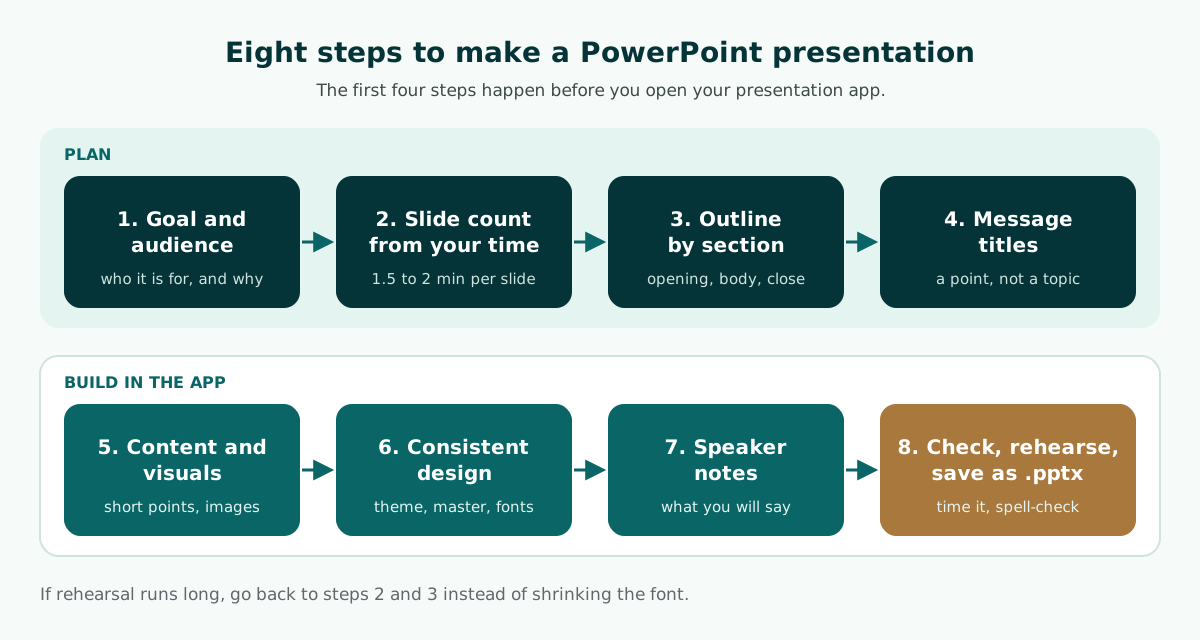
To make a PowerPoint presentation, plan the message before you touch the design: decide what the audience should know or do, size the deck to your time, outline it, and only then build and polish the slides. This order works for a class project, a team meeting, or a small-business pitch.
- Set the goal and audience. Write one sentence about what the audience should know or decide when you finish.
- Work out the slide count from your time. A practical guideline is about 1.5 to 2 minutes per content slide.
- Outline the deck. Split it into an opening, a body and a close, and give each part its minutes.
- Write each slide title as a message. Not "Survey Results", but what the survey found.
- Add content and visuals. Short points, one idea per slide, and pictures that support the point.
- Apply a consistent design. Use a theme and the slide master, fonts that read from a distance, and strong contrast.
- Write speaker notes. The detail you will say goes in the notes, not on the slide.
- Check, rehearse, and save. Proofread, time yourself, and save an editable .pptx file.
You can do the first four steps on paper or in a notes app, before you open PowerPoint or Google Slides. They are the steps most people skip, and they decide whether the deck is clear or confusing. Each step is explained below, followed by the menu steps in both apps.
Step 1: Set the goal and know your audience
Before you make the first slide, answer two questions: who will be watching, and what should they know, feel, or decide by the end? Those answers drive every later decision, from the number of slides to the terms you can use without explaining.
Write the goal as a sentence you could test. Compare "Explain the customer survey results" with "Get approval to add one barista during the morning rush, based on the survey results". The second sentence tells you straight away which slides you need (findings, proposal, cost, timeline) and which you can drop.
Match the deck to the audience
- A thesis committee wants a logical research story and a method that stands up to questions.
- Managers want a summary, the options, and the decision you need, early.
- Investors or customers want the problem, your solution, and a reason to trust you.
- Students need small steps, examples, and a chance to try.
Each kind of event has a pattern that works. There are dedicated guides for a thesis defense presentation, a formal meeting briefing, an investor or small-business pitch deck, and a teaching presentation. Pick the closest one before moving on.
Step 2: Work out how many slides you need from your time
Many people decide the slide count by how much material they want to include, then run out of time halfway. It is safer to work the other way: start from the time you have and calculate a sensible number of slides. Microsoft's presentation tips say that if you plan a certain amount of time, do not go over, and if there is no time limit, take less time rather than more so people stay engaged.
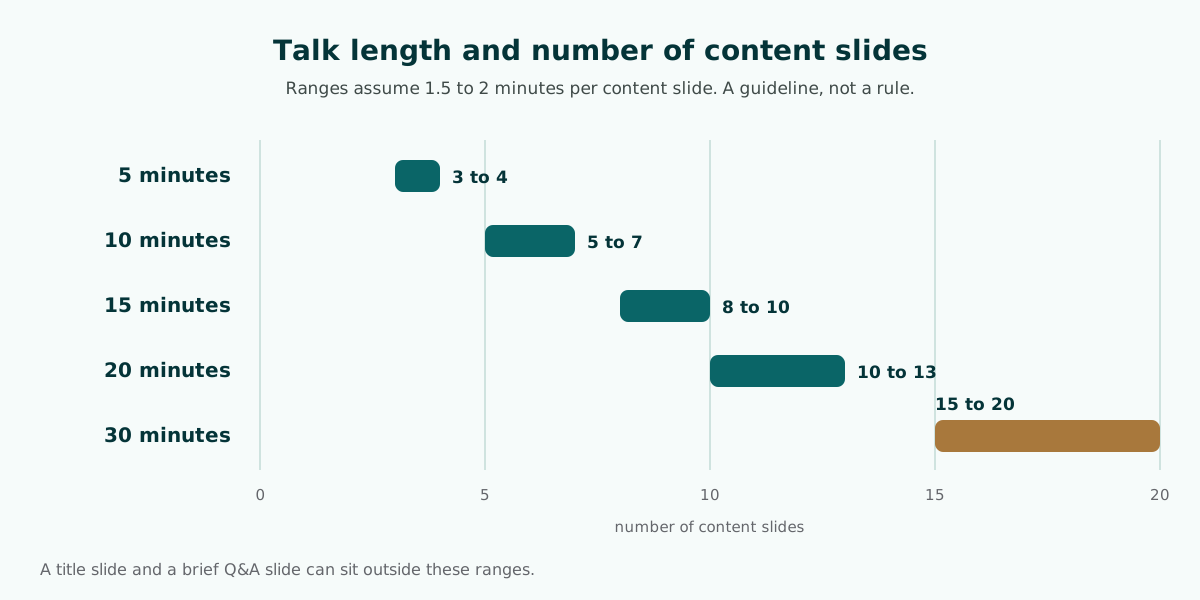
The table is a practical guideline, not a fixed rule. The ranges come from about 1.5 to 2 minutes per content slide, rounded. A slide with one simple chart can go faster, while a data slide that needs explaining can take three minutes or more.
Scroll the table sideways to see every column.
| Talk length | Content slides (approx.) | Example events |
|---|---|---|
| 5 minutes | 3 to 4 | Short pitch, weekly update |
| 10 minutes | 5 to 7 | Team meeting, class group presentation |
| 15 minutes | 8 to 10 | Research proposal, thesis defense |
| 20 minutes | 10 to 13 | Program review, training session |
| 30 minutes | 15 to 20 | Guest lecture, tender presentation |
A title slide and a brief Q&A slide can sit outside these ranges. If your school, university, or employer sets its own slide limit, follow that instead.
Step 3: Write a presentation outline before you open the app
An outline is an ordered list of slides, each with a title, two or three points, and a time allowance. Writing it in a plain text document is much faster than working inside a presentation app, because you can move, merge, and cut slides without fighting the layout.
The basic structure has three parts. The opening says why the topic matters and what you will cover; see how to start a presentation for strong openings. The body holds two to four key messages. The close sums up and states the next step; how to end a presentation has example lines. The presentation structure guide covers other patterns.
Worked example: a 10-minute meeting outline
Here is a fictional outline for a 10-minute meeting about a coffee shop's customer satisfaction survey. It has six slides, in line with the guideline table.
Customer survey results meeting, 10 minutes
01  We need a decision on wait times today        (2 min)
02  Most respondents are happy with the coffee     (2 min)
03  Wait time is the top customer complaint        (2 min)
04  Add one barista for the morning rush           (2 min)
05  Owner and timeline for the pilot               (1 min)
06  Summary and the decision we need               (1 min)
Total: 6 slides, 10 minutes
The minutes add up to the meeting length, and the first slide names the decision straight away. Meetings that open with the decision are covered in the meeting briefing guide. If your material is already a report or paper, you can derive the outline from it, as explained in building a presentation from a document.
Step 4: Write slide titles as messages
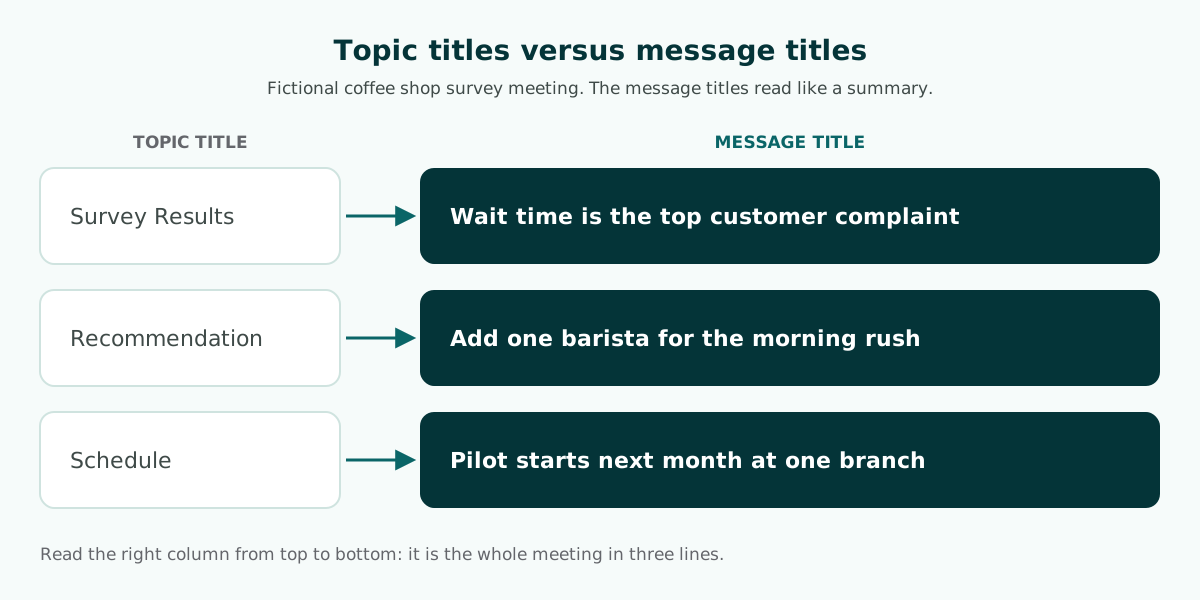
A title that only names the topic, like "Survey Results" or "Recommendation", forces the audience to read the whole slide to find the point. A title written as a message tells them what to remember. Even someone whose attention drifted can catch up just by reading the title.
The test is simple: read all your slide titles from top to bottom without the slide bodies. If they already sound like a summary of the talk, your outline is strong. If all you see is a list of nouns, rewrite the titles one by one.
Tips for message titles
- Use a short, active sentence that fits on one or two lines.
- State the finding or proposal, not the chapter name.
- For a thesis defense, keep a label such as "Research Method" if your department requires it, and open the slide body with the message instead.
- Do not put in numbers you have not confirmed. Write a placeholder such as [figure] and fill it in once the data is checked.
Steps 5 and 6: How to make a good PowerPoint with clear content and consistent design
With the outline ready, open your presentation app and fill each slide with short points that support its title. Microsoft recommends bullets or short sentences, ideally one line each, because you want the audience to listen to you rather than read the screen. It also warns that some projectors crop slides at the edges, so long sentences may be cut off.
Use visuals to tell the story, not to decorate. Microsoft suggests graphics that help convey your message, without overwhelming the audience with too many on one slide, and labels with only enough text to make a chart understandable. A labeled chart, a product photo, or a process diagram often replaces a paragraph.
Themes, the slide master, and fonts
A consistent look is easiest to get from a theme. Microsoft describes a theme as a palette of colors, fonts, and special effects that complement one another, and every theme includes a slide master with related layouts. When you edit the slide master, all slides based on it get those changes. Microsoft advises editing the slide master and layouts before you build individual slides; if you edit them afterwards, you need to reapply the changed layouts.
For type, Microsoft suggests simple fonts such as Arial or Calibri and avoiding sizes smaller than 18 pt, going larger for a big room. Keep backgrounds subtle and consistent, with high contrast between text and background. The readable contrast guide shows how to measure it, and the slide design principles go further on layout.
Steps 7 and 8: Speaker notes, final checks, and saving
Everything that does not fit on a slide goes into the speaker notes. Microsoft advises against reading your presentation: practice so you can speak from bullet points, and treat the slide text as a cue for you rather than the full message for the audience. Notes are the place for full sentences, supporting figures, and transitions. The guide to speaker notes in PowerPoint explains how to write notes that help without turning into a script.
Checklist before you present
- Check spelling and grammar. Microsoft says this helps you earn and keep the audience's respect.
- Verify every number, name, and quote against its source.
- Rehearse with a timer. If you run long, cut slides in the outline instead of shrinking the font.
- Test the equipment. Microsoft recommends checking colors on the projection screen, since they can look different from your monitor, and confirming the projector's resolution matches your computer.
- Keep a backup copy. Microsoft suggests storing the file on OneDrive so you can reach it from any device with an internet connection.
Save in an editable format
Save the presentation as a .pptx file. It opens and edits in PowerPoint, and Google Slides can download presentations in PowerPoint format too. If a teacher or manager will edit the file, a .pptx with live text is far more useful than images of slides. The editable PPTX guide explains why.
How to create a PowerPoint presentation in PowerPoint
These steps follow Microsoft Support's guide to creating a presentation. Menu names can differ slightly on a Mac or in PowerPoint for the web.
- Open PowerPoint. In the side pane, select New, then Blank Presentation to start from scratch, or choose one of the templates.
- Set up the look first. Pre-designed themes are on the Design tab. To set fonts and a logo for every slide, go to View and select Slide Master.
- Add slides. In the thumbnail pane, select the slide your new one should follow. On the Home tab, in the Slides section, select New Slide. Change the layout with Slide Layout.
- Type your message titles and points from the outline into the text boxes. For bulleted or numbered lists, select the text and choose Bullets or Numbering.
- Add pictures from the Insert tab, Images section, Pictures. Shapes, icons, 3D models, SmartArt, and charts are in the Illustrations section of the same tab.
- Write speaker notes under each slide, then save the file as .pptx from the File menu.
Microsoft also offers customizable templates through Microsoft Create. A template helps with the look, but the content still comes from your own outline. If you are working away from a computer, see how to make a PowerPoint on your phone, and if a specific screen shape is required, check PowerPoint slide size before you add content.
How to make a presentation in Google Slides
Google Slides runs in the browser, so a Google account is enough and there is nothing to install. These steps follow Google Docs Editors Help for the computer version.
- Create a presentation. Open Google Slides in your browser and start a new blank presentation.
- Choose a theme. At the top, click Slide, then Change theme, and pick a theme on the right. Edit theme colors with Slide, then Edit theme.
- Add slides. Click New slide at the top left. For a different layout, use New slide with layout.
- Type your titles and points. To copy a slide, right-click it in the left panel and select Duplicate slide. Drag slides to reorder them.
- Number the slides with Insert, then Slide numbers, and click Apply.
- Download a PowerPoint copy from the File menu. Google lists .pptx as the presentation format you can download or save back to an Office format.
Google defines a theme as a preset group of colors, fonts, background, and layouts, and a layout as the way text and images are arranged on a slide. Keep the two separate in your head: the theme sets the visual system, and the layout handles each slide. After you move a file between Google Slides and PowerPoint, check fonts and layout again, because they can shift if a font is not available.
PowerPoint, Google Slides, or start from an outline?
These are not either-or choices. PowerPoint and Google Slides are where you build slides; an outline is the material you bring into either one. The table helps you pick a starting point.
Scroll the table sideways to see every column.
| Starting point | Best for | Watch out for |
|---|---|---|
| PowerPoint | Decks that need a detailed slide master, animation, or offline work | Needs the installed app, or a Microsoft account for the web version |
| Google Slides | Group projects and work across several devices in a browser | Most comfortable online; recheck the layout after downloading as .pptx |
| Automatic outline | When you do not know the slide order yet or time is very short | It is a draft; names, numbers, and claims must be checked and filled in by you |
If outlining is the hard part, you can start from a drafted outline and edit it. Soluslide is a beta tool that builds a timed slide outline from a topic, event type, and length, or from material you upload. Here it was given the same coffee shop survey topic as a 10-minute meeting.
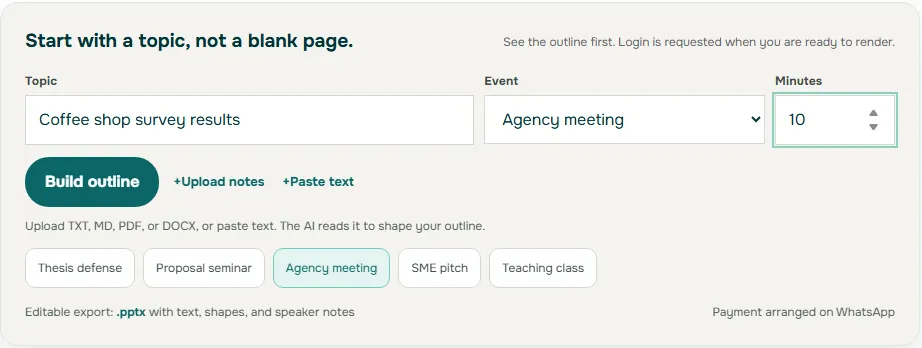
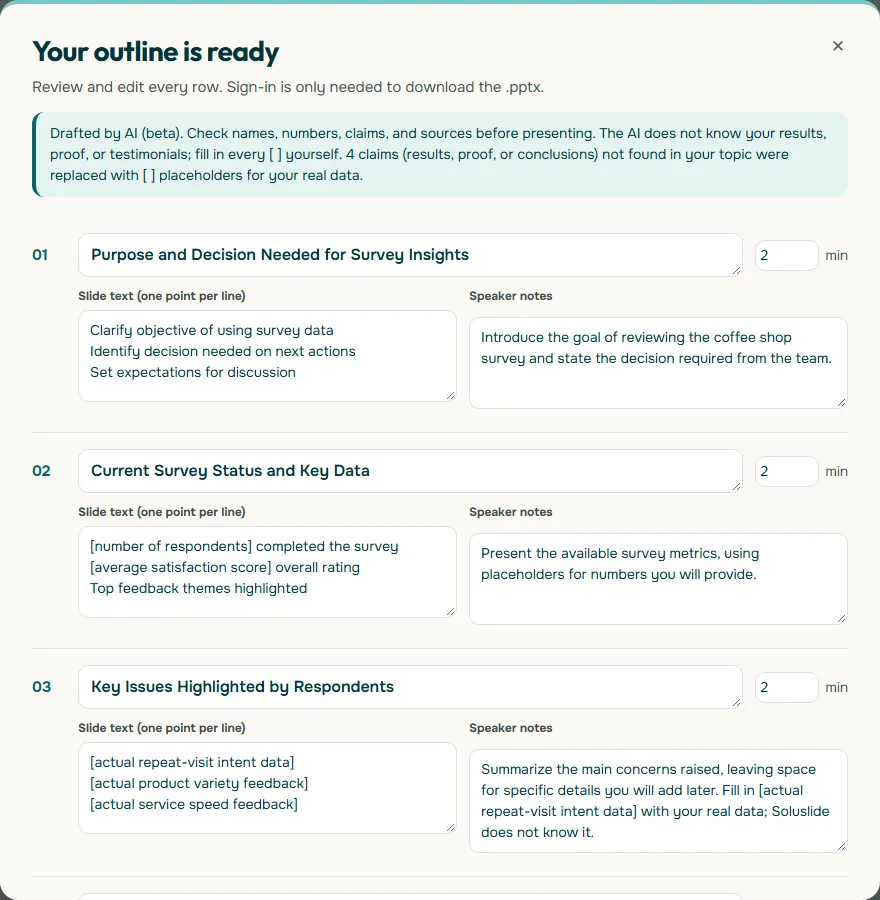
Treat the result as a draft. Turn topic titles like "Key Issues Highlighted by Respondents" into message titles as in step 4, and replace every placeholder with real data. After signing in with a beta account, you can export an editable .pptx built from standard text boxes and shapes. Try the outline builder, read the features, or compare approaches in the AI presentation maker guide. Students can also read the AI presentation guide for students, and the prompt guide shows how to brief any AI tool clearly.
Frequently asked questions
What is the first step to make a PowerPoint presentation?
Write the goal and audience in one sentence, for example the decision you need from a meeting. Then work out the slide count and outline before you open a presentation app.
How many slides should a 10-minute presentation have?
As a practical guideline, about 5 to 7 content slides, based on 1.5 to 2 minutes per slide. It is not a fixed rule, so adjust after a timed rehearsal and follow any limit your school or employer sets.
How do I make a PowerPoint without PowerPoint?
Use Google Slides in a browser with a Google account. You can build the deck, apply a theme, and download it in PowerPoint format from the File menu.
What is the difference between a theme and a slide master?
A theme is a set of colors, fonts, and effects that work together. Every theme includes a slide master, where you set fonts, logos, and layouts that apply to all slides based on it.
What font size should I use in PowerPoint?
Microsoft suggests avoiding sizes smaller than 18 pt and going larger for a big room. It also recommends simple fonts such as Arial or Calibri.
How do I make a good PowerPoint presentation?
Give each slide one idea, write its title as a message, keep points short, and use visuals that support the point. Apply one consistent theme, put detail in the speaker notes, and rehearse with a timer.
Do I have to start from a template?
No. A template helps the look, but the content and slide order still come from your outline. Outline first, then choose a calm, consistent theme or template.
What format should I save a presentation in?
Save as .pptx so you and others can still edit text and shapes. It opens in PowerPoint and Google Slides, but check the layout after moving between apps.
Sources
Factual claims in this article refer to the sources below. Sample outlines and prompts are illustrations to adapt.
- Microsoft Support: Create a presentation in PowerPoint
- Microsoft Support: What is a slide master in PowerPoint?
- Microsoft Support: Tips for creating and delivering an effective presentation
- Google Docs Editors Help: Add, delete and organize slides
- Google Docs Editors Help: Use a template or change the theme, background, or layout in Google Slides
- Google Docs Editors Help: Work with Office files
Related reading
Try shaping your own outline. You can review and edit it before signing in.
Build a free outline