
AI Presentation Maker for Students: Use It Well and Honestly
An AI presentation maker can speed up the outline of a class presentation, but the content, the sources, and the way you deliver it are still graded as your work. This guide shows how to use one safely for solo and group assignments.
What an AI presentation maker can do for students
For a class presentation, an AI presentation maker is most useful at the start: turning the assignment prompt into a slide outline, suggesting an order, and helping you split the time. It does not replace what your instructor is grading, which is your understanding of the material, the accuracy of your sources, and your ability to explain it to the room.
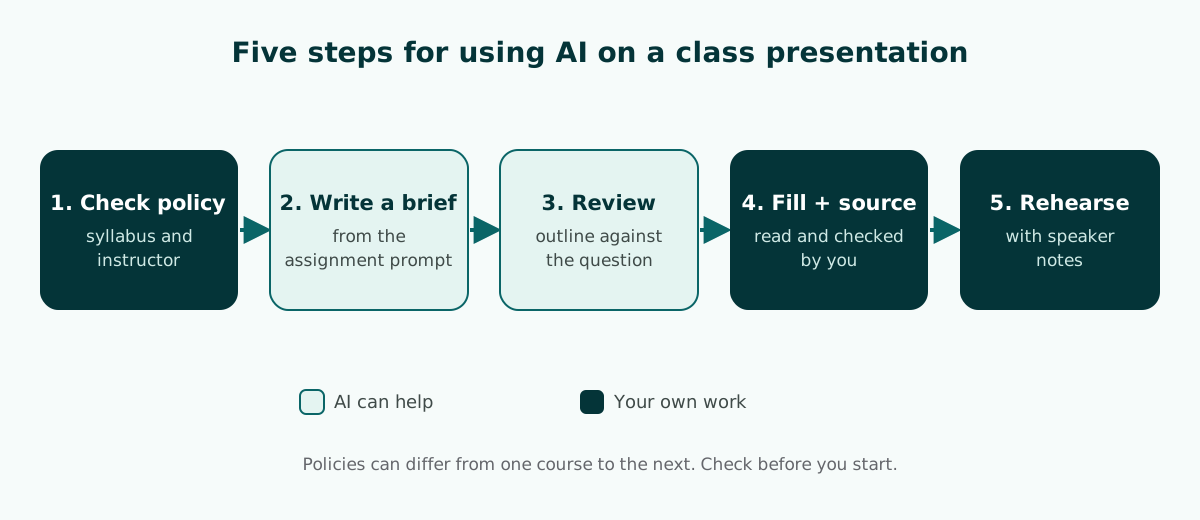
A safe way to use AI for presentations comes down to five steps:
- Check your course policy on AI.
- Write a brief from the assignment prompt, not just the topic title.
- Review the outline against the question you were set.
- Fill each slide with sources you have read yourself.
- Rehearse your delivery with speaker notes.
Steps 1 and 4 are the ones students skip most often, and they are the ones that decide whether you can stand behind the work.
This guide focuses on routine coursework: presenting a paper, a lab report, a case study, or a group topic. A final-year presentation has different demands, covered in the thesis defense presentation guide and the thesis defense template. If you have never built a deck before, start with how to make a PowerPoint presentation.
Check your course policy on AI first
Rules on AI differ between universities, departments, and even individual courses. Some instructors allow AI for outlining but not for content, some ask for a disclosure on the final slide, and some ban it for certain assignments. So the first step is always the syllabus or the course page. If it says nothing, ask your instructor before you start.
University guidance points the same way. The Writing Center at the University of North Carolina at Chapel Hill notes that instructors' views on AI tools may vary dramatically from one class to the next, tells students to consult each syllabus, and reminds them that they are always 100% responsible for the writing they turn in.
Stanford's Office of Community Standards goes further: absent a clear statement from the instructor, using generative AI is treated like assistance from another person, using it to substantially complete an assignment or exam is not permitted, and students should acknowledge any use beyond incidental use, defaulting to disclosure when in doubt.
At a global level, UNESCO published its first global guidance on generative AI in education and research in September 2023, built around a human-centred approach. For coursework, the practical meaning is simple: AI can help, but decisions about content and responsibility stay with you.
If your instructor asks for transparency, describe the use specifically instead of writing "AI-assisted". A statement you can adapt:
AI use: an AI tool was used to draft the initial slide outline, which our group then reviewed and changed. All content, data, and quotations come from the sources listed on the References slide and were checked against the originals.That is more honest, and easier to assess, than saying nothing. What to avoid is copying AI output without checking it and presenting it as your own reading.
Which assignments AI suits, and what stays your job
Not every presentation needs the same amount of AI help. A paper you wrote yourself already has content; what you need is a way to condense it into slides. A case study needs an analytical structure, and a lab report needs an order that follows the report format. Use this table to match the help to the task.
Scroll the table sideways to see every column.
| Assignment | Where AI can help | What you do yourself |
|---|---|---|
| Paper or journal article review | Condensing the structure into a slide outline, suggesting slide titles | Choosing the key points, checking quotes against the original |
| Lab report | Ordering slides for aims, method, results, discussion | Your results, charts, and interpretation |
| Case study | A frame for problem, options, and recommendation | Case facts, arguments, and theory references |
| Open-topic group presentation | Splitting sections and minutes between members | Researching sources and writing each section |
| Speaking or language course | An opening, body, and closing structure | Your script and your delivery practice |
For reflective tasks, such as a personal response or an oral essay, keep AI's share smallest. Your instructor wants to hear how you think, and an outline that is too polished can make the talk sound like someone else's. Use AI to check the order, then fill it with examples from your own experience and reading.
One rule holds across every type: the closer you get to data, numbers, and quotations, the more of the work should be yours. UNC's handout notes that AI tools can generate outlines for slide presentations, but it also warns they can produce plausible information that is partly or entirely fabricated. If your presentation starts from a document you already wrote, follow the guide to building a presentation from a document, because the process differs from starting with a topic.
How to use AI for presentations: write a brief from the assignment
The most common mistake is typing only a topic, such as "presentation about inflation". The result is almost always generic: definition, causes, effects, conclusion. Nothing wrong with that, but it rarely answers the actual assignment, which is usually more specific.
A good brief carries the instructor's prompt into the request. Include the course, the question to answer, the time limit, the group size, and the required readings. An example for a group assignment:
I am a second-year undergraduate in an introductory macroeconomics course. Group of 4, 15-minute presentation plus 5 minutes of questions.
Assignment question: how do rising food prices affect the purchasing power of low-income households?
Required readings: chapter 7 of the course textbook and two journal articles provided by the instructor.
Create a slide outline with statement-style slide titles, estimated minutes per slide, and a section for each member. Do not add numbers or data; mark each place that needs data with [DATA].
Look at the last instruction. Asking the tool to mark where data goes, instead of filling it in, keeps invented figures off your slides. You fill those spots later from the required readings. A fuller method, including follow-up prompts for revising an outline, is in the guide to writing a presentation prompt for AI.
When the outline comes back, compare it with the assignment. Does every part of the question get answered on some slide? Is there a slide that has nothing to do with the question? Delete or merge slides that only fill time. A lean outline is easier to split and to remember, and the guide to presentation structure shows common orders that work.
Splitting group work with a shared AI outline
Group presentations usually break at the seams. Each member prepares their own slides, someone merges them the night before, and the result does not connect. Styles differ, content repeats, and the total runs over time.
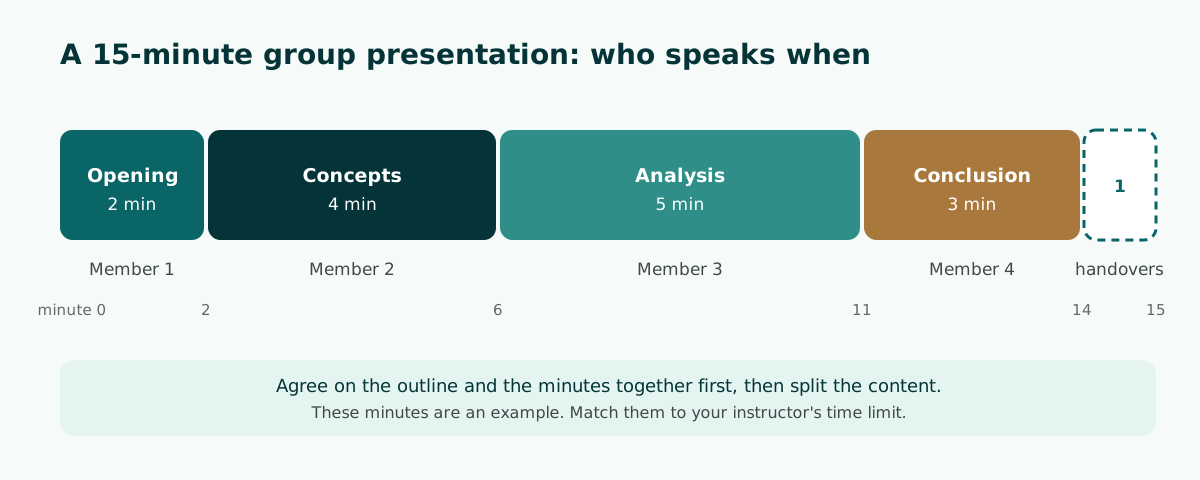
A shared outline fixes this. Agree on the full outline first in one short meeting, with slide titles and minutes, and only then split the content. Everyone knows exactly where their part starts and ends, and what the speakers before and after them cover.
Scroll the table sideways to see every column.
| Section | Content | Minutes | Owner |
|---|---|---|---|
| Opening | The assignment question and a short overview | 2 | Member 1 |
| Concepts | Theory from the course textbook | 4 | Member 2 |
| Analysis | Findings from the two journal articles | 5 | Member 3 |
| Conclusion | The answer to the question and its limits | 3 | Member 4 |
| Handovers and buffer | Switching between speakers | 1 | Everyone |
Name one person as the final editor. Their job is to align slide title style, font sizes, and citation format, and to make sure the total stays within the limit. If the group shares one PowerPoint file, use one that is fully editable so the editor does not have to retype anything. What makes a PPTX truly editable is explained in the guide to editable PPTX files from AI.
Back every slide with sources you can defend
This is what separates a presentation that scores well from an average one. Instructors almost always ask "where is this data from?" or "whose theory is this?", and "the internet" or "the AI" is not an answer.
Keep a simple rule: every number, quotation, and claim that is not common knowledge needs a source you opened yourself. Put a short credit under the chart or quote, such as author and year, and the full reference on a References slide. Use the citation style your instructor asks for, because departments differ.
If an AI tool gives you references, treat them as search leads, not sources. UNC's Writing Center warns that AI citations may look reasonable and correctly formatted yet not exist or be incorrect, that tools may invent an author or a book title, and that generative AI tools are not authoritative sources. Search the title in your library catalog or an academic database, open the original, and confirm it supports the sentence on your slide. Delete any reference you cannot find.
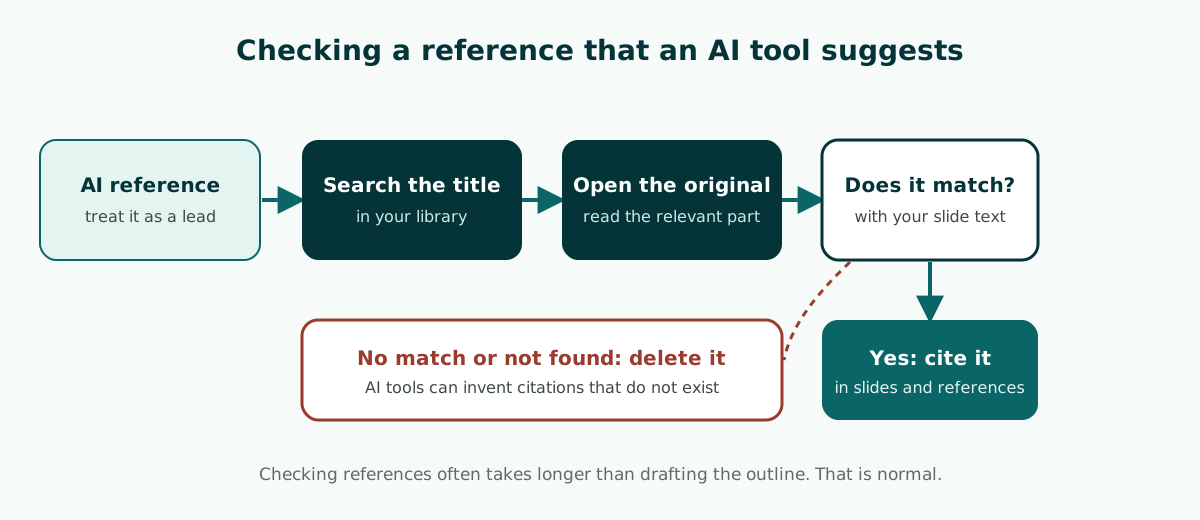
Checking references often takes longer than drafting the outline. That is normal, and it is where the grade is earned. In a group, split the checking by section, then have the final editor spot-check a few references before the presentation.
Be careful with personal data too. Do not upload documents containing research participants' data, classmates' grades, or confidential information to any AI tool without permission; remove sensitive parts first. UNC advises reading a tool's terms on how it uses your personal data and prompt history, and UNESCO's guidance notes that the absence of national regulations on generative AI in most countries leaves users' data privacy unprotected.
Make slides readable in a real classroom
Classrooms are rarely ideal: a dim projector, lights on, and students in the back row far from the screen. A slide that looks neat on your laptop can be hard to read there. Microsoft Support gives some useful rules of thumb:
- Choose a simple font such as Arial or Calibri, and avoid very thin or decorative fonts.
- Try to avoid font sizes smaller than 18 pt, and go larger for a large room.
- Use bullets or short sentences, and try to keep each to one line.
- Use high contrast between background color and text color.
- Check all colors on the projection screen before presenting, because they may look different from your monitor.
Microsoft also advises showing up early to verify your equipment works and not assuming the presentation will work fine on another computer. For a class, that means testing the file on the classroom computer or the laptop you will actually use. To understand contrast in more depth, including how to measure it, read the readable presentation contrast guide.
Worked example: a 10-minute paper presentation outline
Here is an outline for a 10-minute individual paper presentation, cleaned up from an AI draft. Slide titles are statements so the audience gets the point at once, and data spots are marked to fill from the paper.
Scroll the table sideways to see every column.
| Slide | Slide title | Minutes |
|---|---|---|
| 1 | Rising food prices hit low-income households harder | 1 |
| 2 | The question: how much, and through which channels | 1 |
| 3 | Food inflation and the share of spending on food | 2 |
| 4 | What the first article found: [DATA from article 1] | 2 |
| 5 | What the second article found, and how it differs | 2 |
| 6 | Conclusion, limits, and a question for discussion | 2 |
Notice that slide 5 does not just repeat findings; it compares two sources. That kind of comparison is what usually separates a presentation that shows understanding from one that only summarizes. For the full route from topic to draft, see the AI presentation maker guide.
The outline is deliberately short: six slides for ten minutes. Class presentations fail from too many slides more often than too few. If your instructor sets a slide limit, follow it. If not, let the time limit guide you and leave room to explain each chart calmly.
Presentation tips for students on the day
A good outline still has to be delivered. These presentation tips for students focus on what an AI tool cannot do for you:
- Put your talking points in the speaker notes. Microsoft Support explains that speaker notes are visible on your monitor but not to the audience during the presentation. Keep each note short: the minutes for that slide, its message, two or three points, and a transition. The guide to speaker notes in PowerPoint shows the exact steps.
- Rehearse out loud, with a timer. Microsoft recommends practicing so you can speak from bullet points; the slide text should be a cue for you, not the full message for the audience.
- Plan your first 30 seconds. Open with the question your presentation answers, not with "today I will talk about". The guide on how to start a presentation has options.
- Prepare for questions. For each slide with data, know where the number came from and be ready to name the source.
- Close with the answer. Restate your answer to the assignment question and one limitation, then invite questions.
For more on delivery, including voice, eye contact, and handling nerves, read how to give a good presentation.
Try this workflow with Soluslide
Soluslide is a beta tool that builds a timed slide outline from a topic or a document. You enter a topic, choose an event type and duration, then review and edit the outline before logging in. Exporting an editable .pptx requires a beta account, and the speaker notes go into the file.
Whatever tool you use, treat its output as a first draft. Your course policy, the sources you read, and your rehearsal are what decide the grade. Start by building a free outline, then check the features and the beta pricing if you need more exports.
Frequently asked questions
Can students use AI to make presentations?
It depends on your instructor and institution. Check the syllabus or course page and ask your instructor if it says nothing; many allow AI for outlining but expect the content and sources to be your own work.
Is using an AI presentation maker cheating?
Not automatically, but it can be if your course forbids it or if AI substantially completes the work for you. Stanford's guidance, for example, treats generative AI use like help from another person unless the instructor says otherwise.
How do I disclose AI use in a class presentation?
Write a specific statement, for example that an AI tool drafted the initial outline, the group reviewed and changed it, and all data comes from the listed sources. Use your instructor's required format if there is one.
Can I trust the references an AI tool gives me?
No. Treat them as search leads: find and open the original, confirm it supports your slide, and delete any reference you cannot find, because AI tools can invent citations.
What should I include in an AI prompt for a class presentation?
The course, the assignment question, the time limit, the group size, and the required readings. Ask the tool to mark data spots with a placeholder such as [DATA] so no invented numbers reach your slides.
How many slides do I need for a 10-minute presentation?
There is no fixed number. Follow your instructor's limit if there is one; otherwise an outline of about six slides for ten minutes usually leaves room to explain each slide calmly.
How do we split a group presentation so it flows?
Agree on the full outline with slide titles and minutes first, then split the content by member. Appoint one final editor to align the style and keep the total within the time limit.
What font size should I use on class slides?
Microsoft Support suggests avoiding font sizes smaller than 18 pt and going larger in big rooms, with a simple font and high contrast.
Is Soluslide suitable for student presentations?
It can help with the outline. The beta builds a timed outline you can edit before logging in, and exporting an editable .pptx requires a beta account. You still need to check the content and sources yourself.
Sources
Factual claims in this article refer to the sources below. Sample outlines and prompts are illustrations to adapt.
- UNC Writing Center: Generative AI in Academic Writing
- Stanford Office of Community Standards: Generative AI Policy Guidance
- UNESCO: Guidance for generative AI in education and research
- Microsoft Support: Tips for creating and delivering an effective presentation
- Microsoft Support: Add speaker notes to your slides
Related reading
Try shaping your own outline. You can review and edit it before signing in.
Build a free outline