
How to Make a PowerPoint on Your Phone (iPhone, iPad, Android)
You can build a complete slide deck on a phone or tablet with the PowerPoint app, the Google Slides app, or a timed outline drafted in your browser. Here is how each route works on iPhone, iPad and Android, and where the limits are.

How to make a PowerPoint on your phone: the short answer
To make a PowerPoint on your phone, install the Microsoft PowerPoint app or the Google Slides app, sign in, create a new presentation from a blank file or a template, then type your titles and points slide by slide. Both apps run on iPhone, iPad and Android, and both can produce a .pptx file you can send or open on a laptop.
- Install an app. Get PowerPoint or Google Slides from the App Store or Google Play.
- Sign in. Use a Microsoft account for PowerPoint or a Google account for Google Slides, so the file is saved to the cloud.
- Create a presentation. Start blank or pick a template with a layout you like.
- Add slides and content. Type a title and a few short points on each slide, then insert pictures or tables where they help.
- Save or export as .pptx. Share the file by email, chat, or a cloud link.
There is also a third route that is often faster when the deadline is tight: draft a timed outline from your topic in the phone browser, edit it, and download the result as a .pptx. It suits the moments when the hard part is deciding what goes on each slide, not making the slides look good.
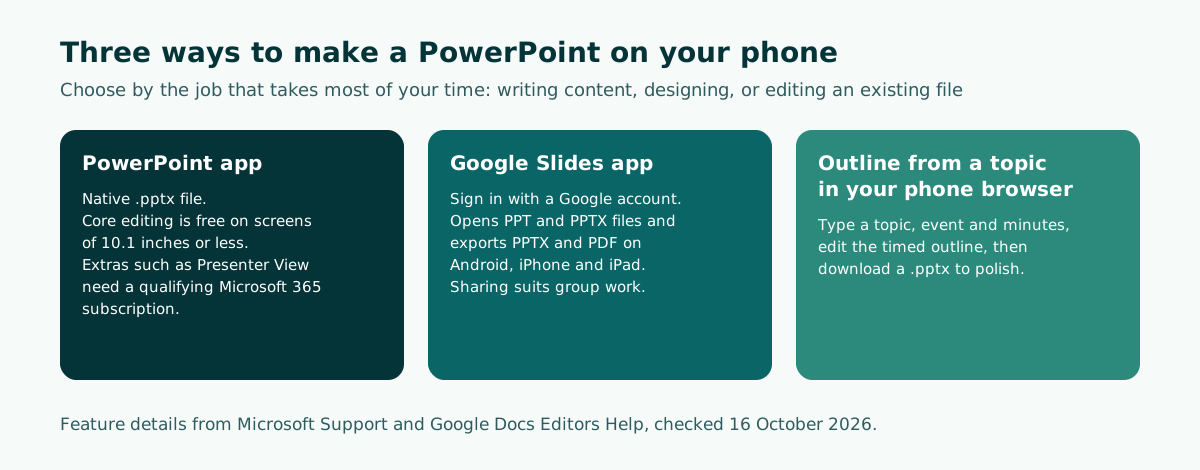
PowerPoint mobile vs Google Slides: which app should you use?
All three routes end with a presentation file, but each is strongest at a different job. The comparison below is based on the official Microsoft Support and Google Docs Editors Help pages, checked on 16 October 2026.
Scroll the table sideways to see every column.
| Point of comparison | PowerPoint app | Google Slides app | Outline from a topic (browser) |
|---|---|---|---|
| Cost | Core editing is free on devices with screens of 10.1 inches or less; extra features need a qualifying Microsoft 365 subscription | Works with a Google account | Depends on the service; check its terms |
| File formats | Native .pptx | Opens PPT and PPTX; exports PPTX and PDF on Android, iPhone and iPad | Download a .pptx to refine |
| Best at | Matching what PowerPoint shows on a laptop | Sharing and editing with classmates or colleagues | Turning a topic into a slide order quickly |
| Limits on a phone | Slide size and orientation cannot be changed in the Android or iOS app | Fewer design controls than a computer | Final design still needs a presentation app |
As a rule of thumb, choose PowerPoint when the recipient expects a PowerPoint file and you want it to look the same on their laptop. Choose Google Slides when you are working on a group project and need easy sharing. Choose the outline route when you do not yet know what to write on each slide.
Whichever app you use, a small screen is most efficient when the content is already clear. If you are new to the basics, read how to make a PowerPoint presentation and the guide to presentation structure first, then come back to build it on your phone.
How to make a PowerPoint on iPhone or Android with the PowerPoint app
The PowerPoint mobile app is available for iPhone and Android. According to Microsoft Support, core editing in the Microsoft 365 mobile apps is free on iOS and Android devices with screen sizes of 10.1 inches or less. Extra PowerPoint features, such as checking your speaker notes while you present with Presenter View and the Morph transition, need a qualifying Microsoft 365 subscription.
- Install and sign in. Download PowerPoint from the App Store or Google Play and sign in with your Microsoft account, so you can save to OneDrive and continue on a laptop later.
- Create a new presentation. Tap the button to create a file, then choose a blank presentation or one of the templates.
- Fill in the first slide. Tap the title and subtitle boxes to type. The keyboard appears just as it does when you write a message.
- Add slides. Use the new slide button and pick a layout, such as a title and content layout.
- Insert pictures or tables. Open the editing menu, choose Insert, then add a photo from your gallery or camera, a table, or a shape.
- Save and share. The file stays in .pptx format and can be shared as a link or an attachment.
Button labels and icons move around between app versions, so look for the same actions if your screen differs. One limit matters before you start: Microsoft's feature comparison marks changing slide size or orientation as not supported in PowerPoint for Android and PowerPoint for iOS. If your deck must use a particular size, set it on a computer or start from a template that already has the right size. The guide to PowerPoint slide size explains the common options.
The same comparison lists speaker notes as supported on both mobile apps, so you can write what you plan to say under each slide. The guide to speaker notes in PowerPoint shows how to keep them short enough to glance at.
How to make a PowerPoint on iPad
On an iPad, the steps are the same as on a phone, and the bigger screen makes it easier to see a slide and its thumbnails at once. The difference is cost. Microsoft's free core editing applies to iOS devices with screens of 10.1 inches or less, and Microsoft states that a qualifying Microsoft 365 subscription is also required to create and edit documents in PowerPoint on the iPad Pro. Check your iPad's screen size before you count on free editing, because on a larger screen you may only be able to view files without a subscription.
Google Slides is the main alternative on iPad. Google's help page for iPhone and iPad says you download the app from the App Store, can open and edit PPT and PPTX files, and can export a presentation as a PDF or PPTX file. That makes it a practical way to edit a deck someone emailed you and send back a PowerPoint file.
Tips for working on a tablet
- Hold the iPad in landscape when you check slides, so you see them in the same proportions as a projector screen.
- Use the larger screen for layout work, such as lining up pictures, and the phone for writing and quick edits.
- If you present from the iPad, Google Slides supports presenting through AirPlay to an Apple TV or another AirPlay receiver, covered later in this guide.
For a longer deck, such as a thesis defense presentation, a tablet is a good middle ground: comfortable for reviewing every slide, while the final polish still happens on a computer.
How to make a presentation on your phone with Google Slides
Google Slides is a popular choice because files save to Google Drive and sharing takes a couple of taps. Google Docs Editors Help explains that the Android app is installed from the Play Store, and the iPhone and iPad app from the App Store.
- Install Google Slides and sign in with your Google account.
- Create a presentation with the create button, then choose a blank presentation or a template.
- Type your content by tapping a text box. Double tap a slide to edit it quickly.
- Add slides and choose a layout that fits the content.
- Insert pictures, shapes, or tables from the insert menu.
- Share for group work. Invite people and choose whether they can view, comment, or edit.
- Export as PPTX if the recipient uses PowerPoint.
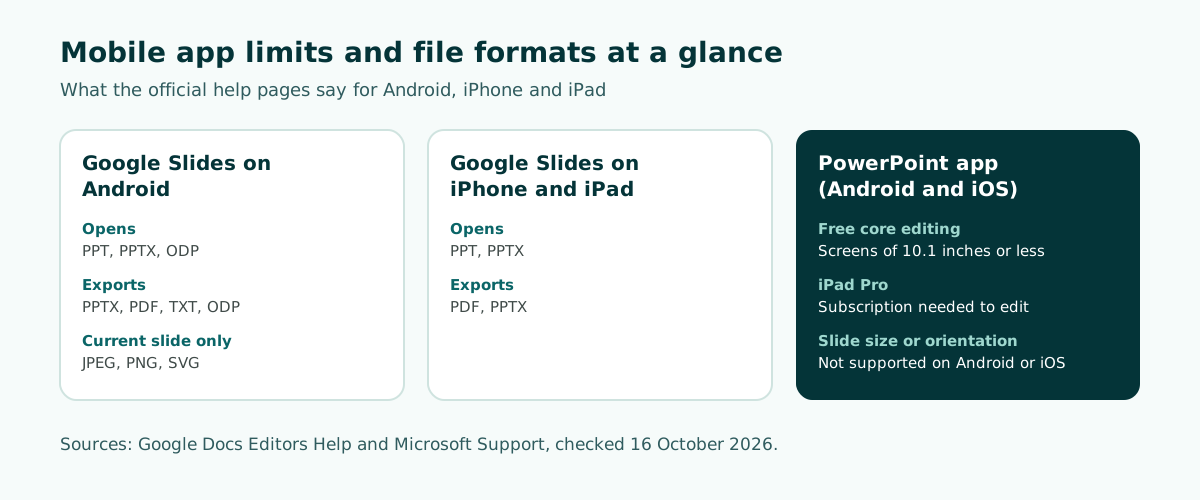
File support differs by platform. On Android, Google says the app can open and edit PPT, PPTX and ODP files and export as PPTX, PDF, TXT and ODP; you can also export the current slide as JPEG, PNG or SVG. On iPhone and iPad, the app opens and edits PPT and PPTX files and exports as PDF or PPTX.
After exporting, open the .pptx once in PowerPoint or on the recipient's laptop if you can. Fonts and object positions can shift when a file moves between apps, so it is worth a quick look before you send it.
Make a PowerPoint on your phone from a topic in the browser
The slowest part of making a presentation is rarely typing. It is deciding what goes on each slide and in what order. On a phone, that problem feels bigger because a small screen makes it hard to see the whole flow. This route flips the order: draft the outline first, worry about the design later.
The example below uses the Soluslide outline builder in a phone browser, for a fictional 10-minute small-business pitch about a bottled cold brew startup. No app install is needed.
- Open the outline builder in your phone browser.
- Enter a specific topic, choose the event type, and type the length in minutes.
- Or add your own material. You can upload a TXT, MD, PDF or DOCX file, or paste text, if you already have notes. The guide to building a presentation from a document covers this in more depth.
- Tap Build outline and wait for the result.
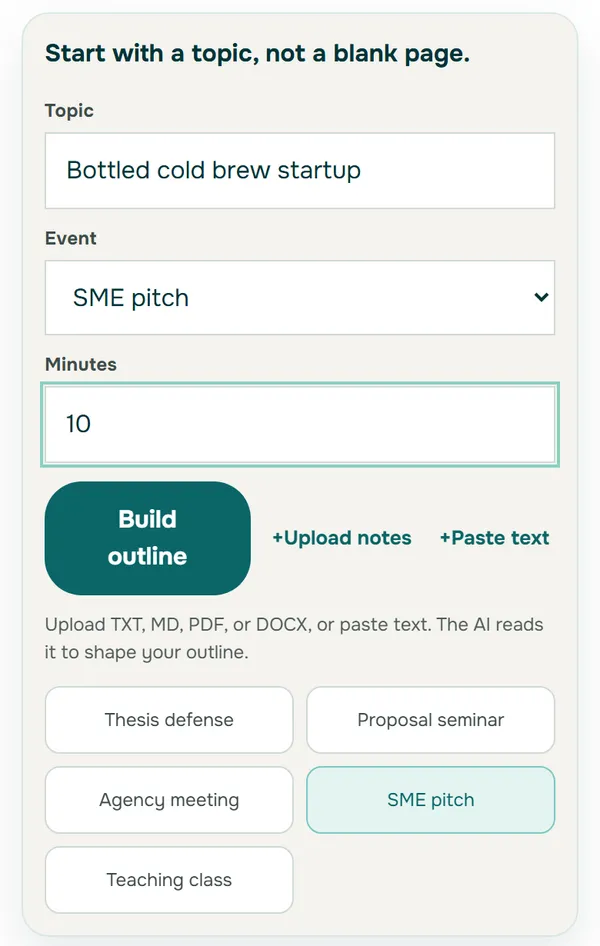
A specific topic gives a better draft than a vague one. "Bottled cold brew startup" plus the event type and length is enough to start; adding your audience and what you want from them makes the draft sharper. The guide to writing a presentation prompt has more examples.
Edit the outline and add your real data
An AI-drafted outline does not know your data, results, or testimonials, so editing is the most important step. The result opens with the heading "Your outline is ready" and a note that every row can be reviewed and edited, and that sign-in is only needed to download the .pptx. A notice above the slides says that, in this test, 7 claims (results, proof, or conclusions) not found in the topic were replaced with [ ] placeholders for real data.
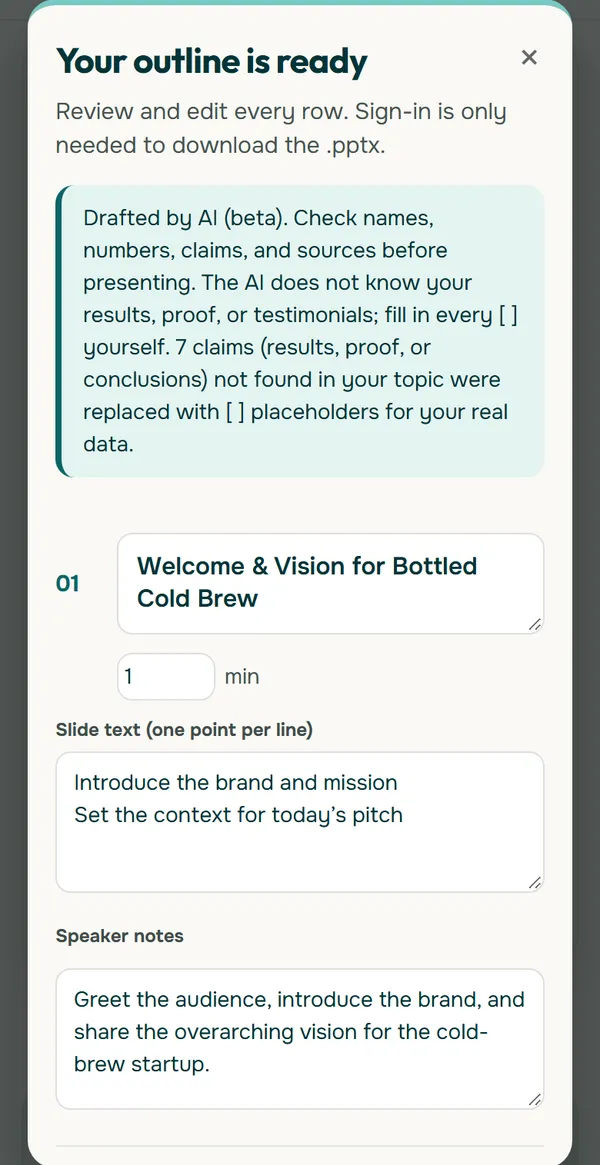
How to edit the outline on a small screen:
- Replace every [ ] placeholder with a number or fact you actually have. If you do not have the data, delete the point.
- Rewrite each slide title as a short message rather than a label.
- Adjust the minutes per slide so the total matches your time slot.
- Use the speaker notes field for the sentences you plan to say out loud.
Worked example: tightening the first slide
Here is a fictional rewrite of the opening slide from the test outline. The new title tells investors why they should care, and the details move into the notes.
BEFORE
Title: Welcome & Vision for Bottled Cold Brew (1 min)
Slide text: Introduce the brand and mission
            Set the context for today's pitch

AFTER
Title: Cafe-quality cold brew, ready in the office fridge (1 min)
Slide text: Who we are, in one line
            What we are asking for today: [amount] for [purpose]
Speaker notes: Greet the room, name the brand, state the ask.
               Fill in [amount] and [purpose] from your real plan.
Notice that the after version still keeps placeholders where the outline cannot know your numbers. For more on opening lines, see how to start a presentation.
Check the outline and download it as a .pptx
When the outline reads well, scroll down. A Readability Check panel asks you to edit your outline, then run the check before export, with a Run check button. Below it are Log in and Create account tabs. An account is only needed when you download the file.
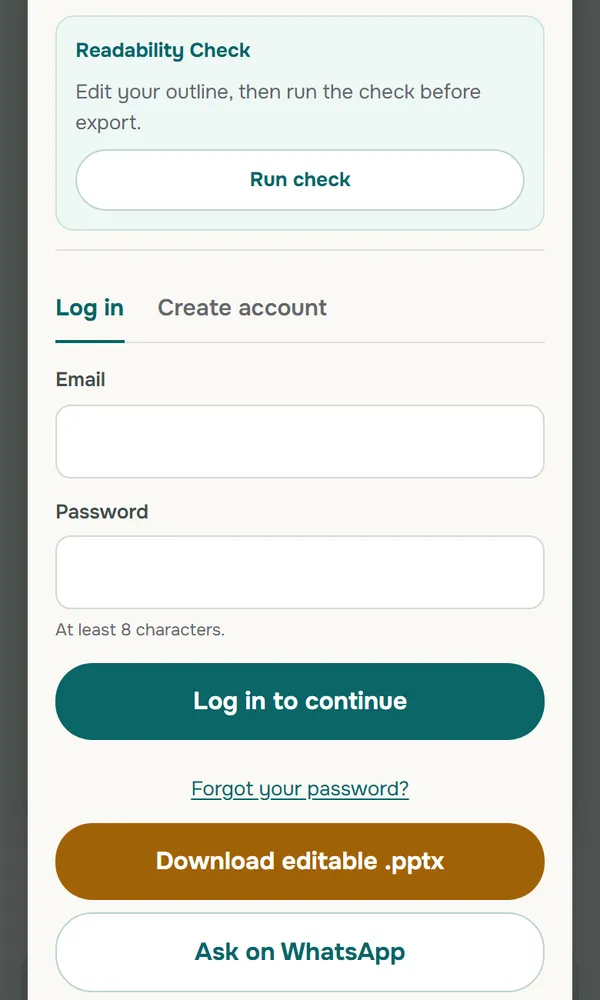
The downloaded .pptx is built from standard text boxes and shapes, so you can keep editing it in the PowerPoint app on your phone or on a laptop. The guide to editable PPTX files from AI tools explains why that matters when someone else needs to change the deck later.
The next step is usually the visual pass: choose a theme, add product photos, and check that text is easy to read. The principles are covered in the slide design guide, and the readable contrast guide shows how to check text and background colors before you present.
Tips for making slides on a small screen
Working on a phone brings its own friction: a narrow screen, a virtual keyboard, and mistaken taps. These habits make the process smoother.
- Write first, design later. Dragging pictures around with a finger is slow. Finish the text for every slide, then tidy the layout.
- One slide, one idea. Slides with little text are easier to edit on a phone and easier for the audience to read.
- Use a template. A clean layout reduces the amount of nudging you need to do.
- Turn the phone sideways when you review slides, so their proportions look closer to a projector screen.
- Save to the cloud. OneDrive or Google Drive keeps the file safe and lets you continue on a laptop.
- Check on the presenting device. Before the event, open the file on the laptop or computer you will present from to confirm the fonts and layout have not changed.
Name the file clearly from the start, for example "ColdBrew-Pitch-v2.pptx" rather than "Presentation1". On a phone, the downloads folder and chat apps fill up fast, and a generic name is easy to confuse with an older version. A clear name also helps a teacher, organizer, or manager find your file among everyone else's.
For long decks with a dozen or more slides, the phone works best for drafting the outline and chipping away at content during a commute. The final polish is still more comfortable on a large screen.
Presenting directly from your phone or iPad
Once the deck is ready, your phone can also present it. That helps when no laptop is available or when you are presenting in a small room.
From Google Slides
Google explains that full-screen presentations work from a computer, a mobile device, or a TV with Chromecast or AirPlay. In the app, open the presentation, tap Present, then choose Present on this device, and swipe left or right to change slides.
- Chromecast: connect your phone to the same Wi-Fi network as the Chromecast, open the presentation, and tap Cast. You can show or hide your speaker notes on the phone while you present. Google notes that presenting Slides does not work in Chromecast guest mode.
- AirPlay on iPhone and iPad: with an Apple TV or AirPlay receiver nearby, swipe up from the bottom of the screen, tap AirPlay mirroring, choose the receiver, turn on mirroring, then tap Present.
- Google Meet: tap Present and choose where you want to present to share slides in a video call.
Rehearse in the room
Whichever method you use, test it in the room before the event. A wireless connection can drop, and text that looks fine on your phone may not be readable from the back row. Keep a backup copy, such as a PDF on a USB drive or in cloud storage. For classroom lessons, the teaching presentation template suggests layouts that stay readable from a distance.
Which route fits school, work, and pitches
Each situation has a slightly different workflow when you build the deck on a phone:
Scroll the table sideways to see every column.
| Situation | Route that fits | Check before you present |
|---|---|---|
| Group project for class | Google Slides for sharing, then export PPTX | Who owns which slides, and consistent fonts |
| Thesis defense or viva | Outline from a topic or document, finished on a laptop | Data and quotes match the thesis; time per section |
| Last-minute team or client meeting | PowerPoint app with your company template | The decision you need is written clearly |
| Small-business pitch | Outline for a pitch, then add product photos | Sales and funding figures are your real numbers |
For event-specific guidance, see the thesis defense guide, the formal meeting briefing guide, and the AI pitch deck guide. To understand the file types involved, read what is a PPT file.
Soluslide is a beta tool that turns a topic or document into a timed slide outline you can edit on your phone before signing in. You can read the features and current limits or try the outline builder from the form above.
Frequently asked questions
Can I make a PowerPoint on my phone for free?
Yes, in most cases. Microsoft says core editing in its mobile apps is free on iOS and Android devices with screens of 10.1 inches or less, and Google Slides works with a Google account.
Which app is best for making a PowerPoint on a phone?
The PowerPoint app is best when you need a native PowerPoint file that looks the same on a laptop. Google Slides is easier for sharing and group work, and it can export a PPTX file on Android, iPhone and iPad.
How do I make a PowerPoint on iPhone?
Install PowerPoint or Google Slides from the App Store, sign in, create a blank presentation or pick a template, and type your content slide by slide. Save it as a .pptx file and share it by email, chat, or a cloud link.
Is PowerPoint free on iPad?
It depends on the screen size. Microsoft offers free core editing on iOS devices with screens of 10.1 inches or less, and says a qualifying Microsoft 365 subscription is required to create and edit in PowerPoint on the iPad Pro.
Can Google Slides on a phone save a file as PPTX?
Yes. Google says the Android app exports PPTX, PDF, TXT and ODP, and the iPhone and iPad app exports PDF or PPTX.
Can I change the slide size in the PowerPoint mobile app?
No. Microsoft's feature comparison marks changing slide size or orientation as not supported in PowerPoint for Android and iOS, so set the size on a computer or start from a template that already uses it.
Can I present a PowerPoint from my phone?
Yes. In Google Slides you can tap Present and choose Present on this device, cast to a TV with Chromecast, or use AirPlay on iPhone and iPad. Test the connection in the room and keep a backup copy.
Will a presentation made on a phone look the same on a laptop?
Usually, if you use the .pptx format, but fonts and object positions can shift when a file moves between apps. Open it on the presenting computer before the event.
Is it better to make a PowerPoint on a phone or a laptop?
A phone is good for outlining, drafting content, and light edits. A laptop is more comfortable for final design, large tables, and long decks, and the PowerPoint desktop app has more features.
Sources
Factual claims in this article refer to the sources below. Sample outlines and prompts are illustrations to adapt.
- Microsoft Support: Microsoft 365 mobile apps
- Microsoft Support: Compare PowerPoint features on different platforms
- Google Docs Editors Help: How to use Google Slides (Android phone and tablet)
- Google Docs Editors Help: How to use Google Slides (iPhone and iPad)
- Google Docs Editors Help: Present slides (Android phone and tablet)
- Google Docs Editors Help: Present slides (iPhone and iPad)
Related reading
Try shaping your own outline. You can review and edit it before signing in.
Build a free outline