
SmartArt in PowerPoint: Types, How to Use It, and When It Helps
A slide full of bullets hides the relationships between ideas. SmartArt graphics turn those bullets into a process, cycle, hierarchy, or matrix in a few clicks. This guide covers what SmartArt is, how to choose a layout, the exact steps from Microsoft Support, and the habits that keep your graphics readable.
What is SmartArt in PowerPoint?
SmartArt is a Microsoft 365 feature for building a visual representation of information, such as a process, a cycle, an org chart, or a pyramid, by picking a layout that fits your message. In PowerPoint you can insert a SmartArt graphic from the Insert tab or turn existing bullet text into one with Convert to SmartArt Graphic on the Home tab.
Microsoft Support describes two kinds of layouts. Some, such as organization charts and Venn diagrams, are built for specific kinds of information. Others simply add visual polish to a bulleted list. You can create SmartArt graphics in Excel, PowerPoint, Word, and in an email message in classic Outlook. Other Microsoft 365 apps cannot create them, although you can paste a SmartArt graphic into them as an image.
The real benefit is speed and consistency. You do not draw and align boxes and arrows by hand. When you add or remove text, the shapes resize and rearrange, and the colors follow the presentation theme. That makes SmartArt a good fit for slides that keep changing as your presentation structure evolves.
When SmartArt beats a bullet list
Not every list deserves a graphic. SmartArt pays off when the relationship between points matters as much as the points themselves. If order, cause and effect, or rank is the message, a diagram lets the audience see it at a glance.
- Sequential steps. An onboarding process or the stages of a research project.
- A repeating loop. A monthly plan, do, check, and adjust cycle.
- Levels. A team structure or a simple decision tree.
- Parts of a whole. A four-quadrant priority matrix.
Keep plain bullets when the points are long and unrelated. Microsoft Support itself notes that SmartArt graphics are most effective when shapes and text are limited to key points, because large amounts of text distract from the visual and make the message harder to convey. Move the detail to the next slide or to your speaker notes.
A quick test: if you could sketch the link between your points with arrows or lines on paper, SmartArt is likely a good fit. If no line makes sense, stay with a list or a table.
The eight SmartArt types and what each is for
The Choose a SmartArt Graphic gallery groups layouts by type. According to Microsoft Support, it has eleven groups: All, List, Process, Cycle, Hierarchy, Relationship, Matrix, Pyramid, Picture, Office.com, and Other. These eight are the ones you will use for most slide content.
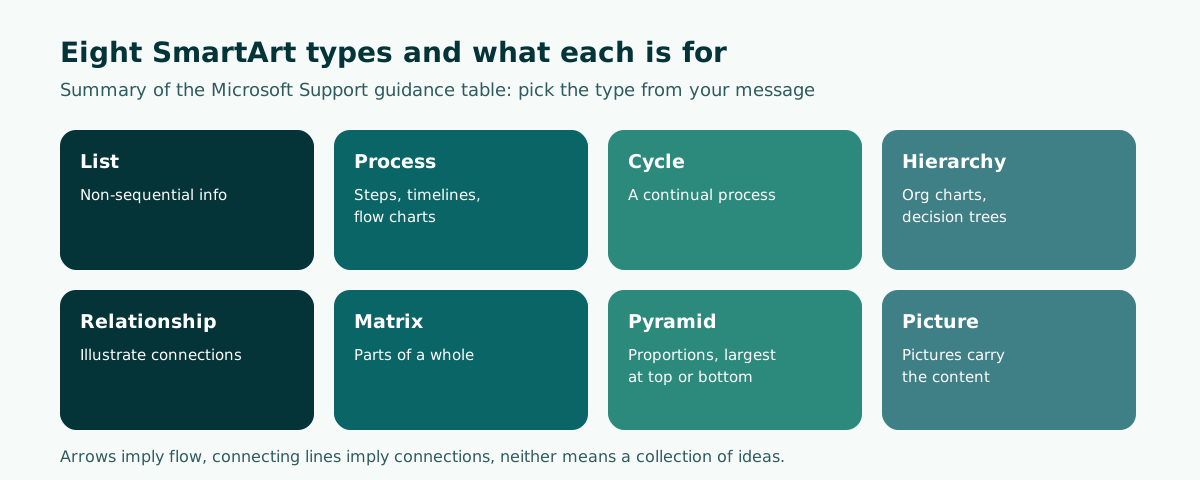
Scroll the table sideways to see every column.
| What you want to show | Type | Slide example |
|---|---|---|
| Non-sequential information | List | Four benefits of a new tool |
| Steps, a timeline, or a flow chart | Process | New hire onboarding |
| A continual process | Cycle | Quarterly review loop |
| An org chart or decision tree | Hierarchy | Project team structure |
| Connections | Relationship | Overlap of two programs |
| Parts of a whole | Matrix | Urgent versus important grid |
| Proportions, largest at top or bottom | Pyramid | Customer segments by size |
| Pictures carry the content | Picture | Team profiles with photos |
Microsoft also explains how shapes are read. Layouts with arrows imply flow or progression in one direction. Connecting lines without arrows imply connection but not necessarily flow. Layouts with neither show a collection of ideas with no strong relationship. So the type carries meaning: put one-off steps in a Cycle layout and viewers will assume the process repeats.
How to insert a SmartArt graphic from scratch
These steps follow Microsoft Support for PowerPoint on Windows. Menu names on Mac and the web may differ slightly.
- On the Insert tab, select SmartArt in the Illustrations group.
- In the Choose a SmartArt Graphic dialog box, select the type and layout you want.
- Enter your text in the Text pane by selecting [Text] and typing, or click inside a shape and type.
- If the Text pane is not visible, select the arrow control on the left side of the graphic.
Microsoft recommends typing directly into shapes only after you have added all the boxes you need, so text sizes do not keep shifting. For a title placed freely near the graphic, use a regular text box from the Insert tab rather than a SmartArt shape.
Placeholder text such as [Text] is not printed and does not appear during a slide show, but the shapes themselves always appear and print unless you delete them. Check your slide before sharing it, because an empty box in the middle of a process looks like a missing step.
If you are still drafting the deck itself, start with the basics in how to make a PowerPoint presentation. Add SmartArt once each slide's message is settled, not as a starting point.
How to convert bullet points to SmartArt
The fastest route is converting text you already have. Microsoft Support lists three short steps.
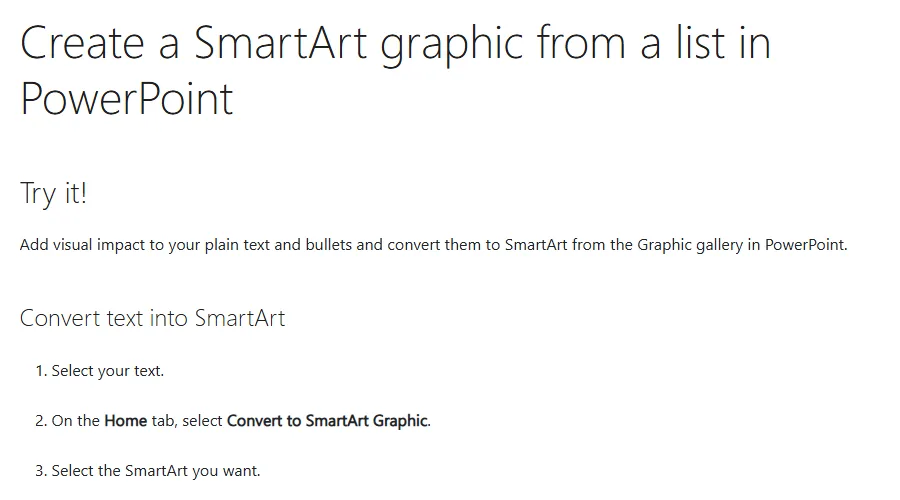
- Select the bullet text in the slide's content box.
- On the Home tab, select Convert to SmartArt Graphic.
- Select the SmartArt you want. Hover over a few options to preview them before you choose.
Watch your indent levels. The Text pane works like an outline that maps directly to the shapes. First-level bullets usually become the main shapes, while sub-bullets become child shapes or bullets inside a shape, depending on the layout. Cleaning up the outline before converting saves a lot of tidying afterwards.
If each bullet is still a full sentence, cut it to two to five words first. You can still say the full sentence out loud.
Editing content: the Text pane, adding shapes, and levels
Most SmartArt editing is easiest in the Text pane. Microsoft Support explains that the graphic updates automatically as you add and edit content there, adding or removing shapes as needed.
- New line: press Enter in the Text pane to add a bullet and a shape.
- Indent: press Tab, or select Demote in the Create Graphic group on the SmartArt Design tab.
- Outdent: press Shift+Tab, or select Promote.
- Add a shape: select the nearest shape, then on the SmartArt Design tab select the arrow next to Add Shape and choose Add Shape After or Add Shape Before.
- Delete a shape: select it and press Delete. To delete the whole graphic, select its border and press Delete.
Some layouts hold a fixed number of shapes. Microsoft's example is the Counterbalance Arrows layout in the Relationship type, which shows only two ideas. Text that cannot be displayed is marked with a red X in the Text pane. If you see one, switch to a layout with more shapes.
Character formatting such as bold, italic, and font size can be applied in the Text pane. When text in one shape shrinks because it is too long, text in the other shapes shrinks to match. That is one more reason to keep labels short.
Colors, styles, and converting SmartArt to shapes
Two galleries on the SmartArt Design tab control the look. Change Colors offers color variations derived from the theme colors. SmartArt Styles applies combined effects such as line style, bevel, or 3-D to the whole graphic.
Microsoft Support advises using 3-D styles sparingly so they do not distract from the message. For Process graphics, the Colorful combinations help separate each step. If the slide has a background picture, color combinations with Transparent in the name tend to blend in better. Whatever you choose, check that labels keep enough contrast, as covered in readable presentation contrast.
Because SmartArt colors follow the theme, the cleanest way to keep every graphic consistent is to set fonts and colors in the slide master and theme instead of recoloring shapes one by one. Change the theme and the SmartArt updates automatically.
Sometimes you need full control, for example to animate a single shape or reuse part of a graphic elsewhere. Then you have to break the SmartArt apart. On the SmartArt Design tab, in the Reset group, select Convert and then Convert to Shapes. Microsoft warns that once split into individual shapes, you cannot convert them back to a SmartArt graphic, so duplicate the slide first. Shape-by-shape motion is covered in PowerPoint animation.
Worked example: a new hire onboarding slide
Say you are preparing a ten-minute update for a team meeting on how new hires are onboarded. The first draft of the slide has six long bullets. Here is how it becomes a SmartArt graphic.
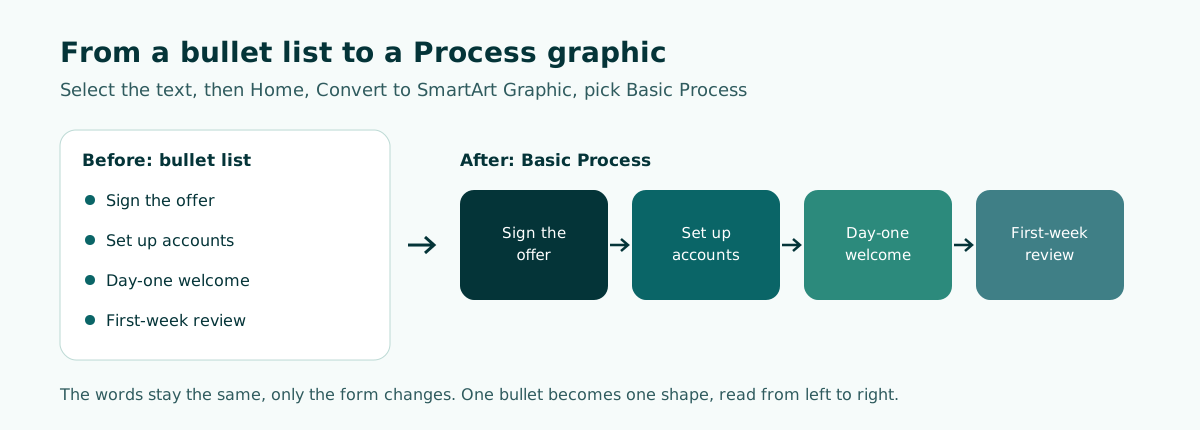
Before (bullet list):
- Candidate signs the offer letter and HR sends the welcome pack
- IT creates email, chat, and system accounts before day one
- Manager runs a day-one welcome and introduces the buddy
- New hire completes required training in the first week
- Manager and new hire hold a first-week review

After (text for Basic Process, one line per shape):
Sign the offer
Set up accounts
Day-one welcome
Complete training
First-week review
Shorten each bullet to two or three words, select the text, then choose Home, Convert to SmartArt Graphic, and Basic Process. Five shapes line up left to right with arrows. The details, such as who sends the welcome pack, move to the speaker notes or an appendix slide.
Scroll the table sideways to see every column.
| Aspect | Bullet list | SmartArt Basic Process |
|---|---|---|
| Words on the slide | About 55 | 12 |
| Order of steps | Read line by line | Visible from the arrows |
| Where the detail lives | On the slide | In speaker notes or an appendix |
The same pattern works elsewhere. A graduate student can use Process for research methods in a thesis defense presentation, a teacher can use Cycle for a learning loop, and a founder can use Pyramid to show customer segments from largest to smallest. Shorten the text first, then pick the type whose meaning fits.
Common SmartArt mistakes
- Too much text. Shapes shrink, every label shrinks with them, and the back row cannot read it.
- The wrong type for the meaning. One-off steps placed in a Cycle layout look like they repeat.
- Too many shapes. A graphic with more than about seven shapes is usually clearer as two slides.
- 3-D on every slide. Effects pile up and compete with the content.
- Leftover empty shapes. Placeholder text does not print, but the shape still shows.
- Converting to shapes too early. Convert to Shapes cannot be undone back into SmartArt, so do it only when you need to.
Slide size matters too. Microsoft notes that some layouts have a fixed aspect ratio and will not fill a wide space. If a graphic looks too small, try another layout or adjust the space. Slide dimensions are covered in PowerPoint slide size, and general layout principles in presentation design.
Before you present, run the slide in Slide Show and step back from your screen. Ask two questions: is the order or relationship obvious right away, and is the smallest label still comfortable to read? If either answer is no, simplify the text or split the graphic across two slides.
Workflow: from content outline to slides with graphics
SmartArt is quickest when each slide's content already exists as short points. The efficient order is outline first, graphics second.
- Draft the outline: slide titles, key points, and timing.
- Flag slides whose content is a sequence, a loop, or a set of levels.
- Shorten the points on those slides to two to five words.
- Convert to SmartArt and pick the type using the table above.
- Unify colors through the theme, then rehearse with the detail in your speaker notes.
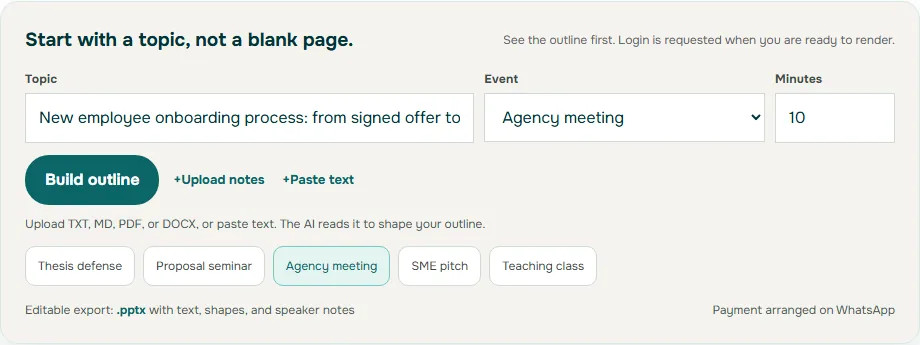
For the first step, Soluslide can draft a timed outline from a topic or a document: slide titles, notes, and minutes per slide that you can edit before signing in. With a beta account, you export it as an editable .pptx built from standard text boxes and shapes, so the bullets are ready to convert to SmartArt in PowerPoint. Try a first outline in the Soluslide outline builder or see the full feature list.
Frequently asked questions
What is SmartArt in PowerPoint?
SmartArt is a feature for creating a visual representation of information, such as a process, cycle, org chart, or pyramid, by choosing a layout that fits your message. It is also available in Word, Excel, and classic Outlook.
Where is SmartArt in PowerPoint?
To start from scratch, go to the Insert tab and select SmartArt in the Illustrations group. To convert existing text, select it and choose Convert to SmartArt Graphic on the Home tab.
What are the SmartArt graphic types?
The main types are List, Process, Cycle, Hierarchy, Relationship, Matrix, Pyramid, and Picture. The gallery also includes All, Office.com, and Other groups.
How do I add a box to a SmartArt graphic?
Select the nearest shape, then on the SmartArt Design tab select the arrow next to Add Shape and choose Add Shape After or Add Shape Before. You can also press Enter in the Text pane.
Why is some of my text missing from the SmartArt?
Some layouts hold a fixed number of shapes. Text that cannot be shown is marked with a red X in the Text pane, so switch to a layout with more shapes.
Can I convert SmartArt to regular shapes?
Yes. On the SmartArt Design tab, in the Reset group, select Convert and then Convert to Shapes. After that you cannot turn the shapes back into SmartArt.
How much text should a SmartArt graphic have?
As little as possible. Microsoft Support recommends limiting SmartArt to key points, because large amounts of text make the visual message harder to convey.
Do SmartArt colors follow the presentation theme?
Yes. Change Colors uses the theme colors, and when you change the theme, the SmartArt graphic updates automatically.
Sources
Factual claims in this article refer to the sources below. Sample outlines and prompts are illustrations to adapt.
Related reading
Try shaping your own outline. You can review and edit it before signing in.
Build a free outline