
PowerPoint Animation: How to Add Animations That Support Your Point
Good animation points the audience at the idea you are talking about right now. Too much of it makes people wait and forget what you said. This guide covers how to add animation in PowerPoint using Microsoft's own instructions, how to control order and timing, the Google Slides equivalent, and a simple rule for when to leave animation out.

How to add animation in PowerPoint, in short
To add animation in PowerPoint, select the text or object, open the Animations tab, choose an animation, and then pick Effect Options. Next, decide how it starts (On Click, With Previous, or After Previous), how long it runs (Duration), and whether it waits first (Delay). These steps follow Microsoft Support's Animate text or objects page.
According to Microsoft, you can animate text, pictures, shapes, tables, SmartArt graphics, and other objects. Effects can make an object appear, disappear, or move, and they can change its size or color.
The question people skip is the one that comes before step one: does this slide need animation at all? Animation earns its place when you want the audience to see points one at a time, follow the steps of a process, or notice one number on a chart. If the only goal is to make a slide feel lively, you are usually better off without it. This guide covers both the mechanics and the judgment call.
Animations vs transitions in PowerPoint
The two terms get mixed up constantly. Microsoft Support spells out the difference on its page The difference between animations and transitions.
Scroll the table sideways to see every column.
| Aspect | Animation | Transition |
|---|---|---|
| Applies to | A single element on a slide, such as text, a shape, or an image | The entire slide |
| How many per slide | A slide can carry multiple animation effects | Only one transition effect per slide |
| When you see it | When an object appears, is emphasized, moves, or disappears | When the previous slide gives way to this one |
| Ribbon tab | Animations | Transitions |
Microsoft also describes Morph as a transition that looks like an animation, because it smoothly moves objects from one position or size to another. So if objects seem to glide when the slide changes, you may be looking at a Morph transition rather than an animation.
A practical rule: transitions handle the move between slides, animations handle what happens inside a slide. For formal settings such as a thesis defense or a board update, one subtle transition used on every slide is usually all you need.
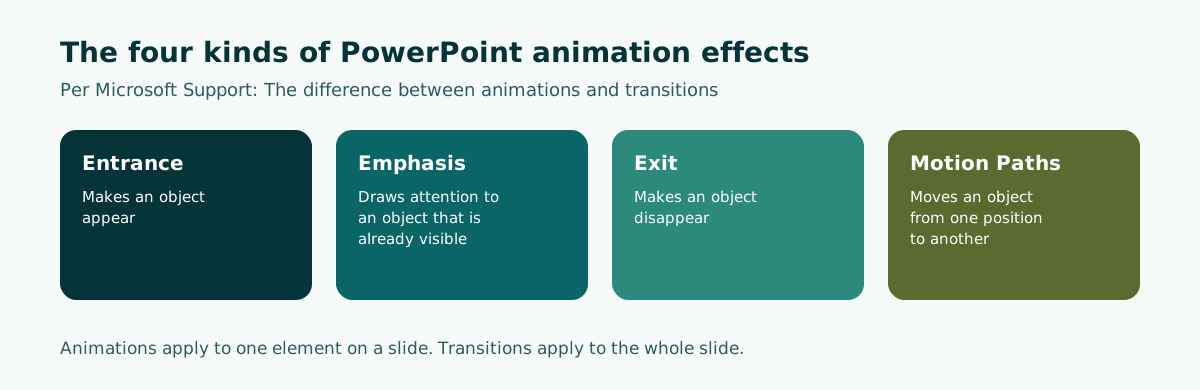
The four effect types: Entrance, Emphasis, Exit, Motion Paths
Every PowerPoint animation belongs to one of four groups. Knowing the group matters more than memorizing effect names, because each group does a different job.
- Entrance effects make an object appear. This is the group you will use most, for example to reveal points one at a time.
- Emphasis effects draw attention to an object that is already visible, such as making one figure change color while you discuss it.
- Exit effects make an object disappear, which helps clear part of a slide before the next idea arrives.
- Motion Paths move an object from one position to another, for example sliding a marker along a map or a flow diagram.
For classroom and workplace decks, simple Entrance effects such as Appear or Fade are the safest choice. Effects that spin, bounce, or fly in from a corner pull attention toward the motion itself rather than the content. You can also stack effects on one object, say an Entrance followed by an Emphasis, using the Add Animation button.
A useful habit is to choose your effects for the whole deck before you start, the same way you choose fonts. One Entrance effect for bullet points, one for diagrams, and one Emphasis for key numbers will cover almost every slide in a typical presentation.
Step by step: adding an animation in PowerPoint
Here are the basic steps for PowerPoint on Windows, as listed on Microsoft Support's Animate text or objects page:
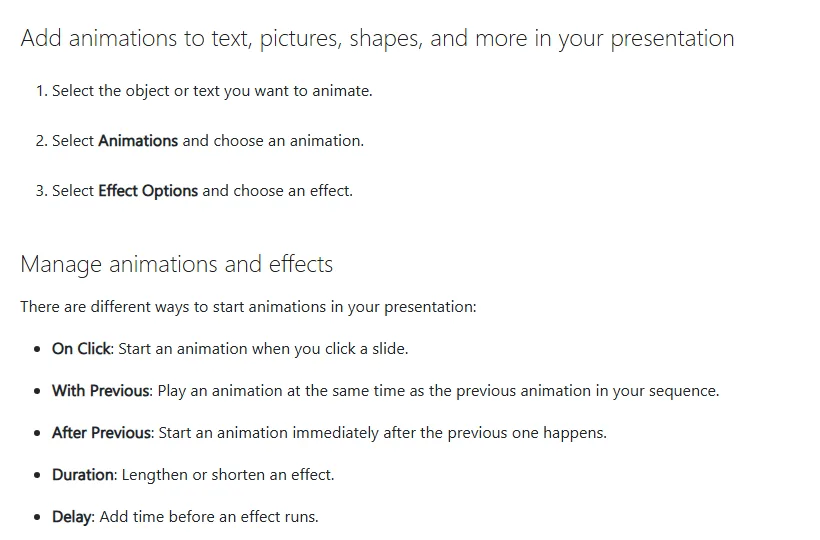
- Select the object or text you want to animate.
- Select Animations and choose an animation.
- Select Effect Options and choose an effect, such as the direction it enters from.
- To add a second effect to the same object, select it and choose Add Animation.
- To change the order, select an animation marker and use Move Earlier or Move Later.
If several objects should move as one unit, group them first. Microsoft's instructions: press Ctrl and select the objects, choose Shape Format, Group, Group, and then add the animation.
Microsoft keeps separate pages for frequent needs, such as animating bullet points one at a time and adding a motion path. On a Mac or in PowerPoint for the web, switch to the matching tab on the help page, since menu locations can differ slightly.
Finish your content before you animate. Reordering points after every effect is in place tends to scramble the sequence. If you are still shaping the content, start with our guides on how to make a PowerPoint presentation and presentation structure.
Timing: On Click, With Previous, After Previous
Once you have picked an effect, the most important decision is when it runs. Microsoft Support lists these options:
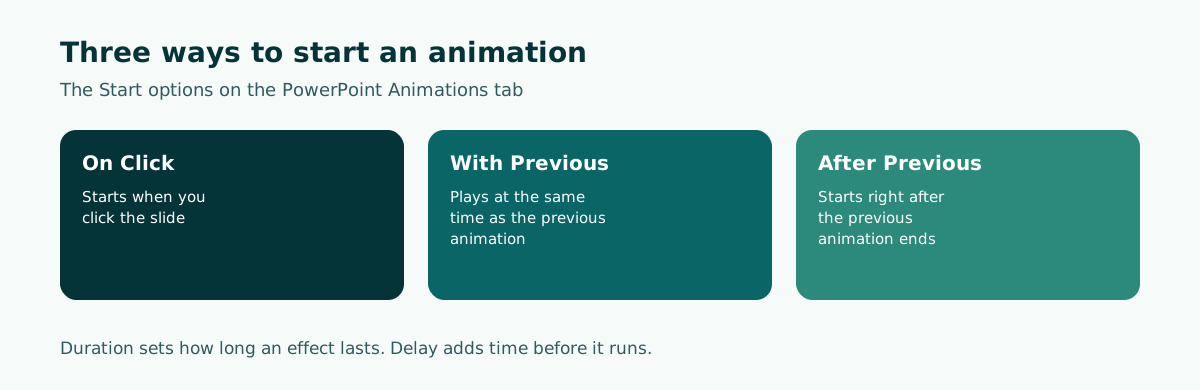
- On Click: start an animation when you click a slide.
- With Previous: play an animation at the same time as the previous one in the sequence.
- After Previous: start an animation immediately after the previous one happens.
- Duration: lengthen or shorten an effect.
- Delay: add time before an effect runs.
For live talks, On Click keeps you in control: the next point appears exactly when you are ready for it. After Previous suits small chains that should run on their own, like an arrow that follows the first box in a process diagram.
Watch the click count. Every extra click is another chance to lose your place, especially when you are nervous. Note the number of clicks per slide in your speaker notes so you know when a slide is truly finished. Our guide to speaker notes in PowerPoint shows how to write notes like that.
Using the Animation Pane to change and remove effects
The Animation Pane lists every effect on a slide in the order it plays. It becomes essential once a slide has more than two animations, because you can see the order and triggers at a glance.
Microsoft Support's page Change, remove, or turn off animation effects gives these steps to remove one effect:
- On the Animations tab, select Animation Pane.
- On the slide, select the animated object. All of its effects are highlighted in the pane.
- In the Animation Pane, select the effect, select the down arrow, and then select Remove.
To remove several effects, press Ctrl, select each one in the Animation Pane, and press Delete. To remove every effect from one object, select the object and choose None in the animation gallery.
Microsoft notes that you cannot remove all animations from an entire presentation in one step. You can, however, switch them all off for a show: on the Slide Show tab, select Set Up Slide Show, and under Show options select Show without animation. That setting is handy when the deck must run on a slow computer, or when an organizer asks for a version without effects.
Animation in Google Slides
Google Slides follows the same ideas with different menu names. According to Google Docs Editors Help, on a computer you:
- Open the presentation in Google Slides.
- Click the text or image you want to animate.
- Click Insert, then Animation. You can also click View, then Motion.
- Under Object Animations, select the animation you want.
Google explains that new object animations default to "Appear (On click)". You can change the start to On click, After previous, or With previous, drag a slider to set the speed, and tick "By paragraph" to reveal a list one line at a time. Google also warns that some animations may not work in certain browsers.
Scroll the table sideways to see every column.
| Task | PowerPoint | Google Slides |
|---|---|---|
| Add an animation | Animations tab | Insert, Animation or View, Motion |
| Start timing | On Click, With Previous, After Previous | On click, With previous, After previous |
| Speed | Duration | Speed slider |
| Reveal a list line by line | Per-paragraph effect options | By paragraph checkbox |
If a file will travel between both apps, test the animation in the app you will actually present from. Effects do not always have an exact match in the other app, so play the whole deck once in presentation mode on the presenting device and fix any slide where an effect changed or vanished.
When animation helps, and when it hurts
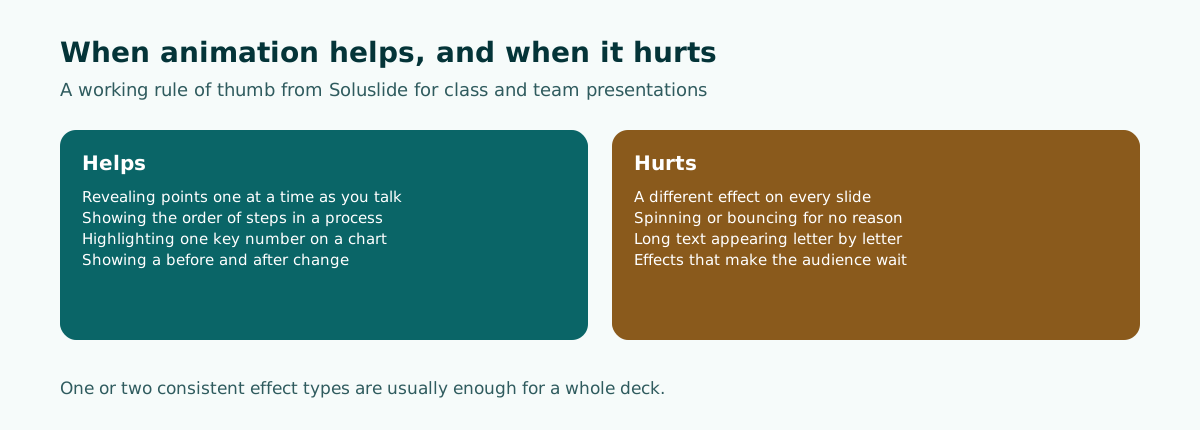
Animation is not decoration. It is a tool for steering attention. Ask one question of every effect: does this movement make my point easier to follow?
There is an accessibility angle too. The W3C's guidance on WCAG 2.2 success criterion Animation from Interactions explains that motion on screen can trigger vestibular (inner ear) disorder reactions such as dizziness, nausea, and headaches. The criterion was written for web content, but the principle carries over to slides: avoid large, unnecessary motion, especially effects that spin objects or zoom them to fill the screen.
In teaching, revealing points one at a time helps students follow along. In a thesis defense or a board meeting, minimal animation is safer, because examiners and executives often ask you to jump back to a slide, and click-triggered effects can force you to click through several times. For broader readability, see our guides on slide design and readable contrast.
Example: an animation plan for one process slide
Picture a slide with a four-step diagram of how bottled cold brew is made: roast, grind, steep cold, bottle. Instead of showing everything at once, plan the animation on paper first.
Slide 5: Production process (4 boxes + 3 arrows)
Click 1  Box "Roast"         Entrance: Fade, On Click
         Arrow 1              Entrance: Wipe, After Previous
Click 2  Box "Grind"         Entrance: Fade, On Click
         Arrow 2              Entrance: Wipe, After Previous
Click 3  Box "Steep cold"    Entrance: Fade, On Click
         Arrow 3              Entrance: Wipe, After Previous
Click 4  Box "Bottle"        Entrance: Fade, On Click
Click 5  Box "Steep cold"    Emphasis: color change (longest step)
Speaker notes: 5 clicks, about 2 minutes in total
A plan like this tells you exactly how many clicks the slide needs and keeps effects consistent. It uses only two effect types (Fade for boxes, Wipe for arrows) plus one Emphasis for the point you want to stress.
The hardest part is rarely the animation. It is deciding what goes on each slide and in what order. Soluslide helps at that stage: from a topic, an event type, and a duration, you get a slide outline with titles, bullet text, speaker notes, and estimated minutes that you can edit.
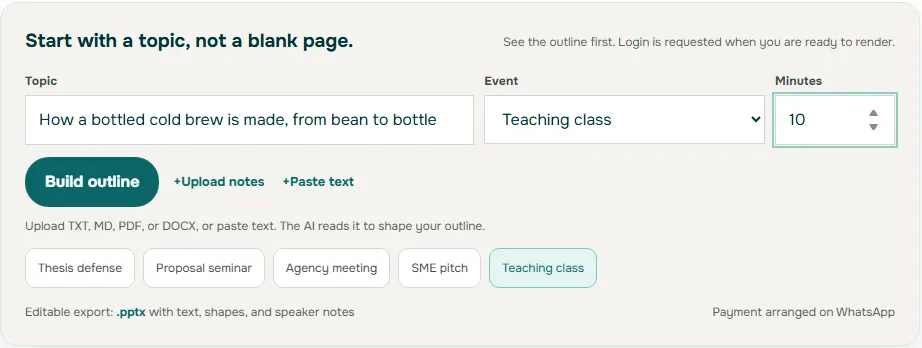
Soluslide does not add animation. After signing in to the beta you download an editable .pptx and add effects in PowerPoint following a plan like the one above. Try the Soluslide outline builder or see the teaching presentation template.
Common PowerPoint animation mistakes
These mistakes make a deck feel slow or confusing:
- A different effect on every slide. The audience watches the motion, not the message.
- Animating everything. A title that flies in adds nothing.
- Long text appearing letter by letter. People wait to read one sentence.
- Animating before the content is final. The sequence breaks when points move.
- Not testing on the presenting device. Effects that are smooth on your laptop may stutter on the room computer.
- Losing count of clicks. You advance and skip to the next slide before the last point appears.
Most of these disappear if you stick to one or two effect types, animate only the slides that need it, and rehearse with the final file. For delivery practice, see how to give a good presentation, and for strong first and last minutes, read how to start a presentation and how to end a presentation.
When several people build one deck, agree on animation rules at the start so each section does not invent its own style. Our group presentation guide covers keeping one style in one file.
Frequently asked questions
How do you add animation in PowerPoint?
Select the text or object, open the Animations tab, choose an animation, and set Effect Options. Then choose how it starts (On Click, With Previous, or After Previous) and adjust Duration and Delay.
What is the difference between animations and transitions?
According to Microsoft Support, an animation applies to a single element on a slide and a slide can have many of them. A transition applies to the whole slide, and only one transition can be applied per slide.
What are the types of animation in PowerPoint?
There are four groups: Entrance effects make an object appear, Emphasis effects highlight a visible object, Exit effects make it disappear, and Motion Paths move it from one position to another.
How do I make bullet points appear one at a time?
Apply an Entrance effect to the text box and set it to reveal by paragraph with an On Click start. Microsoft Support has a dedicated page on animating bullet points one at a time.
How do I remove an animation in PowerPoint?
Open the Animation Pane from the Animations tab, select the effect, select the down arrow, and choose Remove. To clear every effect from one object, select it and choose None in the animation gallery.
Can I turn off all animations at once?
You cannot delete them all in one step, but you can disable them for a show via Slide Show, Set Up Slide Show, and Show without animation.
Does Google Slides support animation?
Yes. Click an object, choose Insert and then Animation, and pick an effect under Object Animations. Start options are On click, After previous, and With previous.
Can Soluslide add animation to my slides?
No. Soluslide drafts an outline and an editable .pptx; you add animation yourself in PowerPoint after downloading the file.
Sources
Factual claims in this article refer to the sources below. Sample outlines and prompts are illustrations to adapt.
- Microsoft Support: Animate text or objects
- Microsoft Support: The difference between animations and transitions
- Microsoft Support: Change, remove, or turn off animation effects in PowerPoint
- Google Docs Editors Help: Add or change animations and transitions
- W3C WAI: Understanding SC 2.3.3 Animation from Interactions
Related reading
Try shaping your own outline. You can review and edit it before signing in.
Build a free outline