
Slide Master in PowerPoint: What It Is and How to Use It
If you have ever replaced a logo on thirty slides one by one, the slide master is the fix. This guide explains what the slide master is, how it differs from layouts, how to open and edit it using Microsoft's own steps, how to save it as a reusable template, and what to use in Google Slides instead.

What is the slide master in PowerPoint?
The slide master is the top slide in Slide Master view. It holds the base settings for a presentation, such as fonts, colors, background, and repeated images like a logo. Microsoft Support puts it simply: when you want all your slides to contain the same fonts and images, you can make those changes in one place, the Slide Master, and they will be applied to all your slides.
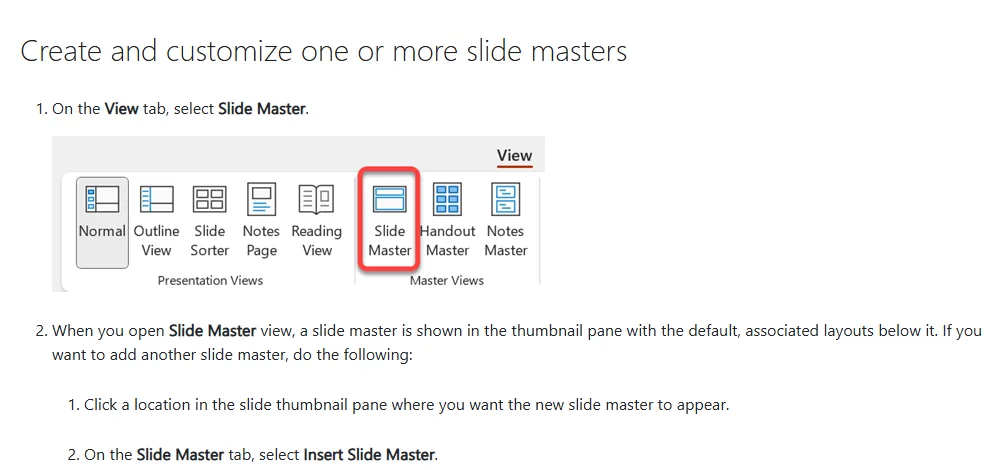
To open it, go to the View tab and select Slide Master. The master appears as the largest thumbnail at the top of the pane on the left, with its related layouts underneath.
The payoff is biggest for long decks or decks built by several people. The logo always sits in the same corner, heading sizes match, and slide numbers appear automatically. Microsoft also notes that elements set in Slide Master view cannot be accidentally deleted or edited by people working in Normal view. So if you ever wonder "why can't I remove this picture?", it probably lives on the slide master or a layout.
Slide master vs layouts vs slides
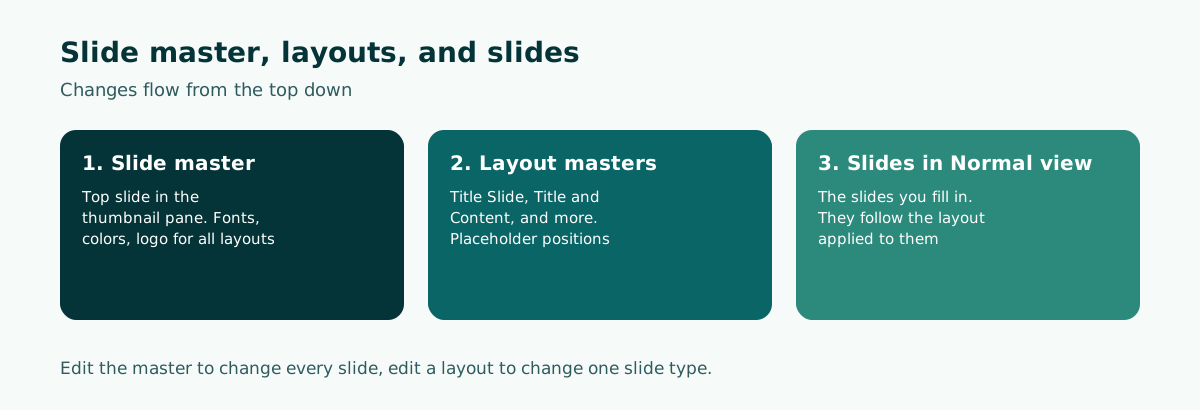
The most common confusion is the difference between the slide master and the layouts. Both live in Slide Master view, but they control different things.
Scroll the table sideways to see every column.
| Term | What it controls | What a change affects |
|---|---|---|
| Slide master | Fonts, colors, background, logo, and other base elements | Every slide based on that master |
| Layout master | Which placeholders a slide type has and where they sit, for example Title Slide | Slides that use that layout |
| Theme | A coordinated set of colors, fonts, and effects | Each theme brings one slide master and a set of layouts |
Microsoft explains that every theme you use includes a slide master and a related set of layouts, so a deck with more than one theme has more than one slide master. It also notes that most of the changes you make will likely be to the layout masters rather than the top master.
A working rule: change the slide master for anything that applies everywhere (fonts, logo, colors), and change a layout for anything that applies to one kind of slide (such as the title position on your opening slide).
When should you use the slide master?
The slide master earns its keep whenever something has to look the same on many slides. Typical cases:
- Company or agency decks that must carry a logo, brand colors, and an official footer.
- Thesis defenses and viva presentations with a university logo, your name, and slide numbers on every page.
- Group projects where several people build sections that must look like one deck.
- Course materials reused week after week.
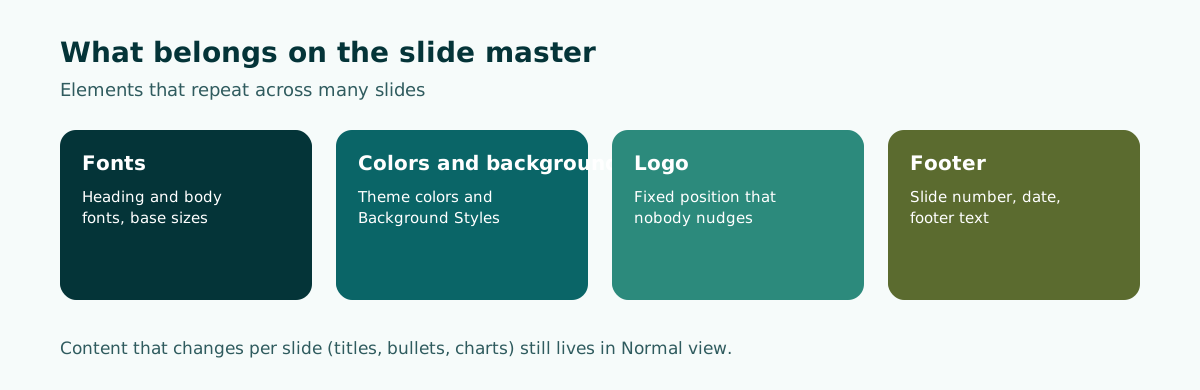
Microsoft recommends editing the slide master and layouts before you start building individual slides, so every slide you add is based on your custom edits. If you change them afterward, you will need to reapply the changed layouts to the slides that already exist.
For a five-slide, one-off talk, setting up the master may feel like overkill. Once a deck runs past ten slides or will be reused, the time spent in Slide Master view pays for itself many times over. If you are preparing for an academic panel, see our thesis defense presentation page for a sample structure, and our slide design guide for the design choices worth locking into the master.
How to open and edit the slide master
These steps follow Microsoft Support's Customize a slide master page for PowerPoint on Windows:
- On the View tab, select Slide Master.
- The slide master appears in the thumbnail pane with its default layouts below it. Click the master (the largest image at the top) to change every slide, or click a single layout to change one slide type.
- Change colors, fonts, or effects. Microsoft notes you can also move, hide, or show placeholders, and switch the page orientation.
- To set the orientation for every slide, select Slide Size and then Custom Slide Size on the Slide Master tab.
- To control footers, select a layout in the thumbnail pane and select or clear Footers on the Slide Master tab. Add the footer text through Insert and then Headers.
- When you are done, select Close Master View to return to Normal view.
Need a second master, for example for a section with a different look? Click where you want it in the thumbnail pane and select Insert Slide Master. To remove built-in layouts you will never use, select each one and click Delete on the Slide Master tab.
Decide on the slide size early, because changing it later can shift elements around. The trade-offs between 16:9 and 4:3 are covered in our PowerPoint slide size guide.
Adding, moving, and removing placeholders
Placeholders are the boxes on a layout that hold a title, text, a picture, a chart, video, or other content. Setting them up on the layout means every new slide arrives with boxes already in the right place.
According to Microsoft Support's Create and save a PowerPoint template page:
- In the thumbnail pane, select the layout that should hold the placeholder.
- Select Insert Placeholder and choose the type.
- Click and drag on the layout to draw the placeholder.
- To resize, drag a corner of its border. To move it, select the edge and drag it to a new position.
- To remove an unwanted placeholder, select the layout, select the placeholder's border, and press Delete.
Use placeholders rather than loose text boxes for titles and body text. Content inside placeholders follows the layout when the layout changes, while loose text boxes stay where they were dropped. That difference matters the first time you restyle a forty-slide deck.
One lesson from experience: keep decoration on the master to a minimum. Every line, shape, or background image appears on every slide, including the chart slides that need breathing room. Check text contrast against the background too, as covered in our guide to readable contrast.
Saving the slide master as a .potx template
Once the master and layouts are in shape, save them as a template so you and your colleagues can reuse them. Microsoft explains that a presentation saved as a PowerPoint template (.potx) can be shared and reused, and that creating a template means modifying a slide master and a set of slide layouts.
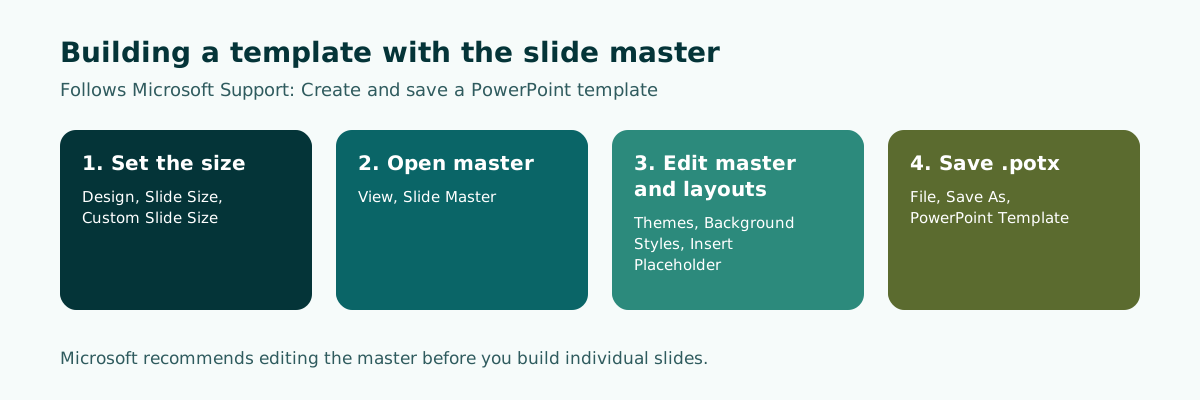
To save it:
- On the File tab, select Save As (or Save a Copy in Microsoft 365).
- In the Save as type list, choose PowerPoint Template.
- PowerPoint typically switches the location to the Custom Office Templates folder.
- Enter a file name and select Save.
Scroll the table sideways to see every column.
| Format | What it is | When to use it |
|---|---|---|
| .pptx | A regular presentation file | The deck you are working on and presenting |
| .potx | A PowerPoint template | The starting point for many new decks in the same style |
Templates in the Custom Office Templates folder can be picked when you create a new presentation, so the whole team starts from the same master.
Applying master changes to an existing presentation
What if the slides already exist and the master is a mess? Microsoft explains that after you change a layout master, every new slide based on that layout reflects the new look, but existing slides built on the earlier version of the layout need the layout reapplied.
A practical sequence:
- Clean up the slide master and layouts as described above.
- Return to Normal view and select the slides that did not update.
- Reapply the matching layout from the Layout menu on the Home tab.
- Check each slide, especially those whose text sits in loose text boxes, because that text does not move into placeholders on its own.
Decks stitched together from several people's files often carry several themes, and therefore several slide masters. Microsoft notes that using more than one theme means more than one slide master. For Microsoft 365 subscribers on Windows, PowerPoint can also offer to remove unused slide masters when you open a presentation that has 25 or more of them.
This is the strongest argument for starting group work from one template. Our group presentation guide covers how to keep one style in one file.
The Google Slides equivalent: Edit theme
Google Slides does not use the name "slide master", but the idea is the same: a theme bundles colors, fonts, background, and layouts. Google Docs Editors Help defines a theme as a preset group of colors, fonts, background, and layouts, and a layout as the way text and images are arranged on a slide.
The steps listed on Google's help page:
- Change the theme: click Slide, then Change theme, and pick a theme on the right.
- Edit theme colors: click Slide, Edit theme, then Colors. Pick the color to edit from the "Theme colors" list, then choose a preset or enter a hex value.
- Change the layout of a given slide from the same menu.
Edit theme is the closest match to PowerPoint's Slide Master view, because changes there affect every slide using that theme. If a file moves between PowerPoint and Google Slides, recheck fonts and logo placement after opening it in the other app, since not every setting carries over exactly.
If you often start decks on the go, theme settings are easier to manage on a computer. Our guide on making a PowerPoint on your phone compares the mobile apps.
Common slide master mistakes
These mistakes turn the slide master from a time saver into a headache:
- Editing slides one by one. A logo or footer pasted onto each slide drifts out of position and is painful to replace.
- Changing the master after the deck is done without reapplying layouts, then wondering why half the slides did not change.
- Overloading the master with decoration. Ornaments appear everywhere and squeeze the content.
- Using loose text boxes for titles. Titles ignore the layout and the deck structure becomes inconsistent.
- Accidental extra masters. Copying slides from another file often brings that file's master and theme along.
- Never saving a template. A carefully built master is lost the moment you start a fresh file.
If you present at the same recurring event, such as a monthly team meeting, keep one .potx template and start every new deck from it. For building a deck from scratch, see how to make a PowerPoint presentation, and for ordering the content, see presentation structure.
Workflow: from content outline to a polished template
The slide master handles the look, not the content. An efficient order of work usually looks like this:
- Draft the content outline first: slide titles, key points, and rough timing.
- Prepare or pick a template with a clean slide master.
- Pour the content into slides using the right layouts.
- Add visuals, then check readability and consistency.
- Rehearse with speaker notes. Our guide to speaker notes in PowerPoint shows how to write them.
Sample slide master setup for a monthly marketing report
Slide master : heading and body fonts, theme colors, logo top right
Footer       : slide number + "Marketing Report, September"
Layout 1     : Title Slide (title, subtitle, date)
Layout 2     : Title and Content (title + bullets)
Layout 3     : Title + large chart (chart placeholder)
Layout 4     : Closing (conclusion + next steps)
For step one, Soluslide can draft an outline from a topic, an event type, and a duration. You get a slide list with titles, bullet text, speaker notes, and minutes per slide that you can edit.
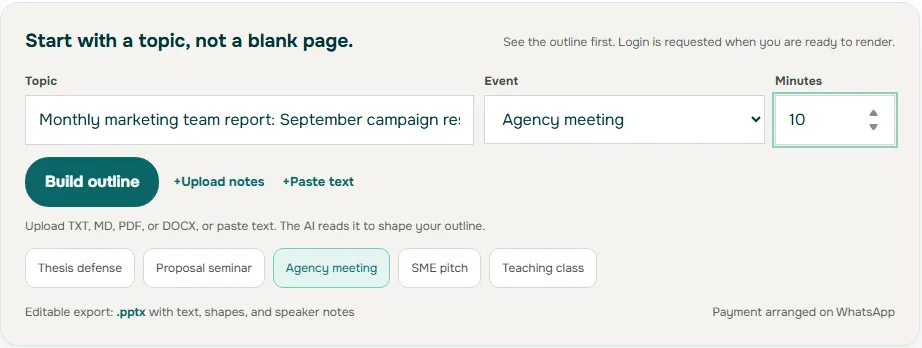
Soluslide does not set up slide masters or apply your company template. After signing in to the beta you download an editable .pptx and tidy it with the slide master in PowerPoint. Try the Soluslide outline builder or browse the features.
Frequently asked questions
What is the slide master in PowerPoint?
It is the top slide in Slide Master view that stores base settings such as fonts, colors, background, and logo. Changes to it apply to every slide based on that master.
How do I open Slide Master view?
On the View tab, select Slide Master. The master is the top thumbnail in the left pane with its layouts below. Select Close Master View to go back.
What is the difference between a slide master and a layout?
The slide master controls what applies to every slide, while a layout master controls placeholder positions for one slide type, such as Title Slide or Title and Content.
Why don't my existing slides change after I edit the master?
According to Microsoft, slides built on an earlier version of a layout need that layout reapplied after you edit it. Reapply the layout from the Home tab.
How do I save a slide master as a template?
Choose File, Save As (or Save a Copy in Microsoft 365), set Save as type to PowerPoint Template, name the file, and select Save. It is stored as a .potx file.
How do I add a logo to every slide?
Open View, Slide Master, select the top slide master, and insert the logo there. It appears on every slide that uses that master and cannot be nudged from Normal view.
Does Google Slides have a slide master?
Google Slides uses themes. Slide, Edit theme is the closest equivalent for changing the look of every slide at once, for example the theme colors.
Does Soluslide set up the slide master for me?
No. Soluslide drafts an outline and an editable .pptx; you set up the slide master and company template yourself in PowerPoint.
Sources
Factual claims in this article refer to the sources below. Sample outlines and prompts are illustrations to adapt.
Related reading
Try shaping your own outline. You can review and edit it before signing in.
Build a free outline