
How to Make a Table in PowerPoint: Insert, Paste from Excel, and Clean Up
A table lets your audience compare exact numbers: budget versus actual, plan pricing, or an event schedule. This guide shows how to make a table in PowerPoint following Microsoft Support, how to bring tables in from Word and Excel, how to style them, and how to clean them up so they still read from the back row.

How to make a table in PowerPoint in four steps
The quickest way to make a table in PowerPoint is Insert, then Table. Microsoft Support describes the flow: select the slide, choose Table on the Insert tab, then either drag across the grid to pick the number of rows and columns, or select Insert Table and type values into the Number of columns and Number of rows boxes.
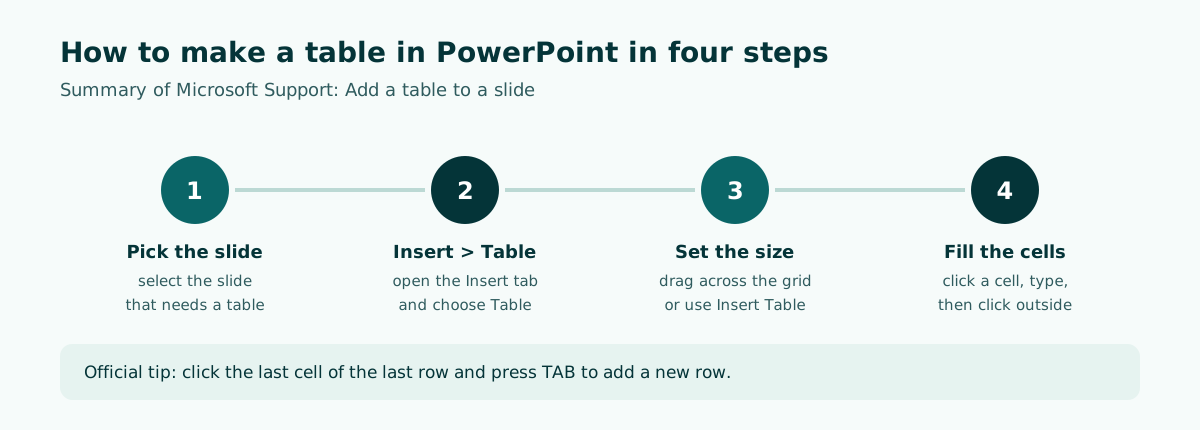
- Select the slide that needs a table.
- On the Insert tab, select Table.
- Drag across the grid to choose rows and columns, or select Insert Table and type the numbers.
- Click a cell and type. When you are done, click outside the table.
One thing to know up front: Microsoft says you cannot convert existing slide text into a table. If you already typed a bulleted list and want a table instead, insert an empty table first and then move the text into the cells. If the same table style will appear on many slides, consider setting colors and fonts in the Slide Master first.
Step by step: insert a table in PowerPoint
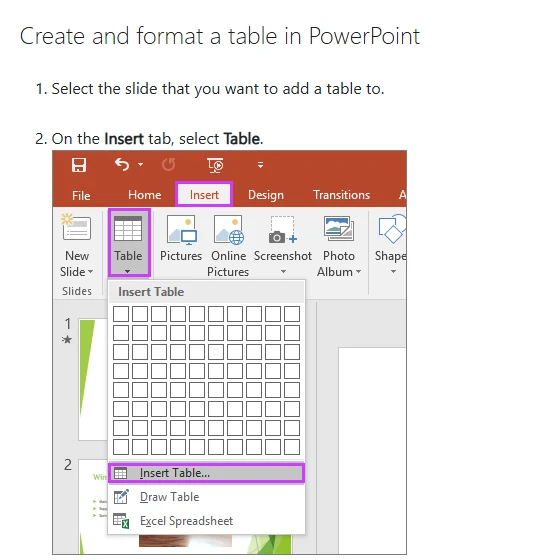
Microsoft's own help page below shows the Table menu on the Insert tab, with the size grid and the three options underneath it.
Use the grid
Move the pointer over the grid until the number of columns and rows you want is highlighted, then click. This is fastest for small tables, such as three columns by five rows.
Use the Insert Table dialog
Select Insert Table and enter values for Number of columns and Number of rows. This helps when you need more cells than the grid shows.
Add or delete rows and columns
- To add a row at the end, click inside the last cell of the last row and press TAB.
- To add a row or column elsewhere, right-click a cell, click Insert on the mini toolbar, and choose where it goes.
- To delete, right-click a cell, click Delete on the mini toolbar, and choose what to remove.
In PowerPoint for the web the flow is the same: Insert, Table, then choose rows and columns in the drop-down grid. An empty table appears on the slide right away.
Copy a table from Excel or Word into PowerPoint
Often the data already lives in Excel or Word. Rather than retyping it, copy it. Microsoft Support describes three routes that behave differently.
From Word
- In Word, click the table, then go to Layout, Select, Select Table.
- On the Home tab, in the Clipboard group, select Copy.
- In PowerPoint, select the target slide and click Paste on the Home tab.
From Excel (a group of cells)
- In Excel, click the upper-left cell of the range and drag to select the rows and columns you need.
- On the Home tab, in the Clipboard group, select Copy.
- In PowerPoint, select the slide and click Paste.
Insert an Excel spreadsheet
The third option is Insert, Table, Excel Spreadsheet. Microsoft warns that this creates an OLE embedded object: if you change the presentation theme, the spreadsheet does not update, and you cannot edit it with PowerPoint's table options. Double-click it to edit.
Scroll the table sideways to see every column.
| Method | Editable with PowerPoint table tools? | Follows the deck theme? | Best for |
|---|---|---|---|
| Insert, Table | Yes | Yes | New, compact tables |
| Copy and paste from Word or Excel | Yes, once pasted as a table | Can be adjusted | Data you already have |
| Excel Spreadsheet | No, edit by double-clicking | No | Data that needs Excel formulas |
For data that changes often and depends on formulas, Excel remains the best home. On the slide, paste only the part the audience needs to see.
Change the look of a table with table styles
Every new table gets a table style automatically. According to Microsoft Support, a table style combines formatting options such as color and shading, with colors derived from the presentation's theme colors. That is why switching themes also recolors tables you created with the Table menu.
- Select the table.
- On the ribbon, open the Table Design tab to see the Table Styles gallery.
- Choose a style. Click the More arrow on the right of the gallery for more options.
To remove a style, open the same gallery and choose Clear Table at the bottom. To change the text, select all the text in the table and use the Font options on the Home tab.
The Table Design tab also holds border controls in the Draw Borders group (pen color, weight, and style) and an Eraser for removing lines between cells. For a background behind the whole table, use Shading, Table Background.
Keep the style simple: a dark header row with white text, then light or subtly banded body rows. Styles with many colors and heavy borders keep the eye busy and bury the number you want to highlight. The same color principles appear in our guide to readable slide contrast and the presentation design guide.
Clean up the table so it reads on screen
A table that looks fine on your laptop may be unreadable on a projector. The most common mistake is pasting an entire Excel table, seven columns and tiny text included, onto a slide. The example below uses sample data to show the difference.
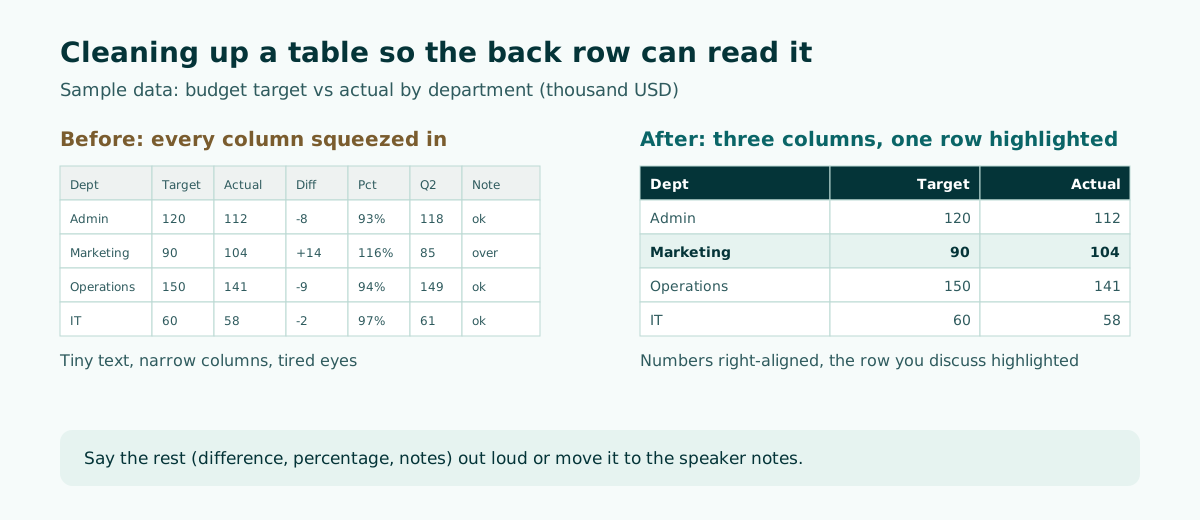
- Cut columns. Show only the columns you will discuss. Say the rest aloud or move it into your speaker notes.
- Limit rows. For long data, split it over two slides or show the top five only.
- Right-align numbers. Right-aligned figures line up by place value and are easier to compare.
- Highlight one row. Use a fill color or bold text for the row you are talking about.
- Make the text bigger. Match the size of your other body text rather than shrinking the table.
- Write a conclusion as the title. For example, "Marketing beat its target", not just "Budget table".
Microsoft also recommends larger fonts, around 18 pt or larger, sans serif typefaces, and enough white space for accessible slides. More on sizing is in our PowerPoint slide size guide.
When to use a table and when to use a chart
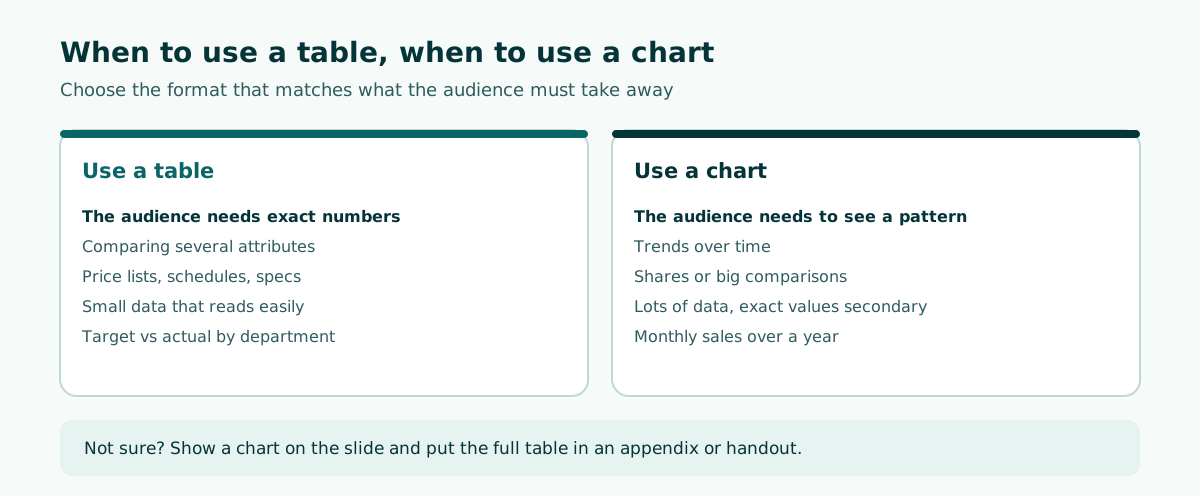
Tables and charts both show data, but they do different jobs. A table wins when the audience needs exact values and compares several attributes. A chart wins when the audience needs to see a pattern, such as a trend or a large difference.
Scroll the table sideways to see every column.
| Data | Suggested format | Why |
|---|---|---|
| Pricing for three service plans | Table | Buyers compare exact prices and features |
| Monthly sales over a year | Line chart | The direction of the trend matters most |
| Target vs actual by department | Table or column chart | A table if you discuss each number |
| Event schedule | Table | Dates and owners must be easy to read |
For chart steps, see how to make a graph in PowerPoint. For information that is a process or hierarchy rather than numbers, SmartArt is usually a better fit than a table.
Make tables accessible to everyone
Tables should also work for people using screen readers, for example when you share the deck after a meeting. Microsoft Support recommends a simple table structure for data only, with column header information specified. Screen readers keep track of their position by counting cells and use header information to identify rows and columns.
- Place the cursor anywhere in the table.
- On the Table Design tab, in the Table Style Options group, select the Header Row checkbox.
- Type your column headings in the first row.
Microsoft also suggests using the Accessibility Checker to make sure tables do not contain split cells, merged cells, or nested tables. In other words, merging cells can look tidy, but use it sparingly. Blank cells can also mislead screen reader users into thinking the table has ended, so fill them with a clear marker such as "none".
Beyond headers, do not rely on color alone to carry meaning. If red rows mean "below target", add text or a symbol too. That helps color-blind viewers and anyone reading a grayscale printout.
Tables on a phone and in Google Slides
If you work from a phone, the PowerPoint mobile app also lets you insert tables, although the interface is more compact than on desktop. Editing a busy table on a small screen is cramped, so sketch the table on your phone and tidy it on a laptop. Our guide on making a PowerPoint on your phone covers the mobile workflow.
In Google Slides, tables also come from the Insert menu, then Table, and picking a size from the grid. If you will present from PowerPoint in the end, recheck the table after downloading the file as .pptx, because fonts and column widths can shift.
Whatever the app, the cleanup rules stay the same: few columns, right-aligned numbers, one highlighted row, and a conclusion as the title. Keeping one table style across the deck also helps the audience read patterns quickly, for example a dark header row every time and a pale highlight on the row you discuss.
Before presenting, open the file on the device you will actually use. Tables are the element most likely to change shape when moving between computers, especially if a font is missing on the other machine.
Example: a target vs actual table for a budget review
Imagine you are preparing a quarterly budget review. The full Excel file has a dozen columns. For the slide, keep just three: department, target, and actual. Write the slide title as a conclusion, such as "Three departments under target, Marketing over". Highlight the row that needs discussion and move the variance and notes into your speaker notes.
Slide title   : Three departments under target, Marketing over
Table columns : Department | Target (USD k) | Actual (USD k)
Highlight row : Marketing
Speaker notes : variance per department, causes, proposed follow-up
A layout like this keeps the meeting focused on decisions instead of reading numbers aloud. For a fuller meeting deck pattern, see our meeting presentation guide.
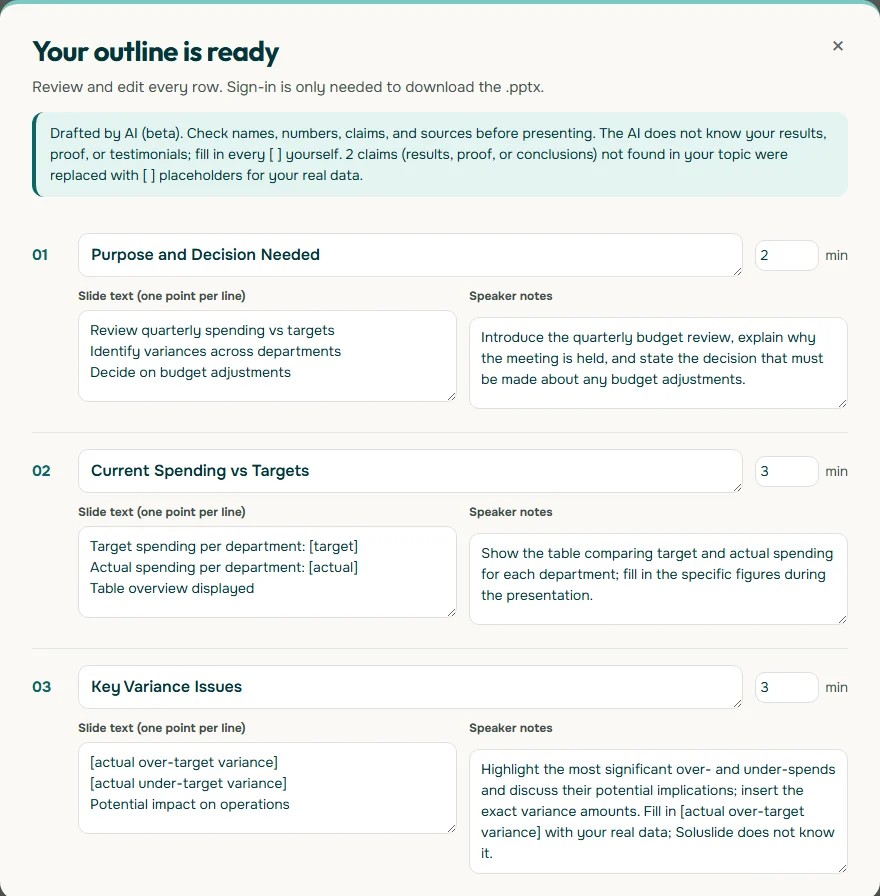
The outline above came from the topic "quarterly budget review meeting: target versus actual spending per department shown in a table". Soluslide does not invent figures; anything that needs your real data is marked with square brackets so you fill it in. After you edit the outline and export an editable .pptx, those lines move straight into a table using the steps in this guide.
Common mistakes when making tables in PowerPoint
These are the mistakes that most often make slide tables hard to read, with the fix for each.
- Pasting the whole worksheet. Select only the cells you will discuss before copying.
- Tiny text. If you must shrink the font to make it fit, the table holds too much.
- Borders everywhere. Heavy lines on every cell make the table feel crowded. Use thin lines or banded rows.
- No header row. Besides being harder to read, a table without headers is less friendly to screen readers.
- Numbers without units. Put the unit in the column heading, such as "USD k" or "%", not in every cell.
- Too many merged cells. Merge only when needed, since merged cells can confuse screen readers.
If you want to speed up the early part, deciding which slides need a table and what goes in them, Soluslide drafts a timed slide outline from a topic or document and exports an editable .pptx you can finish in PowerPoint. For the basics of building a deck from scratch, read how to make a PowerPoint presentation.
Frequently asked questions
How do I make a table in PowerPoint?
Select the slide, open the Insert tab, choose Table, then drag across the grid to set rows and columns or select Insert Table and type the numbers. Click a cell to type.
How do I add a row to a table in PowerPoint?
Click the last cell of the last row and press TAB to add a row at the end. For other positions, right-click a cell, choose Insert on the mini toolbar, and pick where it goes.
How do I move a table from Excel to PowerPoint?
Select the cells in Excel, click Copy on the Home tab, then in PowerPoint select the slide and click Paste. You can also insert an Excel Spreadsheet via Insert, Table, but it will not follow the deck theme.
Can I convert slide text into a table?
According to Microsoft Support, existing slide text cannot be converted into a table. Insert an empty table first, then move the text into the cells.
How do I change the color of a table in PowerPoint?
Select the table, open the Table Design tab, and pick a style from the Table Styles gallery. Table style colors come from the presentation theme.
When should I use a table instead of a chart?
Use a table when the audience needs exact numbers or compares several attributes. Use a chart when the pattern matters most, such as a trend over time.
How do I make a PowerPoint table easy to read?
Show few columns and rows, right-align numbers, highlight the row you discuss, enlarge the text, and write the slide title as a conclusion.
How do I make a PowerPoint table accessible?
Use a simple structure, select Header Row on the Table Design tab, type column headings, and avoid unnecessary merged or blank cells.
Sources
Factual claims in this article refer to the sources below. Sample outlines and prompts are illustrations to adapt.
Related reading
Try shaping your own outline. You can review and edit it before signing in.
Build a free outline