
How to Make a Graph in PowerPoint: Steps, Chart Types, and Cleanup Tips
A good graph turns a row of numbers into something an audience understands in seconds. This guide walks through how to make a graph in PowerPoint following Microsoft Support, how to match the chart type to your message, and how to clean it up so it reads well from the back of the room.

How to make a graph in PowerPoint in four steps
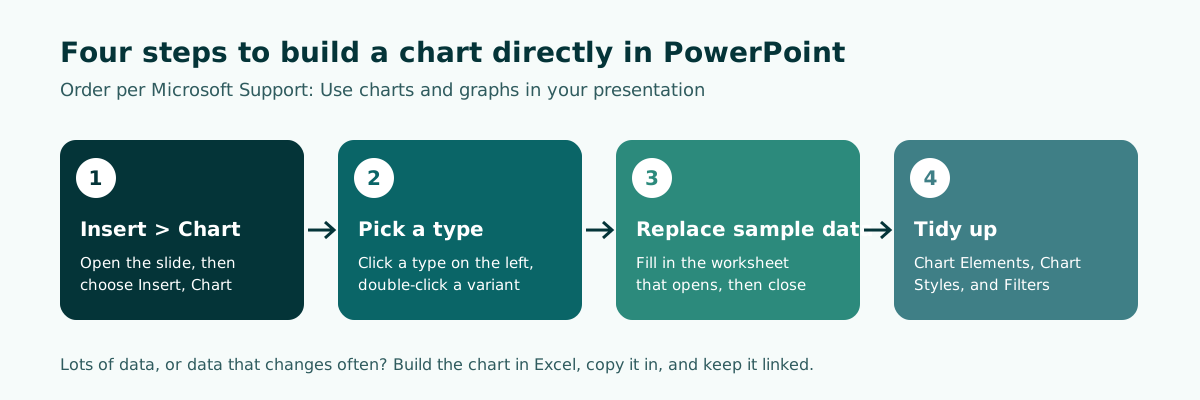
The fastest way to make a graph in PowerPoint is Insert, then Chart. Microsoft Support describes the sequence like this: click Insert, Chart, click the chart type, and then double-click the chart you want. A worksheet appears. Replace the placeholder data with your own information, then close the worksheet. The graph on your slide updates to match the numbers you typed.
- Open the slide, then choose Insert, Chart.
- Pick a type in the list on the left (for example Column), then double-click a variant on the right.
- Replace the sample data in the worksheet with your own.
- Close the worksheet and tidy up the chart with the small buttons next to its upper-right corner.
PowerPoint calls every data visual a chart, so you will not find a button labeled "Graph". In this guide, graph and chart mean the same thing: a visual built from numbers.
Those four steps are enough for a simple chart. The rest of this guide covers what makes a chart useful in a real presentation: choosing the right type, editing data after the chart exists, bringing charts in from Excel, and cleaning up the design. If you are new to PowerPoint altogether, start with how to make a PowerPoint presentation.
Choose the chart type from your message
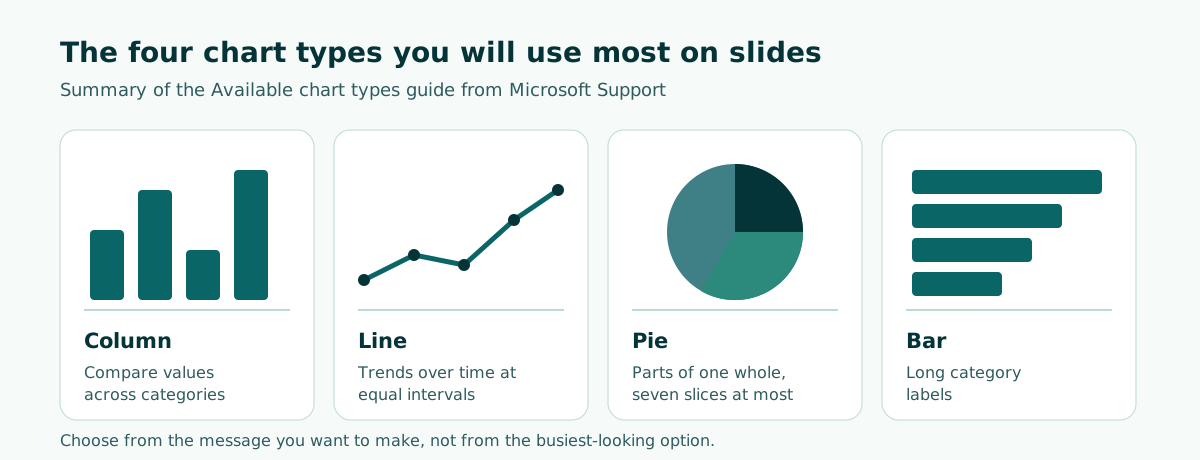
Most weak charts are not built badly, they are built as the wrong type. A pie chart for numbers that change month to month, or a line chart comparing product names, makes the audience guess what you mean. Microsoft Support's Available chart types in Office guide gives clear rules of thumb for each type.
Scroll the table sideways to see every column.
| Type | Best for | Note from the guide |
|---|---|---|
| Column | Comparing values across categories | Categories usually sit on the horizontal axis, values on the vertical axis |
| Line | Trends over time | Ideal for data at equal intervals, such as months or quarters |
| Pie | Each part's share of a total | One data series, no negative values, almost no zeros, no more than seven categories |
| Bar | Comparing individual items | Consider it when axis labels are long or the values are durations |
| Doughnut | Parts of a whole across several series | Microsoft notes they are not easy to read and suggests stacked column or bar instead |
A quick test: write the one sentence the slide should say. If the sentence says "grew" or "dropped", use a line. If it says "bigger than", use a column or bar. If it says "most of the total", consider a pie, and only when there are few categories.
Skip 3-D variants in presentations. Microsoft's guide explains that many 3-D charts only draw the columns in 3-D without adding a value axis. The effect makes heights harder to compare from the back row.
Step by step: insert a chart in PowerPoint
Here is the full sequence in PowerPoint for desktop. The example is a small bakery's monthly sales, made-up numbers for practice.
- Get the data ready first. Write the categories (July, August, September, October) and values (120, 135, 128, and 160 thousand dollars). Clean data before you start prevents a messy chart.
- Pick a slide and layout. Use a layout with a wide content area. A 16:9 slide gives charts more room, see PowerPoint slide size.
- Click Insert, Chart. A dialog opens with chart types on the left and variants on the right.
- Double-click a variant. For monthly data, Clustered Column or Line both make sense. Choose from your message.
- Fill in the worksheet. Type your categories and values, delete sample columns you do not need, and close the window.
- Set the elements. Use the Chart Elements button next to the upper-right corner to show, hide, or format axis titles and data labels.
- Set the style. Use the Chart Styles button to change the color or style quickly.
- Filter if needed. The Chart Filters button shows or hides data without deleting it from the worksheet.
Step five causes most problems. PowerPoint's sample data contains several series and categories. If you only overwrite part of it, the leftover series still appear as meaningless bars. Make sure the data range covers only the cells you filled.
If your deck has several charts in the same style, set the basics once in the slide master so titles, backgrounds, and content positions stay consistent across the presentation.
Edit the data in an existing chart
Numbers change after a chart is built: a report gets revised, a new month comes in. You do not need a new chart. According to Microsoft Support, you can edit chart data directly in PowerPoint, whether the chart is embedded in or linked to your presentation.
- Select the chart on the slide. Two contextual tabs appear on the ribbon: Chart Design and Format.
- On the Chart Design tab, in the Data group, select Edit Data. A worksheet window opens in PowerPoint.
- To work in the full Excel app, select Edit Data in Excel.
- Change the numbers or categories. The chart updates right away.
If the Chart Design tab does not appear, the chart usually is not actually selected. Click right on the chart area, not on a nearby text box. Microsoft also notes that you can update or refresh the data in a linked chart without going to the program in which you created it.
Get into the habit of citing the source on the slide, for example "Source: point-of-sale report, October 2026" under the chart. A visible source makes the numbers credible and makes your own update next month easier. Detail that does not fit on the slide belongs in your speaker notes.
Build the chart in Excel and bring it into PowerPoint
PowerPoint is fine for small charts. For lots of data, Microsoft Support recommends another route: create the chart in Excel, then copy it into your presentation. The same guide says this is also the best way if your data changes regularly and you want the chart to always reflect the latest numbers. In that case, keep the chart linked to the original Excel file when you copy and paste it.
Scroll the table sideways to see every column.
| Situation | Build in PowerPoint | Build in Excel, then copy |
|---|---|---|
| Amount of data | Small, a few rows | Many rows or formula results |
| How often it changes | Rarely | Regularly updated |
| Link to the source file | Data lives inside the deck | Can stay linked to the original workbook |
| When you send the file | Everything travels with it | The link needs the Excel file too |
For linked data, Microsoft explains how to refresh it: in PowerPoint, right-click the data and select Update Link. That makes a tidy workflow. Finance updates the workbook, and you refresh the link before the meeting.
Be careful when the deck moves to another computer. The link points to where the Excel file sits on the original machine. If that file does not travel with the deck, the chart still shows the last numbers but cannot be refreshed. If your deck starts from a long report, turning a document into a presentation helps you decide which numbers deserve a slide.
Change the chart type or build a combo chart
Chose a column chart when the message is really a trend? No need to start over. Microsoft Support explains that for most 2-D charts you can change the chart type of the whole chart, or select a different type for a single data series, which turns it into a combination chart.
- Right-click the chart area or plot area.
- Select Change Chart Type.
- In the dialog, pick a category in the first box and an available type in the second.
To change one series only, click that series before opening Change Chart Type. Microsoft notes that you can change the chart type of only one data series at a time, so repeat the steps for each series. One exception: for bubble charts and all 3-D charts, you can only change the type of the whole chart.
Combo charts help when two measures sit on different scales, such as the number of orders (columns) and the average order value (line). Do not overdo it. A slide with two value axes already asks a lot of the audience. If the message can be split, two simple charts on two slides are often clearer than one crowded combo chart.
Clean up the chart so the back row can read it
PowerPoint's default chart is acceptable but rarely ready to present. You usually get a generic "Chart Title", a legend you do not need, dense gridlines, and colors that all compete. Fixing that takes no design training, just a few simple decisions.
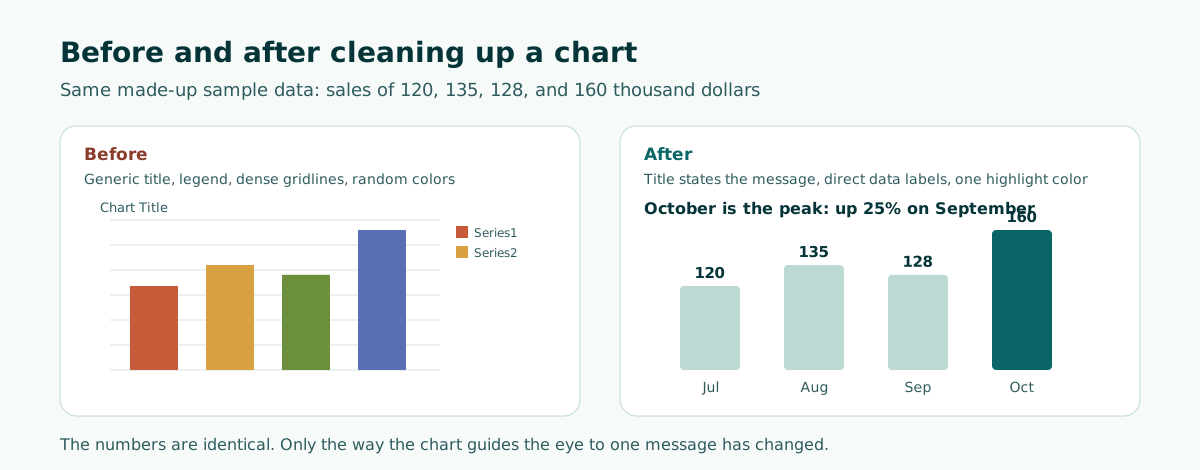
- Make the title the message. Replace "Sales by Month" with "October is the peak: up 25% on September". The audience gets the conclusion before reading an axis.
- Use data labels, drop the rest. Once values sit on top of the columns, gridlines and the value axis can often be hidden through Chart Elements.
- One highlight color. Color the data you are talking about strongly and keep the rest neutral.
- Remove the legend for a single series. A legend only helps when several series need telling apart.
- Go bigger on text. Labels that look fine on a laptop disappear on a projector.
Watch contrast too. A pale neutral on a white background can vanish in a bright room. The guide to readable presentation contrast shows how to test it. For broader layout principles, see how to give a good presentation.
You can also reveal a chart in stages, such as one column at a time, so the audience follows the story month by month. Use it sparingly and follow the principles in PowerPoint animation.
Worked example: a sales review slide with a chart
A good chart starts from a clear outline: which slides need a chart, and what each chart should say. Before you open PowerPoint, lay out the order of the slides. A common presentation structure for a review is purpose, status, trend, issues, then plan.
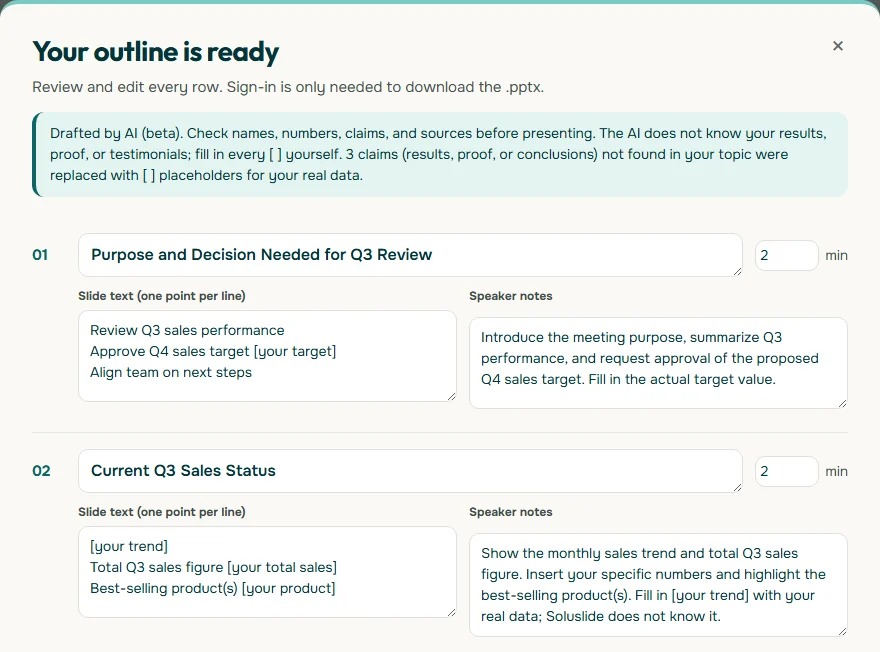
In this example, the status slide is where the monthly trend chart goes, with the total figure written large beside it. Not every number needs a chart; one important number is often stronger written big on its own.
Here is how to rewrite chart slide titles from a topic into a message:
Before: Monthly Sales Trend
After: Sales jumped in October after the new menu launched

Before: Best-Selling Products
After: Sourdough made up the largest share of Q3 sales

Chart data: July 120, August 135, September 128, October 160 (thousand dollars, sample data)
For formal meetings with leadership or public agencies, the agency meeting presentation guide covers report slide order in more depth.
Making a PowerPoint chart on a phone
Plenty of people prepare slides on their phone. For charts, there is a limit to know about. Microsoft Support explains that you cannot create a chart in the mobile version of PowerPoint or Word. What you can do is create the chart in Excel and copy it into your presentation.
- Open Excel on your phone and open the workbook that contains the chart.
- Tap the chart to select it, then tap Copy.
- Switch to PowerPoint and go to the slide you want.
- Tap the slide, then tap Paste.
Phone screens are small, so check the result on a larger screen before you present if you can. Labels that look fine on a phone can be too small on a projector. The guide to making a PowerPoint on your phone covers which tasks are comfortable on mobile and which are not.
A short workflow from data to a slide that is ready
To avoid going back and forth, follow this order whenever a deck needs a chart:
- Write the message for each slide. One chart slide, one conclusion.
- Pick the type from the message. Trends use a line, comparisons use a column or bar, shares use a pie when there are few categories.
- Decide where to build it. Small data in PowerPoint, large or frequently changing data in Excel, linked.
- Clean up. Message title, data labels, one highlight color, large text.
- Test from a distance. Run the slide full screen and look at it from a few meters away.
Step one is usually the slowest because it forces you to decide the story. This is where Soluslide can help: enter a topic and event type in the Soluslide outline builder, and you get a slide order with titles, points, speaker notes, and minutes per slide that you can edit before signing in. You still supply the real numbers and build the charts in PowerPoint after downloading the outline as an editable .pptx. The full list of what it does is on the features page.
Finally, rehearse how you will talk through each chart. Say the conclusion first, then point to the data. If you want to see how the outline builder fits the rest of your process, the guide to AI presentation makers compares the options.
Frequently asked questions
How do I make a graph in PowerPoint?
Click Insert, Chart, pick a type on the left, and double-click a variant on the right. Replace the sample data in the worksheet that appears with your own, then close the worksheet.
Why can I not find a Graph button in PowerPoint?
PowerPoint calls graphs charts. Use the Chart button on the Insert tab.
How do I edit the data in a chart I already made?
Select the chart, open the Chart Design tab, and choose Edit Data in the Data group. Choose Edit Data in Excel if you want the full Excel app.
Should I build the chart in PowerPoint or Excel?
Small data sets are fine in PowerPoint. For lots of data or data that changes regularly, Microsoft recommends building the chart in Excel, copying it into the deck, and keeping it linked.
When should I use a pie chart?
When you have only one data series, no negative values, almost no zero values, and no more than seven categories, following Microsoft Support guidance.
How do I turn a column chart into a line chart?
Right-click the chart area or plot area, select Change Chart Type, and choose Line. To change only one series, click that series first.
Can I make a chart in PowerPoint on my phone?
According to Microsoft Support, you cannot create a chart in the mobile version of PowerPoint. Create it in Excel on your phone, copy it, and paste it onto your slide.
How do I make a chart easier to read on a slide?
Write the title as the conclusion, show data labels, use one highlight color for the data you are discussing, remove the legend for a single series, and enlarge the text.
Sources
Factual claims in this article refer to the sources below. Sample outlines and prompts are illustrations to adapt.
- Microsoft Support: Use charts and graphs in your presentation
- Microsoft Support: Available chart types in Office
- Microsoft Support: Change the data in an existing chart
- Microsoft Support: Change the chart type of an existing chart
- Microsoft Support: Insert and update Excel data in PowerPoint
- Microsoft Support: Insert a chart in PowerPoint or Word on a mobile device
Related reading
Try shaping your own outline. You can review and edit it before signing in.
Build a free outline