
PowerPoint Won't Open? How to Fix the File or the App
A deck that refuses to open an hour before a client pitch or a thesis defense is a special kind of panic. This guide helps you read the message on screen, find the cause, and apply the fixes Microsoft Support documents, from Unblock to Open and Repair to Office Safe Mode.

Why PowerPoint won't open a file, and the fastest fixes
When PowerPoint won't open a presentation, the cause is almost always one of five things: Windows blocked a file you downloaded or received by email, the file is corrupt, the format is very old or blocked by security settings, the file is locked or still sitting in the cloud, or the PowerPoint app itself is misbehaving (often because of an add-in). The single most useful question is this: does only one file fail, or does every presentation fail?
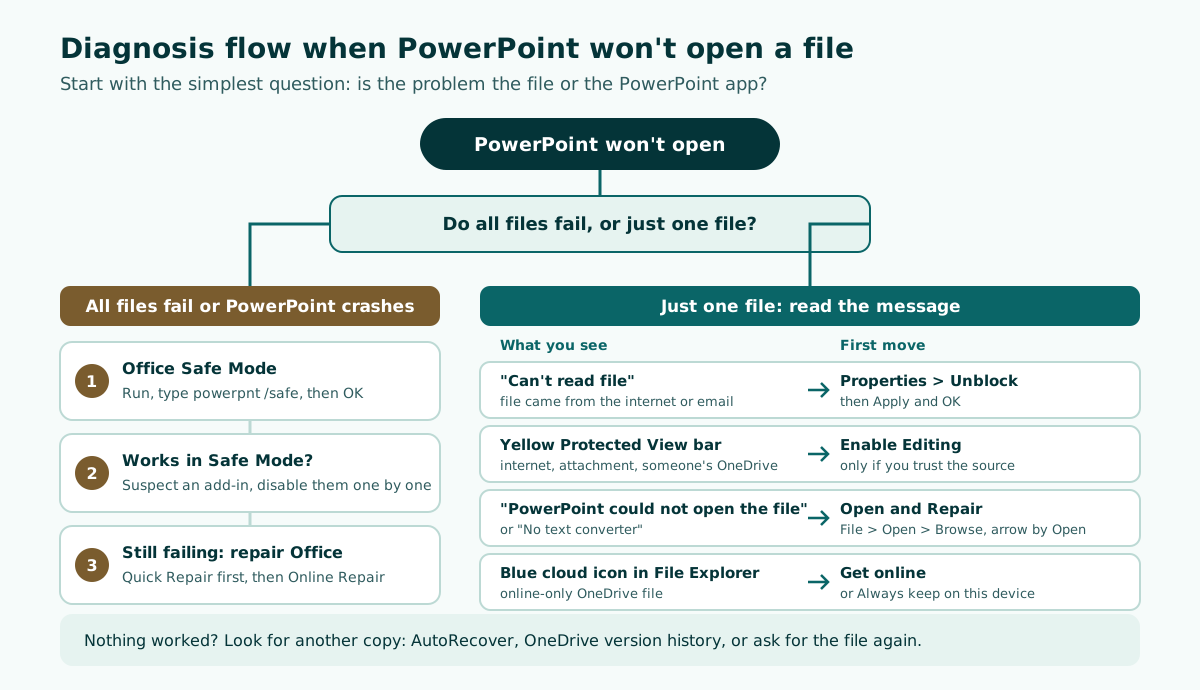
A quick checklist that takes only a few minutes:
- Copy the file to a normal local folder such as Documents and work on the copy. Leave the original alone.
- If PowerPoint says it can't read the file, open the file's Properties and select Unblock.
- If the file opens but you can't edit it, look at the Protected View message bar.
- If the message says PowerPoint could not open the file, try Open and Repair.
- If every file fails, start PowerPoint in Safe Mode, then repair Office if needed.
Each step is explained below, with menu names that match Microsoft's own help pages for Windows.
Error messages, causes, and fixes at a glance
The message on screen is your best clue. Write it down word for word, then match it against this table. It summarizes several Microsoft Support pages and Google's Docs Editors Help, all listed in the sources.
Scroll the table sideways to see every column.
| Symptom or message | Likely cause | First fix |
|---|---|---|
| PowerPoint can't read the file, or the presentation cannot be opened | Microsoft 365 blocked the file for security reasons | Right-click the file, Properties, Unblock, Apply |
| Yellow bar: "Be careful - files from the Internet can contain viruses" | Opened from the internet, an Outlook attachment, or someone else's OneDrive | Select Enable Editing if you trust the source |
| "PowerPoint could not open the file" or "No text converter" | The file is probably corrupt | File, Open, Browse, then Open and Repair |
| Old file fails in PowerPoint 2007 or later | It was saved as a PowerPoint 95 file | Re-save it as .ppt in PowerPoint 97 to 2003 |
| File opens in Protected View and can't be saved | File Block settings for older formats | Change File Block Settings in the Trust Center |
| File is locked for editing | Someone else is editing it, Office is running in the background, or it is marked as Final | Wait, close the app, or edit a copy |
| Blue cloud icon and the file fails offline | Online-only OneDrive file not downloaded yet | Go online, or choose Always keep on this device |
| Every file fails or PowerPoint crashes at launch | An add-in or the Office installation | Safe Mode (powerpnt /safe), then repair Office |
If your message isn't listed, start with the last row to rule out an app problem, then go back to the closest match. One firm limit: a password-protected Office file can't be opened without its password, and Microsoft states there is no way to get around that protection.
Files from the internet or email: Unblock and Protected View
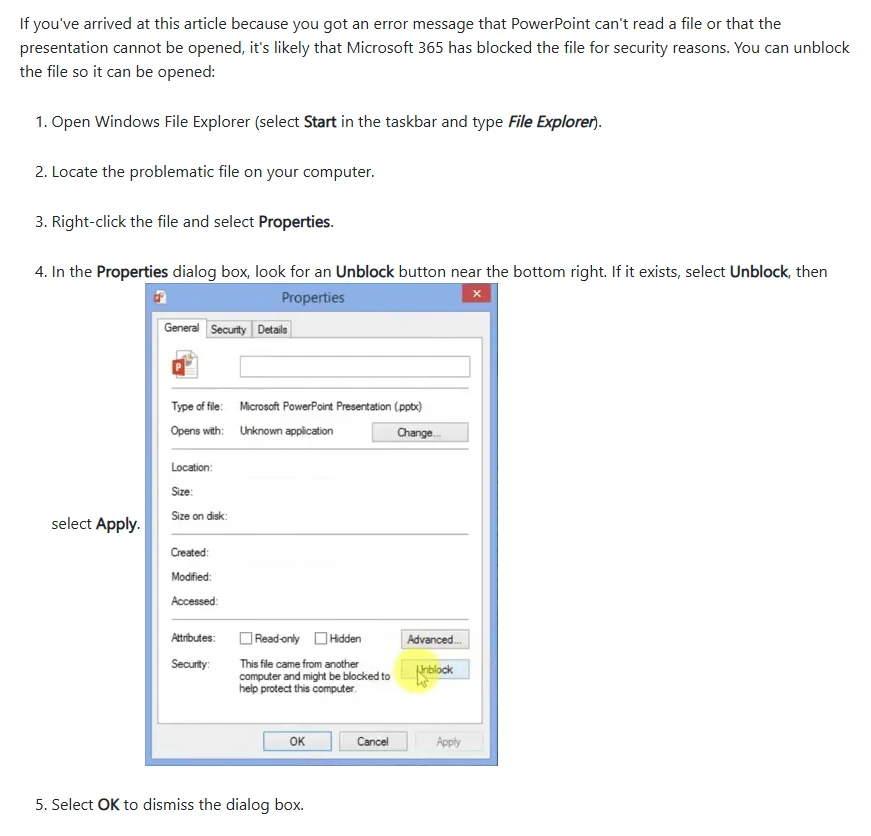
Presentations downloaded from a website, a shared link, or an email attachment cause the most trouble, because Windows and Office treat them with extra caution. Microsoft Support explains that if PowerPoint says it can't read a file or that the presentation cannot be opened, Microsoft 365 has likely blocked the file for security reasons. To unblock it:
- Open Windows File Explorer (select Start in the taskbar and type File Explorer).
- Locate the problem file.
- Right-click it and select Properties.
- In the Properties dialog box, look for an Unblock button near the bottom right. If it's there, select Unblock, then Apply.
- Select OK and try opening the presentation again.
A different case is a file that opens but stays read-only. That is Protected View, a read-only mode where most editing functions are disabled. Microsoft lists several triggers: the file came from the internet, an Outlook attachment from a sender your policy marks as unsafe, a potentially unsafe folder, someone else's OneDrive, or it failed file validation.
If a yellow message bar appears and you trust the source, select Enable Editing. If the bar is red, go to File and choose Edit Anyway, but only for files you trust. If you can't leave Protected View at all, your IT administrator may have set rules that prevent it, so check with them before trying workarounds.
A corrupt PowerPoint file: use Open and Repair
If the message reads "PowerPoint could not open the file" or "No text converter", Microsoft says you probably have a file corruption problem. PowerPoint includes an Open and Repair command that might recover the file:
- In PowerPoint, select File, Open, then Browse, and go to the folder where the presentation is stored.
- Don't open it from the Recent list, because that skips the Open dialog box.
- Select the file, select the arrow next to Open, and choose Open and Repair.
If the repaired deck opens, save it right away under a new name so you never overwrite the original. Then check every slide, especially charts, videos, and SmartArt, because complex objects are the parts most likely to go missing.
Microsoft also names the classic cause of corruption: a file stored on a USB drive that is disconnected while the file is still open in Windows. Pulling a flash drive out of the conference room PC the moment you finish talking is a reliable way to damage a deck. Use the Safely Remove Hardware icon in the Windows taskbar first.
Files can also break in transit. Microsoft's Protected View page notes that damaged files can come from a worn-out disk, a buggy program that created or edited the file, or an error while copying the file, for example over an unstable internet connection. If the deck arrived by email or chat, ask the sender to send it again. Microsoft itself recommends trying another copy of the file.
Old .ppt files, older PowerPoint versions, and File Block
The .ppt extension is the PowerPoint 97-2003 format. Current versions of PowerPoint still open it in compatibility mode: you can open, edit, and save the file, but you won't get every newer feature. For background on the formats themselves, see what a PPT file is.
Two old-format situations genuinely stop a file from opening:
- PowerPoint 95 files. Microsoft states that PowerPoint 2007 and later can't open a presentation saved as a PowerPoint 95 file. The fix is to open it in PowerPoint 2003, 2002, 2000, or 97, choose Save As (not Save), and pick Presentation (*.ppt). After that, newer versions can open it.
- File Block. This setting stops outdated file types from opening normally and sends them to Protected View with Save and Open disabled. If it is set to Do not open selected file types, the file won't open at all and you'll see an error message.
To allow editing of a blocked file, Microsoft gives these steps:
- Select File > Options.
- Select Trust Center > Trust Center Settings > File Block Settings.
- Check Open selected file types in Protected View and allow editing.
On a work laptop, this setting may be locked by your organization's policy. Don't fight it; ask your administrator. Once the file opens, save it as .pptx so the problem doesn't come back.
Locked files, long file paths, and OneDrive files that never synced
Not every failure is about what's inside the file. Sometimes the deck is fine but busy, buried, or not actually on your computer.
The file is locked for editing
Microsoft Support lists three possible reasons an Office file is locked: it is shared and another person is editing it, an instance of the Office app is running in the background with the file already open, or it has been marked as Final. You can usually still open it read-only. Close every PowerPoint window, wait for your colleague to finish, or work on a copy and merge your changes later.
The file name or folder path is too long
Windows documentation defines the classic maximum path length (MAX_PATH) as 260 characters. Starting in Windows 10, version 1607, that limit can be lifted, but each app has to opt in to the new behavior. A deck buried several folders deep with names like "Q3 Program Review FINAL v7 use this one" can run into trouble. Move it to a short folder such as C:\Decks and shorten the name.
The OneDrive file is online-only
With Files On-Demand, a OneDrive file with a blue cloud icon is available only online and downloads when you open it. Microsoft is clear that you can't open online-only files when your device isn't connected to the internet. Before you leave for the venue, right-click the file or folder and choose Always keep on this device. Always-available files show a green circle with a white check mark.
When PowerPoint itself won't open: Safe Mode and add-ins
If every presentation fails, or PowerPoint closes as soon as it starts, the app is the likely culprit. Microsoft describes Office Safe Mode as useful when you need to open a file you can't open in normal mode because the app keeps crashing, or when you need to identify an add-in or extension that causes problems at startup.
There are two ways to start PowerPoint in Safe Mode:
- Press and hold CTRL and double-click the PowerPoint shortcut. Select Yes when asked whether to start in Safe Mode.
- Or right-click the Start button, select Run (or press Windows + R), type
powerpnt /safe, and select OK.
Once PowerPoint is running in Safe Mode, open your file from File, Open. If it works, an add-in loaded in normal mode is the prime suspect. Go to File > Options > Add-ins to see what is installed, and turn off recently added ones one at a time, testing after each. On the same screen, choose Disabled Items in the Manage menu and select Go to see anything Office has already switched off automatically.
Safe Mode has limits. Microsoft notes that recovered documents are not opened automatically and preferences can't be saved. To leave Safe Mode, simply close PowerPoint and start it normally.
Repair your Office installation
If PowerPoint won't open even in Safe Mode, or the problem keeps returning, Microsoft recommends repairing Office. The repair covers the whole Office suite, not just PowerPoint. On Windows 11:
- Right-click the Start button and select Installed apps on the pop-up menu.
- Select your Microsoft 365 or Office product, click the ellipses (...), and select Modify.
- For a Click-to-run installation (the most common type), choose Quick Repair or Online Repair and follow the prompts.
- For an MSI-based installation, select Repair in the Change your installation window, then Continue.
On Windows 10, the menu is called Apps and Features; select your Office product and choose Modify.
Scroll the table sideways to see every column.
| Option | What Microsoft says it does | When to use it |
|---|---|---|
| Quick Repair | Faster; only detects and replaces corrupted files | Try it first, especially on a slow connection |
| Online Repair | A more complete repair to make sure everything gets fixed | When Quick Repair does not solve the problem |
Save and close your work before you start, because you may need to restart the computer afterward. If your organization's IT team manages Office on your laptop, let them know before you change the installation.
Recover your content: AutoRecover, version history, and other apps
If the file still won't open, shift your focus to finding an intact copy. Four places are worth checking.
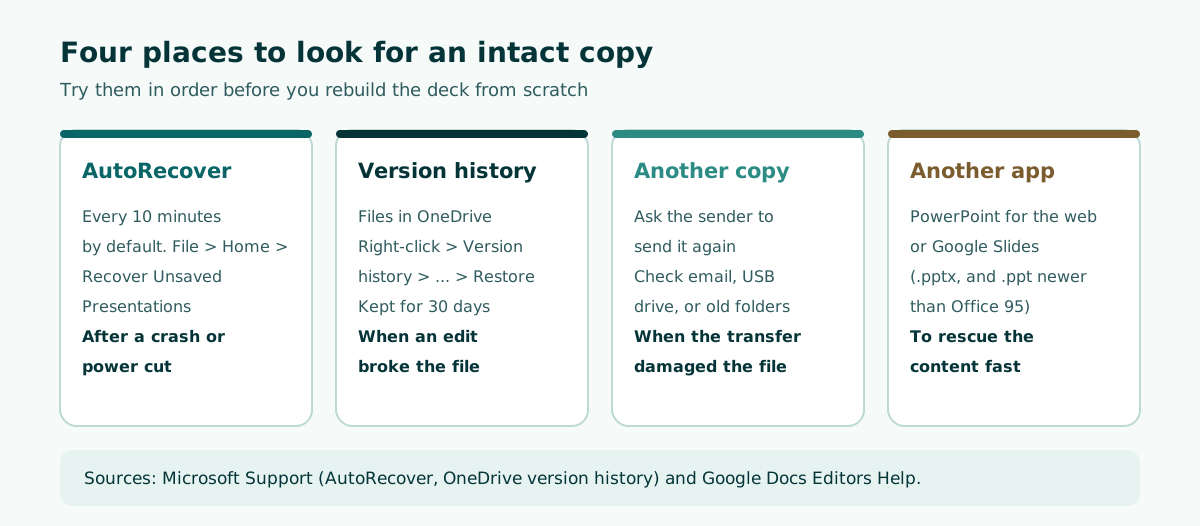
- AutoRecover. PowerPoint saves a recovery copy in the background, every 10 minutes by default. After an unexpected shutdown, it usually reopens that copy the next time you start the app, and you should save it immediately. To open it manually, select File, the Home tab, then Recover Unsaved Presentations.
- OneDrive version history. Right-click the file on onedrive.com or in File Explorer, select Version history, select the ellipses next to the version you want, then Restore. Versions are kept for 30 days, and a work or school administrator may have turned versioning off.
- Another copy. Old email attachments, a USB drive, or a version you sent to a colleague.
- Another app. Upload the file to OneDrive and try PowerPoint for the web, or double-click it in Google Drive to open it in Google Slides.
Scroll the table sideways to see every column.
| Topic | According to Google Docs Editors Help |
|---|---|
| Formats it can convert | .pptx, .ppt if newer than Office 95, plus .pptm, .pps, .ppsx, .pot, .potx, .odp, and more |
| Embedded charts and videos | Converted to images when you edit in Slides |
| SmartArt | Converted to Google Drawings |
| Macros | Not supported when editing in Slides |
So Google Slides is a good way to rescue your text and slide order, not to keep embedded videos or SmartArt exactly as they were.
If the file can't be saved: rebuild the outline and prevent a repeat
Sometimes nothing works and the meeting starts in a few hours. Don't spend that time on design. Rebuild the outline first: slide titles, key points, and timing. Your best raw material is usually the source document, such as a report, meeting notes, or a thesis chapter. Our guide to building a presentation from a document shows how to turn one into a slide flow.
Here is an emergency outline for a 10-minute team meeting:
Topic: Quarterly program review
Length: 10 minutes, team meeting
1. Purpose of the review and decisions needed (2 min)
2. Current program status and key numbers (2 min)
3. Challenges and issues identified (2 min)
4. Proposed next steps (3 min)
5. Decisions we need from this meeting (1 min)
Soluslide can speed up this step. You enter a topic or upload a document, pick the event type and duration, and get a timed outline with titles, slide text, and speaker notes that you can edit before signing in.
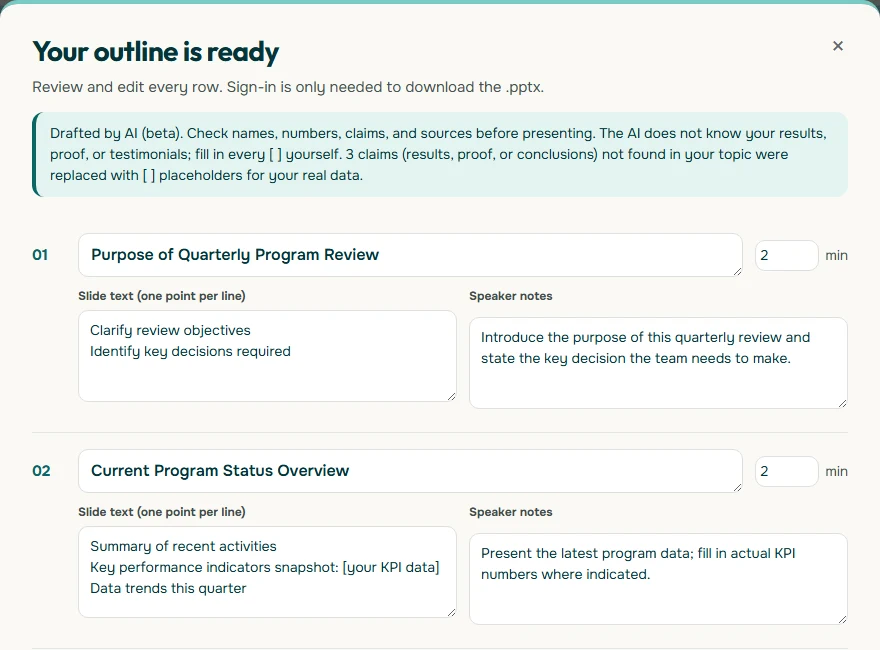
After you sign in to a beta account, the outline exports as an editable .pptx built with standard text boxes and shapes, so it opens cleanly in PowerPoint. It works for a thesis defense as well as a team update.
To keep this from happening again:
- Save as .pptx, not .ppt.
- Store decks in OneDrive and, if you have Microsoft 365, turn on AutoSave so version history is available.
- Eject USB drives with Safely Remove Hardware.
- Use short file names and shallow folders.
- Bring two copies to the venue, for example on your laptop and a USB drive, plus a printed handout as a last resort.
- Test-open the file on the venue computer before you start, and check the slide size on the projector.
For the basics of building a clean deck from the start, read how to make a PowerPoint presentation.
Frequently asked questions
Why won't my PowerPoint file open when it worked yesterday?
The usual causes are corruption while copying or when a USB drive was pulled out, a security block because the file came from the internet or email, or a new add-in interfering with PowerPoint. First check whether one file fails or all of them do.
How do I unblock a PowerPoint file I downloaded?
In File Explorer, right-click the file, select Properties, select Unblock near the bottom right, then Apply and OK. Then open the presentation again.
How do I fix a corrupt PowerPoint file?
Use Open and Repair: File, Open, Browse, select the file, select the arrow next to Open, then Open and Repair. If that fails, look for another copy in AutoRecover, OneDrive version history, or ask the sender to send it again.
Why does my presentation open as read-only?
It is probably in Protected View because it came from the internet, an email attachment, or someone else's OneDrive. Select Enable Editing on the yellow bar only if you trust the source.
Can new PowerPoint versions open old .ppt files?
Yes, PowerPoint 97-2003 files open in compatibility mode. The exceptions are PowerPoint 95 files, which must first be re-saved as .ppt in PowerPoint 97 to 2003, and files caught by File Block settings.
How do I start PowerPoint in Safe Mode?
Press Windows + R, type powerpnt /safe, and select OK. Alternatively, hold CTRL while you double-click the PowerPoint shortcut and select Yes.
Can I open a OneDrive presentation without internet?
Not if it is still online-only, shown by a blue cloud icon. Choose Always keep on this device before you travel so the file is available offline.
What should I do if PowerPoint won't open at all, even in Safe Mode?
Repair Office from Installed apps (Windows 11) or Apps and Features (Windows 10): select your Office product, choose Modify, and run Quick Repair, then Online Repair if needed.
How can I stop this from happening before a presentation?
Save as .pptx, keep decks in OneDrive with version history, eject USB drives safely, use short file names, and test-open the file on the venue computer before you start.
Sources
Factual claims in this article refer to the sources below. Sample outlines and prompts are illustrations to adapt.
- Microsoft Support: Error: Can't read file, or Presentation cannot be opened
- Microsoft Support: Open a document after a file corruption error
- Microsoft Support: PowerPoint can't open this file
- Microsoft Support: What is Protected View?
- Microsoft Support: What is File Block?
- Microsoft Support: About compatibility mode in PowerPoint
- Microsoft Support: Unlock a file that has been locked for editing
- Microsoft Support: Save disk space with OneDrive Files On-Demand for Windows
- Microsoft Learn: Maximum Path Length Limitation
- Microsoft Support: Open Office apps in safe mode on a Windows PC
- Microsoft Support: Repair an Office application
- Microsoft Support: Recover your PowerPoint files
- Microsoft Support: Restore a previous version of a file stored in OneDrive
- Google Docs Editors Help: Work with Office files
Related reading
Try shaping your own outline. You can review and edit it before signing in.
Build a free outline