
How to Embed a Video in PowerPoint (and Make It Play Smoothly)
A short clip can bring a lecture, a team meeting, or a pitch to life, but a video that plays perfectly on your laptop can freeze on the conference room PC. This guide covers how to embed a video in PowerPoint following Microsoft Support, when to embed, link, or use an online video, and how to make sure it plays smoothly when it counts.

How to embed a video in PowerPoint in three steps
According to Microsoft Support, embedding a video stored on your computer takes three steps. In Normal view, click the slide you want the video on. On the Insert tab, click the arrow under Video and select This Device (called Video on My PC in some versions). In the Insert Video box, pick your file and click Insert.
- Open the target slide in Normal view.
- Choose Insert, Video, This Device.
- Select the video file and click Insert.
Embedding is PowerPoint's default behavior: the video file is stored inside the presentation. The upside is that the clip still plays when you copy the deck to another computer. The downside is that the presentation grows by roughly the size of the video.
If your clip lives on YouTube or Vimeo, the steps are different: use Video, Online Video, and paste the link. The sections below explain how embedded, linked, and online videos differ and when to use each. Before you start, it also helps to confirm your deck uses the right PowerPoint slide size for the screen, so the video is not letterboxed or cramped.
Embedded, linked, or online: which should you use?
Microsoft Support explains that you can either embed a video (the default) or link to a video file stored on your computer, and that YouTube or Vimeo clips can be inserted as online videos. All three look the same on the slide, but they behave very differently during a live presentation.
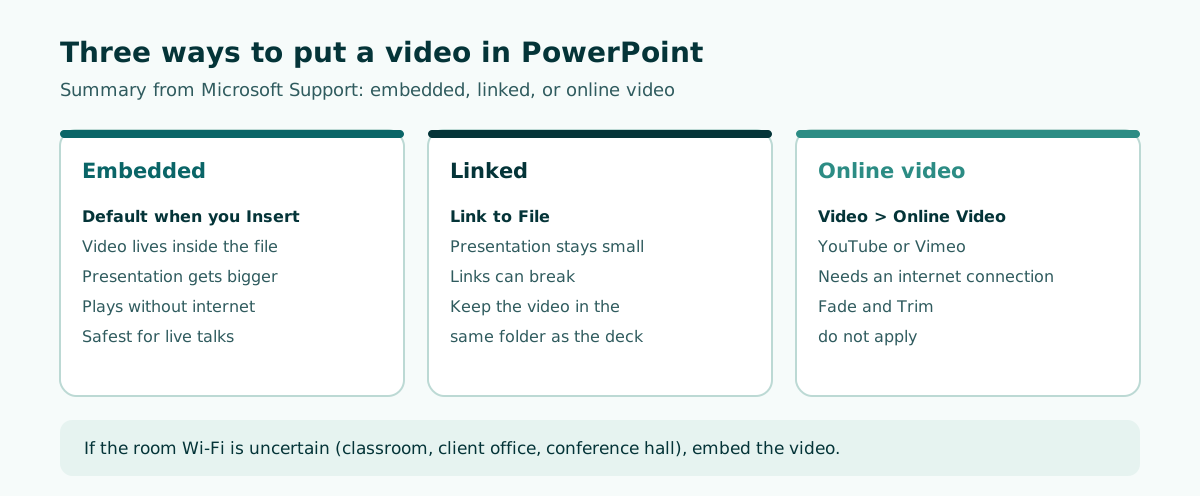
Scroll the table sideways to see every column.
| Method | Menu path | Deck file size | Needs internet? | Main risk |
|---|---|---|---|---|
| Embedded | Insert, Video, This Device, Insert | Grows by the video size | No | Large file, slow to share |
| Linked | Arrow next to Insert, Link to File | Stays small | No, if the video travels with the deck | Broken link after moving files |
| Online | Insert, Video, Online Video | Stays small | Yes | No playback without a connection |
For linked video, Microsoft recommends copying the clip into the same folder as the presentation first and linking to it there. To check whether a video on a slide is linked or embedded, go to File, Info. Under Optimize Media Compatibility, PowerPoint lists every media file, and for linked videos it offers a View Links option that shows where each file is stored.
A simple rule: if you will present in someone else's room, embed. If you need to email the deck, consider an online video or compress the media first.
Step by step: insert a video from your computer (Windows and Mac)
In PowerPoint for Windows, the steps are shown on Microsoft's own help page below. Notice that embedding and linking start with the same menu; the difference is only the final button.
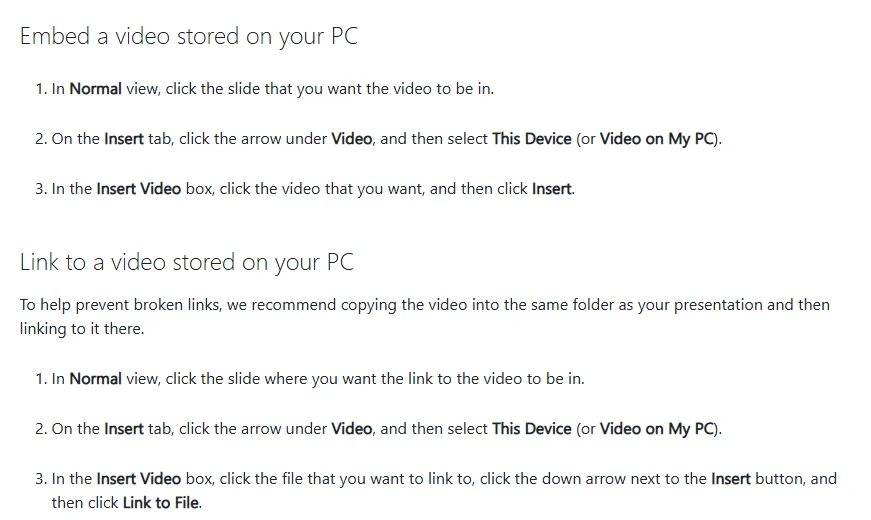
Embed a video (Windows)
- In Normal view, click the target slide.
- On the Insert tab, click the arrow under Video and choose This Device.
- Select the video and click Insert.
Link to a video (Windows)
- Copy the video into the same folder as your presentation.
- On the Insert tab, click the arrow under Video and choose This Device.
- Select the video, click the down arrow next to Insert, and choose Link to File.
On a Mac
In PowerPoint for Mac, go to the Insert tab, click Video, then Movie from File. Choose the file in the Choose a Movie dialog. Click Insert to embed it, or click Options in the lower left, select Link to file, and then click Insert to link it.
In PowerPoint for the web
Select Insert, Video, This Device, pick the clip, and select Open. Microsoft notes that PowerPoint for the web supports video files up to 256 MB, and that upload speed depends on your network connection.
How to insert a YouTube video in PowerPoint
Videos from YouTube or Vimeo can be added as online videos. According to Microsoft Support, the clip plays directly from the website and uses that site's own controls for play, pause, and volume. Here is how to add one:
- In your browser, find the video and copy the page URL from the address bar.
- Switch back to PowerPoint and select the slide.
- On the Insert tab, choose Video, Online Video.
- In the Online Video dialog box, paste the URL.
- Select Insert.
Three details trip people up. First, because the video lives on a website rather than in your file, you must be connected to the internet for it to play. Second, PowerPoint's playback features such as Fade, Bookmark, and Trim do not apply to online videos. Third, not every video on those sites allows embedding, so check the video's settings on the site if the insert fails.
Microsoft also notes that YouTube and Vimeo videos play in click sequence by default, so you can start them by pressing the spacebar during Slide Show. If the venue's Wi-Fi is unreliable, use a file you have the rights to and embed it instead. The same "test before you present" rule applies to other links on your slides; our guide on hyperlinks in PowerPoint covers how to check them.
Which video format works best in PowerPoint?
Many playback problems start with the file format. Microsoft Support recommends .mp4 files encoded with H.264 video (also called MPEG-4 AVC) and AAC audio. For standalone audio, the recommendation is .m4a with AAC audio.
Scroll the table sideways to see every column.
| Format | Extension | Status |
|---|---|---|
| MPEG-4 with H.264 and AAC | .mp4, .m4v | Recommended |
| QuickTime | .mov | Supported |
| WebM | .webm | Supported (WebM with Vorbis audio needs Web Media Extensions) |
| Windows Media Video, MPEG-2, AVI, 3GPP | .wmv, .asf, .mpg, .avi, and others | Limited and deprecated in PowerPoint version 2505 and above |
If your clip is an older format such as .avi or .wmv, convert it to .mp4 with a video converter before inserting it. Microsoft also notes that installing extra codecs can add support for more file types, but when you present on someone else's computer, a standard .mp4 is far safer because it does not depend on what is installed there.
For PowerPoint for the web, Microsoft recommends .mp4 and also lists .mov, .wmv, .avi, .m4v, .mkv, .asf, and .ts. Even so, sticking with .mp4 keeps the same file behaving the same way across every version.
Set the video to play automatically or when clicked
By default, during Slide Show, a video plays as part of the click sequence: it starts when you click the slide or press the spacebar or right arrow to advance. You can change that on the Playback tab.
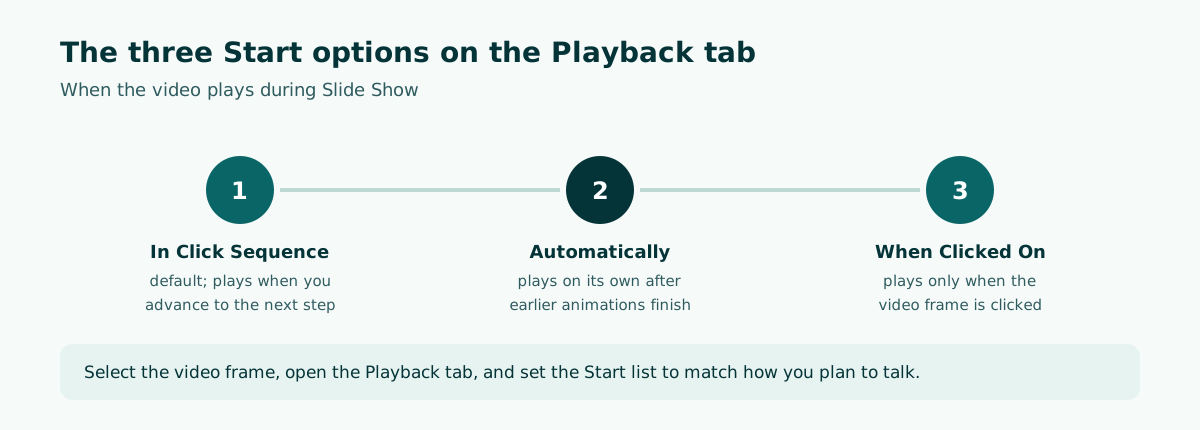
- Select the video frame on the slide.
- Open the Playback tab on the ribbon.
- Open the Start list and choose In Click Sequence, Automatically, or When Clicked On.
Microsoft explains that with Automatically, any animation steps before the video play first and then the video starts; with no earlier animations, the video starts as soon as the slide appears. When Clicked On plays the video only when its frame is clicked, which suits a backup clip you may or may not show.
To preview, select the video: a toolbar with play/pause, a progress bar, a timer, and volume appears below it. If the slide also uses PowerPoint animation, check the order in the Animation Pane so the video does not start before the text that introduces it.
File too large? Compress the media before sharing
Embedded video makes the deck bigger. To shrink it, PowerPoint for Windows offers Compress Media. Microsoft Support says compressing improves playback performance and saves disk space, and that the feature is not available in PowerPoint for Mac or PowerPoint for the web.
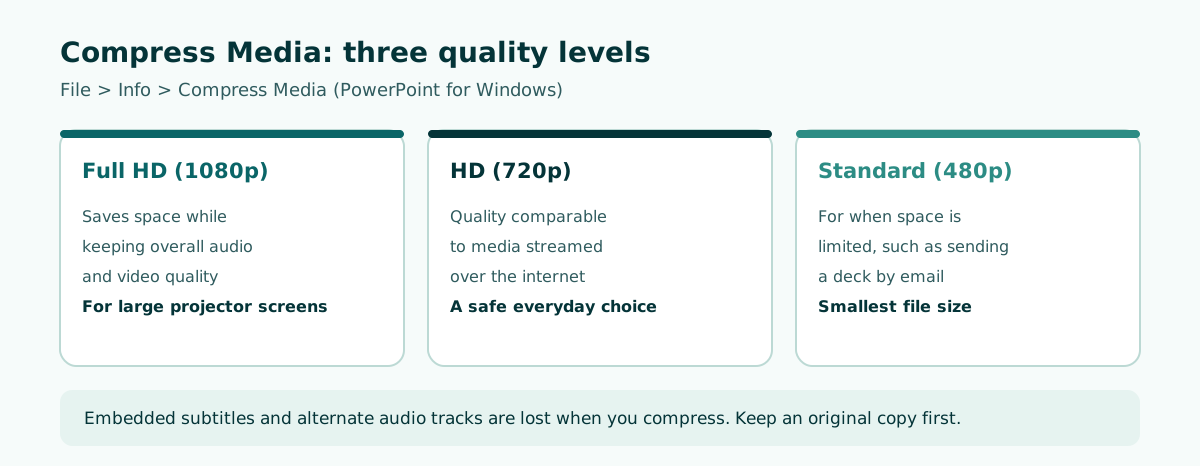
- Open the presentation that contains the video.
- On the File tab, select Info, then in the Multimedia section select Compress Media.
- Choose Full HD (1080p), HD (720p), or Standard (480p).
Note Microsoft's warning: embedded subtitles and alternate audio tracks are lost during compression, so save an untouched copy first. Microsoft describes Standard (480p) as the option for when space is limited, such as sending a presentation by email, and HD (720p) as comparable to media streamed over the internet.
If the file is still too large, trim unused parts of the clip before compressing, or link the video and send it together with the deck in a single zipped folder.
Video not playing in PowerPoint? Causes and fixes
When a video refuses to play or stutters, the cause is usually one of the following. Work through them in order, starting with the most common.
- Broken link. The video was linked, then the deck was moved without it. Fix: embed the video, or keep it in the same folder and move the whole folder. Check link status under File, Info.
- Old format. Support for .avi, .wmv, and .mpg is limited in newer versions. Fix: convert to .mp4 with H.264 video and AAC audio.
- Online video with no internet. Fix: confirm the connection at the venue, or swap in an embedded file.
- Choppy playback or audio out of sync. Microsoft suggests compressing media, limiting special effects such as shadows and 3-D rotation on the video, updating graphics card drivers, closing other programs, and making sure there is enough free disk space.
- Embedding not allowed. Some online videos are locked by their owners. Check the settings on the video site.
Microsoft also recommends embedding media rather than linking because embedding guarantees playback, at the cost of a larger file. If you must link, test the connection and the files at the venue before you begin.
The best habit is a short rehearsal on the actual presentation computer. It is also the right moment to check your speaker notes and Presenter View.
Using video well in classes, meetings, and pitches
The best presentation video is not the longest one but the most focused one. Here is a practical guide for three common situations.
Scroll the table sideways to see every column.
| Situation | Comfortable length | How to insert | Tip |
|---|---|---|---|
| Classroom lesson | A few minutes, one concept | Embedded | Ask a guiding question before you press play |
| Team or client meeting | Short and to the point | Embedded or compressed | Have a written summary ready in case the video fails |
| Small-business pitch | Very short, as proof | Embedded | Show the product in use, then return to your numbers |
The lengths above are practical suggestions, not official rules. The more important principle is that every clip needs a reason. Before playing it, tell the audience what to watch for; afterwards, draw one conclusion. That turns the video into part of your presentation structure instead of a pause that breaks the flow.
For lessons, place the clip after you introduce a concept and before practice; our teaching presentation template shows how to plan that flow. For pitches, keep the video in service of your story, as covered in the pitch deck guide, and see how to give a good presentation so the clip does not replace you as the speaker.
Plan where the video goes when you outline the deck
A common mistake is dropping a video in at the last minute, after the slides are finished, so it feels bolted on. It works better to decide during outlining: which slide shows the video, how many minutes it gets, and what you say before and after it.
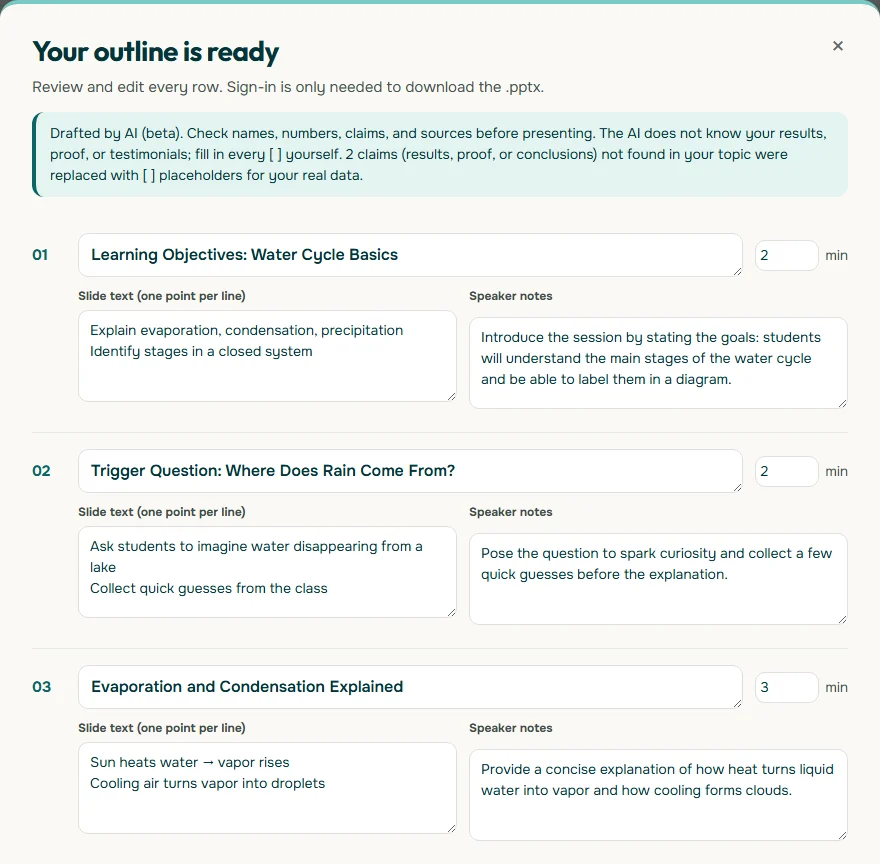
The outline above came from the topic "grade 8 science lesson on the water cycle, with a short experiment video embedded in the slides". It gives each slide a time budget and notes, so you can decide where the clip lands (for example, right after the evaporation and condensation slide) and how long you can spend on it. You then edit titles, text, and minutes before building the slides.
If you want to try that workflow, Soluslide drafts a timed slide outline from a topic or document, lets you edit it before signing in, and exports an editable .pptx. You still insert the video yourself in PowerPoint using the steps in this guide. For a document-based flow, read creating a presentation from a document, and for the basics, see how to make a PowerPoint presentation.
Frequently asked questions
How do I embed a video in PowerPoint?
In Normal view, select the slide, go to Insert, click the arrow under Video, and choose This Device. Pick the file and click Insert; the video is embedded in the presentation.
What is the difference between an embedded and a linked video?
An embedded video is stored inside the deck, so it travels with the file but makes it larger. A linked video keeps the file small, but the link breaks if the video is not moved along with the deck.
How do I insert a YouTube video in PowerPoint?
Copy the video URL from your browser, then in PowerPoint choose Insert, Video, Online Video, paste the URL, and select Insert. Online videos need an internet connection to play.
What video format is best for PowerPoint?
Microsoft Support recommends .mp4 files encoded with H.264 video and AAC audio. Older formats such as .avi and .wmv have limited support in newer versions.
How do I make a video play automatically in PowerPoint?
Select the video frame, open the Playback tab, and set the Start list to Automatically. Any earlier animations on the slide play first.
Why does my PowerPoint video not play on another computer?
The usual causes are a linked video whose file was not copied, an outdated format, or an online video with no internet. Embedding an .mp4 file is the safest option.
How can I reduce the size of a PowerPoint with video?
In PowerPoint for Windows, go to File, Info, Compress Media and choose Full HD, HD, or Standard. Embedded subtitles and alternate audio tracks are removed during compression.
Can I add a video in PowerPoint for the web?
Yes, through Insert, Video, This Device. Microsoft notes that PowerPoint for the web supports video files up to 256 MB.
Sources
Factual claims in this article refer to the sources below. Sample outlines and prompts are illustrations to adapt.
- Microsoft Support: Insert and play a video file from your computer
- Microsoft Support: Video and audio file formats supported in PowerPoint
- Microsoft Support: Insert a video from YouTube or another site
- Microsoft Support: Compress your media files
- Microsoft Support: Tips for improving audio and video playback and compatibility in PowerPoint
Related reading
Try shaping your own outline. You can review and edit it before signing in.
Build a free outline