
How to Add a Hyperlink in PowerPoint: Web Links, Slide Links, and Menus
Hyperlinks turn a deck into something people can navigate: click a chapter title to jump to it, click a button to return to the menu, or open a source straight from the slide. This guide walks through every link type using Microsoft Support steps, shows how to build an interactive menu, and covers the checks that keep links working on the day.

What a hyperlink in PowerPoint can do
To add a hyperlink in PowerPoint, select the text, shape, or picture you want to make clickable, then choose Insert > Link > Insert Link and pick a destination. Microsoft Support lists four kinds of destinations: a web page, a specific slide in the same presentation, a new document, or an email address that opens the viewer's email program.
There is also a shortcut many people miss. Microsoft Support says the fastest way to create a basic web hyperlink is to press Enter after you type the address of an existing web page, such as a full address starting with http. PowerPoint turns it into a link automatically.
Links earn their place in three situations. First, decks that people read on their own, such as training modules, where readers want to jump to the part they need. Second, long decks that need fast navigation during Q&A. Third, slides that cite data, so the audience can open the source afterwards. For a live talk that runs straight from start to finish, use links sparingly.
Decide early how the deck will be used. If only you will present it, a few links to backup slides are enough. If it will be sent to attendees, plan full navigation: a menu, back buttons, and source links, and leave time to test them.
How to hyperlink to a website
These steps follow Microsoft Support for PowerPoint on Windows. Menus on Mac and the web can differ slightly.
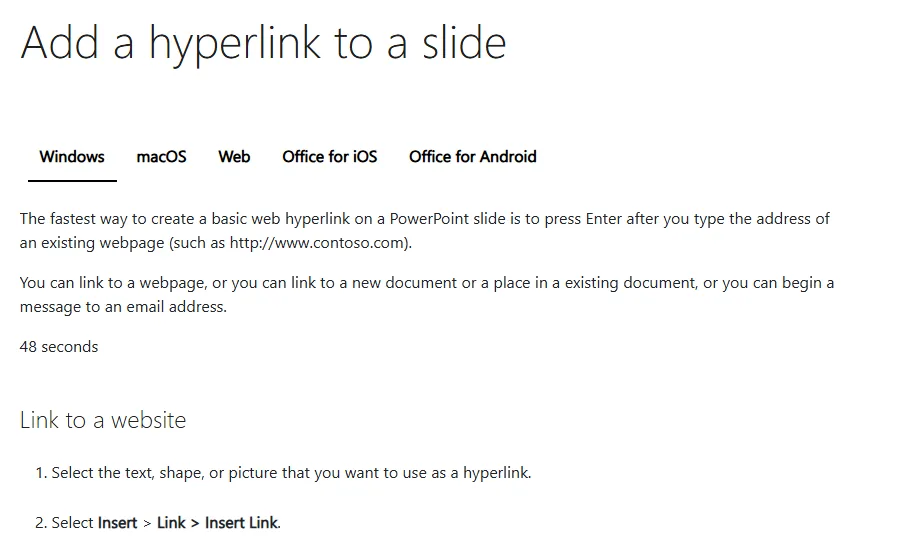
- Select the text, shape, or picture you want to use as the hyperlink.
- Select Insert > Link > Insert Link.
- Select Existing File or Web Page.
- In Text to display, type the text that should appear as the link.
- In ScreenTip (optional), type the text that appears when someone hovers over the link.
- In Address, enter the URL, then select OK.
Copy the URL straight from the browser's address bar to avoid typos. For links to files on your computer, Microsoft warns that if you move the presentation to another computer, you also need to move the linked files. That is the most common reason a file link suddenly fails on the event laptop.
If you share the deck as a file, web links stay clickable for readers. Keep the display text meaningful, such as the report name, rather than a long URL that fills the slide.
How to link to another slide in the same deck
Slide-to-slide links are the backbone of an interactive presentation. Microsoft Support handles them through Place in This Document.
- Select the text, shape, or picture that will become the link.
- Select Insert > Link > Insert Link.
- Select Place in This Document.
- Pick the target slide by its title, add Text to display and a ScreenTip if needed, then select OK.
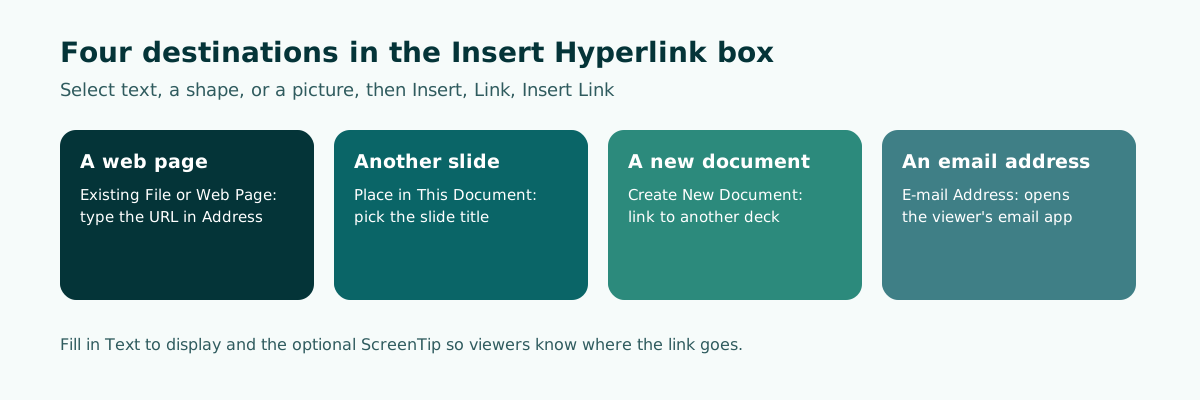
The dialog lists slides by title, so give every slide a unique, descriptive title. Three slides all called "Discussion" make it hard to pick the right target. Clear titles also strengthen your overall presentation structure.
Microsoft also describes a manual table of contents: copy slide titles from Outline view onto a new slide, then turn each title into a link to its slide with Place in This Document. Microsoft 365 subscribers can use Zoom for PowerPoint instead, which builds a picture-based, linked table of contents.
Linking to files, other decks, and email addresses
Beyond web pages and slides, the link dialog offers two more destinations. Create New Document links your presentation to another presentation. E-mail Address links a displayed email address so it opens the viewer's email program when clicked.
Scroll the table sideways to see every column.
| Destination | Dialog option | Good for | What to check |
|---|---|---|---|
| Website | Existing File or Web Page | Data sources, sign-up forms | Full URL that still works |
| Another slide | Place in This Document | Menus, contents slides, backup slides | Unique slide titles |
| File on your computer | Existing File or Web Page | Supporting spreadsheets or documents | File travels with the deck |
| Another presentation | Create New Document | Separate follow-up material | Location of the target file |
| E-mail Address | Contact person on the closing slide | Full address shown on the slide |
For file links, keep the presentation and every linked file in one folder before you copy it to a USB drive or another laptop. That lowers the risk of broken paths.
Email links belong on your closing slide, next to the contact person's name and role. Show the full address as visible text, because some people will photograph the slide instead of clicking.
Action buttons for navigation
You can also build navigation buttons. Microsoft Support describes two basic steps: pick an action button from the Shapes gallery, then assign an action that happens when you click or point at it during a slide show.
- On the Insert tab, select Shapes, then click a button shape under Action Buttons at the bottom of the menu.
- Drag on the slide to draw the button. The Action Settings dialog opens.
- On the Mouse Click tab, choose Hyperlink to and pick a destination such as the next slide, the previous slide, the last slide, or another presentation.
- Select OK, then test it with Slide Show > From Current Slide.
Actions can also go on the Mouse Over tab so they fire on hover, but clicks are safer in a live talk because they do not trigger by accident. You can attach Action Settings to a picture through Insert > Action as well. For SmartArt graphics, Microsoft notes you can only assign an action to the text within a shape, not to an individual shape. More on SmartArt layouts is in SmartArt in PowerPoint.
Built-in action buttons use familiar symbols such as left and right arrows for previous and next. If you want buttons that match your design, draw an ordinary shape with a label like "Back to menu" and add a link or action to it. Set the button style once on the slide master so it stays consistent.
Worked example: an interactive menu for a training deck
Say you are building a 20-minute customer service training module for new hires, which will also be shared as a file for self-study. An interactive menu lets people jump straight to the part they need.
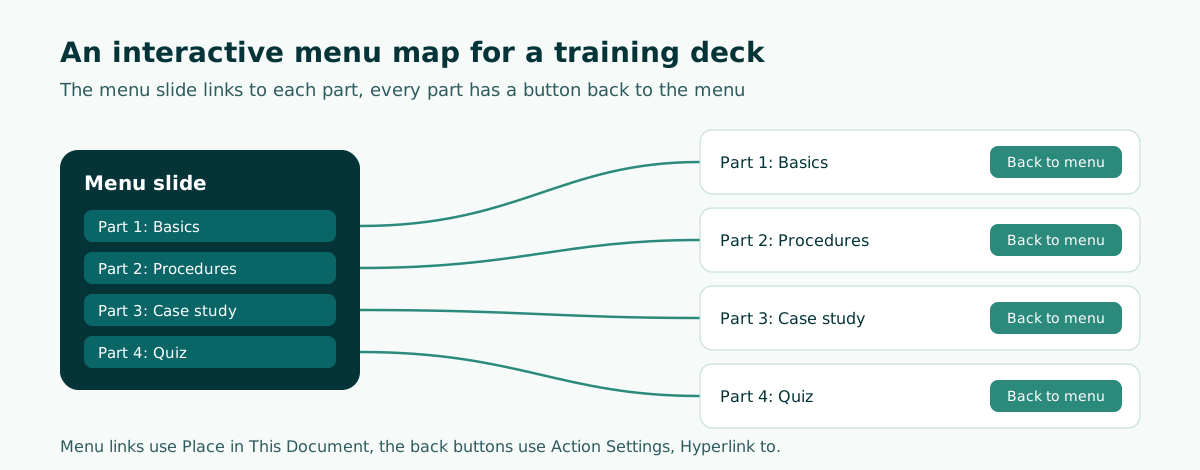
Menu plan (slide 2):
Part 1: Basics       -> link to slide 3
Part 2: Procedures   -> link to slide 6
Part 3: Case study   -> link to slide 10
Part 4: Quiz         -> link to slide 14

On the first and last slide of every part:
"Back to menu" button -> link to slide 2- Create a menu slide with four shapes labeled with the part names.
- Select the Part 1 shape, then Insert > Link > Insert Link > Place in This Document, and pick the opening slide of Part 1. Repeat for the other parts.
- On the slide master or on each part slide, add a "Back to menu" shape linked to the menu slide.
- Test the whole flow in Slide Show, from the menu to every part and back.
With this structure, the trainer can still present start to finish, while self-study readers can jump around. The same pattern suits teaching presentations and long internal briefings with many backup slides.
How to change hyperlink color and style
Default link colors often clash with a slide design. Microsoft Support gives two ways to change them.
- One link: select the hyperlink, then on the Home tab open the menu next to Font Color and pick a color. Microsoft says this direct method is available beginning with PowerPoint 2016.
- Every link at once: on the Design tab, open the Variants gallery, choose Colors, then Customize Colors. In Create New Theme Colors, change Hyperlink and Followed Hyperlink, then select Save.
The theme method is cleaner for long decks because every link, including ones added later, follows the theme. Keep enough contrast against the background, as covered in readable presentation contrast. Pale links on a light background disappear on a projector.
If you do not want the underline to show, Microsoft describes a workaround: remove the hyperlink from the text, draw a transparent rectangle (no fill and no line) over it, and assign the hyperlink to the rectangle. During the show the text looks normal but still clicks through. Use this sparingly, because people reading the file will not know the text is clickable.
Hyperlink not working in PowerPoint? Check these five things
Most link problems come from simple causes. Run through this list before you present.
- The view you are in. In Normal view a plain click only selects text. Microsoft suggests testing a link by right-clicking it and selecting Open Hyperlink, or by running the slide show.
- Moved files. Links to files on your computer break if the deck moves without them.
- Wrong or expired URLs. Open every address in a browser the day before.
- No internet at the venue. Keep a screenshot of the target page on a backup slide.
- Links lost after export. Link behavior can differ in other apps or formats, so test the final file you will share.
The Show and return box in the link settings stays grayed out unless you link to a Custom Show. For automatic return, Microsoft points Microsoft 365 subscribers to Zoom for PowerPoint. For most decks, a "Back to menu" button like the example above is enough. A full rehearsal that clicks every link is part of giving a good presentation.
Write clear, accessible link text
Link text decides whether people know where a link goes. In its PowerPoint accessibility guidance, Microsoft Support explains that people who use screen readers sometimes scan a list of links, so links should convey clear and accurate information about the destination.
Microsoft specifically recommends avoiding link text such as "Click here," "See this page," "Go here," or "Learn more," and including the full title of the destination page instead. You can add a ScreenTip as extra context on hover.
Scroll the table sideways to see every column.
| Weak link text | Clear link text |
|---|---|
| Click here | Q3 2026 Customer Satisfaction Report |
| See this page | Training sign-up form |
| Learn more | Refund policy for online orders (PDF) |
Clear link text helps a live audience too. When you say "the details are in the Q3 Customer Satisfaction Report," everyone knows which link to open later. The same clarity applies to your overall presentation design.
Workflow: outline first, links last
Slide links are easiest to add once the slide order is stable. If you keep adding and moving slides, target titles change and every link needs rechecking.
- Draft the outline: slide titles, key points, and time per section.
- Decide on the menu slide and the opening slide of each part.
- Build the slide content, then add menu links and back buttons.
- Link data sources with clear text.
- Test every link in Slide Show on the laptop you will actually use.
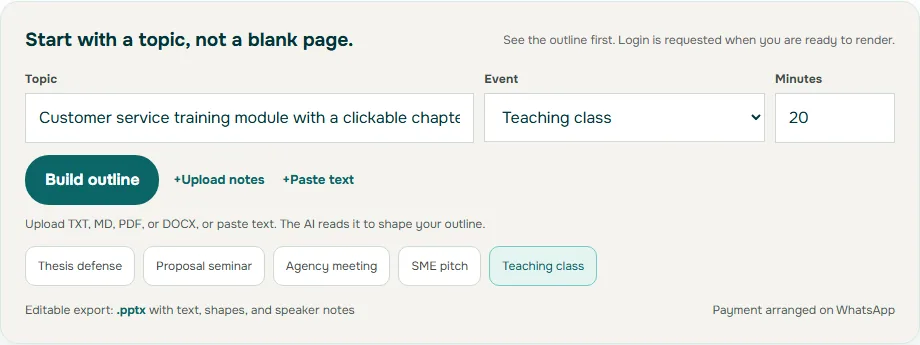
For step one, Soluslide can draft a timed outline from a topic or a document: slide titles, notes, and minutes per slide that you can edit before signing in. With a beta account, you export it as an editable .pptx built from standard text boxes and shapes, ready for menus and links in PowerPoint. Try it in the Soluslide outline builder or see the full feature list.
Frequently asked questions
How do I add a hyperlink in PowerPoint?
Select the text, shape, or picture, then choose Insert, Link, Insert Link. Pick the destination type, enter the address or choose a slide, and select OK.
How do I link to another slide in PowerPoint?
In the link dialog, choose Place in This Document and select the target slide by its title. Give each slide a unique title so it is easy to find.
What is the fastest way to add a web link?
According to Microsoft Support, type the address of an existing web page and press Enter. PowerPoint turns it into a hyperlink automatically.
Why is my hyperlink not working in PowerPoint?
In Normal view a plain click only selects the text. Right-click and choose Open Hyperlink, or run the slide show. Also check that linked files moved with the deck and that URLs still work.
How do I change the hyperlink color in PowerPoint?
For one link, select it and change Font Color on the Home tab. For all links, change Hyperlink and Followed Hyperlink in Customize Colors on the Design tab.
What are action buttons in PowerPoint?
Action buttons are shapes from the Shapes gallery with Action Settings, such as Hyperlink to the next slide or a specific slide, that run when clicked during a slide show.
Will a link to a file work on another computer?
Only if the linked file moves too. Microsoft notes that when you move a presentation to another computer, you also need to move any linked files.
What makes good hyperlink text?
Text that describes the destination, such as the full page title. Microsoft recommends avoiding phrases like Click here or Learn more.
Sources
Factual claims in this article refer to the sources below. Sample outlines and prompts are illustrations to adapt.
- Microsoft Support: Add a hyperlink to a slide
- Microsoft Support: Add commands to your presentation with action buttons
- Microsoft Support: Change the color of hyperlink text throughout a presentation
- Microsoft Support: Manually create a table of contents in PowerPoint
- Microsoft Support: Remove the underline from hyperlink text
- Microsoft Support: Make your PowerPoint presentations accessible to people with disabilities
Related reading
Try shaping your own outline. You can review and edit it before signing in.
Build a free outline