
How to Print PowerPoint Slides, Handouts, and Notes
Handouts for a thesis committee, notes to hold during a meeting, or a printed copy of a lesson all start on PowerPoint's Print screen. This guide explains how to print PowerPoint slides following Microsoft Support, from picking specific slides and fitting several slides on one page to printing speaker notes and choosing a color mode that stays crisp.

How to print PowerPoint slides in five steps
According to Microsoft Support, printing in PowerPoint for Windows works like this: on the File tab, select Print. Pick a printer, then use Settings to choose which slides to print, the Print Layout (slides, notes, outline, or handouts), and Color. Set the number of copies and select Print.
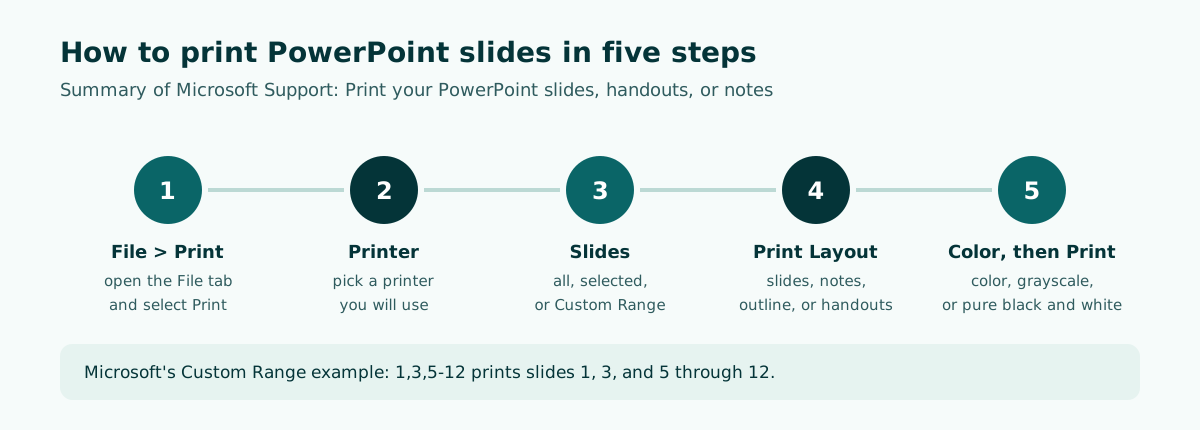
- Open the File tab and select Print.
- Under Printer, choose the printer you want.
- Under Settings, choose the slides: all, selected, the current slide, or typed slide numbers.
- Choose a Print Layout: slides only, speaker notes, outline, or handouts.
- Pick Color, set Copies, and select Print.
Before pressing Print, look at the preview. Microsoft notes that the Preview Pane shows what each layout option looks like, so you can confirm the result before any paper comes out. If your deck uses a widescreen slide size, also check how the slides sit on the page.
What each setting on the Print screen does
PowerPoint's Print screen holds several drop-down boxes under Settings. Microsoft's help page below summarizes each one.
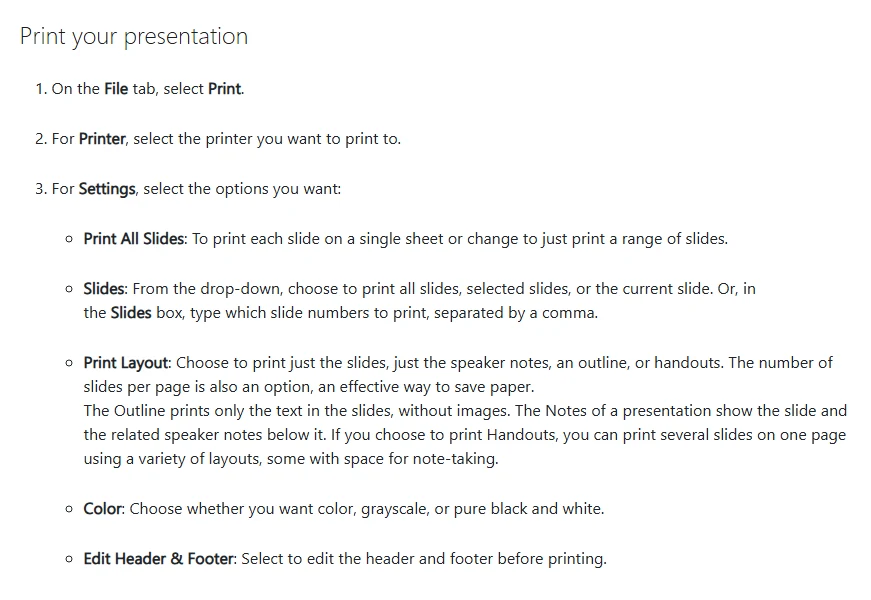
Scroll the table sideways to see every column.
| Option | What it does |
|---|---|
| Print All Slides | Prints every slide, or switch it to a range of slides |
| Slides | Type the slide numbers to print, separated by commas |
| Print Layout | Slides only, speaker notes, outline, or handouts with a chosen number of slides per page |
| Color | Color, grayscale, or pure black and white |
| Edit Header & Footer | Change the header and footer before printing |
| Collated or Uncollated | Controls page order when printing several copies |
Microsoft also notes that you will see between four and six of these boxes, depending on the printer you selected. If your printer supports it, you also get one-sided versus two-sided printing and, on some printers, stapling options.
Print only specific slides
You do not have to print the whole deck. In the first box under Settings, choose all slides, selected slides, or the current slide. For particular slide numbers, choose Custom Range and type them into the Slides box.
Microsoft's example is 1,3,5-12, which prints slide 1, slide 3, and slides 5 through 12. Commas separate individual slides; a hyphen marks a range.
- Go to File, Print.
- Click the first box under Settings and choose Custom Range.
- Type the slide numbers, for example 2,4,7-9.
- Check the preview and select Print.
If the presentation has hidden slides, Microsoft says the Print Hidden Slides option becomes active and can be selected. That is handy for backup slides, such as extra data you will not show live but want to hand to a committee or client on paper.
Before printing a range, match the numbers in the preview with what you typed. The reference is the number shown beside each slide thumbnail in the left pane. If you just moved or deleted slides, double-check so the wrong pages do not come out, especially when printing many copies. For long decks split into parts, printing by range also lets you hand out materials per session; see presentation structure for how to divide a talk.
Choose a layout: slides, notes, outline, or handouts
The second box under Settings decides what the printout looks like. Choose based on who will hold the paper.
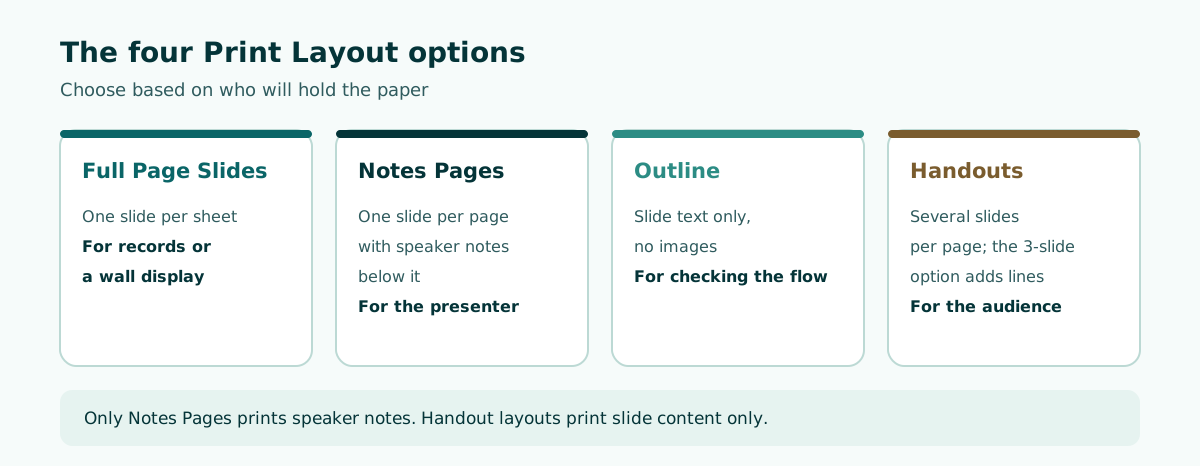
- Full Page Slides. One slide per sheet. Good for records or a wall display.
- Notes Pages. According to Microsoft, one slide per page with the speaker notes below.
- Outline. Prints only the slide text, without images. Useful for checking flow and typos.
- Handouts. Several slides on one page in a variety of layouts, some with space for taking notes.
One important detail: Microsoft explains that only Notes Pages prints speaker notes. The other Print Layout options and all of the handout options print only slides or slide content. So if you want a printout that includes your notes, do not choose a handout layout.
The thumbnails in the Print Layout menu preview each arrangement, so you can pick without guessing.
How to print multiple slides on one page
To save paper, print several slides per sheet with a Handouts layout. Microsoft describes the number of slides per page as an option under Print Layout and an effective way to save paper.
- Go to File, Print.
- Click the second box under Settings (it says Full Page Slides by default).
- Under Handouts, choose the thumbnail with the number of slides per page you want, for example the four-slide arrangement.
- Check the preview and select Print.
Microsoft notes that the 3 Slides option includes lines your audience can use to take notes. It is the best fit for seminars and classes where people are expected to write their own notes.
Scroll the table sideways to see every column.
| Need | Suggested layout | Why |
|---|---|---|
| Audience wants to take notes | 3-slide handout | Note lines next to each slide |
| Save paper, keep slides readable | 4-slide handout | Slides stay large enough for body text |
| Summary of a long deck | Handout with more slides per page | Works as a checklist, not for detailed reading |
| Presenter's copy | Notes Pages | The only layout that prints notes |
The suggestions above are practical guidance. The more slides per sheet, the smaller the text, so test one page before printing a stack. Microsoft also notes that in PowerPoint for Microsoft 365, printed handouts include a slide number below each slide image, and you can turn this off by clearing Print slide numbers on handouts in the layout menu.
How to print PowerPoint with speaker notes
Printed speaker notes are useful for rehearsals or for presenting without Presenter View. Microsoft says there is only one way to print speaker notes with slides: Notes Pages.
- Click File, Print.
- Under Settings, click the second box (it defaults to Full Page Slides), then under Print Layout click Notes Pages.
- Set the other options, such as which slides and how many copies.
- Click Print.
Notes Pages prints one slide per page with your notes underneath. Keep the notes short, as key points rather than a full script that fills the page. Our guide to speaker notes in PowerPoint covers how to write notes that actually help on stage.
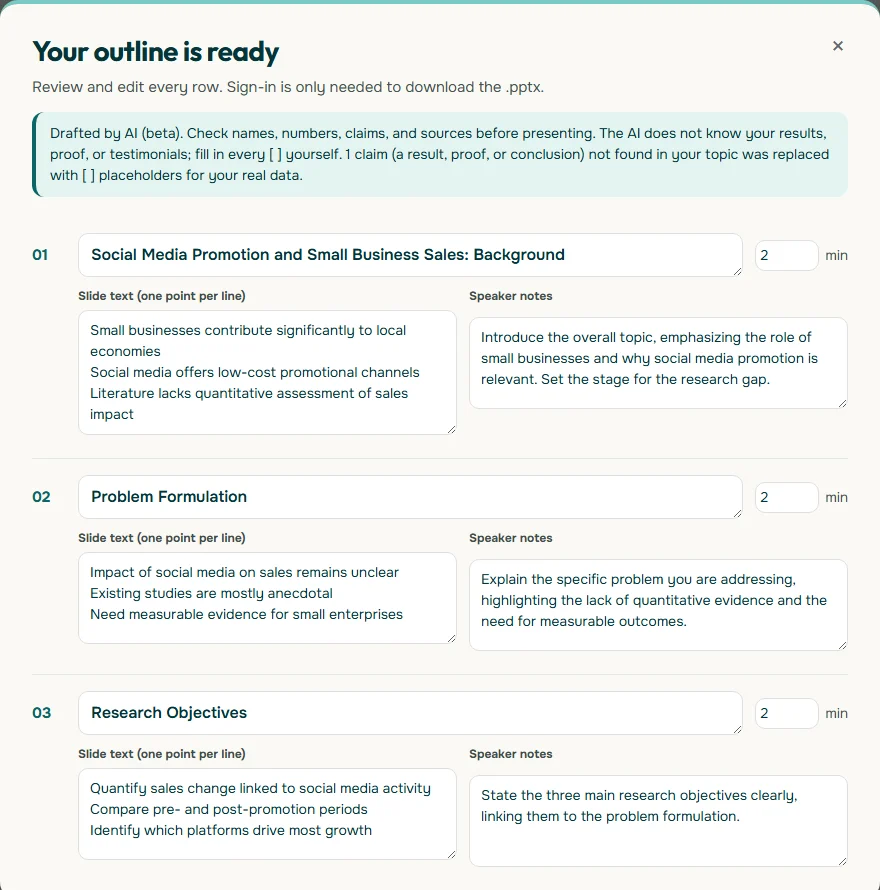
The outline above was generated from the topic "thesis defense: effect of social media promotion on small business sales, slides printed as handouts for the committee". Each slide already has editable speaker notes, and anything that needs your real data is flagged with square brackets. Once exported to .pptx, the notes travel into PowerPoint, ready to print through Notes Pages.
Color, grayscale, or pure black and white
The last box under Settings controls color. Microsoft Support explains how the three options differ.
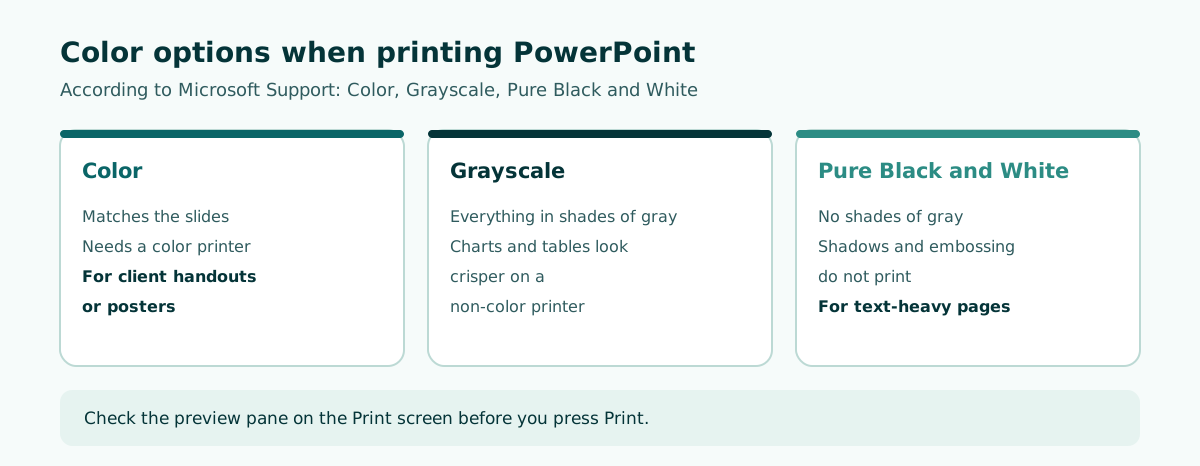
- Color. Matches the slides on screen. Best with a color printer.
- Grayscale. Everything prints in shades of gray. According to Microsoft, objects such as charts and tables look crisper and cleaner than when you choose Color on a non-color printer.
- Pure Black and White. No shades of gray at all. Microsoft notes that some theme effects such as embossing and drop shadows will not print, and text prints black even if it was gray on the slide.
If your slides use dark backgrounds, print in grayscale or black and white so the printer does not spend its ink on the background, then check the preview to make sure text is still legible. Slides built with good contrast from the start, as covered in our readable contrast guide, usually stay clean when printed without color.
Paper size, orientation, and printing via PDF
Paper size is usually set in your printer settings, while handout orientation and slides per page can be set in the Handout Master. Microsoft explains how to get there: on the View tab, select Handout Master in the Master Views group. There you will find Handout Orientation (Portrait or Landscape), Slide Size, and Slides Per Page. Changes to the master, including headers, footers, and background, appear on every printed handout page.
The Handout Master is useful when every handout should carry the same identity, such as a course name, a thesis title, or a company logo in the header. Set it once and every handout follows. The idea mirrors the Slide Master, which controls all slides at once, except that the Handout Master applies to printed pages.
If you are printing at a print shop or on another computer, save the deck as a PDF first. A PDF locks the layout, fonts, and image positions, so the printout does not shift because of a different PowerPoint version. Review the PDF on screen before sending it, especially pages with tables and charts.
In PowerPoint for the web, Microsoft notes you can print slides, notes, or handouts for files stored in OneDrive or SharePoint, but more advanced print layouts require the desktop app; the web handout page shows three slide thumbnails on the left with note lines on the right. On a Mac, use File, Print and pick Slides, Notes, Outline, or a Handout option from the Layout drop-down.
Handout tips for thesis defenses, meetings, and classes
A good handout helps the audience focus; it should not replace the talk. Here is a practical guide for common situations.
Scroll the table sideways to see every column.
| Situation | Layout | Color | Tip |
|---|---|---|---|
| Thesis defense for the committee | 3- or 4-slide handout | Grayscale, unless a chart needs color | Follow your department's rules if it has any |
| Presenter's copy | Notes Pages | Grayscale | Write notes as key points |
| Team or client meeting | 4-slide handout | Grayscale | Keep slide numbers on so people can refer to them |
| Class or seminar | 3-slide handout | Black and white or grayscale | Note lines encourage people to write |
For a defense, print a few more copies than there are committee members and keep a Notes Pages set for yourself. Make sure slide numbers show on the handouts so examiners can point to a specific slide when they ask questions.
For meetings, hand out copies after the talk if you want attention on the screen first, or before it if the discussion involves numbers people will want to mark up. For a meeting deck pattern, see our meeting presentation guide.
Common printing problems and how to fix them
These are the issues that come up most often when printing a presentation, with the fix for each.
- Notes missing from the printout. You picked a handout layout. Switch Print Layout to Notes Pages.
- Text too small. Too many slides per sheet. Drop to three or four, or print key slides as Full Page Slides.
- Dark backgrounds eating ink. Choose grayscale or black and white and check the preview.
- Shadows and effects disappear. That is how pure black and white works. Use grayscale if those effects matter.
- Backup slides do not print. Hidden slides need Print Hidden Slides selected.
- Print shop output looks different. Send a PDF, not the .pptx file.
Most problems disappear if you print one test page first. For the basics of building a clean deck from the start, read how to make a PowerPoint presentation. If you want to speed up the content itself, Soluslide drafts a timed slide outline with speaker notes from a topic or document and exports an editable .pptx you can print from PowerPoint.
Frequently asked questions
How do I print PowerPoint slides?
Open the File tab, select Print, choose a printer, set the slides, Print Layout, and Color, choose the number of copies, and select Print.
How do I print multiple slides on one page in PowerPoint?
On the Print screen, click the Print Layout box (Full Page Slides by default) and choose a Handouts thumbnail with the number of slides per page you want. Check the preview first.
How do I print PowerPoint with notes?
Go to File, Print, and under Print Layout choose Notes Pages. Microsoft says this is the only way to print speaker notes together with slides.
Why are my speaker notes not on the handouts?
Microsoft explains that all handout options print only slides or slide content. To include notes, use Notes Pages.
How do I print only certain slides?
Choose Custom Range in the first Settings box and type slide numbers in the Slides box, for example 1,3,5-12.
Which color option is best for printing slides?
Grayscale works well on non-color printers because charts and tables look crisper. Pure black and white removes shadows and embossing.
Which handout layout has lines for notes?
According to Microsoft Support, the 3 Slides option includes lines your audience can use to take notes.
Can I remove slide numbers from printed handouts?
Yes. In PowerPoint for Microsoft 365, open the print layout menu and clear Print slide numbers on handouts.
Sources
Factual claims in this article refer to the sources below. Sample outlines and prompts are illustrations to adapt.
Related reading
Try shaping your own outline. You can review and edit it before signing in.
Build a free outline