
How to Reduce PowerPoint File Size Without Blurry Slides
When an email bounces your deck or an upload portal rejects it, the culprit is nearly always photos and video, not text. This guide shows how to reduce PowerPoint file size step by step using Microsoft's own settings, without leaving your slides fuzzy on the projector.

How to reduce PowerPoint file size: the short version
To reduce PowerPoint file size, compress the pictures and media inside the deck. In PowerPoint for Windows, select any picture, open the Picture Format tab, and choose Compress Pictures. Clear Apply only to this picture so every image is included, tick Delete cropped areas of pictures, and pick a lower resolution. For video and audio, go to File, Info, Compress Media.
Quick clarification before going further: this guide is about the size of the file, meaning how many megabytes your .pptx takes up in an email, a learning portal, or a shared drive. That is a different thing from PowerPoint slide size (16:9 versus 4:3), which sets the shape of each slide and has almost no effect on how heavy the file is.
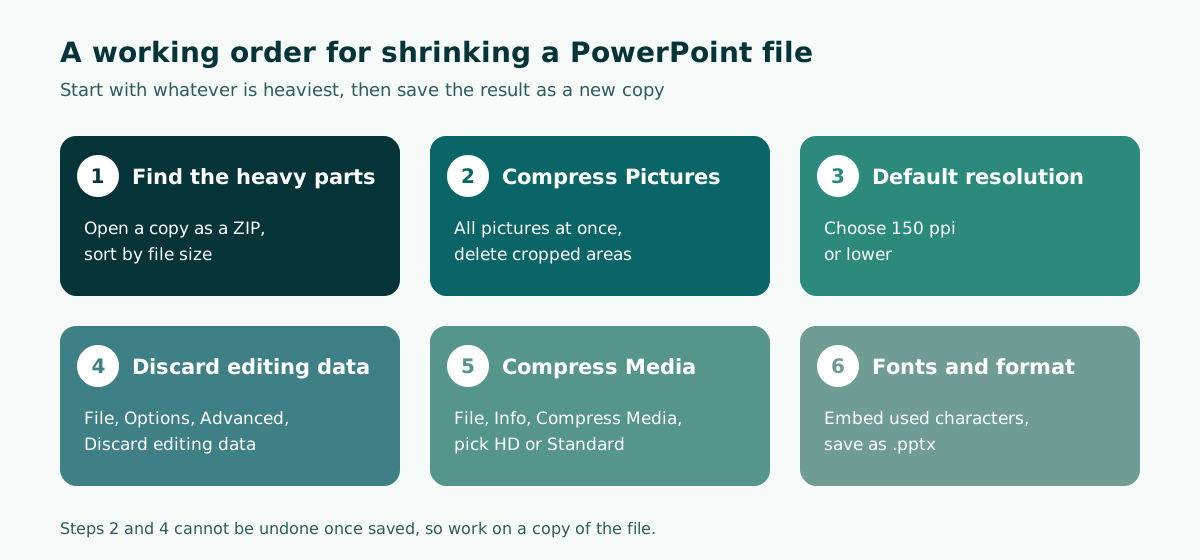
The full routine, ordered by how much each step usually saves:
- Find out which parts of the file are heaviest (usually photos and video).
- Compress all pictures at once and delete cropped areas.
- Lower the default resolution to 150 ppi or less.
- Turn on Discard editing data.
- Compress any video and audio.
- Embed only the font characters you use, then save as .pptx.
Why PowerPoint files get so big
Text almost never bloats a presentation. Hundreds of bullet points barely register. The real weight comes from what you insert: full-resolution phone photos, screen recordings, background music, and custom fonts embedded so the deck looks the same on another computer.
Some of the weight is invisible. Microsoft Support explains that when you edit a picture (crop it, change its brightness, add an artistic effect), the original picture data is kept in the file so the edit can be reversed. A photo that looks small because you cropped it may still carry the entire original image. On top of that, PowerPoint 2016 and newer set the default image resolution to High fidelity, which applies only minimal compression to pictures as you insert them.
Scroll the table sideways to see every column.
| Cause | What you notice | Fix |
|---|---|---|
| High-resolution photos from a camera or phone | Many photo slides, file runs to tens of MB | Compress Pictures for all pictures at a lower resolution |
| Cropped areas still stored | Pictures look small but the file stays heavy | Tick Delete cropped areas of pictures |
| Picture editing data kept | Lots of pictures with effects or brightness changes | File, Options, Advanced, Discard editing data |
| Embedded video and audio | Event clips or background music in the deck | File, Info, Compress Media |
| Fonts embedded in full | Embed fonts in the file is switched on | Embed only the characters used in the presentation |
| Old .ppt format | File extension is .ppt rather than .pptx | Save as the modern .pptx format |
Treat the table as a checklist. Not every deck suffers from every cause, so start with the row that matches yours. A slide-heavy PPT file built from text and simple shapes is rarely the problem.
Find out what is actually taking up space
Before compressing anything, it helps to know exactly what is filling the file. A .pptx is an Open XML file, and Microsoft Support notes that the format uses zip compression and that all you need to open and edit an Office file is a ZIP utility and an XML editor. In practice, that means you can peek inside a .pptx like any ZIP archive.
- Make a copy of the presentation. Never experiment on the original.
- Rename the copy from
.pptxto.zip. On Windows, turn on file name extensions in File Explorer if you cannot see them. - Open the archive, go into the
pptfolder, thenmedia. - Sort the contents by size. Whatever sits at the top is your first target.
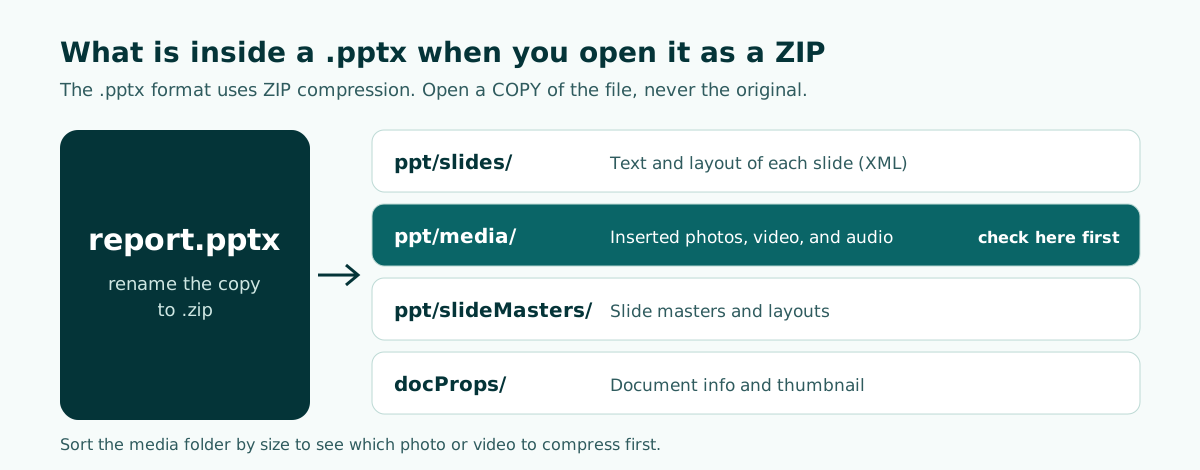
We tested this by building a .pptx with a single picture, and the image was indeed stored as ppt/media/image1.png. The exercise is often revealing: a two-minute video clip can outweigh every photo in the deck combined. Once you have seen what you need, delete the .zip copy and keep editing the original .pptx in PowerPoint as usual.
How to compress a PowerPoint with Compress Pictures
The standard answer to how to compress a PowerPoint is the Compress Pictures command. It reduces both file size and picture dimensions based on how you intend to use the images, such as viewing on screen or sending in an email. The steps from Microsoft Support:
- Select any picture in the presentation. The Picture Format tab appears.
- On the Picture Format tab, in the Adjust group, select Compress Pictures.
- Under Compression options, make sure Apply only to this picture is not selected, so the change applies to every picture.
- Select Delete cropped areas of pictures.
- Under Resolution, select Use default resolution or another lower setting, then select OK.
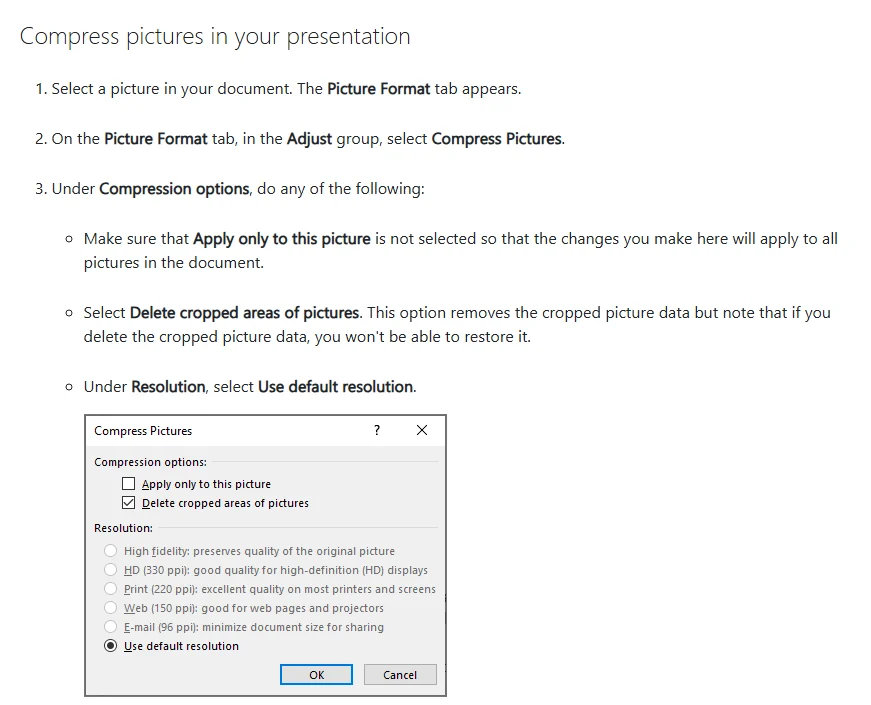
A few practical notes. If you do not see the Picture Format tab, double-click the picture. On a narrow screen the Compress Pictures button may show as an icon without a label. Deleted cropped areas cannot be restored, so work on a copy if you might want to re-crop later. Microsoft also suggests compressing and saving before you apply artistic effects, because compression can remove detail. These options are available in the desktop apps only, not in Microsoft 365 for the web.
Choosing the right picture resolution
The resolution you pick decides how much you save. The Compress Pictures dialog shown on Microsoft Support lists the options below. A lower ppi (pixels per inch) means a smaller file, but also less detail if the picture is enlarged.
Scroll the table sideways to see every column.
| Setting | Description in the dialog | Good for |
|---|---|---|
| High fidelity | Preserves quality of the original picture | Product shots or artwork that will be printed large |
| HD (330 ppi) | Good quality for high-definition (HD) displays | Large high-resolution screens |
| Print (220 ppi) | Excellent quality on most printers and screens | Printed handouts and reports |
| Web (150 ppi) | Good for web pages and projectors | Team meetings, classrooms, conference rooms |
| E-mail (96 ppi) | Minimize document size for sharing | Decks sent by email or chat apps |
| Use default resolution | Follows the Default resolution in Options | Once you have lowered the default |
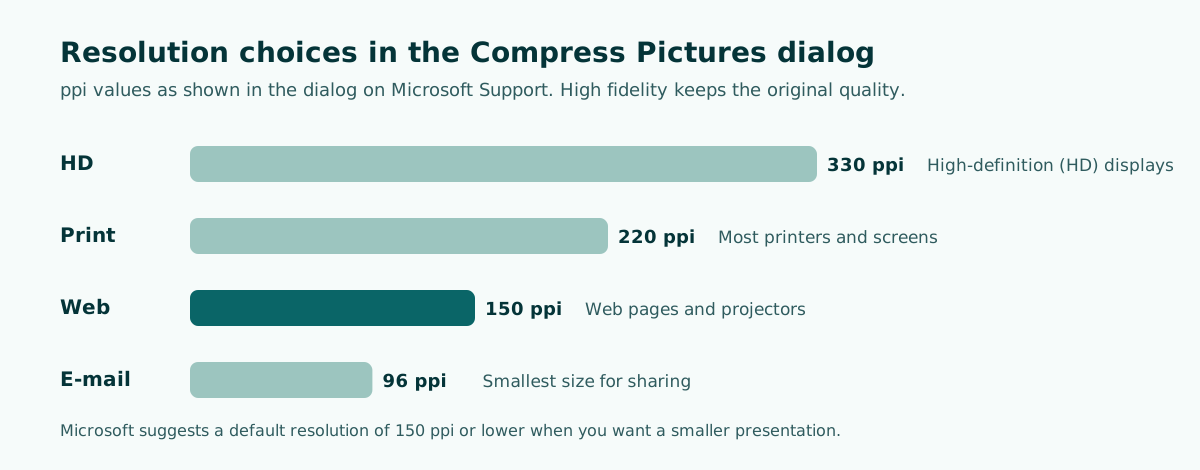
For most decks shown on a projector or a meeting room TV, Web (150 ppi) is the safe middle ground. If you are unsure, compress a copy at 150 ppi, put it on the screen you will actually present on, and compare it with the original. Keep the full-quality version for anything you plan to print.
Discard editing data and lower the default resolution
Compress Pictures deals with the images already in the deck. The settings below make sure pictures you add later stay lean, and they throw away the hidden restore data. According to Microsoft Support:
- Go to File, Options, Advanced.
- Find Image Size and Quality and check that the right presentation is selected in the list next to it.
- Select Discard editing data.
- Make sure Do not compress images in file is not selected.
- In the Default resolution list, choose 150 ppi or lower, then select OK.
Discard editing data removes the information used to restore a picture to its original state. After that, the only way to undo a crop or a brightness change is to insert the original picture again. Keep your source photos in a separate folder before you tick this box.
The Image Size and Quality settings apply to the document selected in that list, not to every presentation you will ever make. If you regularly build photo-heavy decks, repeat the setting in each new file or start from a template where it is already set.
Leave Do not compress images in file unticked: with it on, pictures in that file are not compressed at all, which cancels out the rest of this guide. If the same logo or background picture appears on every slide, place it once on the slide master so there is only one copy to manage and compress.
Compress video and audio with Compress Media
If your deck contains audio or video, Microsoft says compressing the media can reduce the file size significantly. Compress Media is available in PowerPoint for Windows, but not in PowerPoint for Mac or PowerPoint for the web. Here is how:
- Open the presentation that contains the audio or video.
- On the File tab, select Info.
- In the Multimedia section, select Compress Media.
- Choose a quality: Full HD (1080p), HD (720p), or Standard (480p).
- Wait for compression to finish, then save the file.
Each option serves a different purpose. Full HD (1080p) saves space while keeping overall audio and video quality. HD (720p) gives quality comparable to media streamed over the internet. Standard (480p) is for when space is tight, such as sending a presentation by email.
One side effect to know about: embedded subtitles and alternate audio tracks are lost during compression. If a clip relies on built-in captions, save a copy first. For long recordings, consider the alternatives in our guide on how to embed a video in PowerPoint, such as linking to an online video instead of storing the file inside the deck. A linked video needs an internet connection during the talk, so test it in the room beforehand.
Embedded fonts: when they are worth the weight
Fonts are embedded so a deck looks the same on a computer that does not have them installed. Microsoft Support points out that embedded fonts increase file size, and that some fonts are much larger than others. To keep the increase down:
- Go to File, Options, Save.
- Under Preserve fidelity when sharing this presentation, select Embed fonts in the file.
- Select Embed only the characters used in the presentation.
That choice suits decks people will mostly view. If colleagues need to edit the presentation in the same custom font, Microsoft recommends Embed all characters instead, which costs more space. You are trading size for editability, so decide based on who receives the file.
There is good news, too. Microsoft has moved Office fonts to the cloud, so they are available to Office subscribers with internet access and usually do not need embedding at all. Embedding still matters for non-standard fonts or for a deck that will be opened offline. If you are not using a special font, switching embedding off is an easy win. Simple, widely available fonts also tend to support readable slides, which matters more to your audience than a decorative typeface.
Save as .pptx and share a link instead
Older files ending in .ppt use the binary format from earlier versions of Office. The modern .pptx format uses zip compression, and Microsoft says files can be up to 75 percent smaller in some cases. To convert, open the file in PowerPoint, select File, Save as (or Save a copy if the file is stored on OneDrive or SharePoint), and make sure the file type is set to the modern format.
Save the compressed result as a new file, for example outreach-report-small.pptx. You keep the full-resolution original as a backup, and you can compare the two sizes side by side in File Explorer. If the result is still too large, go back to the resolution step and try one level lower.
Sometimes a deck is heavy because its content genuinely needs to be. Portfolio images or detailed product photos should stay sharp. In that case, stop compressing and share differently. Microsoft Support notes that you can send files with high-quality images without file limits by saving them to the cloud and sharing from OneDrive. The recipient just opens a link. If you also need paper copies, follow our guide on how to print PowerPoint slides from the full-quality file and send the smaller version digitally.
One more habit pays off: delete backup slides with photos you decided not to use. Pictures on hidden slides are still part of the file and still count toward its size.
Worked example: a photo-heavy activity report
Say you are preparing a community outreach report for a team or agency meeting. Volunteers have sent you 60 phone photos and would like all of them in the deck. The issue is not just file size but flow: nobody can take in 60 photos in a 10-minute slot. Decide how many pictures each slide gets before you insert anything.
Community Outreach Report (10 minutes, 6 slides)
1. Purpose of the report and decision needed (no photos)
2. Activities at a glance: venues, [participants reached] (1 photo)
3. On the ground: 3 selected photos in one collage
4. Challenges encountered (1 supporting photo)
5. Options and recommendation for next quarter (table, no photos)
6. Close, with a OneDrive link to the full photo album
With a plan like this, only about six photos go into the file and the rest are linked. After inserting them, run Compress Pictures on all pictures at Web (150 ppi), or E-mail (96 ppi) if the deck will travel by email.
If you would rather start from an outline like that, Soluslide drafts a slide outline from a topic, with titles, slide text, speaker notes, and minutes per slide, all editable before you sign in.
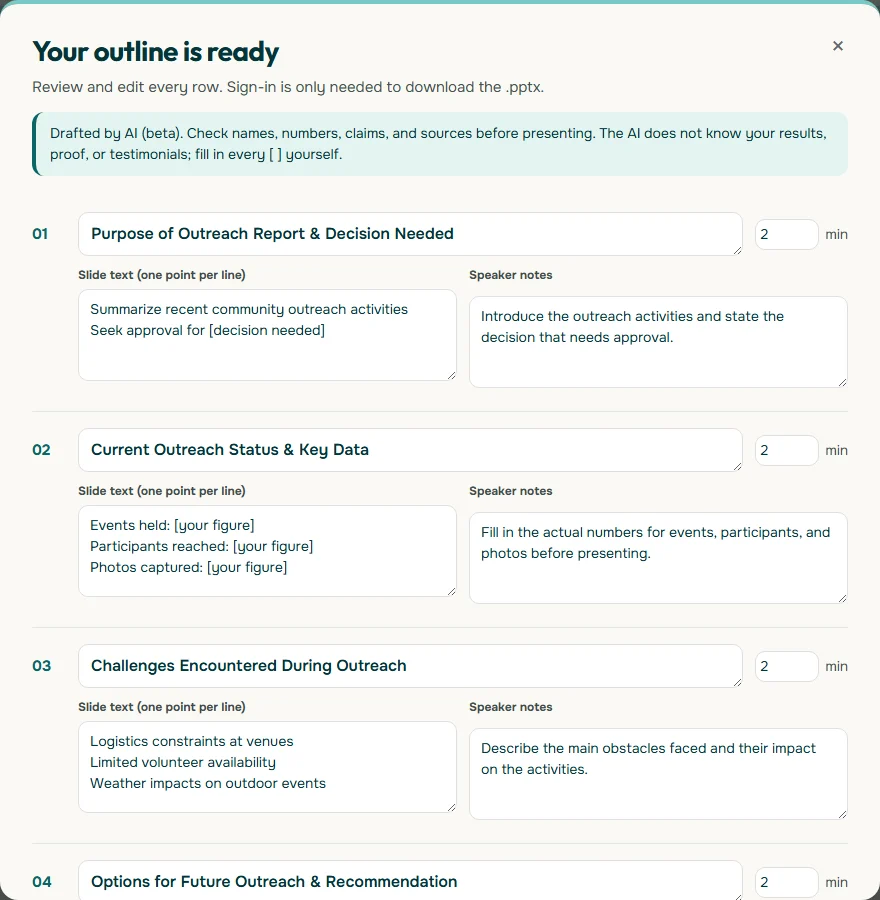
The download is an editable .pptx, so you still insert and compress your own photos in PowerPoint. If your source material is already a written report, see turning a document into a presentation, browse the features, or try the outline builder directly.
Frequently asked questions
How do I reduce PowerPoint file size when it has lots of photos?
Select a picture, go to Picture Format, Compress Pictures, clear Apply only to this picture, tick Delete cropped areas of pictures, and choose a lower resolution such as Web (150 ppi).
What is the difference between file size and slide size in PowerPoint?
File size is how many megabytes the .pptx takes up, driven by photos, video, and fonts. Slide size is the shape of the slide, such as 16:9 or 4:3, and barely affects file size.
What resolution should I use to make a PowerPoint smaller?
Microsoft Support recommends a default resolution of 150 ppi or lower. For a deck you will send by email, E-mail (96 ppi) gives the smallest result.
How do I compress a PowerPoint that contains video?
In PowerPoint for Windows, go to File, Info, select Compress Media, and choose Full HD (1080p), HD (720p), or Standard (480p). The feature is not available on Mac or the web.
Can I undo picture compression?
Changes are applied when you close the dialog, and you can undo them if you are not happy. Deleted cropped areas and discarded editing data cannot be recovered, so keep a copy of the original.
Does saving as .pptx make a file smaller than .ppt?
The .pptx format uses zip compression, and Microsoft says files can be up to 75 percent smaller in some cases. Use File, Save as, and choose the modern format.
Do embedded fonts make a PowerPoint bigger?
Yes. To limit the increase, choose Embed only the characters used in the presentation under File, Options, Save. Choose Embed all characters if others need to edit in the same custom font.
Can I compress pictures in PowerPoint for the web?
No. Microsoft says picture compression and Compress Media are only available in the desktop apps, not in the web version.
What if the PowerPoint is still too large to email?
Save it to OneDrive and share a link. Microsoft notes this lets you send files with high-quality images without file limits.
Sources
Factual claims in this article refer to the sources below. Sample outlines and prompts are illustrations to adapt.
- Microsoft Support: Reduce the file size of your PowerPoint presentations
- Microsoft Support: Reduce the file size of a picture in Microsoft Office
- Microsoft Support: Compress your media files
- Microsoft Support: Benefits of embedding custom fonts
- Microsoft Support: Change the default resolution for inserting pictures in Office
- Microsoft Support: Open XML Formats and file name extensions
Related reading
Try shaping your own outline. You can review and edit it before signing in.
Build a free outline