
PowerPoint Themes: How to Choose, Change, and Create Your Own
One theme changes the colors and fonts of every slide at once. This guide covers what a theme contains, how it differs from a template, and how to change, customize, and save your own.

What are PowerPoint themes?
A PowerPoint theme is a single package of design settings: colors, fonts, and effects. It applies to the whole presentation. Switch the theme and your title colors, shape colors, fonts, and backgrounds all change, with no slide-by-slide editing.
Themes pay off in two ways. Your deck stays consistent even when several people work on it, and big changes become fast. Replacing an accent color across 30 slides takes one edit in the theme instead of 30 edits on individual shapes.
You will find themes on the Design tab. According to Microsoft Support, you open that tab, click a theme, and see how it looks on your slides. From there you can customize it through the Variants gallery.
A theme is not decoration placed on top of a slide. It is a layer of rules that text boxes, shapes, tables, and charts read from. That is why themes work best when your content uses built-in placeholders and theme colors rather than hand-picked ones. Our presentation design guide covers the basics behind this.
What a theme contains
A theme is made of several parts you can change separately. Knowing them tells you exactly where to go when something looks off.
Scroll the table sideways to see every column.
| Part | Contains | What changes with it |
|---|---|---|
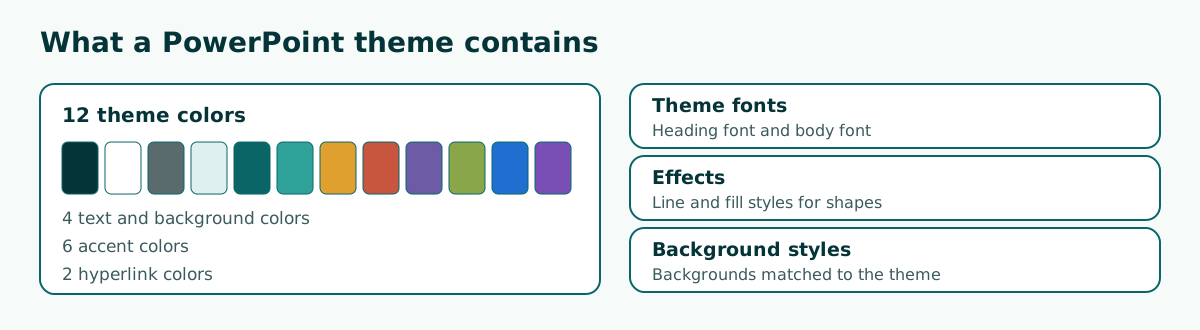
| Theme colors | 4 text and background, 6 accents, 2 hyperlink | Text, shapes, tables, charts, links |
| Theme fonts | Heading font and body font | All titles and bullet text |
| Effects | Line and fill styles for shapes | The look of shapes and graphics |
| Background styles | Backgrounds matched to the theme | Slide backgrounds |
Microsoft Support says theme colors contain four text and background colors, six accent colors, and two hyperlink colors, which makes 12 in total. Charts draw on those accent colors, so their order matters if your deck relies on graphs.
Theme fonts work as a pair. Changing them updates all titles and bullet text in your presentation. For pairings that stay readable on a projector, see our guide to the best fonts for presentations.
Theme vs template vs slide master
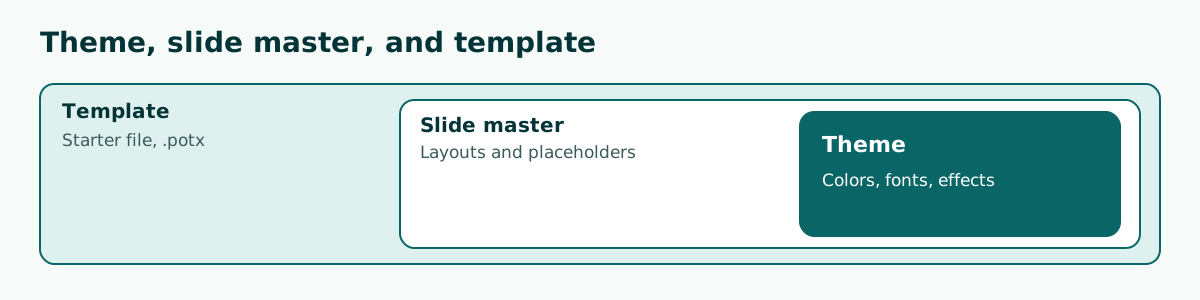
People use these three words interchangeably, but they cover different ground. A theme is a set of design rules. A template is a starter file that can hold a theme, layouts, and sample content. The slide master is where those rules live inside a presentation.
Scroll the table sideways to see every column.
| Term | Contains | Saved as | Use it when |
|---|---|---|---|
| Theme | Colors, fonts, effects | .thmx | You want a consistent look |
| Slide master | Layouts and placeholders | Stored in the presentation | You want to move elements on many slides |
| Template | Theme, layouts, sample content | .potx | You want to start new files from one pattern |
If you only need consistent colors and fonts, a theme is enough. If a logo or slide number must sit in the same spot on every slide, work in the slide master. If your team keeps building decks with the same pattern, save a template. We cover trusted sources and license terms in our guide to free PowerPoint templates.
The distinction matters when you download files. Much of what download sites call a theme is really a full template, which brings sample slides and images along. Check what is inside before you paste in your content.
How to apply or change a theme
Changing a theme is safe to try, because it does not delete your content. Follow these steps in PowerPoint for desktop.
- Open your presentation and click the Design tab.
- Hover over a theme in the gallery to preview it on the slide.
- Click the theme you like to apply it to the whole presentation.
- Open the Variants gallery if you want other color options from the same theme.
- Review each slide, especially tables, charts, and images with their own backgrounds.
To apply a theme only to certain slides, select them in the left pane, right-click a theme in the gallery, and choose the option for selected slides. Use this sparingly. Two themes in one deck mean two masters, and the result can easily feel disjointed.
Google Slides works differently. Google Help says to open the Slide menu, choose Change theme, and click a theme in the right panel. You can also bring in a theme from a Google Slides or PowerPoint presentation with Import theme. If you move between the two apps often, read how to convert Google Slides to PowerPoint.
How to choose a theme for your event
A theme that looks great in the gallery may still be wrong for your event. Choose based on the room, the audience, and the kind of content you have. The question is not which theme looks most impressive, but which one makes your content easiest to follow.
Scroll the table sideways to see every column.
| Event | Theme direction | Avoid |
|---|---|---|
| Thesis defense | Plain background, one accent, clear type | Full-bleed background images |
| Team or board meeting | Neutral colors, room for tables | Too many competing colors |
| Sales or startup pitch | Brand colors, large headlines | Default themes left unchanged |
| Classroom lesson | High contrast, room for pictures | Decorative fonts |
For formal settings such as a thesis defense or a meeting presentation, a simple theme is the safer choice. Examiners and colleagues need to read your data, not admire your background.
Check the room as well. A projector in a bright room tends to wash colors out, so contrast that looks fine on a laptop can fade on a big screen. Our guide to readable presentation contrast shows how to measure it. Test your densest slide rather than your title slide, because dense slides fail first.
Finally, make sure the theme has the layouts you need. A deck full of tables needs a wide content area, and you should settle your PowerPoint slide size before applying a theme.
How to customize theme colors and fonts
Built-in themes rarely match your brand on the first try. You do not need to start from scratch. Just change the colors.
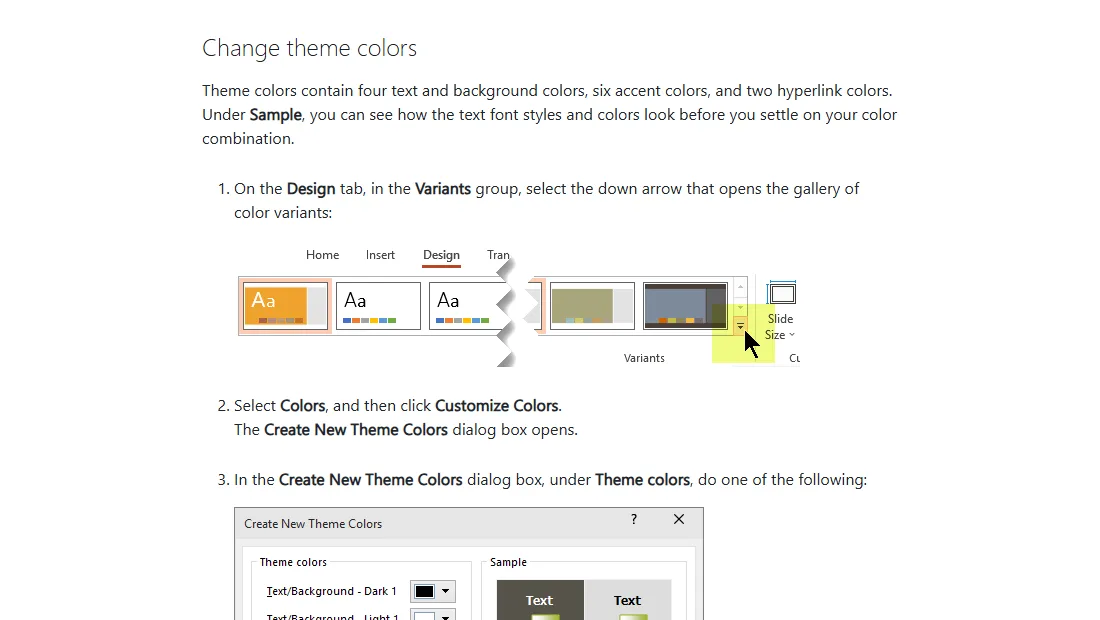
For colors, follow these steps from Microsoft Support.
- On the Design tab, in the Variants group, click the gallery's down arrow.
- Choose Colors, then Customize Colors.
- In the Create New Theme Colors dialog, click the element you want to change, such as Accent 1.
- Pick a color, or open More Colors to enter an exact value.
- Name the color set and click Save.
Say a coffee brand uses dark brown for text, pale cream for backgrounds, and green as Accent 1. Once saved, every shape and chart that uses theme colors follows along. That is the difference from coloring by hand, since manual colors stay put when the theme changes.
For fonts, go to the View tab, choose Slide Master, click Fonts, then Customize Fonts. Select a heading font and a body font, name the pair, and save it. Stick to fonts available on the computer that will run your presentation, or embed them if needed.
When you choose theme colors, always check text and background pairs first. A lovely accent color is no help if the words on top of it are hard to read from the back row.
You can set backgrounds through Background Styles in the same gallery. Our PowerPoint background guide goes into more detail.
How to save your own theme
Once your colors and fonts are right, save them as a theme so you can reuse them. Microsoft Support says changes to colors, fonts, and effects can be saved as a .thmx file and applied to other presentations.
- Open the View tab and choose Slide Master.
- On the Slide Master tab, choose Themes.
- Click Save Current Theme.
- Enter a file name that is easy to recognize, such as your brand name and the year.
- Click Save.
The theme is stored in the Document Themes folder on your computer and appears automatically in your list of custom themes. To share it with colleagues, send them the .thmx file. They can load it with Browse for Themes in the gallery.
Use a name that explains the purpose, not who made it. Monthly Report Theme is much easier to find than New Theme Final. It also helps to keep one sample slide with a title, table, chart, and quote, so colleagues can see what the theme is meant to look like.
If you also need custom layouts and sample content, save a template instead of just a theme. A .thmx file stores design rules, while a template gives people a starting point for a complete deck.
Theme examples for different presentations
Here are three theme directions. Treat them as starting points and adapt them to your own identity and room.
- Academic theme. White background, dark gray text, one blue accent. Good for research talks, since tables and quotations stay clear.
- Business theme. White background, headings in your brand color, a second accent for key numbers. Good for proposals and reports.
- Classroom theme. Light background, a different accent per chapter, large type. Good for long lessons.
Limit the colors you actually use. Two or three active colors are usually enough, even though a theme stores six accents. The rest still help when a chart has many categories. If you need extra visuals, keep them consistent with our guide to PowerPoint icons.
Go easy on effects too. A tidy theme can be undone by too much PowerPoint animation, because attention drifts from the message to the motion. Themes and animation should both serve the story you are telling.
Build the content first, then apply a theme
Many people pick a theme first and then force their content to fit. The reverse order saves time. Decide how many slides you need, what each title says, and what kind of content each one holds, then choose a theme that can carry it.
An outline answers practical questions. If you have many tables, pick a theme with a roomy content area. If most slides are photos, pick one with slim margins. Our guide to presentation structure walks through the basic order.
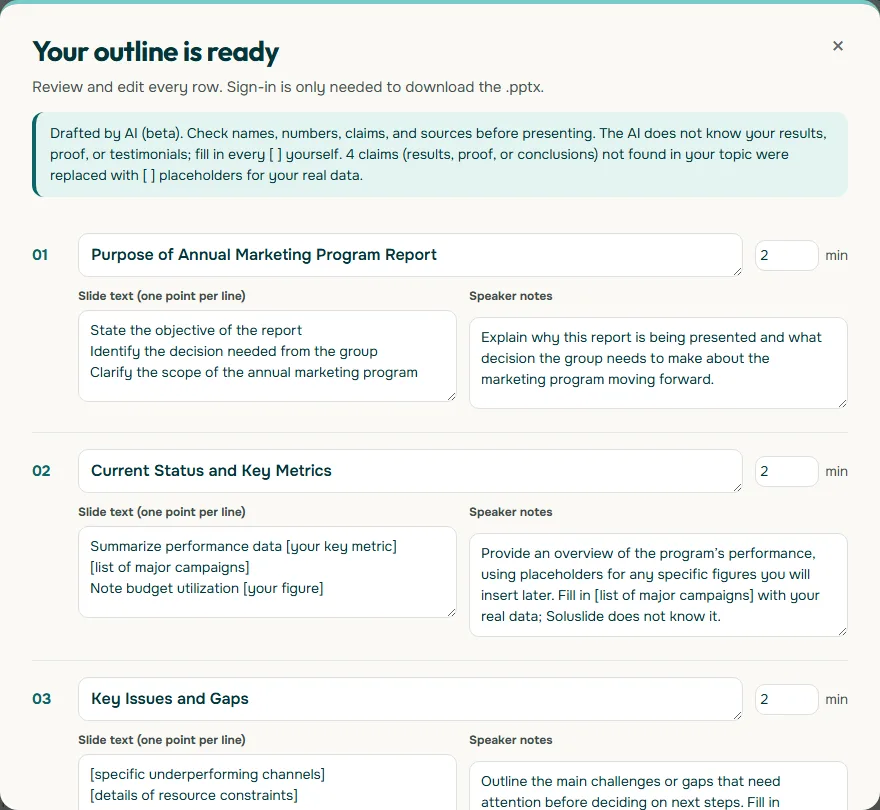
Soluslide can help at this stage. Enter a topic, event type, and duration, and you get an outline with titles, notes, and minutes per slide that you can edit before logging in. After signing in to a beta account, you can export the outline as an editable .pptx, then apply your chosen theme in PowerPoint. Try it in the outline builder.
Common mistakes when using themes
- Coloring shapes by hand. Manual colors do not update when the theme changes, so slides end up mismatched.
- Using loose text boxes. Text outside placeholders often ignores theme fonts and layouts.
- Mixing several themes. Pasting slides from another file with source formatting adds a new master. Use destination formatting to keep one look.
- Judging a theme by its title slide. Check table and chart slides too.
- Busy backgrounds under long text. Text gets hard to read, especially on a projector.
- Skipping a check after importing. Layouts can shift when a file opens in another app, so review it before you present.
One small habit prevents most of these problems: after changing a theme, run through every slide in Slide Show view. That shows you what the audience will see. If your file has grown because of large background images, learn how to reduce PowerPoint file size.
Frequently asked questions
What is a theme in PowerPoint?
A theme is a package of design settings, including colors, fonts, and effects, that applies to a whole presentation. Changing it updates the look of every slide at once.
Where are themes in PowerPoint?
Themes are on the Design tab. Click a theme in the gallery to apply it, then open the Variants gallery to adjust its colors, fonts, and background styles.
What is the difference between a theme and a template?
A theme controls colors, fonts, and effects. A template is a starter file that can include a theme, layouts, and sample content, so it covers more.
How many colors are in a PowerPoint theme?
Microsoft Support says theme colors contain four text and background colors, six accent colors, and two hyperlink colors, for a total of 12.
How do I create my own PowerPoint theme?
Customize colors and fonts through the Variants gallery, then go to View, Slide Master, Themes, and choose Save Current Theme. It is saved as a .thmx file.
Will changing the theme delete my content?
No. Your text and images stay, but their position and color may shift. Review every slide after you change the theme.
Can one presentation use two themes?
Yes, by applying a theme to selected slides. However, the file will then have more than one master, and a consistent look gets harder to maintain.
Can I use a PowerPoint theme in Google Slides?
Google Help says you can import a theme from a Google Slides or PowerPoint presentation using Import theme. Check the result, because the look may differ.
Sources
Factual claims in this article refer to the sources below. Sample outlines and prompts are illustrations to adapt.
Related reading
Try shaping your own outline. You can review and edit it before signing in.
Build a free outline