
Best Fonts for Presentations: Picks, Sizes, and Safe Sharing
The right font reads from the back row and looks the same on every computer. This guide covers safe picks, sizes, pairings, and how to keep fonts from changing when you share the file.
The best fonts for presentations: the short answer
The safest fonts for presentations are simple, familiar sans serifs such as Arial and Calibri. Microsoft names both as examples of easy-to-read choices and recommends avoiding sizes below 18 pt. Make titles clearly larger than body text, and stick to two font families across the whole deck.
If the file will open on someone else's machine, such as a conference laptop or a classroom PC, choose a font you know is installed there, or embed the font in the file. A missing font gets replaced automatically, and your layout can shift when it does.
Before you pick anything, answer three questions:
- Can it be read from the back of the room?
- Will it be available on the computer you present from?
- Does it suit the occasion?
The rest of this guide works through all three, with a comparison table and ready-to-use title and body pairings. If you are starting a deck from scratch, read how to make a PowerPoint presentation and our presentation design guide as well.
What makes a presentation font easy to read
Slides are not documents. A document is read up close at your own pace, while a slide is read from across a room, in a few seconds, while someone is talking. A typeface that looks elegant on your laptop may fall apart on a conference screen. Microsoft's guidance is to choose a simple style and avoid very thin or decorative fonts, especially at small sizes.
Four traits matter most:
- Sans serif for body text. PowerPoint's accessibility guidance recommends familiar sans serif fonts to reduce reading load.
- Enough weight. Light and Thin variants wash out on projectors, so avoid them for anything people need to read.
- Distinct letter shapes. Check that lowercase l, capital I, and the number 1 look different, particularly in data slides.
- Normal capitalization. Microsoft advises against all capitals and heavy use of italics or underlines.
Color matters as much as the typeface. Even a great font fails on a low-contrast background. WCAG 2.1 sets a minimum contrast ratio of 4.5:1 for normal text and 3:1 for large text, and our guide to readable presentation contrast shows how to check it.
Font picks and when to use each one
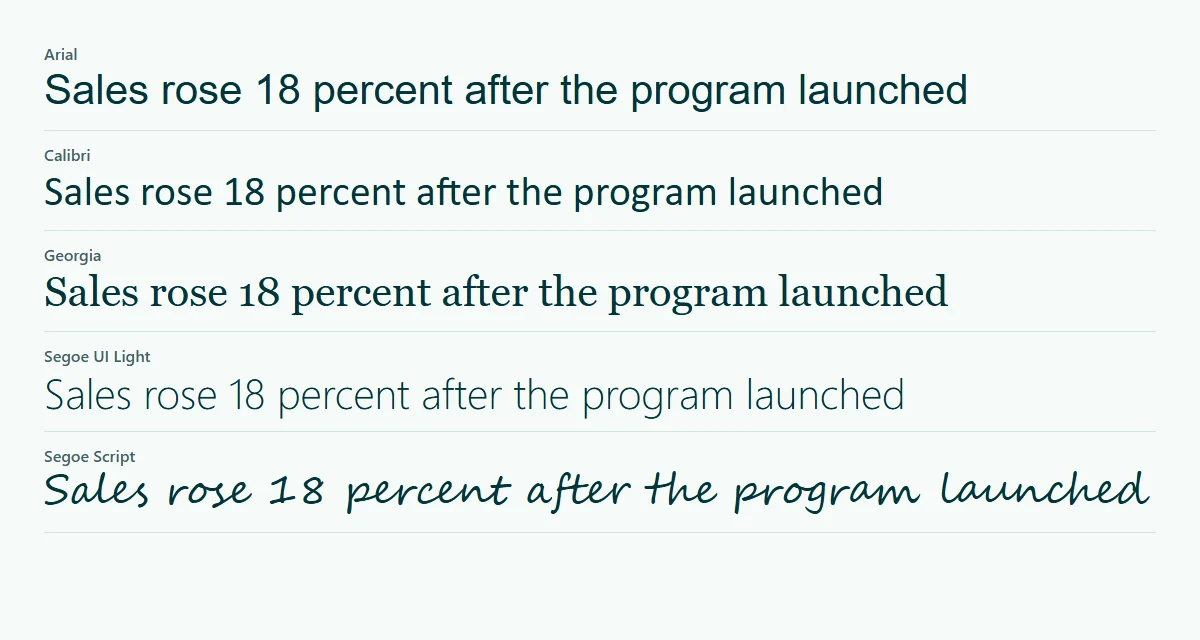
No single font wins every time. Microsoft does not publish a ranked list, although it does point to Arial and Calibri as simple options. The table below combines those with practical notes from our own work. Font availability always depends on the device and Office version, so test on the machine you will actually use.
Scroll the table sideways to see every column.
| Font | Type | Good for | Note |
|---|---|---|---|
| Arial | Sans serif | Body text, files that travel | The safest choice when you do not know the computer |
| Calibri | Sans serif | Body text in Office environments | Looks slightly smaller than Arial at the same point size |
| Aptos | Sans serif | Decks in current Microsoft 365 | A Microsoft cloud font, so it needs a supported app |
| Segoe UI | Sans serif | Business decks on Windows | Check first if the file will open on a Mac |
| Georgia | Serif | Formal or academic titles | Use it for headings, not long paragraphs |
| Script or decorative fonts | Display | A short word on a cover slide | Avoid for body text, hard to read from far away |
For a thesis defense or a team meeting, stay neutral with Arial or Calibri. Your audience is judging the content, and examiners appreciate numbers they can read at a glance. For a pitch deck or creative work, a font with more character can work in titles as long as the body stays plain. Our thesis defense presentation page shows a structure that works with either approach.
What font size to use for titles, body, and footnotes
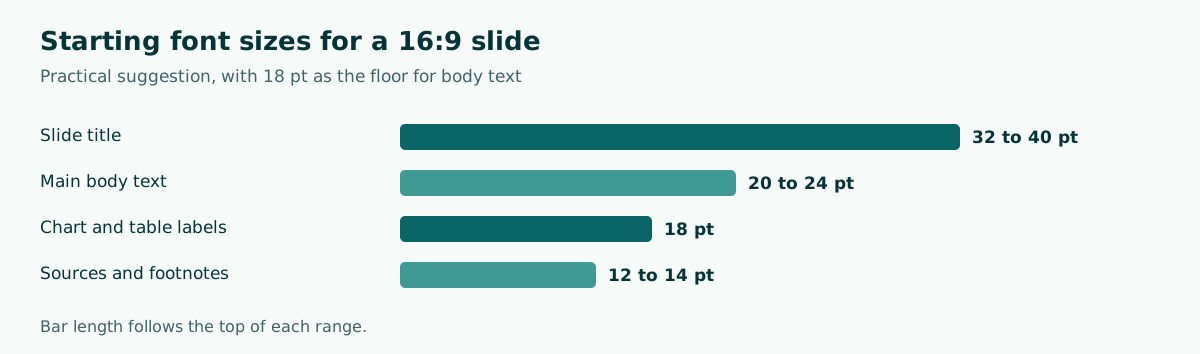
Microsoft says to try to avoid sizes smaller than 18 pt, and to go larger for a big room where the audience sits far away. Treat 18 pt as a floor for body text rather than a target. The table below is the starting point we use. It is our practical suggestion, not an official Microsoft rule.
Scroll the table sideways to see every column.
| Element | Starting size | Note |
|---|---|---|
| Slide title | 32 to 40 pt | Two lines at most |
| Main body text | 20 to 24 pt | Never below 18 pt |
| Chart and table labels | 18 pt | If it does not fit, cut the data |
| Sources and footnotes | 12 to 14 pt | For reference only, not for reading aloud |
If text does not fit at 18 pt, do not shrink it. That is a sign the slide is overloaded. Split it into two slides or move the detail into your speaker notes. A quick test: put the slide on your laptop and step back about two meters. If you have to squint, so will the people in the back row.
Slide dimensions change the picture too. A 4:3 slide and a 16:9 slide hold different amounts of text, so check your PowerPoint slide size before you lock the layout.
Safe title and body font pairings
Two font families are enough for one deck: one for titles and one for body text. Any more and the slides start to feel busy and inconsistent. Pairings work when the contrast is obvious, such as a bold serif title over a sans serif body, or one family used in two different weights.
- Arial Bold and Arial. The safest option, fine for meetings and classrooms.
- Georgia and Calibri. An academic feel that stays readable.
- Segoe UI Semibold and Segoe UI. Clean for business decks on Windows.
- Aptos Display and Aptos. A modern pair in Microsoft 365, and the pair used in .pptx files exported from Soluslide.
Apply your choice through the theme instead of one text box at a time. In PowerPoint, set theme fonts in the Slide Master so a change reaches every slide at once. This also stops slides pasted from other files from bringing their own fonts. After pasting, choose the option that uses the destination theme and check the titles again.
When you use a template, look at its default fonts first. Free templates often rely on fonts you do not have installed, and PowerPoint quietly swaps them. You can list the fonts in a file through Replace Fonts on the Home tab.
How to stop fonts changing on another computer
The classic last-minute problem: you open the file on the room computer and all the text has moved. According to Microsoft, text formatted in a font that is not installed will display in Times New Roman or the default font. Letter widths differ, so a line that used to fit can wrap and spill out of its box.
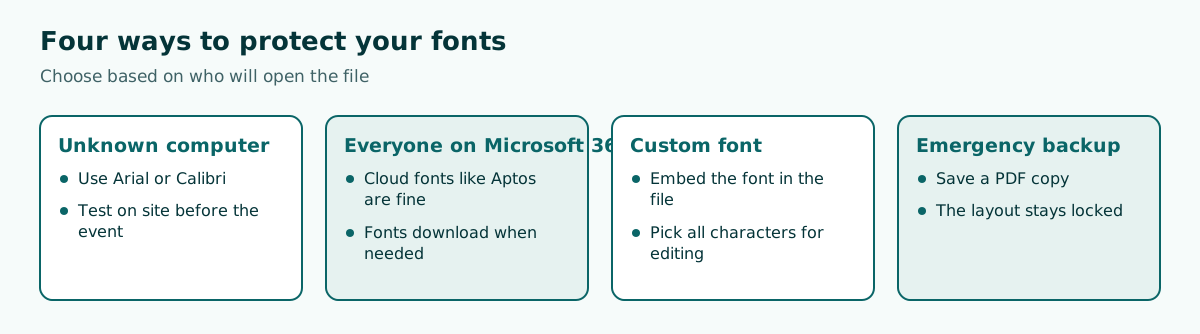
You have three ways to prevent it. First, use a font that exists on the target computer, and Arial is the safest. Second, use Microsoft cloud fonts if everyone is on current Microsoft 365 apps. Microsoft says these are hosted in the cloud and download when they are needed. Third, embed the font in the file.
To embed fonts in PowerPoint for Windows:
- Click File, then Options.
- Select the Save tab.
- At the bottom, check Embed fonts in the file.
- Choose Embed all characters if others will edit it, or Embed only the characters used for a smaller file.
- Click OK and save.
Not every font can be embedded, because font creators set the permissions. Some fonts also add a lot of weight, so see how to reduce PowerPoint file size if the file grows too much. As a final backup, save a PDF copy. You cannot edit it, but the layout is locked, which is exactly what you want in an emergency.
Fonts when moving between PowerPoint and Google Slides
Switching apps adds another risk, because the two products do not share the same font library. A .pptx with a custom font can show a substitute once uploaded to Google Slides, and a Google font exported to PowerPoint may be replaced if it is not installed on the target computer.
The simplest fix is to use fonts available on both sides, such as Arial, and then review the result slide by slide. Focus on long titles, tables, and chart labels, since that is where text most often overflows. The full export and import steps are in our guide to converting Google Slides to PowerPoint.
If the file refuses to open at all, the cause is usually something other than fonts. See PowerPoint won't open for the fixes.
Check fonts and readability before you present
A good font cannot rescue a crowded slide, so check the amount of text before you touch the design. Soluslide builds an editable outline before export, and its Readability Check flags titles longer than 60 characters, slides with more than five points, points that run too long, and duplicate titles.
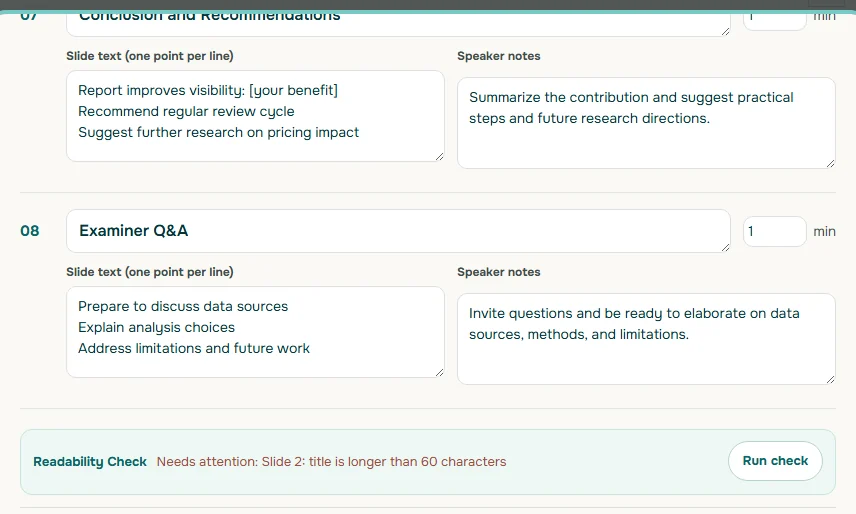
Exported .pptx files use standard text boxes with Aptos for body text and Aptos Display for titles, so you can still change them through Replace Fonts or the theme. If you do not know the target computer, switch to Arial before sending. You can try the outline in the Soluslide builder without signing in, and our editable PPTX guide explains the format. Prices on the site are sample concepts during the beta, as noted on the pricing page.
Here is a prompt you can copy when you want AI to trim slide text so it fits at 20 pt:
Shorten the slide content below without changing any facts. Use at most five points, 12 words per point, and a title of at most 60 characters. Move any extra explanation into speaker notes.

[paste slide content]
Rewrite example: "Based on the results of the analysis that was conducted, it can be concluded that there was an increase in sales" becomes "Sales rose after the program launched." The second line fits comfortably at 24 pt and says the same thing.
Common font mistakes in presentations
- Too many fonts. Three or four families make a deck look stitched together from different files.
- Shrinking text to fit. Split the slide instead of dropping below 18 pt.
- All capitals. Microsoft recommends avoiding them because they increase reading load.
- Thin fonts on a projector. Fine lines fade in a bright room.
- Skipping the test on the target computer. Arrive early and open the file there.
- Formatting box by box. Use the theme and Slide Master so changes stay consistent.
- Ignoring font licenses. Read the license, especially for commercial material.
One small habit prevents most of these problems: before the event, open the file on a different device, or ask a colleague to, and step through every slide in Slide Show mode. If you are presenting with others, agree on the theme and fonts early, as our group presentation guide suggests. Then move on to delivery with how to give a good presentation.
Frequently asked questions
What is the best font for a presentation?
No single font is best for every case, but Arial and Calibri are safe because they are simple and easy to read. Microsoft names both as examples of good presentation fonts.
What is the minimum font size for a presentation?
Microsoft recommends avoiding sizes smaller than 18 pt and going larger for big rooms. As a practical start, use 20 to 24 pt for body text and 32 to 40 pt for titles.
What is the most professional font for PowerPoint?
Neutral sans serifs such as Arial, Calibri, or Segoe UI look professional in most business settings. A serif such as Georgia can work well for titles when you want a more formal tone.
Why do my fonts change on another computer?
The font is probably not installed on that computer. Microsoft says the text will then display in Times New Roman or the default font, so letter widths change and the layout can shift.
How do I embed fonts in PowerPoint?
Go to File, Options, and the Save tab. Check Embed fonts in the file, choose to embed all characters if others will edit it, then click OK and save. Not every font allows embedding.
How many fonts should a presentation use?
Two font families are enough, one for titles and one for body text. More than that tends to look busy and inconsistent.
Are serif fonts bad for slides?
No, they work well in titles. For body text, PowerPoint accessibility guidance recommends familiar sans serif fonts because they reduce reading load.
Which fonts does Soluslide use in exported files?
Soluslide exports .pptx files with Aptos for body text and Aptos Display for titles in standard text boxes, so you can change them in PowerPoint or Google Slides. If the target computer is unknown, switch to Arial before sending.
Sources
Factual claims in this article refer to the sources below. Sample outlines and prompts are illustrations to adapt.
- Microsoft Support: Tips for creating and delivering an effective presentation
- Microsoft Support: Make your PowerPoint presentations accessible
- Microsoft Support: Download and install custom fonts to use with Office
- Microsoft Support: Benefits of embedding custom fonts
- Microsoft Support: Cloud fonts in Office
- W3C: Understanding Success Criterion 1.4.3 Contrast (Minimum)
Related reading
Try shaping your own outline. You can review and edit it before signing in.
Build a free outline