
PowerPoint Icons: How to Insert, Edit, and Choose Icons That Fit
The right icon lets one point land at a glance; a random one just adds clutter. This guide covers how to insert, edit, and arrange PowerPoint icons so your slides stay clean.

PowerPoint icons: the short answer
PowerPoint icons are simple symbol graphics, such as a light bulb for an idea or a bar chart for data, that you place on a slide to stand for one point. In PowerPoint for Microsoft 365 you add them from the Insert tab by choosing Icons. According to Microsoft's help page, these built-in icons are free to use with no royalty, and you can rotate, color, and resize them with no loss of image quality.
If your version of PowerPoint has no Icons button, you can still use icons from open libraries with clear licenses, such as Google's Material Symbols or Bootstrap Icons, and insert them as SVG or PNG pictures.
What matters more than where the icons come from is how you use them:
- Use one icon style across the whole deck, for example all outline.
- Let one icon stand for one point, not decoration in every corner.
- Keep icons the same size, aligned, and paired with a text label.
- Take icon colors from the theme and keep enough contrast with the background.
The sections below walk through each step, from the Insert menu to a final check before you present. If you are still building the deck, start with how to make a PowerPoint presentation so the icons sit on top of a clear structure.
How to insert icons in PowerPoint
These steps follow Microsoft's official guide for newer Windows versions of PowerPoint. The same Icons button also appears in the Mac, iOS, and web versions, with a slightly different layout.
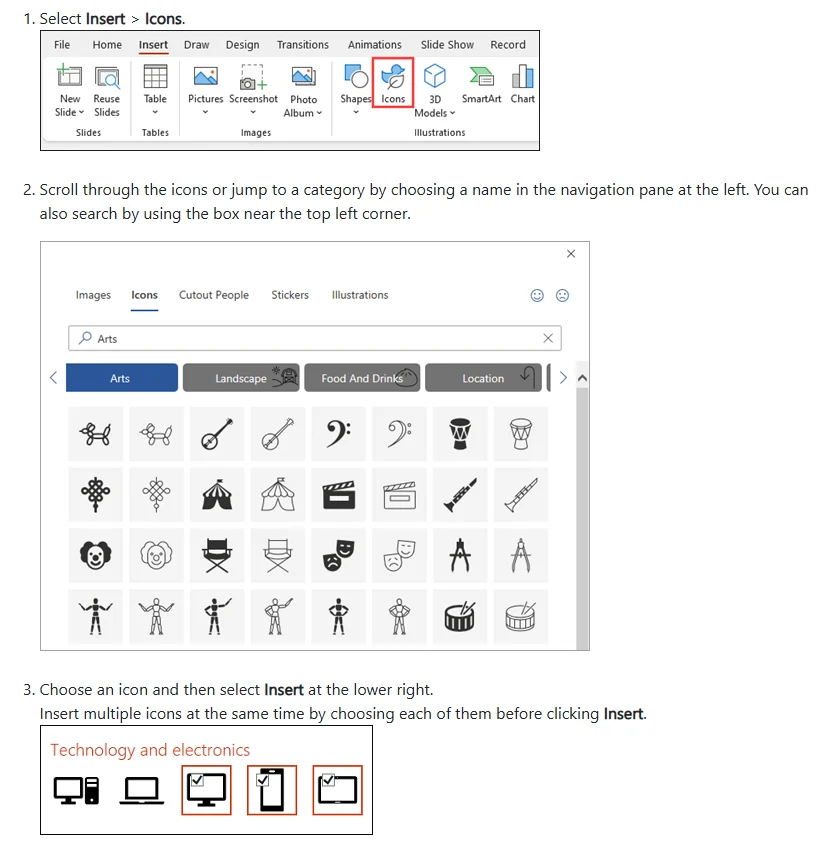
- Select the slide, then open the Insert tab.
- Click Icons in the Illustrations group.
- Scroll through the icons or jump to a category in the navigation pane on the left. You can also search with a keyword such as "target", "team", or "chart".
- Click the icon you want. To add several at once, click each one before selecting Insert at the lower right.
- The icon lands in the middle of the slide. Drag it into place and resize it from a corner while holding Shift so it keeps its proportions.
A small habit that saves time: insert every icon for a slide in a single visit to the Icons window. You compare the styles side by side before icons end up scattered across twenty slides.
If the Icons button is missing, your Office version probably does not include the library. Skip ahead to the section on free icon sources and insert the files as pictures instead.
Change the color, size, and parts of an icon
Microsoft 365 icons are SVG graphics, so they stay sharp at any size. When you select one, the Graphics Format tab appears on the ribbon. Microsoft's documentation lists what you can do there:
- change the fill color (Graphics Fill),
- add or change the outline,
- apply a preset style that combines fill and outline,
- add effects such as shadow, reflection, or glow,
- crop the graphic or set exact dimensions in the Size group.
The fastest way to recolor is to right-click the icon, choose Fill, and pick a color. Choose from the theme color row rather than a custom color, so the icon updates if you switch themes later. Go easy on effects; a shadow or reflection on a small icon usually blurs its lines on a projector.
Break an icon into shapes
Built-in icons are usually one color. To color part of an icon, such as only the glow of a light bulb, use Convert to Shape:
- Right-click the icon on the slide and choose Convert to Shape.
- Click one piece of the icon and change its color on the Shape Format tab.
- Repeat for the other pieces.
- When you are done, Ctrl+click to select every piece, then choose Group so the icon moves and resizes as one object again.
Save this for one or two icons that need emphasis. Doing it to every icon is an easy way to end up with a mismatched set. To resize many icons at once, select them all and type the same height and width in the Size group, so none is slightly larger than the rest.
Free icons for PowerPoint and their licenses
The built-in library covers most decks. When you need more choice, pull from open libraries whose licenses are written down. Avoid grabbing icons from image search results, because you cannot show the license if anyone asks.
Scroll the table sideways to see every column.
| Source | How to use it in PowerPoint | License | Notes |
|---|---|---|---|
| Microsoft 365 built-in icons | Insert, then Icons | Free with no royalty, per Microsoft | Recolor and convert to shapes right away |
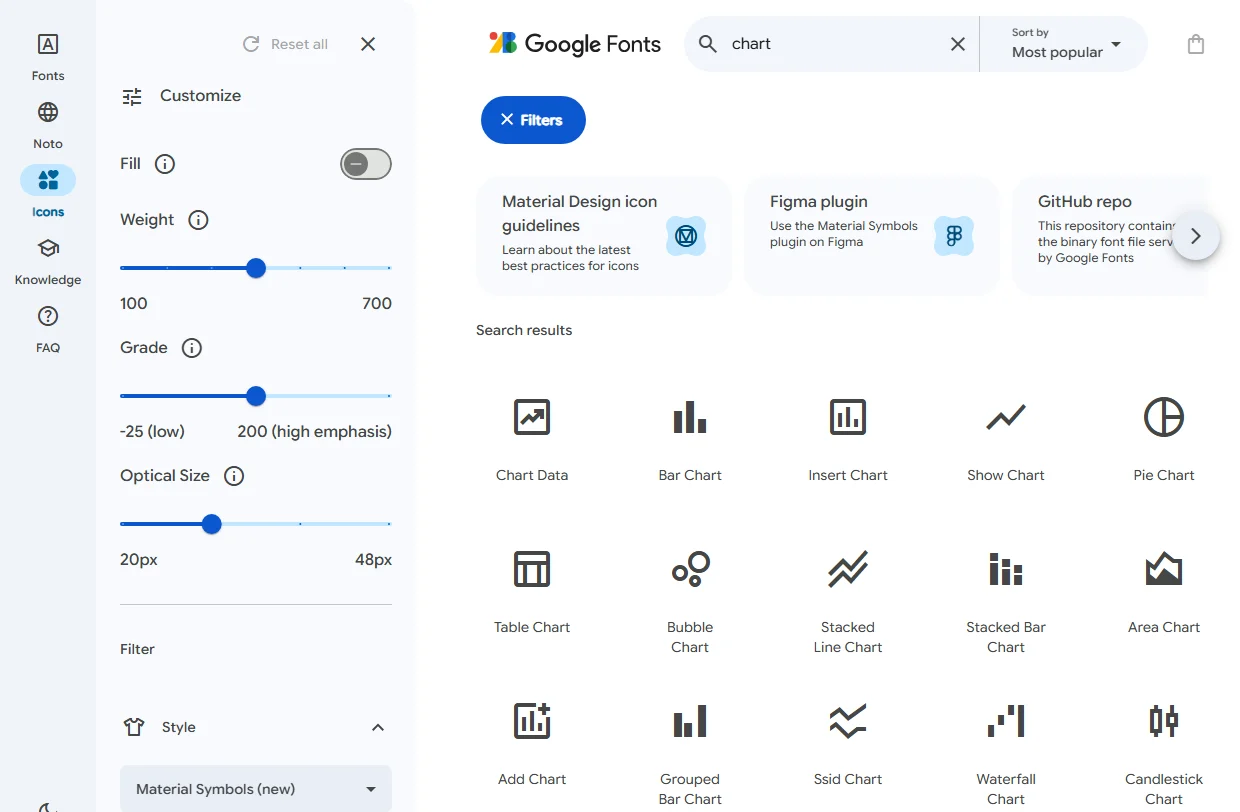
| Material Symbols (Google Fonts) | Download SVG or PNG, then Insert, Pictures | Apache License 2.0 | Over 2,500 glyphs, three styles, stroke weight from 100 to 700 |
| Bootstrap Icons | Download SVG, then Insert, Pictures | MIT | The site lists over 2,078 icons |
Material Symbols suits presentations because you can set the style before you download. On the Google Fonts icons page, the Customize panel has Fill (filled or empty), Weight (stroke thickness), Grade, and Optical Size. Set them once, then download every icon you need with the same settings so the set matches.
For MIT and Apache 2.0, read the license file before you use the icons in commercial material. The usual conditions concern keeping the copyright notice and license text when the software or files are redistributed. If in doubt, keep the source link and license name in your speaker notes or on a credits slide.
Icon formats: SVG or PNG?
Icons from outside sources usually come in two formats. Your choice decides whether you can still recolor the icon in PowerPoint and how sharp it looks on a big screen.
Scroll the table sideways to see every column.
| Aspect | SVG (vector) | PNG (pixels) |
|---|---|---|
| When enlarged | Stays sharp | Can blur if the file is small |
| Recolor in PowerPoint | Yes, with Graphics Fill | No, download again in another color |
| Break into shapes | Yes, with Convert to Shape | No |
| Best for | PowerPoint for Microsoft 365 | Apps that reject SVG, or icons whose color is final |
You insert an SVG the same way as any picture: Insert, Pictures, This Device, choose the .svg file, then Insert. Microsoft says Word, PowerPoint, Outlook, and Excel for Microsoft 365 on Windows, Mac, and Android support inserting and editing SVG files.
In Google Slides, add outside icons with Insert, Image, Upload from computer. If the deck moves between Google Slides and PowerPoint, check the icons again after the move, as covered in the guide to converting Google Slides to PowerPoint.
One more thing: dozens of high-resolution PNG icons add to the file size. If the deck gets heavy, see how to reduce PowerPoint file size before you email it.
Pick one consistent icon style
The most common problem is not ugly icons; it is icons from different styles on one slide: one filled, one thin outline, one multicolored, one heavy outline. The audience reads those differences as differences in meaning, even when you meant nothing by them.
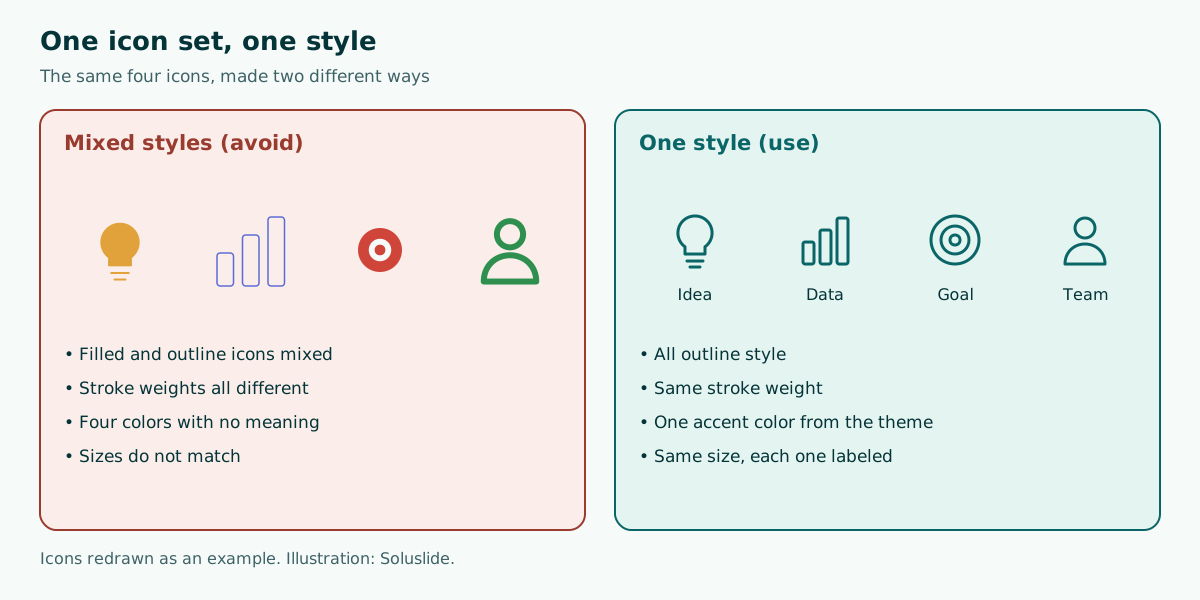
Set four rules before you place the first icon:
- One style. Choose outline or filled and stick with it. Outline icons feel light for teaching material; filled icons hold up better in a large room.
- One stroke weight. If you download from Material Symbols, lock the same Weight value for every icon.
- One or two colors. Take them from the theme accent. Use the second color only for an icon you mean to highlight.
- One size per level. For example, main-point icons at 0.8 inch tall and small list icons at 0.4 inch.
If icons appear on many slides, record these rules in the slide master or on a sample slide at the start of the file, so teammates who edit the deck use the same style. The same idea applies to type choices, covered in the guide to the best fonts for presentations.
Lay out slides that use icons
The safest pattern for an icon slide is two to four columns: icon on top, a short heading below it, then one supporting sentence. It works for program overviews, process stages, product benefits, or a summary of findings.
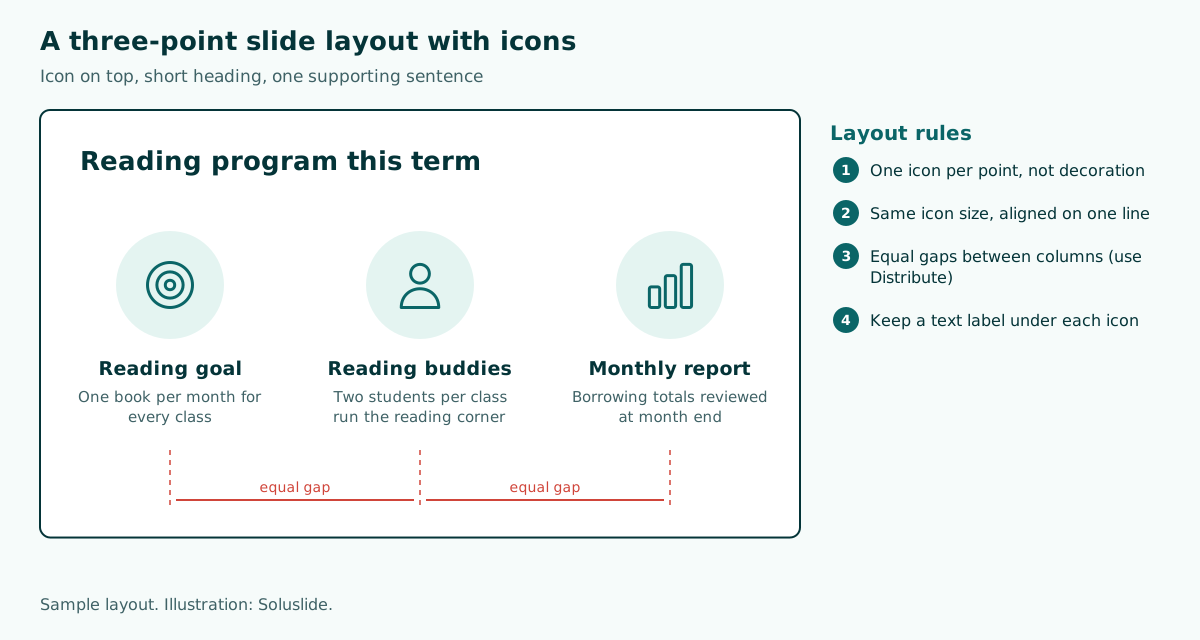
How to tidy it up in PowerPoint:
- Make every icon the same size in the Size group, for example 0.8 inch by 0.8 inch.
- Select all the icons, open Arrange, Align, and choose Align Middle so they sit on one line.
- With them still selected, choose Distribute Horizontally so the gaps are equal.
- Do the same for the heading and sentence text boxes.
- Group each icon with its text so nothing drifts when someone edits the slide.
If your points have an order or a cause-and-effect link, consider SmartArt, which can hold pictures. If the points are numbers, a chart usually beats an icon; see how to make a graph in PowerPoint. For white space and alignment in general, read the slide design principles guide.
Contrast and alt text for icons
An icon that carries information has to stay visible to people in the back row and to people with low vision. W3C's WCAG 2.1 (Success Criterion 1.4.11, Non-text Contrast) asks that graphics required to understand the content have a contrast ratio of at least 3:1 against adjacent colors.
In practice, a dark teal icon on white is usually safe, while a light gray icon on white often fails. You check it the same way you check text, as explained in the guide to readable presentation contrast.
Write alt text or mark as decorative
If you share the slides as a file, screen readers announce every picture. Microsoft describes two options in the Alt Text pane:
- Write alt text of one or two sentences when the icon carries meaning that is not written on the slide.
- Mark as decorative when the icon only accompanies a label that is already written. Screen reader users hear that the object is decorative, so they know they are not missing information.
Open the pane by right-clicking the icon and choosing View Alt Text. On a three-column slide like the example above, marking the icons as decorative is enough, because the labels already explain the content.
Example: from a wall of text to an icon slide
Say you are a teacher preparing an orientation lesson on school library services for new students. Your first draft of one slide reads like this:
Library services: borrow books for up to two weeks,
the reading room is open during breaks, e-books through your school account,
and a reading corner every Friday led by student reading buddies.
The icon version splits it into four columns:
- Book icon, heading "Borrow books", line "Up to two weeks".
- Chair or desk icon, heading "Reading room", line "Open during breaks".
- Tablet icon, heading "E-books", line "Sign in with your school account".
- Person icon, heading "Reading corner", line "Every Friday with reading buddies".
Add the icons last, once each slide's content is settled. To draft that content faster, the outline editor in Soluslide can turn a one-line topic into a timed slide outline. The screenshot shows the outline for a library services orientation.
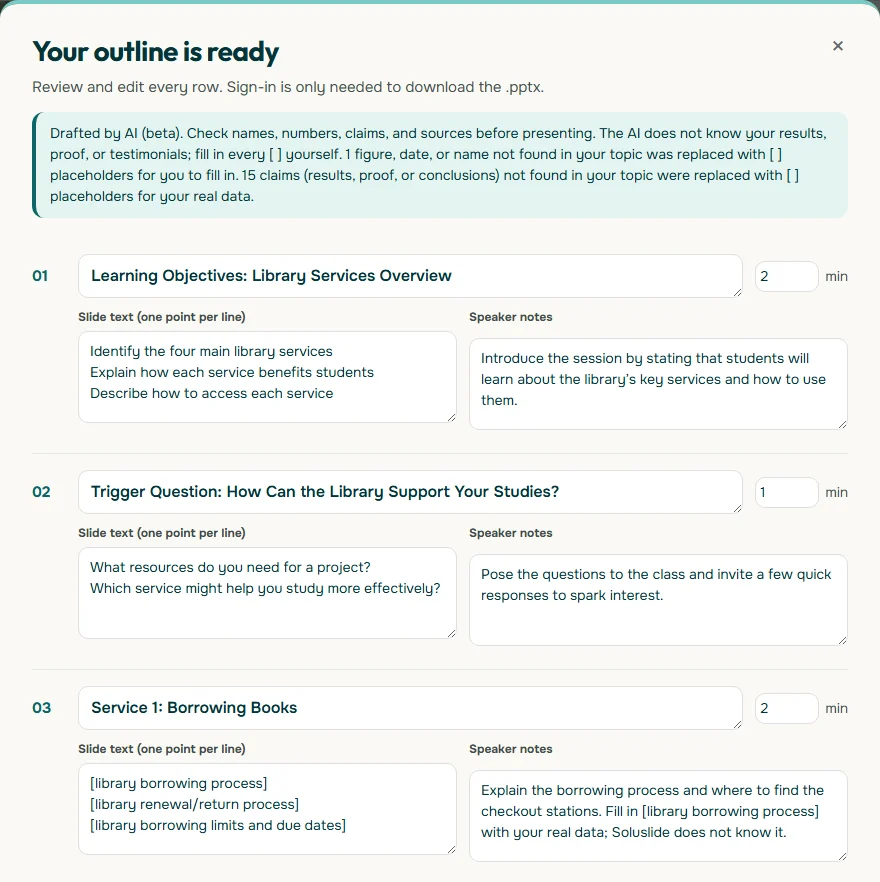
An outline like this is still text. You add the icons yourself in PowerPoint after downloading the .pptx, using the steps above. For more classroom slide patterns, see the teaching presentation template.
Common mistakes and a pre-show checklist
Before you send or present the deck, check every icon slide against this list:
- Icons with no label. A symbol that is obvious to you may not be obvious to the room. Add a one to three word label.
- Icons as decoration. An icon next to every slide title drains attention from the icons that matter.
- Mixed styles. Review the deck in Slide Sorter view; style differences jump out when slides sit side by side.
- Double meanings. One icon used for two ideas on different slides, or two icons used for one idea.
- Low contrast. Light gray icons on white disappear on a projector in a bright room.
- Blurry icons. A small PNG stretched to fill space looks soft. Replace it with an SVG.
- Too much motion. If you animate icons, use one matching entrance effect, as covered in the guide to PowerPoint animation.
If an icon works as a navigation button, such as a home icon that returns to a menu, add the link as shown in the guide to a hyperlink in PowerPoint and test it in Slide Show. Finally, settle the slide size before you lay out icons, because changing the PowerPoint slide size later can shift and stretch objects.
Frequently asked questions
How do I insert icons in PowerPoint?
In PowerPoint for Microsoft 365, open the Insert tab, click Icons, search or browse for an icon, and select Insert. You can pick several icons before you select Insert.
Why is there no Icons button in my PowerPoint?
The Icons library is part of PowerPoint for Microsoft 365. If you do not see it, download icons from a library with a clear license, such as Material Symbols or Bootstrap Icons, and add them with Insert, Pictures.
Can I use PowerPoint's built-in icons in commercial work?
Microsoft's help page says the Microsoft 365 icons are free to use and there is no royalty or copyright to worry about. For icons from other sources, read each license.
How do I change the color of an icon in PowerPoint?
Right-click the icon, choose Fill, and pick a color, or use Graphics Fill on the Graphics Format tab. Choose a theme color so the icon updates when you change the theme.
Can I color only part of an icon?
Yes. Right-click the icon and choose Convert to Shape, then color each piece on the Shape Format tab. When you finish, select every piece and Group them back into one object.
Should I use SVG or PNG icons in PowerPoint?
SVG is better in PowerPoint for Microsoft 365 because it stays sharp when enlarged and can be recolored. Use PNG when an app will not accept SVG or the color is already final.
Where can I find free PowerPoint icons with safe licenses?
Safe choices include the Microsoft 365 built-in icons, Material Symbols from Google Fonts (Apache License 2.0), and Bootstrap Icons (MIT). Keep the source link and license name.
How much contrast do icons need against the slide background?
WCAG 2.1 Success Criterion 1.4.11 asks that graphics needed to understand the content have a contrast ratio of at least 3:1 against adjacent colors.
Can Soluslide add icons to my slides automatically?
No. Soluslide drafts a timed slide outline and an editable .pptx; you add icons yourself in PowerPoint using the steps in this article.
Sources
Factual claims in this article refer to the sources below. Sample outlines and prompts are illustrations to adapt.
- Microsoft Support: Insert icons in Microsoft 365
- Microsoft Support: Edit SVG images in Microsoft 365
- Microsoft Support: Add alternative text to a shape, picture, chart, SmartArt graphic, or other object
- Google for Developers: Material Symbols guide
- GitHub twbs/icons: LICENSE
- W3C: Understanding Success Criterion 1.4.11 Non-text Contrast
- Google Docs Editors Help: Insert or delete images and videos
Related reading
Try shaping your own outline. You can review and edit it before signing in.
Build a free outline