
How to Add Music to PowerPoint and Play It Automatically
Music can lift a photo slideshow, an event opening or a self-running booth deck. This guide shows how to insert it, make it play automatically and keep it working on another computer.
How to add music to PowerPoint in 4 steps
To add music to PowerPoint on Windows, open the slide where the music should start, select Insert > Audio > Audio on My PC, choose the music file and select Insert. When the speaker icon appears, open the Playback tab and select Play in Background if the song should keep playing across every slide. These steps follow Microsoft Support on adding audio.
- Select the first slide where the music should begin.
- Select Insert > Audio > Audio on My PC, pick the file and select Insert.
- Select the audio icon, open Playback, then set Start, the volume and the fade duration.
- Test it in Slide Show view on the computer you will actually present from.
Good music supports the mood instead of competing with your voice. So this guide also covers when music fits, which file formats are safe, how to play music on one slide or through the whole deck, how to do it in Google Slides, and a pre-show checklist. If you are new to building decks, start with our guide on how to make a PowerPoint presentation.
When music belongs in a presentation
Music is optional. In many formal settings, such as a thesis defense or a meeting presentation, music gets in the way because the audience wants to follow your argument. It works best where the slides are meant to set a mood.
Scroll the table sideways to see every column.
| Situation | Use music? | Suggestion |
|---|---|---|
| Photo slideshow, tribute or year in review | Yes | Background music from start to end, low volume |
| Event opening or break between sessions | Yes | Music on the opening or break slide only |
| Self-running slides on a kiosk or booth screen | Yes | Start automatically and loop until stopped |
| Lessons for young learners | Sometimes | Short clips as activity cues |
| Defense, board meeting or formal report | Usually not | Keep the focus on the speaker and the data |
A simple test: does the audience need to hear you during that slide? If yes, turn the music off or keep it very quiet. If the slides run without narration, as in a photo sequence, music helps hold attention. For stronger openings and endings, read how to start a presentation and how to end a presentation.
Audio formats that work in PowerPoint
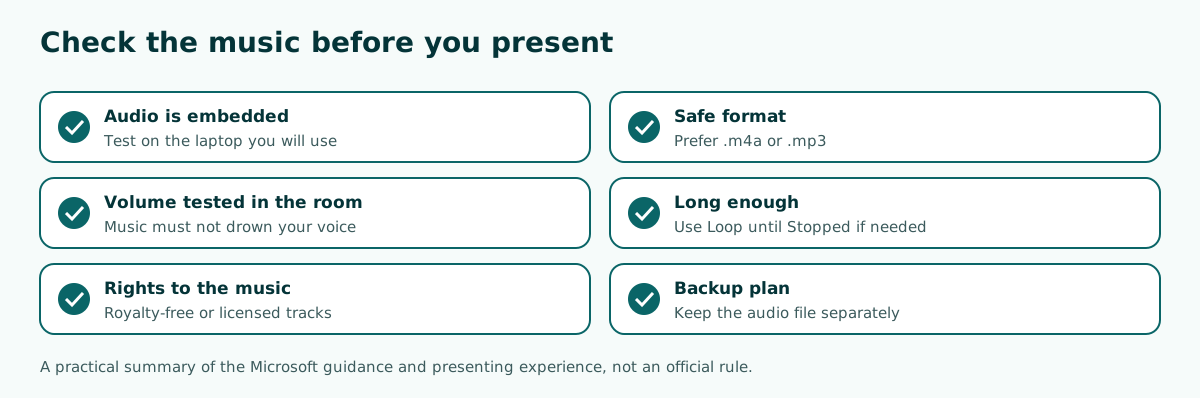
Check the file format before you insert anything. According to Microsoft's page on video and audio file formats supported in PowerPoint, the recommended audio format is .m4a (MPEG-4 with AAC). .aac, .mp3 and .wav are also supported.
The same page adds two warnings. First, support for Windows Media Audio (.wma) and Audio Interchange File Format (.aiff) is limited and deprecated in PowerPoint version 2505 and above; some files can still be inserted, but they are converted to MPEG-4. Second, inserting and playing MIDI audio (.mid, .midi) is no longer supported.
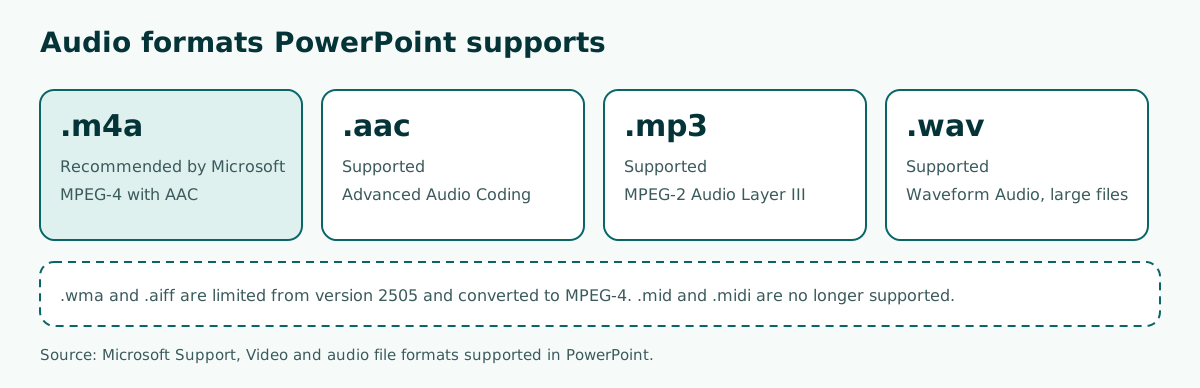
For PowerPoint for the web, Microsoft lists MP3, WAV, M4A, AAC and OGA, with a maximum audio file size of 16 MB. If your track uses another format, convert it to .m4a or .mp3 with an audio converter first. WAV files are usually much larger, so watch the size of the deck; our guide on how to reduce PowerPoint file size helps if it grows too big.
Step by step: adding music in PowerPoint for Windows
The steps below follow Microsoft's guidance for PowerPoint for Microsoft 365 and recent desktop versions. Older versions may label things slightly differently, but the menus sit in the same places.
- Pick the slide. In Normal view, select the slide where the music should start. For background music, choose the first slide.
- Insert the audio. Select the Insert tab, then Audio, then Audio on My PC. In the Insert Audio dialog box, choose the file and select Insert.
- Move the icon. A speaker icon lands in the middle of the slide. Drag it to a corner so it does not cover your content. If you use several clips, keep the icon in the same spot on each slide so it is easy to find.
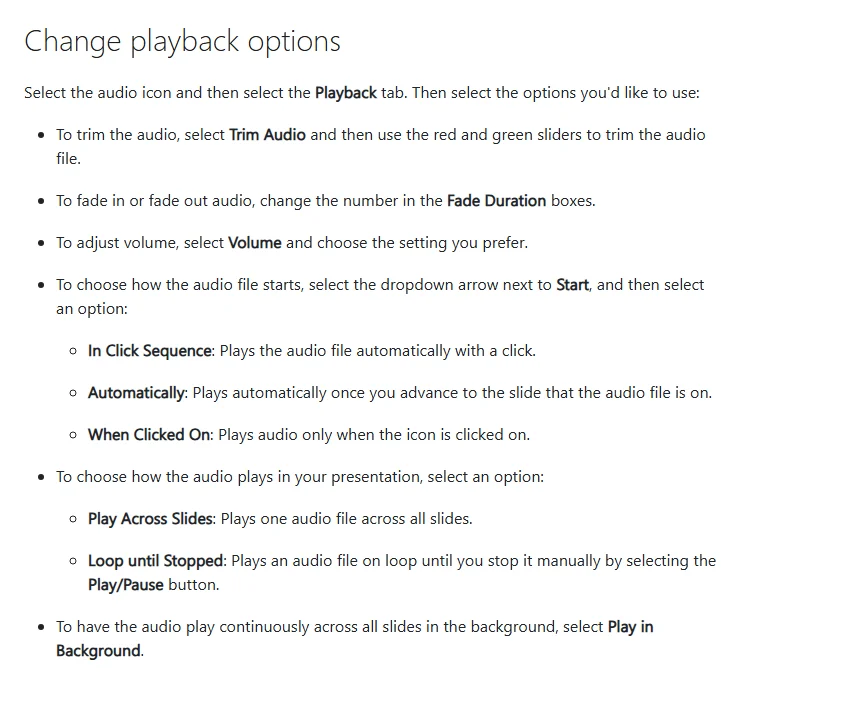
- Set playback. Select the icon, open the Playback tab and set Start, Volume and Fade Duration.
- Trim if needed. Select Trim Audio and move the green and red sliders to cut the start or end of the track.
- Preview. Select Play under the icon, then test it in Slide Show.
Besides music files, you can record your own voice with Insert > Audio > Record Audio. Your device needs an enabled microphone. For longer narration, write your talking points in the speaker notes first so the recording flows.
Adding music in PowerPoint for the web
If PowerPoint is not installed on your computer, the browser version can insert audio too. According to Microsoft Support, open the presentation in PowerPoint for the web, select the Insert tab, select Audio, then browse to the audio file and select Open.
The web version has limits worth knowing. Supported formats are MP3, WAV, M4A, AAC and OGA, and the maximum audio file size is 16 MB. A long, high quality track can go over that, so trim it or convert it to a more compact format before uploading.
To hide the icon in the web version, select the audio clip, open the Audio tab, select Audio Options and check Hide During Show. The rule is the same as on the desktop: hide the icon only when the audio plays automatically. The Start options on the web include Automatically and When Clicked On, so an opening slide with music is still easy to build.
When you are done, download the deck as .pptx and test it once more in desktop PowerPoint if you will present from another laptop. To keep the slides matching the projector, see our guide to PowerPoint slide size.
Start options, Play Across Slides and Play in Background
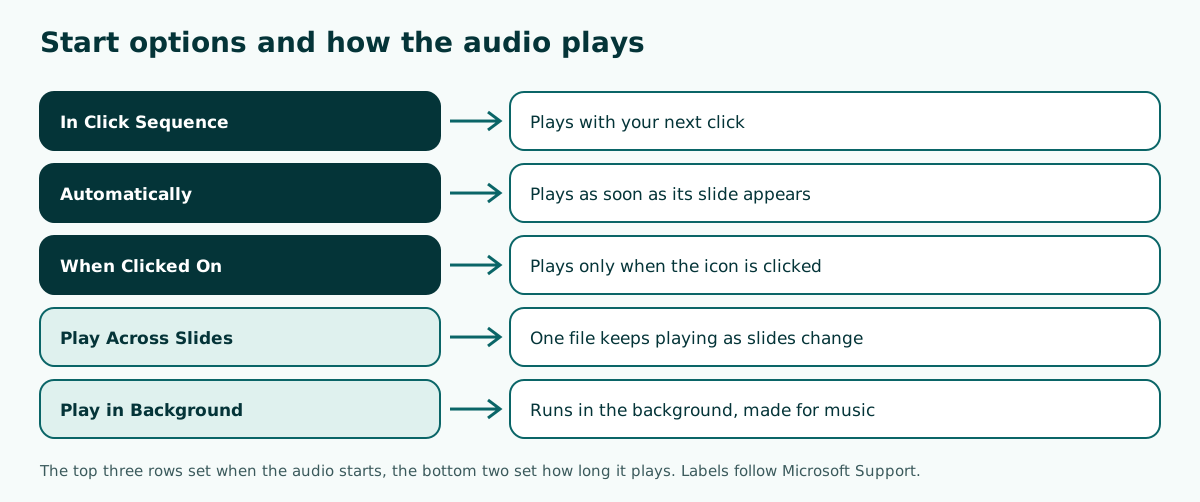
The Playback tab is where most people get stuck. Microsoft Support describes three Start options and two ways the audio can play through the deck.
- In Click Sequence: the audio plays with a click, in the order of your slide show.
- Automatically: the audio plays as soon as you advance to the slide it sits on.
- When Clicked On: the audio plays only when its icon is clicked.
- Play Across Slides: one audio file keeps playing while the slides change.
- Loop until Stopped: the file repeats until you stop it manually.
For background music, the quickest route is the Play in Background button, which plays the audio continuously across all slides. Microsoft's Mac instructions add a useful detail: Loop until Stopped on its own only repeats while its slide is showing, but combined with Play Across Slides it keeps looping through the whole presentation.
Music on one slide or through the whole presentation
Two patterns cover most needs, and each needs different settings.
Scroll the table sideways to see every column.
| Goal | Start | Other options |
|---|---|---|
| Music on the opening slide only | Automatically | Leave Play Across Slides unchecked |
| Background music for the whole deck | Automatically | Play in Background, or Play Across Slides + Loop until Stopped |
| Sound effect on click | When Clicked On | Keep the icon visible so it can be clicked |
| Song plays on your next click | In Click Sequence | Click when you are ready to play it |
For music on a single slide, insert the audio on that slide and set Start to Automatically. As soon as you move on, the music stops. This suits an event title slide or a break slide.
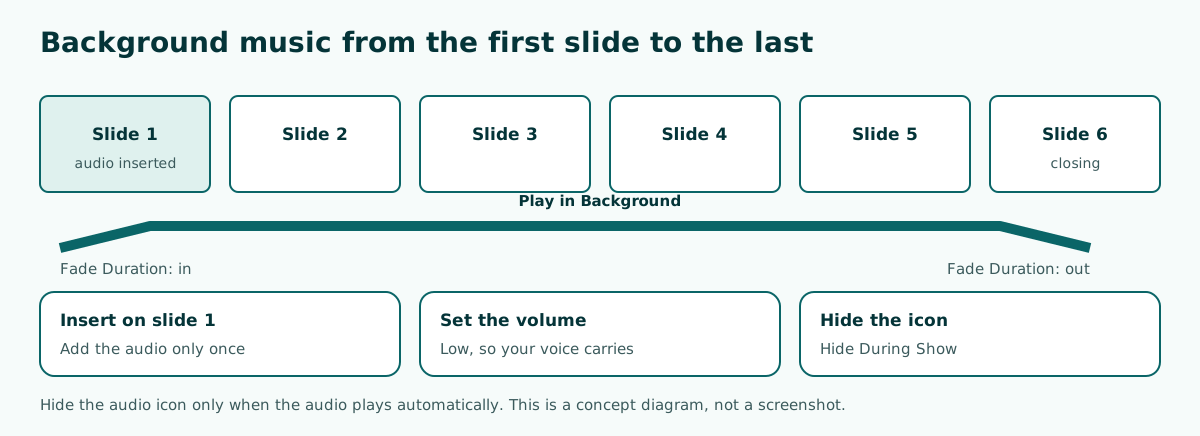
For background music, insert the audio on the first slide and select Play in Background. Make sure the track is long enough, or turn on looping. If the deck also uses slide effects, keep the overall feel calm; our guides to PowerPoint transitions and PowerPoint animation help you pick quieter effects.
Volume, fades and hiding the speaker icon
Background music that is too loud is the most common mistake. On the Playback tab, select Volume and choose Low or Medium. Test it in the real room, because laptop speakers and a venue sound system can sound very different.
Use Fade Duration so the music eases in and out instead of cutting off abruptly. For background music that starts automatically, select Hide During Show so the speaker icon disappears. Microsoft notes you should use this only when the audio plays automatically, because audio set to When Clicked On cannot be clicked if its icon is hidden. In Normal view, the icon stays visible unless you drag it off the slide.
If you need slides that run on their own, for example at a trade show booth, combine background music with automatic slide timings. Plan the time per slide from the start so the music and the slides end together.
How to add music in Google Slides
In Google Slides the idea is similar. According to the Google Docs Editors Help, you can add .mp3 and .wav files stored in your Google Drive to a presentation.
- Upload the music file to Google Drive first.
- Open the presentation and select the slide for the audio.
- Select Insert > Audio and choose the file from Drive.
- Adjust the playback options in the format panel that opens.
The key difference is sharing. Audio in Google Slides remains a Drive file, so anyone presenting the deck needs access to it. Google's help page notes that the access checker suggests permissions for audio and video files when you share the presentation.
If the deck will finally be presented in PowerPoint, download it as .pptx and test the audio again, because converting between formats can change how media behaves. More detail is in our guide on converting Google Slides to PowerPoint.
Music not playing? Common causes
Audio problems usually appear when a deck moves to another computer. Here are the usual causes and what to check.
- Unsupported format. .mid files are no longer supported, and .wma may be converted or fail. Switch to .m4a or .mp3.
- Hidden icon with Start set to When Clicked On. A hidden icon cannot be clicked. Change Start to Automatically or show the icon.
- Muted device. Check the laptop volume, the active output (speakers or HDMI) and the volume on the Playback tab.
- Music stops when the slide changes. Turn on Play Across Slides or Play in Background.
- File damaged in transfer. If the deck will not open after sending it, see why PowerPoint won't open a file.
The safest habit is a rehearsal on the same laptop and in the same room you will use on the day. Keep a separate copy of the music file on a USB drive as a backup.
Choosing music you are allowed to use
Popular songs on streaming services are usually protected by copyright. A private classroom presentation may never raise the question, but for public events, recorded talks or decks you upload, pick music you are allowed to use.
- Use royalty-free music from a library that states its licence.
- Use music you made yourself or have licensed.
- Read the licence terms, for example whether you must credit the composer.
For background music, choose instrumental tracks without lyrics. Lyrics compete with your voice and make the content harder to follow. A slow to moderate tempo is usually the safest choice for an informative talk.
Music is only one part of the experience. A clear structure, readable slides and a calm delivery matter more. Our guide on how to give a good presentation covers the delivery side.
Plan the music while you outline the slides
Music is easiest to manage when you plan it early instead of adding it at the last minute. While outlining, mark which slides need atmosphere (opening, break, closing) and which must stay quiet because you are explaining data.
Soluslide helps with that planning step. Enter a topic, event type and duration in the Soluslide outline builder; it returns slide titles, notes and minutes per slide that you can edit before signing in. From the minutes you can estimate how long a background track has to run. Downloading the editable .pptx needs a beta account, and you still insert the music yourself in PowerPoint with the steps above.
If you want a livelier deck without music, consider interactive elements such as navigation buttons, covered in interactive PowerPoint, or a short clip as in how to embed a video in PowerPoint. See the Soluslide features page for what the tool itself does.
Frequently asked questions
How do I add music to PowerPoint?
Select a slide, choose Insert > Audio > Audio on My PC, pick the music file and select Insert. Set how it plays on the Playback tab.
How do I make music play automatically in PowerPoint?
Select the audio icon, open the Playback tab and set Start to Automatically. The music plays as soon as that slide appears.
How do I play music across all slides?
Insert the audio on the first slide and select Play in Background. Alternatively, check Play Across Slides together with Loop until Stopped.
Which audio format is best for PowerPoint?
Microsoft recommends .m4a with AAC audio. .aac, .mp3 and .wav are also supported, while .mid is no longer supported.
How do I hide the speaker icon during the slide show?
On the Playback tab, check Hide During Show. Use it only when the audio is set to play automatically.
Why does my PowerPoint music not play on another computer?
Common causes are an unsupported format, a muted device or the wrong sound output. Rehearse on the computer you will present from.
Can I add music in Google Slides?
Yes. Google Slides accepts .mp3 and .wav files stored in Google Drive through Insert > Audio.
What is the audio size limit in PowerPoint for the web?
Microsoft Support lists a maximum audio file size of 16 MB for PowerPoint for the web, in MP3, WAV, M4A, AAC or OGA format.
Sources
Factual claims in this article refer to the sources below. Sample outlines and prompts are illustrations to adapt.
Related reading
Try shaping your own outline. You can review and edit it before signing in.
Build a free outline