
Interactive PowerPoint: How to Build Menus, Quizzes, and Navigation
An interactive PowerPoint lets the presenter or the audience choose the path: open a menu, answer a quiz, then return home. This guide covers the four built-in PowerPoint features that make it work.
What an interactive PowerPoint is, in short
An interactive PowerPoint is a presentation that does not have to run in a straight line from the first slide to the last. The presenter or a viewer clicks something on a slide, and PowerPoint jumps to the chosen section, reveals a quiz answer, or plays media. All of this works with features already built into PowerPoint, with no add-ins and no macros.
Four features do most of the work:
- Zoom (Insert, then Zoom) to create a menu slide that can jump to any section and come back.
- Hyperlinks and action buttons for Next, Back, Home, or a jump to a specific slide.
- Animation triggers for quizzes, so feedback appears only when a particular answer is clicked.
- Set Up Slide Show for a kiosk loop that runs on its own at a trade show booth or in a lobby.
The fastest order of work is content and menu map first, design second, interactions last. Interactions added too early break easily when slides are moved or deleted. If you are still building the content from scratch, start with how to make a PowerPoint presentation and presentation structure, then come back here once the slides are written.
The steps below use the menu names in the Windows version of PowerPoint for Microsoft 365. Mac versions have the same features, sometimes in slightly different places on the ribbon.
The four features behind an interactive deck, and when to use each
Each feature has a different strength. Picking the right one up front saves duplicate work, such as wiring twenty manual hyperlinks when a single Summary Zoom would do. The table below summarizes the differences based on Microsoft Support documentation.
Scroll the table sideways to see every column.
| Feature | Where to find it | Best for | Keep in mind |
|---|---|---|---|
| Summary Zoom | Insert, Zoom, Summary Zoom | A menu slide for the whole presentation | Creating it needs PowerPoint 2019 or later; PowerPoint 2016 plays it as plain hyperlinks |
| Slide Zoom and Section Zoom | Insert, Zoom | Jumping to a specific slide or section from one slide | Slide Zoom moves on to the next slide by default; Section Zoom returns to the zoom slide |
| Hyperlink to a slide | Insert, Link, Place in This Document | Tables of contents, text buttons, links to a specific slide | Linked files must travel with the deck when it moves to another computer |
| Action buttons | Insert, Shapes, Action Buttons | Next, Back, Home, play a sound | The action can fire on Mouse Click or on Mouse Over |
| Animation triggers | Animations, Trigger, On Click of | Quizzes, reveal games, answers that appear on click | Set them in the Animation Pane so the right effect is tied to the right object |
| Kiosk mode | Slide Show, Set Up Slide Show | Booth or lobby screens with no presenter | Browsed at a kiosk loops the show until a viewer presses Esc |
For classrooms and training, the combination that works most often is a Summary Zoom as the menu, triggers for the quiz, and a Home action button at the end of every section. For a team meeting, one menu slide with Slide Zooms is usually enough, because the presenter only needs to jump to backup data when someone asks. For a booth, kiosk mode plus large, obvious buttons is the right pairing.
Step one: sketch the menu map before you open PowerPoint
Confusing interactive decks usually come from interactions that were bolted on without a plan. The audience clicks a button and then has no idea where they are or how to get back. So draw the menu map first on paper or in a note: one menu slide, a few sections, and a way home from every section.
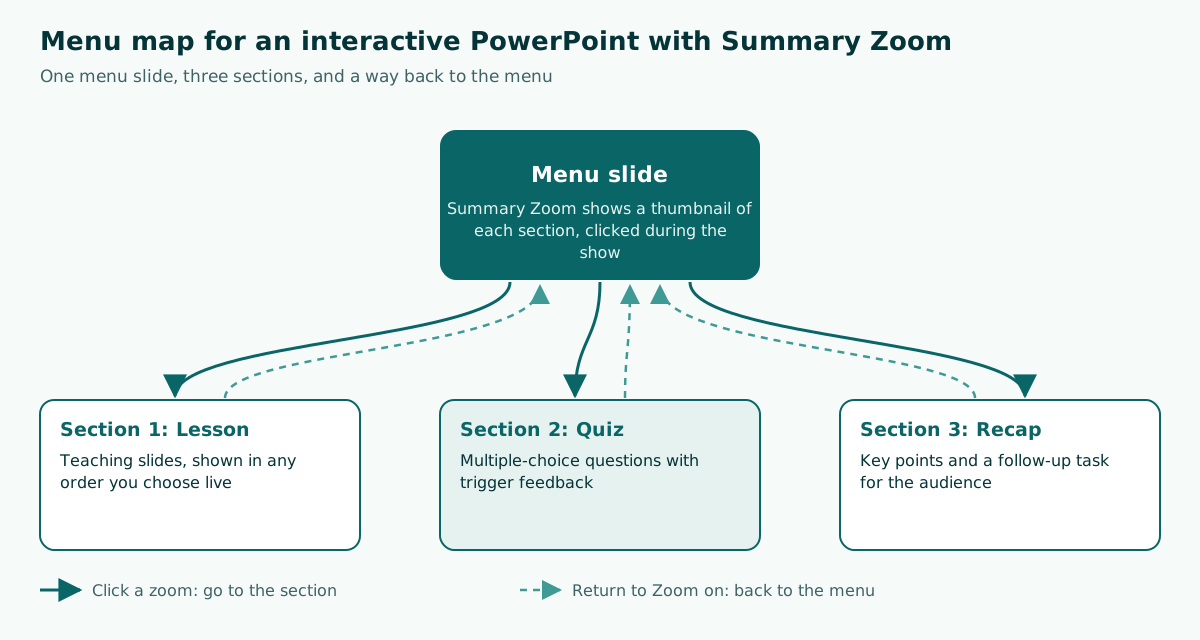
Three simple rules keep the map easy to follow:
- Keep the menu to three to six choices. Beyond that, the thumbnails on the menu slide get too small to read from the back row.
- Group slides into sections. Microsoft describes sections as folders for your slides: right-click between slides, choose Add Section, and give it a name. Summary Zoom uses these sections as menu items.
- Decide the way home for each section. Should the presenter go back to the menu or continue to the next section? Decide now, not in front of the room.
Here is a sample outline for a 20-minute training session:
Slide 1  Title and session goal
Slide 2  MENU (Summary Zoom): Concepts | Case study | Quiz | Recap
Section Concepts   : slides 3 to 6, Home button on slide 6
Section Case study : slides 7 to 9, Home button on slide 9
Section Quiz       : slides 10 to 14, trigger feedback on each question
Section Recap      : slides 15 to 16, close with a follow-up task
An outline like this also helps with timing. When each section has its own minutes, you know which part to skip if time runs short. Rules of thumb for slide counts are in how many slides per minute.
How to make an interactive menu with Summary Zoom
Summary Zoom is the quickest way to build a menu slide. Microsoft describes it as a landing page: every part of the presentation is visible at once, and while presenting you can move to any part in any order you like.
- Make sure your slides are grouped into sections (right-click between slides, Add Section).
- Go to the Insert tab, select Zoom, then Summary Zoom.
- In the dialog box, select the first slide of each part you want on the menu. If the deck already has sections, the first slide of each section is preselected.
- Select Insert. PowerPoint creates a new menu slide just before the first slide you included.
- Select the zoom, open the Zoom tab, and adjust it: Return to Zoom to come back to the menu, Zoom Background to blend the thumbnails into the slide background, and Change Image to replace a thumbnail with an icon or photo.
Watch the default behavior. According to Microsoft, Summary Zoom and Section Zoom return to the zoom slide after the section ends, while Slide Zoom moves on to the next slide. If you want a Slide Zoom to come back to the menu as well, tick Return to Zoom yourself.
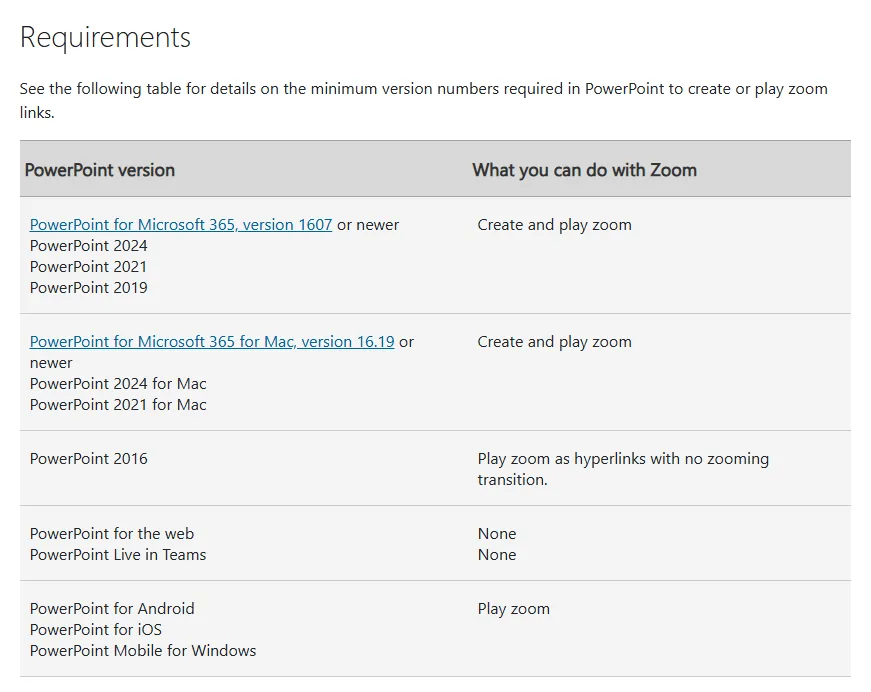
This table matters before you present on someone else's computer. A conference room laptop still running PowerPoint 2016 can open your menu, but without the zoom effect. If the deck is opened in PowerPoint for the web, zoom is not available at all, so keep plain hyperlinks as a fallback or bring your own laptop.
Navigation buttons with hyperlinks and action buttons
Zoom is great for menus, but small navigation on each slide (Home, Next, Back) is easier with hyperlinks or action buttons. Both work in older versions of PowerPoint, so they make a safe fallback route home.
Hyperlink to a specific slide
- Select the text, shape, or picture that will act as the button.
- Go to Insert, Link, Insert Link.
- Choose Place in This Document and select the target slide.
- Add a ScreenTip if useful, then select OK.
Microsoft flags one catch: if you link to a file on your computer, that file has to move with the presentation when you take it to another machine. Links to slides inside the same deck do not have this problem. Every other link type is covered in how to add a hyperlink in PowerPoint.
Action buttons
- Go to Insert, Shapes, and pick a shape under Action Buttons at the bottom, such as a right arrow or a home icon.
- Draw the button on the slide. The Action Settings dialog box opens right away.
- On the Mouse Click tab, choose Hyperlink to and set the destination: next slide, previous slide, last slide, or a specific slide.
- Tick Play sound if you want a click sound, then select OK.
The Mouse Over tab runs the action when the pointer simply passes over the button. It looks clever, but it fires by accident when the presenter moves the mouse, so use Mouse Click for main navigation. Pictures can also get an action through Insert, Action. For SmartArt, Microsoft notes that an action can only be assigned to the text inside a shape, not to the shape itself.
A practical tip: build the Home button once on the last slide of a section, copy it, and paste it in the same position elsewhere. If a button must appear on every slide, put it on the layout in Slide Master so you do not have to paste it slide by slide.
How to build a multiple-choice quiz with triggers
Quizzes are the most common reason people search for interactive PowerPoint ideas, especially teachers who want the class to take part. The feature behind them is the animation trigger: an effect is set to play only when a specific object is clicked, not when the slide advances.
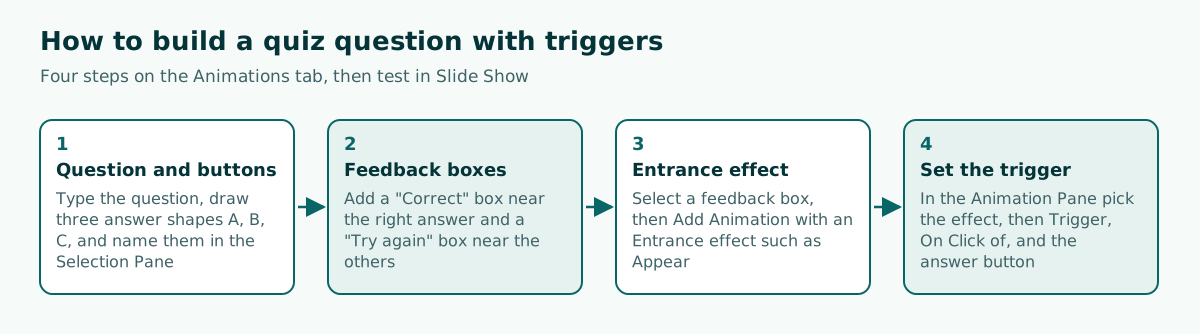
The full steps follow Microsoft Support:
- Type the question on the slide, then draw three shapes as answers A, B, and C. Give them clear names in the Selection Pane (Home, Arrange, Selection Pane), such as "Answer A", so they are easy to pick later.
- Create feedback boxes: "Correct" next to the right answer and "Try again" next to the wrong ones.
- Select a feedback box, then go to Animations, Add Animation, and choose an Entrance effect such as Appear.
- Open the Animation Pane and select that feedback effect.
- In the Advanced Animation group, select Trigger, point to On Click of, and choose the matching answer button.
- Repeat for each feedback box, then test in Slide Show.
Triggers can also fire on a video bookmark. Microsoft explains that you first add a bookmark to the clip, then choose Trigger, On Bookmark. This is handy for showing a question exactly when a video reaches a certain point. Inserting the video itself is covered in how to embed a video in PowerPoint, and effect basics are in PowerPoint animation.
Worked example: a 15-minute solar system quiz for a sixth grade class
To make this concrete, here is a plan for one interactive quiz session for a sixth grade science class, 15 minutes long. It uses all three features above, yet stays simple enough to build in one afternoon.
Scroll the table sideways to see every column.
| Slide | Content | Interaction | Minutes |
|---|---|---|---|
| 1 | Title and learning goal | None, advance normally | 1 |
| 2 | Menu: Lesson, Quiz, Recap | Summary Zoom with Return to Zoom on | 1 |
| 3 to 5 | The Sun, inner planets, outer planets | Home button on slide 5 | 5 |
| 6 to 10 | Five multiple-choice questions | Trigger feedback "Correct" and "Try again" | 6 |
| 11 | Recap and homework | Button back to the menu to revisit the lesson | 2 |
A few design choices in this plan are worth copying:
- One question per slide. Feedback never overlaps, and students focus on a single question.
- Large answer buttons. A teacher using a touch board or a wireless mouse from across the room needs targets that are easy to hit.
- Feedback that teaches. The "Try again" box should give a short hint, not just say no.
- The menu is always one click away. If the class misses a question about the outer planets, the teacher can go back to the menu and reopen that part of the lesson.
The same pattern works for other subjects with different content. Ready-to-adapt lesson structures are in teaching presentation template.
Kiosk mode: an interactive deck that runs without a presenter
Not every interactive deck has a presenter. Screens at trade show booths, office lobbies, or library corners often run a presentation with nobody standing next to them. Microsoft calls this a self-running presentation, and the settings live in one place.
- Go to the Slide Show tab and select Set Up Slide Show.
- Under Show type, choose one of the three modes below.
- Presented by a speaker (full screen): the normal mode, where the presenter controls when slides advance.
- Browsed by an individual (window): the show runs in a window, and according to Microsoft viewers cannot advance the slides.
- Browsed at a kiosk (full screen): the show loops until a viewer presses Esc.
For speaker and kiosk modes, Microsoft recommends recording slide timings with Rehearse Timings on the Slide Show tab. The timer starts as soon as you select it, and at the end you can keep or discard the recorded timings.
To keep a kiosk screen comfortable for visitors, use large type that reads from two or three meters away (see best fonts for presentations), keep text and background contrast high (see readable presentation contrast), and keep the Home button in the same spot on every slide. Visitors do not read long instructions, so buttons must explain themselves.
Test checklist before you present an interactive deck
Untested interactions are the most common cause of on-stage panic. Run these checks the day before, not five minutes before you start.
- Click every button in Slide Show. Microsoft suggests Slide Show, From Current Slide to check action buttons. Click each one, including the Home button in the last section.
- Check each trigger in the Animation Pane. Select every feedback effect and confirm its trigger points to the correct answer button, not the one next to it.
- Check the PowerPoint version on the event computer. Full zoom needs PowerPoint 2019, or Microsoft 365 version 1607 or newer; PowerPoint 2016 plays it without the zoom effect, and PowerPoint for the web does not support it.
- Bring linked files. Videos or documents linked from another folder are left behind if you only copy the .pptx file.
- Skip macros unless you need them. According to Microsoft, Run macro is only available when the deck contains a macro, and it must be saved as a PowerPoint Macro-enabled Show. Many company computers block files with macros.
- Rehearse the route. The presenter should know where every button is, and speaker notes are a good place for reminders such as "click Home after this slide". See speaker notes in PowerPoint.
If several people take turns presenting, as in a class project, agree on who holds the mouse and when to return to the menu. Tips for splitting roles are in group presentation.
Common mistakes that make interactive decks confusing
Interactive is not automatically better. Too many interactions leave the audience guessing how the slides work instead of listening to the content. Here are the mistakes that show up most, and how to fix them.
- Buttons without labels. An arrow icon alone is not clear to everyone. Add short text such as "Back to menu".
- Buttons that move around. Put navigation in the same position on every slide so nobody has to hunt for it.
- Too many effects. Zoom, transitions, and animations firing together make a slide feel busy. Pick one main effect per slide.
- No way home. A section without a Home button traps the presenter, who then has to leave Slide Show.
- An overcrowded menu. More than six choices on one slide makes thumbnails hard to read. Split into two menu levels if needed.
- Tiny text in zoom thumbnails. Summary Zoom thumbnails shrink the slide. Swap in an image or icon with Change Image if the slide title becomes unreadable.
The usual design rules still apply: one idea per slide, enough white space, and consistent colors. If your source deck started in Google Slides, check that features survive the move first, as explained in convert Google Slides to PowerPoint.
Drafting the outline of an interactive deck faster
The slowest part is usually not wiring triggers but writing the content: slide titles, quiz questions, and the time budget. An outline tool can save a lot of time here, as long as you still check what it produces.
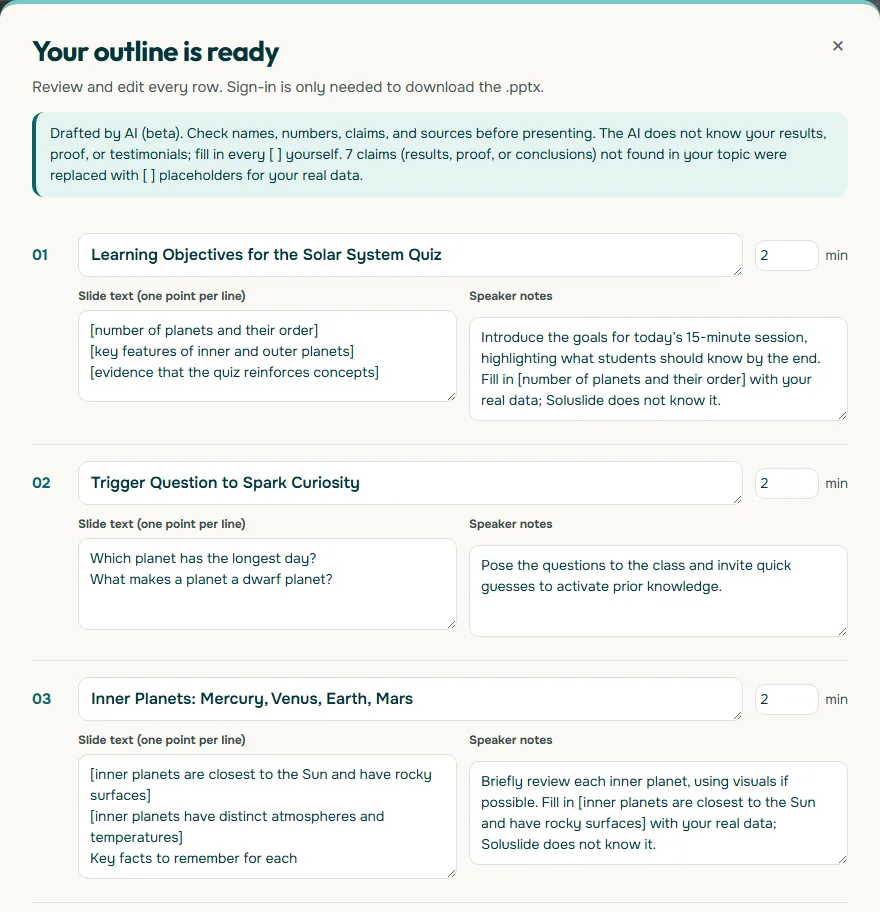
Soluslide drafts a timed outline from a topic or a document, including a teaching event type, and you can edit the outline before signing in. After signing in with a beta account, you download it as an editable .pptx built from standard text boxes and shapes. Zoom, action buttons, and triggers are still yours to add in PowerPoint with the steps above, because the interaction route is a decision for the presenter. What makes a file truly editable is explained in editable PPTX from AI.
The workflow becomes: draft the outline in the Soluslide outline builder, check every question and number, download the .pptx, group slides into sections, then add the Summary Zoom, Home buttons, and quiz triggers. With the content already in shape, wiring the interactions for one class session usually fits in a single sitting.
Frequently asked questions
What is an interactive PowerPoint?
An interactive PowerPoint is a presentation whose path is set by clicks from the presenter or the audience, through menus, navigation buttons, or quizzes, so it does not have to run straight from the first slide to the last.
Which features do you use to make a PowerPoint interactive?
The four built-in features used most are Zoom for menus, hyperlinks and action buttons for navigation, animation triggers for quizzes, and Set Up Slide Show for kiosk mode.
How do I create an interactive menu in PowerPoint?
Group your slides into sections, then choose Insert, Zoom, Summary Zoom, select the first slide of each section, and select Insert. Turn on Return to Zoom so the presenter comes back to the menu after each section.
How do I make a quiz in PowerPoint without macros?
Create answer buttons and feedback boxes, give each feedback box an Entrance effect, then in the Animation Pane choose Trigger, On Click of, and the matching answer button. No macro is needed.
Does PowerPoint Zoom work in PowerPoint 2016?
According to Microsoft, PowerPoint 2016 can only play zoom as hyperlinks with no zooming transition. To create zoom you need PowerPoint 2019 or later, or Microsoft 365 version 1607 or newer.
Do interactive slides work in PowerPoint for the web?
You can create and use hyperlinks in PowerPoint for the web, but Microsoft's requirements table says PowerPoint for the web does not support zoom. Test the deck in the app you will actually present from.
What is the difference between Mouse Click and Mouse Over on an action button?
Mouse Click runs the action when the button is clicked, while Mouse Over runs it when the pointer just passes over the button. Mouse Click is safer for main navigation because it does not fire by accident.
How do I make a PowerPoint loop on its own at a booth?
Go to Slide Show, Set Up Slide Show, choose Browsed at a kiosk (full screen), and record slide timings with Rehearse Timings. The show then loops until a viewer presses Esc.
Can Soluslide add interactive buttons and quizzes automatically?
No. Soluslide drafts a timed outline and an editable .pptx; Zoom, action buttons, and triggers are added by you in PowerPoint using the steps in this article.
Sources
Factual claims in this article refer to the sources below. Sample outlines and prompts are illustrations to adapt.
- Microsoft Support: Use zoom for PowerPoint to bring your presentation to life
- Microsoft Support: Trigger an animation effect
- Microsoft Support: Add commands to your presentation with action buttons
- Microsoft Support: Add a hyperlink to a slide
- Microsoft Support: Create a self-running presentation
- Microsoft Support: Organize your PowerPoint slides into sections
Related reading
Try shaping your own outline. You can review and edit it before signing in.
Build a free outline