
Images for PowerPoint: Free Sources, Resolution and Layout
The right image helps your audience grasp a slide faster. This guide covers legal free sources, how many pixels you need, and how to use images well on slides.

What makes a good image for PowerPoint
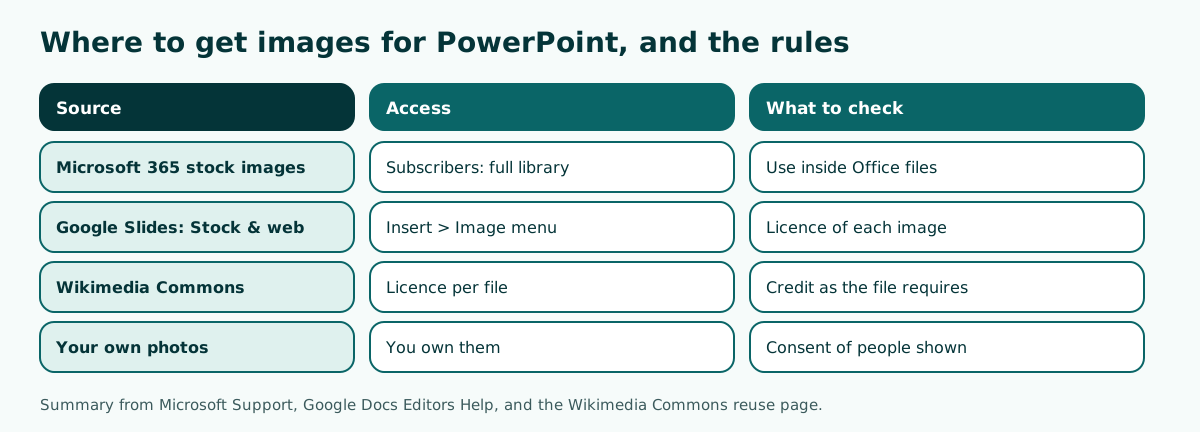
Good images for PowerPoint share three traits: they show what the slide is about, they stay sharp on a projector, and you are allowed to use them. The safest free sources are the stock images library inside PowerPoint (for Microsoft 365 subscribers), the Stock & web option in Google Slides, Wikimedia Commons files with a clear licence, and your own photos.
Many people grab pictures straight from an image search. It is fast, but most of those images belong to someone and are not automatically free to reuse. For a class assignment the risk is small. For a work presentation, a training deck, or a pitch to investors, an unlicensed image can become a real problem.
This guide covers where to find images, how to read their licences, how many pixels a 16:9 slide needs, layouts that make images work, how to insert them in PowerPoint and Google Slides, how to compress them so the file stays small, and how to write alt text. If you are planning the whole look of your deck, also read our slide design guide and PowerPoint layout guide.
Free sources of images for PowerPoint
Four sources cost nothing extra and come with clear rules:
- Stock images in PowerPoint. According to Microsoft Support, Microsoft 365 subscribers can use a growing library of thousands of royalty-free images, icons, illustrations, and videos. Office 2021 and Office for the web users without a subscription get a portion of the library.
- Stock & web in Google Slides. Google Docs Editors Help says the Insert image menu offers Stock & web for stock images, GIFs, stickers, and Google images. For images from the web, check each licence yourself.
- Wikimedia Commons. Good for photos of real places, historical figures, or objects. Every file carries its own licence.
- Your own photos. The safest choice for event photos, product shots, or your office, as long as the people shown agree.
Icons are images too. For simple symbols such as ticks, arrows, or people, PowerPoint's built-in icons often look cleaner than photos. See our PowerPoint icons guide for how to use them.
Reading licences and crediting images
A licence decides whether you may use, edit, and share an image. The Wikimedia Commons reuse page explains that every file on Commons should be reusable, but each may have different requirements for crediting the photographer and linking the licence. The Wikimedia Foundation owns almost none of that content; the individual creators do.
In practice, for each Commons image note three things: the creator's name, the licence (for example CC BY-SA 4.0), and the link to the file page. Add a small credit in the corner of the slide or on a sources slide at the end, such as: "Photo: Photographer Name, CC BY-SA 4.0, Wikimedia Commons".
Microsoft 365 stock images are meant to be used inside Office documents and presentations. Do not export them as separate files for use in other apps. For images from a web search, assume they are copyrighted until you find a clear licence. The habit of citing sources also pays off in academic decks such as a thesis defense presentation, where examiners often ask where data and images came from.
How to choose a relevant image
An attractive image is not always right for a slide. Ask four questions while choosing:
- Does the image show the slide's content directly? A slide about crop yields should show a field, not a handshake used as a metaphor.
- Is there room for the title? Photos with open sky or a plain wall are easier to place text on.
- Do the people match the audience? Audiences relate more to people who look like them.
- Is the style consistent? Do not mix photos, cartoons, and 3D renders in one deck.
One slide needs one message and one main image. If you need several images, for example to compare three products, arrange them in a grid at the same size. Image colours also affect the slide, so pick photos whose colours do not clash with your PowerPoint theme.
Avoid images that only fill empty space. If a slide is already clear with text and numbers, a decorative picture pulls attention away. Leave white space instead, or use a calm PowerPoint background.
How many pixels an image needs on a slide
Slide size decides how many pixels you need. According to Microsoft Support on slide size, the Widescreen 16:9 size is 13.333 x 7.5 inches and is the default for new presentations. If the slide is shown on a 1920 x 1080 screen, a full-width image needs 1920 pixels. A half-width image needs about 960 pixels.
There is an upper limit too. Microsoft Support states that the default picture resolution in Microsoft 365 is 220 ppi. On a slide 13.333 inches wide, that equals about 2933 pixels for a full-width image. Images much larger than that only add file size without looking sharper on screen.
Scroll the table sideways to see every column.
| Image placement | Minimum for a 1920 x 1080 screen | Equivalent at 220 ppi |
|---|---|---|
| Full slide | 1920 px | about 2933 px |
| Half slide | 960 px | about 1467 px |
| One third | 640 px | about 978 px |
The right column is the slide width multiplied by 220. Other slide sizes such as 4:3 are covered in our PowerPoint slide size guide.
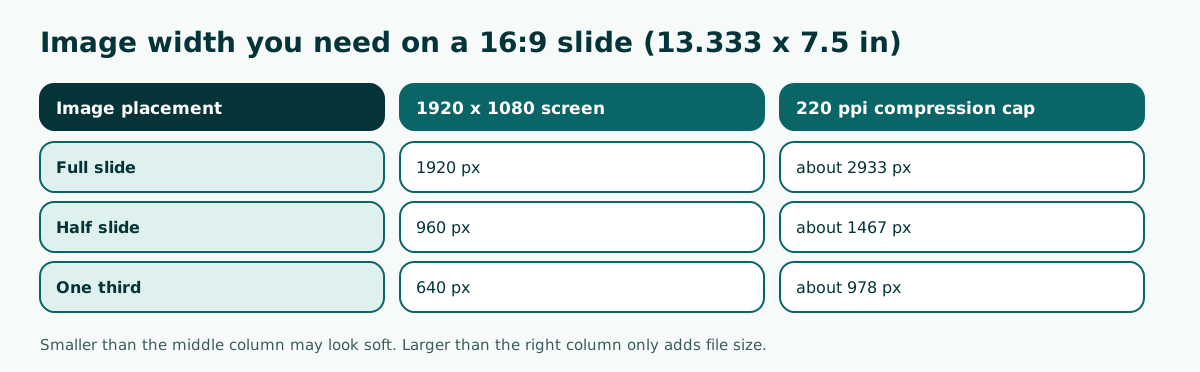
Image layouts that work on slides
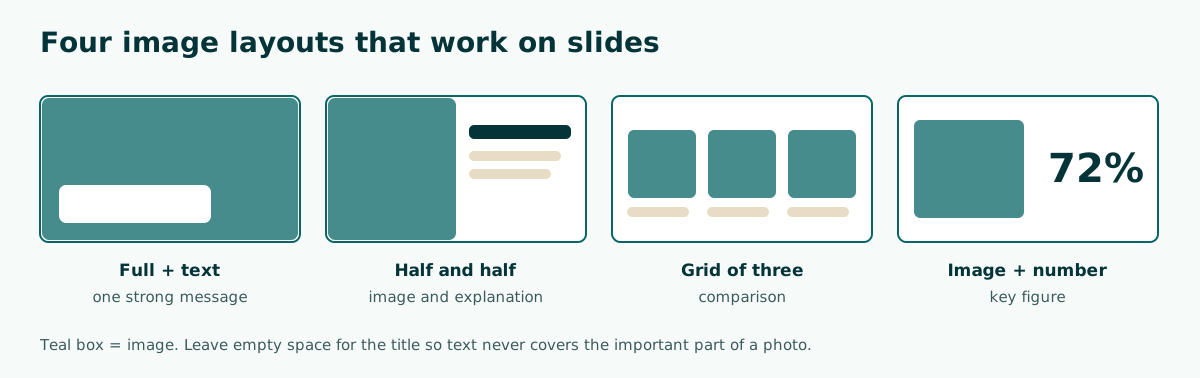
Images work best when their position has a purpose. These four patterns are the most common and are easy to build in PowerPoint or Google Slides:
- Full-bleed image with text on top. Good for section openers or one strong message. Put a semi-transparent box behind the text so it stays readable.
- Half image, half text. The safest pattern for explanation slides. Image on the left, points on the right.
- Grid of three images. For comparing products, places, or stages. Keep all three the same size and ratio.
- Image with one big number. To highlight a key figure, such as a survey result.
Text over photos is often hard to read. Check the contrast; our readable presentation contrast guide explains how. For more slide arrangements, see PowerPoint layout, and to set the layout once for every slide, use the slide master.
How to insert images in PowerPoint and Google Slides
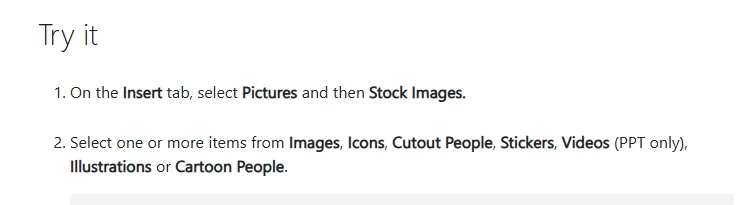
In PowerPoint, the steps from Microsoft Support for the stock library are:
- On the Insert tab, select Pictures and then Stock Images.
- Select one or more items from Images, Icons, Cutout People, Stickers, Videos (PPT only), Illustrations, or Cartoon People.
- Type a keyword in the search box, pick the images, and insert them.
For a photo on your computer, choose Insert, Pictures, then This Device. Once the image is on the slide, use Crop on the Picture Format tab to remove what you do not need.
In Google Slides, Google Help explains: click Insert, choose Image, then pick a source: upload from computer, Stock & web, Drive & Photos, camera, or by URL. If a Google Slides deck will later be opened in PowerPoint, check image positions after conversion, as covered in our guide to converting Google Slides to PowerPoint.
Compressing images so the file stays light
Images are the main reason a PowerPoint file grows large. According to Microsoft Support, you can select a picture, open the Picture Format tab, and choose Compress Pictures in the Adjust group. Tick the option to apply it only to that picture, or clear it to compress every picture in the file, then choose a resolution.
A few habits help:
- Crop first, then compress. The option to delete cropped areas removes pixels that are not visible.
- Do not insert a raw 12 megapixel camera photo if it only fills half a slide.
- Use JPG for photos and PNG for images with text or a transparent background.
If the file is still too large to email or upload, follow the further steps in how to reduce PowerPoint file size. A smaller file also opens faster on a borrowed laptop or a conference room PC.
Alt text for images on slides
Alternative text (alt text) is a short description that screen readers read aloud. Microsoft Support explains that alt text helps people with visual disabilities understand pictures and other graphical content. Decks shared as files, such as training material or reports, should have alt text on every meaningful image.
Write alt text that explains what the image shows and why it matters, not the file name. A weak example: "IMG_2041.jpg". A better one: "Bar chart showing sales rising from 120 units in January to 210 units in March". For purely decorative images, mark them as decorative so screen readers skip them.
In PowerPoint, right-click the image and choose the alt text option. The built-in accessibility checker will also flag images that have no description. This habit fits the wider goal of readable slides, including choosing clear fonts for presentations.
Example: from slide title to the right image
Say you are preparing a slide for a small-business support programme with the working title "Business Mentoring". The title is too general, so the image you pick will be general too. Rewrite the title as a specific message first, then derive the image keywords from it.
Working title : Business MentoringNew title : 40 small businesses grew after 6 months of mentoringImage message : a small business owner at work in their shopKeywords : corner shop owner, batik craftsperson, family restaurantLayout : half image (left), big number 40 (right)Credit : own event photo, participants gave consentThis way you search for images by message, not just by topic. The result is more relevant and easier for the audience to remember. If you have real photos from the programme, they are the best choice because they double as evidence. For a team setting, our group presentation guide shows how to split slides between speakers.
Common mistakes with images in PowerPoint
A few mistakes show up again and again in work and class decks. Knowing them helps you review slides before you present:
- Stretched images. Dragging a side handle changes the ratio. Drag a corner while holding Shift, or set the size on the Picture Format tab.
- Visible watermarks. Preview images from paid stock sites carry a watermark. That is a sign you have not licensed them yet.
- Text covering a face or the main object. Move the text to empty space or crop the image so the subject shifts.
- Mixed image styles. Realistic photos next to cartoons make a deck look untidy.
- Blurry images on the projector. Usually a small image was enlarged. Replace it with a larger version based on the resolution table above.
- Too many images on one slide. More than three or four leaves the audience unsure where to look.
Before presenting, start the slide show and check each slide from a few steps away. It quickly reveals blurry images, hidden text, or crowded slides. If the deck will run on another computer, bring a compressed copy as a backup.
Outline first, images second
Many people start a deck by hunting for images and then struggle with what to write. A more efficient order is to draft the slide outline first: a title for each slide, the main points, and a rough timing. Once each slide's message is clear, finding images is much faster because you know what needs to be shown.
Soluslide helps with that outline step. Enter a topic or upload a document in the Soluslide builder, edit the titles and notes for each slide, then export an editable .pptx after signing in with a beta account. You then add images yourself in PowerPoint, because the text boxes and shapes in the exported file stay movable and editable. The full list of what it does is on the features page.
Whatever tool you use, the principle is the same: one slide, one message, one image that truly shows that message, with a clear licence and a sensible file size. For a tidy starting design, you can also use free PowerPoint templates.
Frequently asked questions
Where can I find free images for PowerPoint?
Use Stock Images in PowerPoint (full library for Microsoft 365 subscribers), Stock & web in Google Slides, Wikimedia Commons files with a clear licence, or your own photos.
Can I use Google Images in PowerPoint?
Not automatically. Most images in search results belong to someone. Use images with a clear licence or your own photos, especially for work and business decks.
What resolution should images be for PowerPoint?
For a 16:9 slide shown on a 1920 x 1080 screen, a full-width image needs about 1920 pixels and a half-width image about 960 pixels.
How do I insert stock images in PowerPoint?
On the Insert tab, select Pictures and then Stock Images. Search with a keyword, choose the images, and insert them.
Why did my PowerPoint get so big after adding images?
Usually raw high-resolution photos were inserted as they are. Crop them, then use Compress Pictures on the Picture Format tab; the Microsoft 365 default is 220 ppi.
How should I credit an image on a slide?
Give the creator, the licence, and the source, for example "Photo: Photographer Name, CC BY-SA 4.0, Wikimedia Commons", in the slide corner or on a sources slide.
What is alt text on a PowerPoint image?
A short description that screen readers read so people with visual disabilities can understand the image. Purely decorative images can be marked as decorative.
Can I use Microsoft stock images outside PowerPoint?
Stock images are meant for use inside Office files. Do not export them as standalone files for other apps.
Sources
Factual claims in this article refer to the sources below. Sample outlines and prompts are illustrations to adapt.
- Microsoft Support: Insert images, icons, and more in Microsoft 365
- Microsoft Support: Reduce the file size of a picture in Microsoft Office
- Microsoft Support: Change the size of your PowerPoint slides
- Google Docs Editors Help: Insert or delete images & videos
- Wikimedia Commons: Reusing content outside Wikimedia
- Microsoft Support: Add alternative text to a shape, picture, chart
Related reading
Try shaping your own outline. You can review and edit it before signing in.
Build a free outline