
Business Presentation: How to Build One That Wins a Decision
A strong business presentation starts with one decision you need. Every slide after that exists to make the decision easy to take.

What a business presentation is, and how to build one
A business presentation exists to move one business decision forward: approve a budget, buy a product, continue a partnership, or fix performance. Building one always starts from that decision. Write in one sentence what you are asking the audience for, then build slides that explain the situation, your proposal, the evidence and the next steps in support of that request.
On the design side, the basics are the same as for any deck. Microsoft Support recommends simple fonts, no font sizes smaller than 18 pt, short one-line bullets, and high contrast between background and text. On delivery, Microsoft Support advises against reading your slides, recommends staying on time, and suggests checking your equipment early.
This guide covers the main types of business presentation, a flow people can follow, how to show numbers, a sample ten-minute outline, and preparation for the day. If you are building a business plan deck specifically, see our guide to the business plan presentation as well.
Types of business presentation and what each one is for
"Business presentation" covers a lot of situations. A quarterly report to the board, a project proposal to a budget holder and a sales presentation to a prospect are all business presentations, but the audience and the decision differ. Naming the type helps you pick what must be included and cut what is not needed.
Scroll the table sideways to see every column.
| Type | Audience | Decision you ask for | Must include |
|---|---|---|---|
| Performance report | Managers, board | Approve corrective actions | Target vs actual, cause of the gap, plan |
| Project proposal | Budget holder | Approve budget and timeline | Problem, proposal, cost, risks, timeline |
| Sales presentation | Prospective customer | Trial or purchase | Buyer's need, solution, proof, price |
| Business pitch | Investors, partners | A follow-up meeting or funding | Market problem, product, business model, team |
| Project update | Team, stakeholders | Remove blockers | Progress, blockers, help needed |
Look at the decision column. Each type asks for something specific, and every slide should lead there. A performance report that shows numbers without a corrective plan leaves managers unsure what to decide. A sales presentation that spends too long on company history gives the buyer no reason to keep listening.
Investor pitches follow an even more specific pattern; the full guide is in our article on the AI pitch deck generator. For presenting to a public agency or government meeting, see our meeting presentation guide, since the audience and format differ from a private company.
A flow people can follow: from decision to next steps
The safest flow for a business presentation is decision, situation, proposal, evidence, next steps. Stating the decision up front tells the audience from minute one what they need to weigh, so they listen with a purpose instead of waiting for the conclusion at the end.
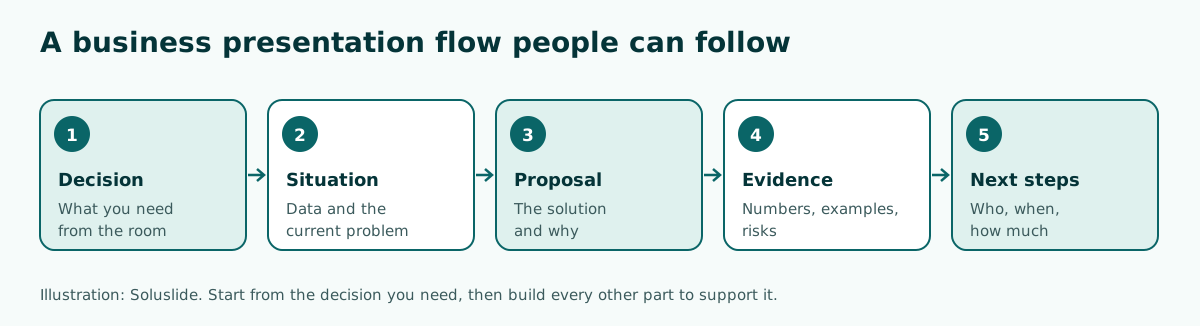
- Decision. One sentence with the ask, for example approving extra promotion budget for three months.
- Situation. Current data and the problem that makes the decision necessary now.
- Proposal. The solution you recommend and why it beats the alternatives.
- Evidence. Numbers, examples, small trials, and the risks you have considered.
- Next steps. Who does what, by when, and at what cost.
You can compress this flow for a five-minute slot or expand it for an hour-long meeting. Other structure patterns, such as problem and solution or chronological, are explained in our guide to presentation structure.
Opening and closing a business presentation
In a business setting, the first minute decides whether people pay attention. Avoid opening with a long company profile. Open with a problem or number that matters to the audience, then state the decision you are asking for. For example: "Our ad costs have doubled since July, and today I am asking for approval to move part of the budget to cheaper channels."
The close matters just as much. Repeat the decision you need, sum up the three main reasons, and end with concrete steps. Do not finish on a bare "Thank you" slide, because the last slide often stays on screen through the Q&A. A final slide with the ask and the next steps keeps the discussion focused.
Microsoft Support suggests asking the audience to hold questions until the end so you can get through your material uninterrupted, noting that early questions are often answered by later slides. For an informal internal meeting you can relax this, but say so at the start. More ideas for openings and endings are in how to start a presentation and how to end a presentation.
Presenting business numbers and data
Business presentations almost always include numbers: sales, costs, targets or forecasts. How you show them decides whether they help the decision or confuse it. A few habits help:
- One chart, one message. Write the chart's conclusion as the slide title, such as "Online sales grew while stores stayed flat", not "2026 sales chart".
- State the period and the source. Numbers without a period are easy to misread. Add a small note under the chart, for example till data from July to September.
- Round the figures. On a slide, $1.2 million lands faster than $1,198,450. Keep the exact figure in an appendix.
- Label only as much as needed. Microsoft Support advises using only enough text to make chart labels understandable.
If a number is uncertain, such as a forecast, mark it as an estimate and explain the assumptions in your speaker notes. Business audiences usually respect honest assumptions more than numbers that look too perfect. Choosing a chart type and building it in PowerPoint is covered in how to make a graph in PowerPoint, and for tabular data see how to make a table in PowerPoint.
Tailoring the content to your audience
The same deck can land with one audience and fall flat with another. Before you build slides, answer three questions about the people in the room: what they already know, what worries them most, and how much attention they can give you.
- Executives usually want the conclusion and the headline numbers first. Keep detail in an appendix and show it only when asked.
- Operations teams care about tasks, owners and deadlines. Give more weight to the next-steps slide.
- Prospective customers want to know whether their problem gets solved. Start from their need, not your feature list.
- Finance will test your cost assumptions. State sources and periods clearly.
Adjust your language too. Avoid internal acronyms, or explain them the first time they appear. With a mixed audience, keep slide language plain and save technical terms for Q&A. Microsoft Support suggests watching audience behaviour every time you present: if people focus on reading the slides, the slides may hold too much data or be confusing. That lesson helps you tune the next presentation for the same audience. If you present with colleagues, agree on roles early; our group presentation guide shows how.
Slide design that looks professional
A business deck does not need flashy design. It needs consistency and readability. Microsoft Support recommends subtle, consistent slide backgrounds, a template or theme that is not too eye-catching, and high contrast between background and text. Use your company colours as accents rather than as full backgrounds.
Practical rules of thumb:
- Use one template for the whole deck, with the logo and slide numbers set in the Slide Master.
- Keep text short, ideally one-line bullets. Move long explanations to the speaker notes.
- Use charts and images to help tell the story, but do not overwhelm a slide with too many graphics.
- Check spelling and grammar. Microsoft Support says this is how you earn and keep the audience's respect.
Choosing colours for an office deck is covered in our PowerPoint colour palette guide, and fonts that read well from a distance are listed in best fonts for presentations.
Example: a ten-minute business presentation outline
Here is an outline for a next-quarter sales plan presented to a management team, with time per slide. Square brackets are where you add your own data.
Slide 1 (1 min): Today's ask, approve next quarter's target and budgetSlide 2 (1 min): This quarter's result, target [number] vs actual [number]Slide 3 (1.5 min): Why we missed or beat it, three key findingsSlide 4 (1.5 min): Proposed target for next quarter and the reasoningSlide 5 (1.5 min): Strategy by channel, what we keep and what we stopSlide 6 (1 min): Budget needed, [amount] per monthSlide 7 (1 min): Risks and how we will handle themSlide 8 (1.5 min): Next steps, owners and deadlinesTo draft an outline like this faster, you can use Soluslide. Enter a topic, pick an event type and duration, and Soluslide drafts slide titles, bullet points, speaker notes and minutes per slide that you can edit before signing in.
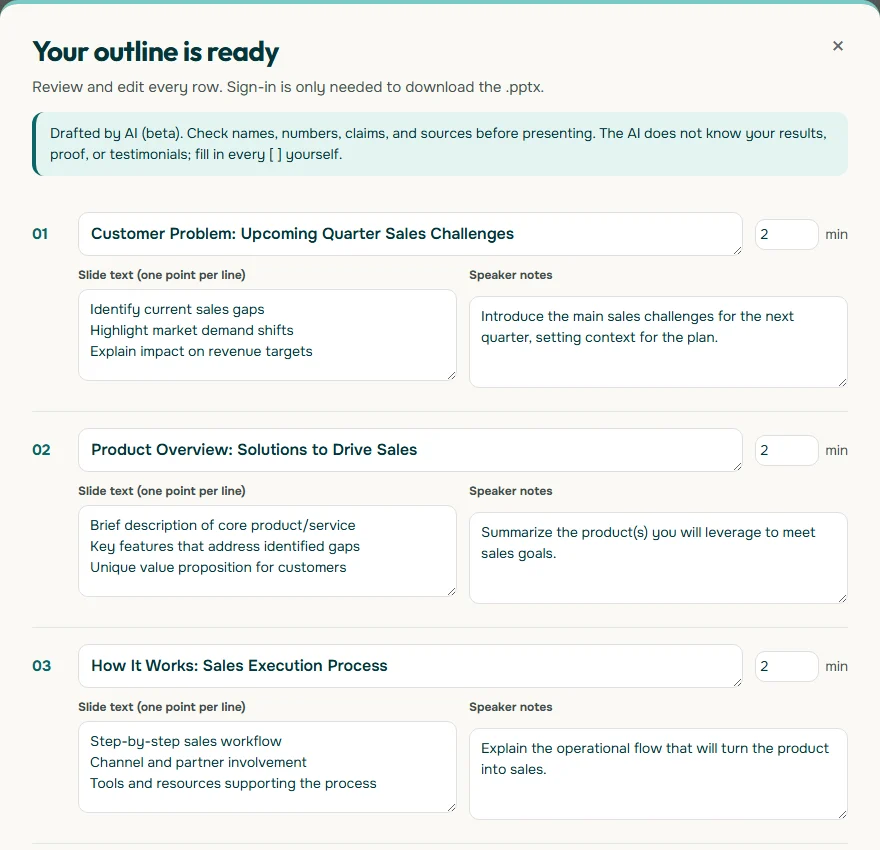
Note the warning at the top of the outline: AI output needs checking, and every square bracket must be filled with your own data. Reorder the slides to match the decision flow above before you export. Writing a request that produces a better outline is covered in our AI presentation prompt guide.
Rehearsal and PowerPoint tools that help
Good business presentations are almost always rehearsed. Microsoft Support recommends practising so you can speak from your bullet points instead of reading the slides, because the text on a slide should be a cue for the presenter, not the full message for the audience.
Two PowerPoint features help with rehearsal and delivery:
- Speaker Coach. According to Microsoft Support, it evaluates your pacing, pitch, filler words, informal speech, and detects when you are overly wordy or simply reading the slide text. After each rehearsal you get a report with statistics and suggestions. In PowerPoint for Windows, go to the Slide Show tab and select Rehearse with Coach.
- Presenter View. Shows your speaker notes on your screen while the audience sees only the slides. Microsoft Support also explains how to swap the screens if they come up the wrong way round.
Writing short, glanceable speaker notes is covered in our speaker notes in PowerPoint guide. For general delivery advice, see how to give a good presentation.
Preparing on the day
Many business presentations fail on technical problems, not on content. Microsoft Support advises arriving early to make sure the equipment works, not assuming your presentation will run fine on another computer, turning off screen savers, and checking that the projector resolution matches the computer you built the deck on so slides are not cropped.
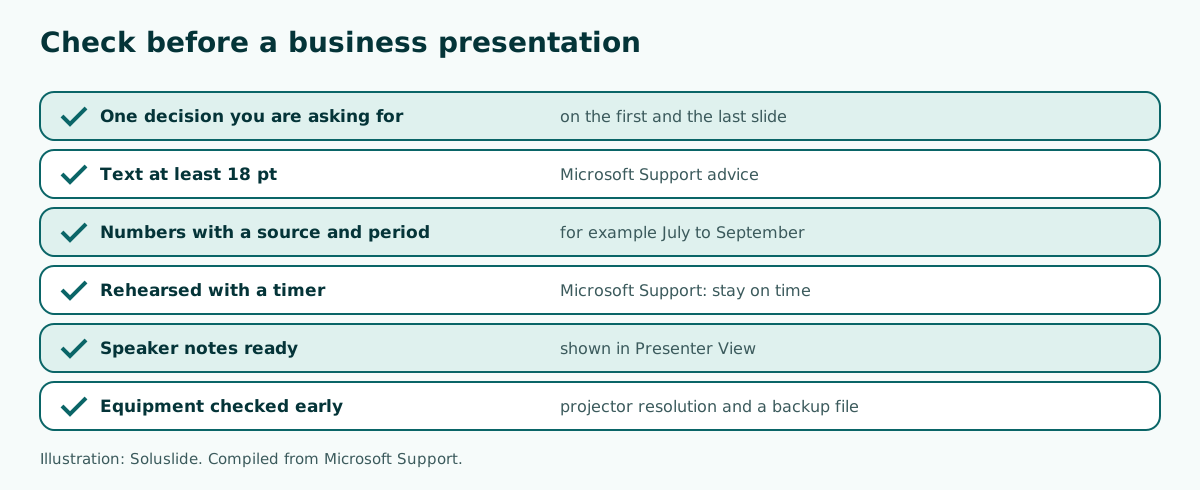
Keep backup copies on a USB drive and in cloud storage, and carry a PDF version in case fonts differ on the other machine. Microsoft Support also recommends staying on time; if there is no limit, finishing early beats running long. Afterwards, watch how the audience behaved: if people were busy reading your slides, they may have been too dense. Note that for next time.
If you want an editable .pptx draft as a starting point, Soluslide can export the outline to PowerPoint after you sign in to a beta account, and you then refine the data and design yourself.
Frequently asked questions
What is a business presentation?
A presentation used to move one business decision forward, such as approving a budget, buying a product, or fixing performance.
What are the types of business presentation?
Common types are performance reports, project proposals, sales presentations, business pitches and project updates. Each asks for a different decision.
What is a good structure for a business presentation?
The decision you need, the current situation, your proposal, the evidence, then next steps. State the decision early so people listen with a purpose.
What font size should business slides use?
Microsoft Support suggests avoiding sizes smaller than 18 pt, and going larger for a big room.
How should I show numbers in a business presentation?
One chart per message, a title that states the conclusion, the period and source of the data, and rounded figures. Keep exact numbers in an appendix.
When should I take questions?
Microsoft Support suggests asking the audience to hold questions until the end so you can finish uninterrupted. Announce the rule at the start.
Which PowerPoint features help me rehearse?
Speaker Coach rates your pace, filler words and whether you read the slides, then gives a report. Presenter View shows your notes only on your screen.
Can AI help create a business presentation?
Yes, for a first outline. Soluslide drafts titles, points, notes and minutes per slide from a topic, but you still add and check the data and claims yourself.
Sources
Factual claims in this article refer to the sources below. Sample outlines and prompts are illustrations to adapt.
Related reading
Try shaping your own outline. You can review and edit it before signing in.
Build a free outline